Billing and invoices
Buy or change a Clout Browser plan, manage the payment card, view invoices, and stop renewal.
On this page
Use Billing for Clout Browser payments. The workspace owner manages the plan and buys traffic. If you are a teammate, ask the owner to make the change.
Hydra X and Clout Studio VIP are set up with the Clout team, with pricing on request. Talk to us to arrange them.
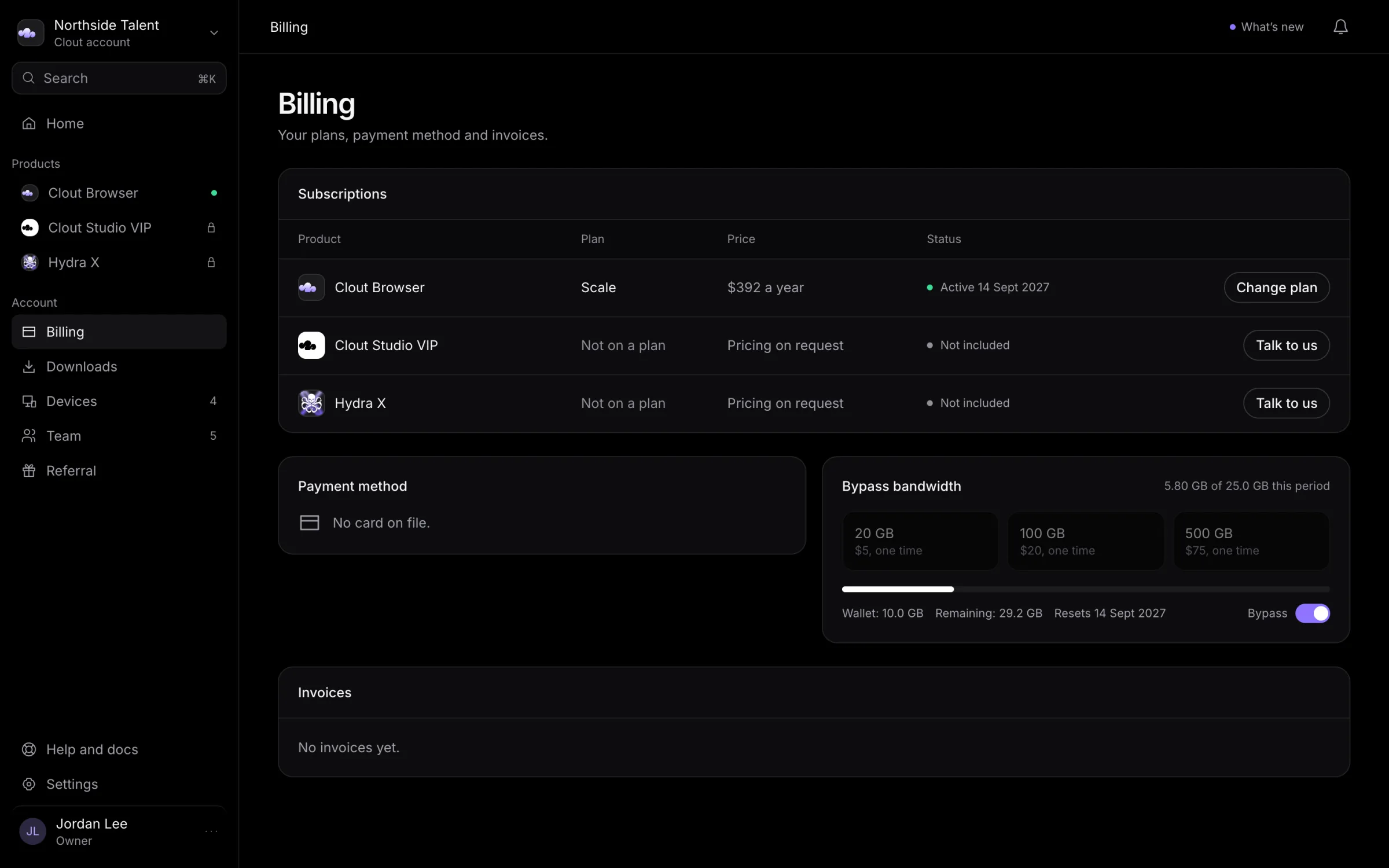
Buy a Clout Browser plan
- Review the current plans at cloutlabs.co/pricing.
- In Billing, select Choose a plan beside Clout Browser.
- Choose a billing period, select a plan, and choose an offered profile count. Review the plan allowances on the pricing page.
- Use the Choose button naming your selected plan and period, then complete payment through Stripe.
- When Clout confirms the payment, select Open Billing to check the plan or Download the app to install Clout Browser.
Monthly, quarterly, and yearly choices renew. The Buy once choice is one payment with no renewal and no included bypass allowance. Buy a traffic pack separately if you need bypass with that choice.
Buying once does not cancel an existing recurring subscription. If you already have one, arrange its cancellation separately before switching.
Change a recurring plan
Select Change plan beside Clout Browser in Billing. In the dialog, select the new plan, profile count, and period, then use the Switch to button naming your choice.
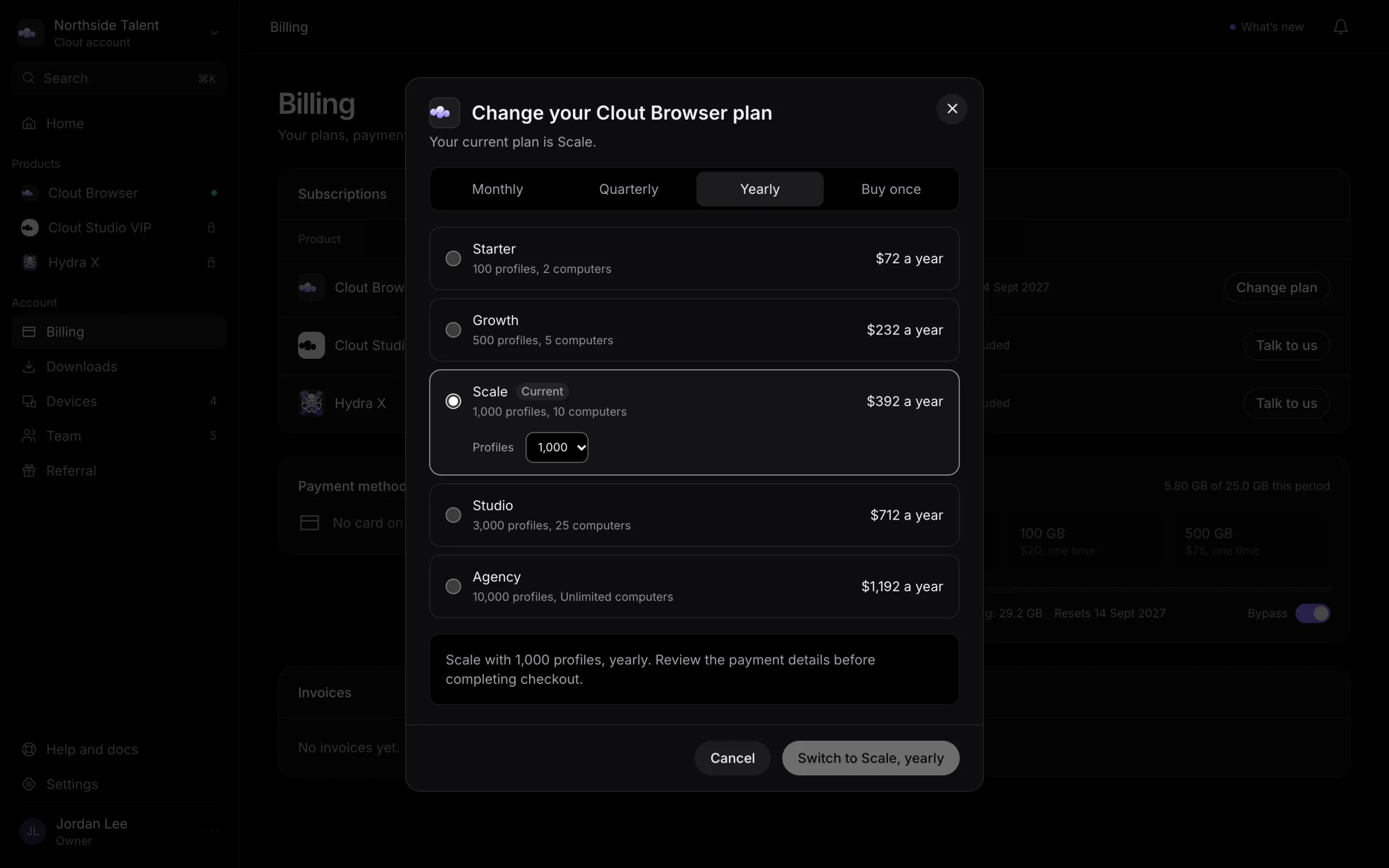
For an existing recurring Stripe subscription, the service changes that subscription in place and invoices the prorated adjustment immediately. A successful change also clears a scheduled cancellation. Check the result and Billing before repeating the purchase.
If you add a bypass pack on the pricing page while changing a recurring plan, the plan changes first and the pack opens a separate checkout. Leaving that checkout does not undo the plan change.
If your plan is marked Set up by Clout Labs, talk to us before arranging a replacement.
Card and invoices
Under Payment method, select Update card or Add card to open Stripe's customer portal. Stripe holds your card details; Clout shows the card's brand, last four digits, and expiry.
Under Invoices, select PDF to download the invoice, or View when a hosted invoice link is shown. Card and invoice controls are shown to the owner.
Cancel or resume renewal
Select Manage or cancel subscription in Billing to open Stripe's customer portal and stop renewal. Your plan continues to the end of the paid period. Ends and the date in the subscription row show the scheduled end.
When available, Resume subscription opens Stripe's portal to manage that cancellation. Check the resulting state in Billing.
Failed payments
If Billing shows Payment failed, select Update card. Writes are blocked while the subscription is past due; reads remain available during the seven-day grace period. Check the grace date and plan status after correcting payment.
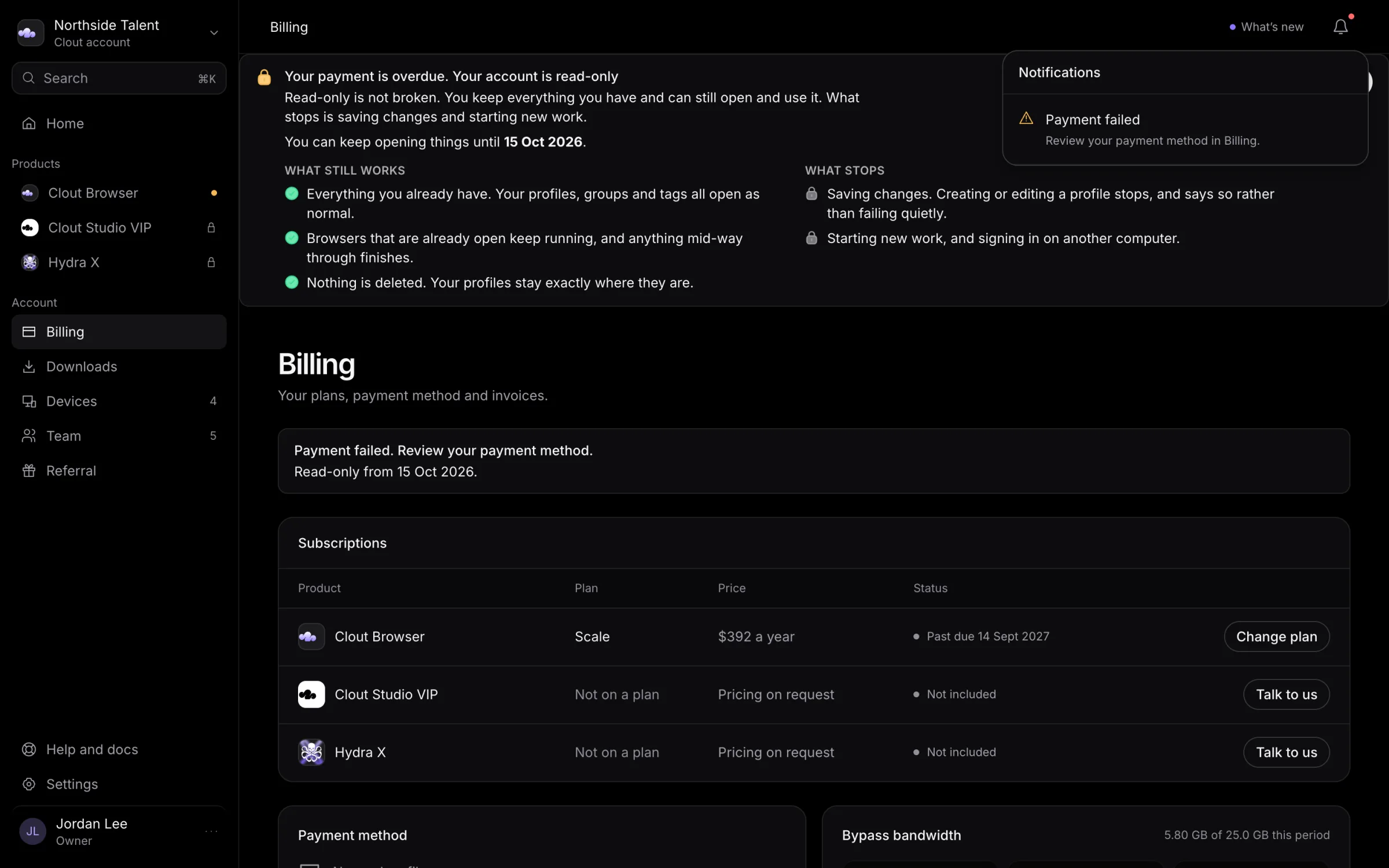
Bypass traffic
Bypass bandwidth shows usage, the wallet balance, remaining traffic, and the reset date. The owner can switch Bypass on or off and buy a prepaid pack.
Packs do not expire. When the available allowance and wallet are exhausted, bypass switches off and traffic uses the profile's proxy. Turning bypass off does not cancel your plan.
Refunds
The refund policy offers a full refund if you ask within 14 days of your first payment. It also explains later cancellations, used bypass packs, and faults on Clout's side. Talk to us from the account you signed in with and identify the payment.