Handing over ownership
Make an existing teammate the workspace owner and understand what the handover leaves attached to your account.
On this page
Only the Owner can hand the workspace over. The recipient must already be on the team; invite them and wait for them to join first.
Before you transfer
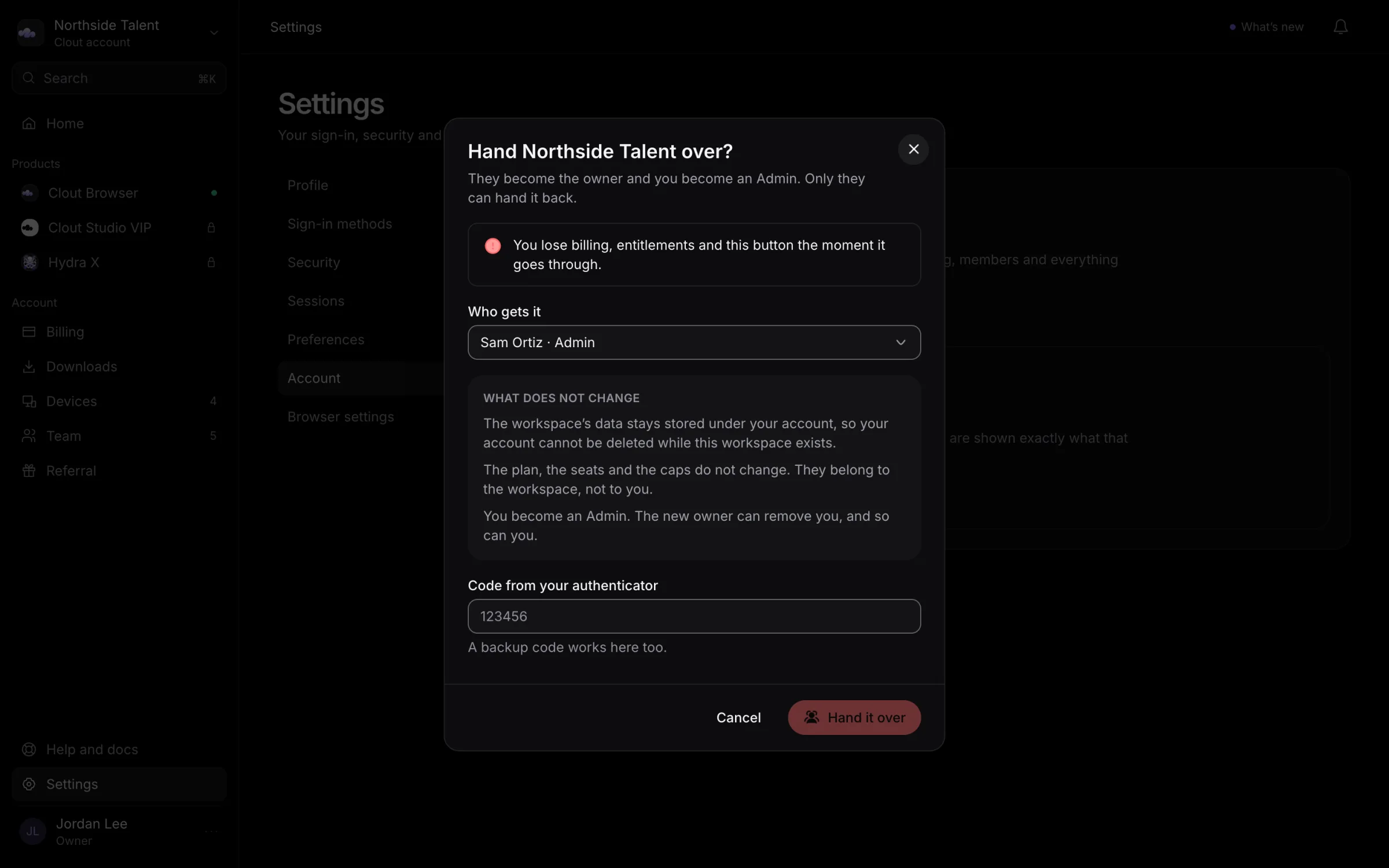
A handover makes the selected teammate the Owner and makes you an Admin. You keep a seat until you leave or someone removes you. You lose the ownership-transfer control, and only the new Owner can hand the workspace back.
The workspace's profiles, saved logins, stored browser data, plan, and entitlements stay where they are. This is a change of ownership, not a move of stored data to a new account.
Your account remains the storage account for this workspace after the handover. You cannot delete that account while the handed-over workspace still exists. Its owner must delete the workspace or hand it back before your account can be deleted.
If the handover also needs a change to who pays for the plan, talk to us before transferring. The handover does not move the subscription to another billing account.
Transfer the workspace
- Open Team.
- Expand Transfer ownership, then select Hand it over. You can also find this control under Settings → Account.
- In Who gets it, choose the teammate who should become Owner.
- Read the consequences shown in the dialog.
- If requested, enter a code from your authenticator or an unused backup code.
- Select Hand it over to confirm.
There is no second acceptance step for the recipient. The transfer takes effect when the request succeeds.
After the handover
Review Team to check the new Owner and your Admin role. If you also want to leave, use Leave team on your row as a separate action.
Do not use account deletion as a way to hand a company over. It has different consequences and may be blocked by the storage relationship described above.