Devices and computers
Rename computers, sign them out or remove them, and review your own portal and app sign-ins.
On this page
Open Devices to manage Clout Browser computers. Expand Your browser and app sessions for your sign-ins, or open Settings → Sessions. A computer holds a slot on your Clout Browser plan. A sign-in is a session belonging to you.
Your computers
A computer appears when Clout Browser signs in on it. There is no Add device step in the portal.
The Owner and Admin can manage the workspace's computers, including teammates' machines. Other members see and manage their own computers. The list shows the name, system, connection location, status, and last seen time.
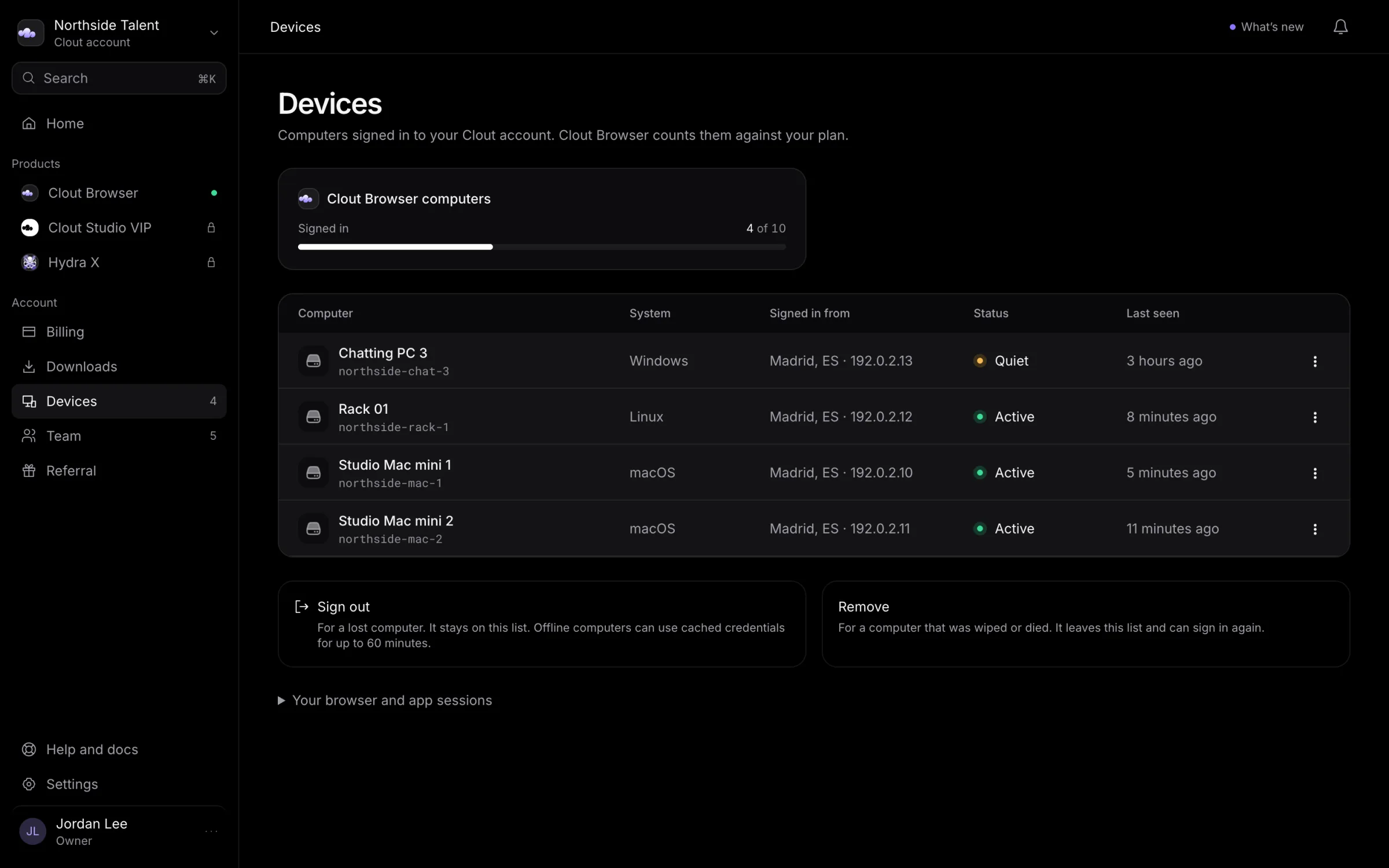
Open the computer's Actions menu and select Rename, enter a Name, and select Save name. A name helps you recognize a machine; changing it keeps the same device ID.
Sign out or remove
| Action | Result |
|---|---|
| Sign out | Ends access, frees the slot, and keeps the row marked Signed out. That computer remains blocked from signing in again. |
| Remove | Ends access, frees the slot, removes the computer from the visible list, and releases its binding. It can sign in again as a new device. |
To sign a computer out, use its sign-out control, type the name shown in the dialog, and select Sign this computer out.
To remove it, use the removal control, type the displayed name, and select Remove this computer. Removal is available to the Owner and Admin. The computer's assignments are revoked; stored workspace profiles and its audit history remain.
An online computer is refused on its next request after sign-out or removal. A computer that cannot reach Clout can keep using cached access for up to 60 minutes after its last successful contact. Browsers already open are not closed by this action.
Read the status
| Status | What the portal is reporting |
|---|---|
| Active | The computer has been in contact within the portal's 60-minute window. |
| Never seen | It signed in but has not been in contact since. |
| Quiet | The portal has not heard from it for over 60 minutes. |
| Signed out | Its access was revoked. Remove it before allowing that machine to return as a new device. |
Your sign-ins
Sessions lists your own active sign-ins. It does not list a teammate's sessions. This one marks the browser you are using.
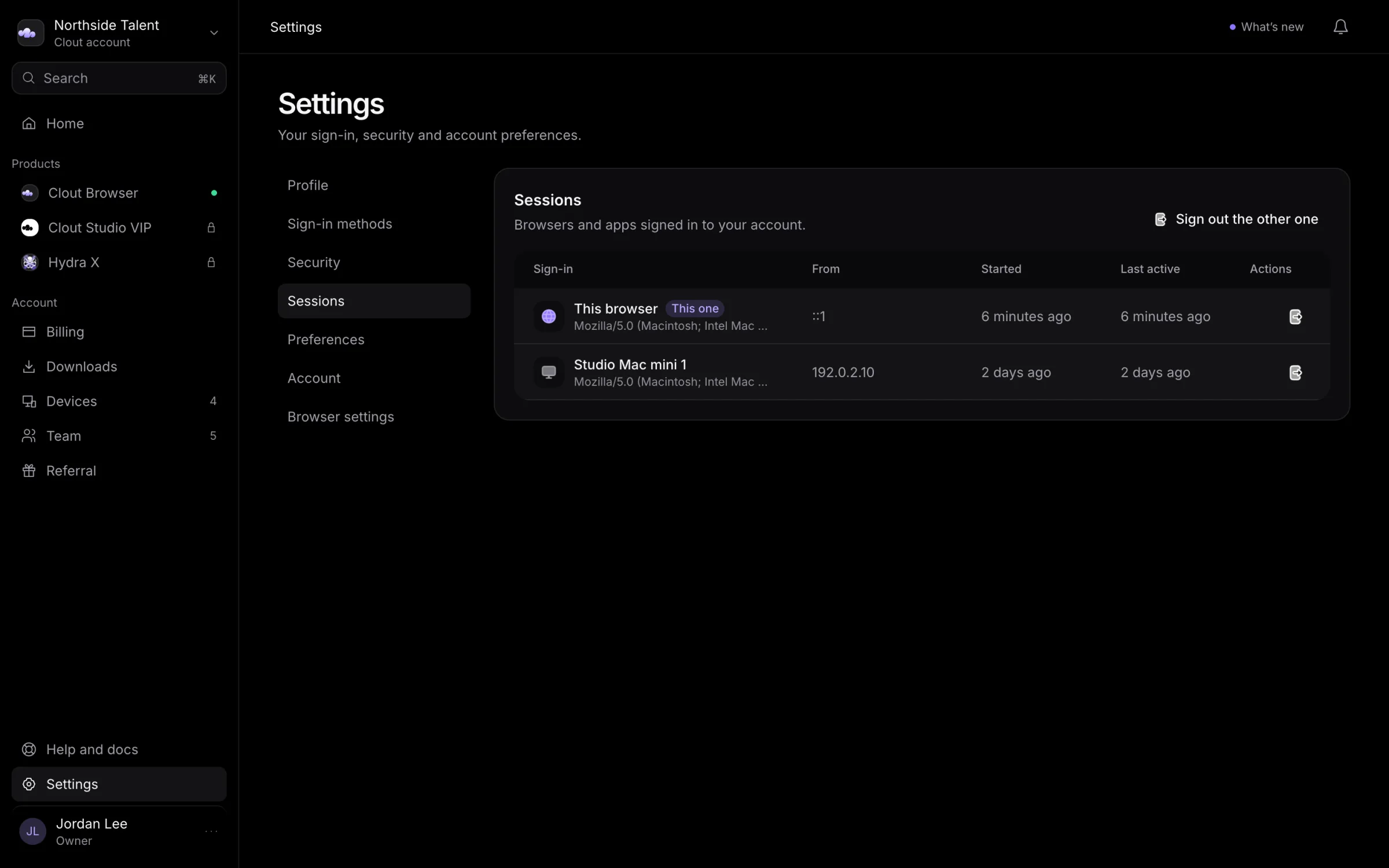
Use a row's sign-out control to end that sign-in. To end the others together, select the button naming the other sign-in or sign-ins and confirm Sign them out. Your current browser stays signed in.
Signing out sessions keeps computers on the list and does not free their plan slots. Use the computer controls above when you need to release a slot or keep a lost machine blocked.