Your team
Invite teammates by email or Telegram username, manage seats, and remove or leave a team.
On this page
Open Team to see your workspace's members and pending invitations. Each person uses their own Clout account. The workspace shares its products and browser profiles, subject to the access you give each teammate.
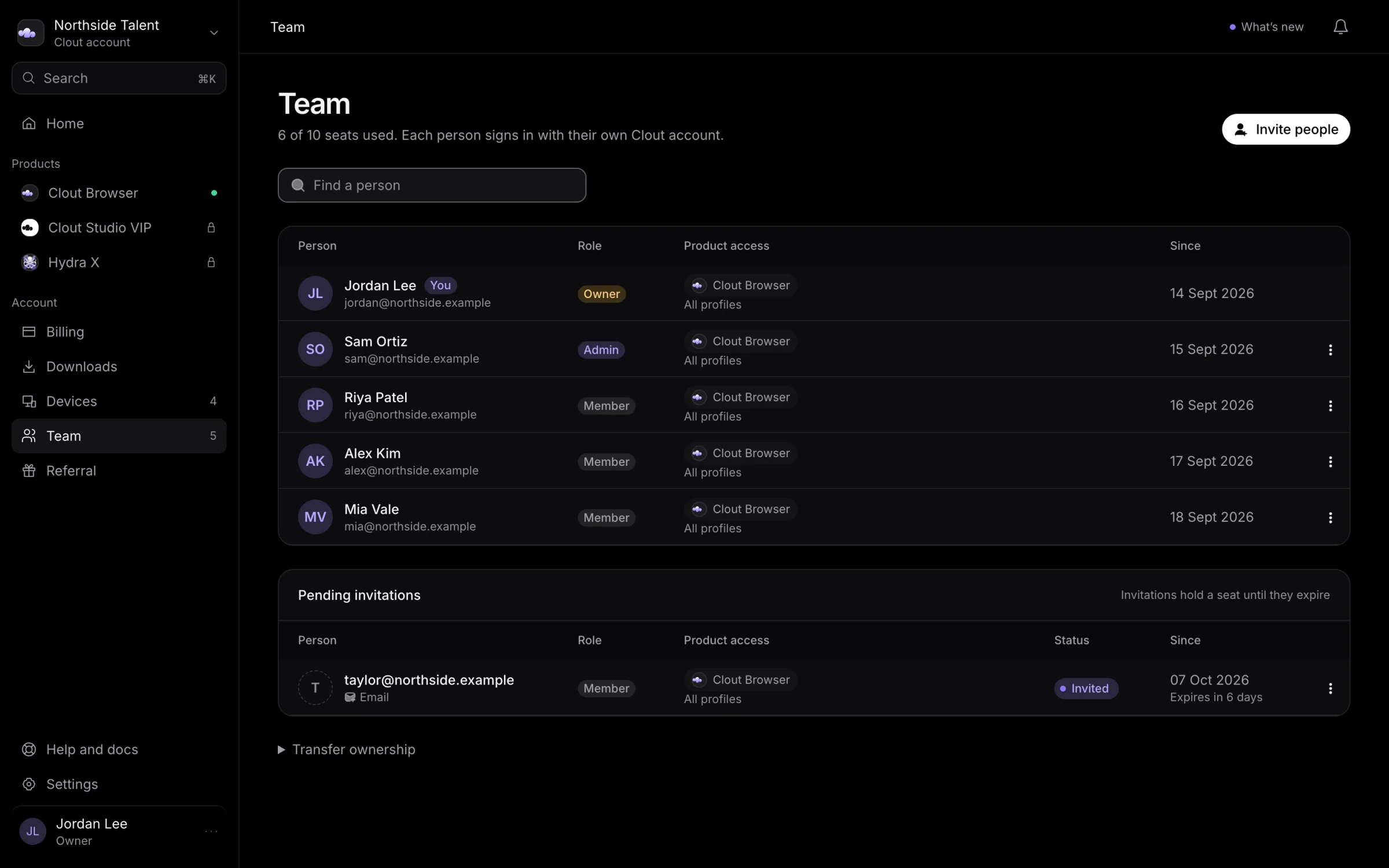
Invite someone
The Owner and Admin can invite people.
- Select Invite people.
- Enter the person's Google sign-in email address or Telegram username.
- Choose Member or Admin.
- Keep Everything on this account switched on, or choose specific products.
- If you include Clout Browser, review its permission choices.
- Select Send invitation.
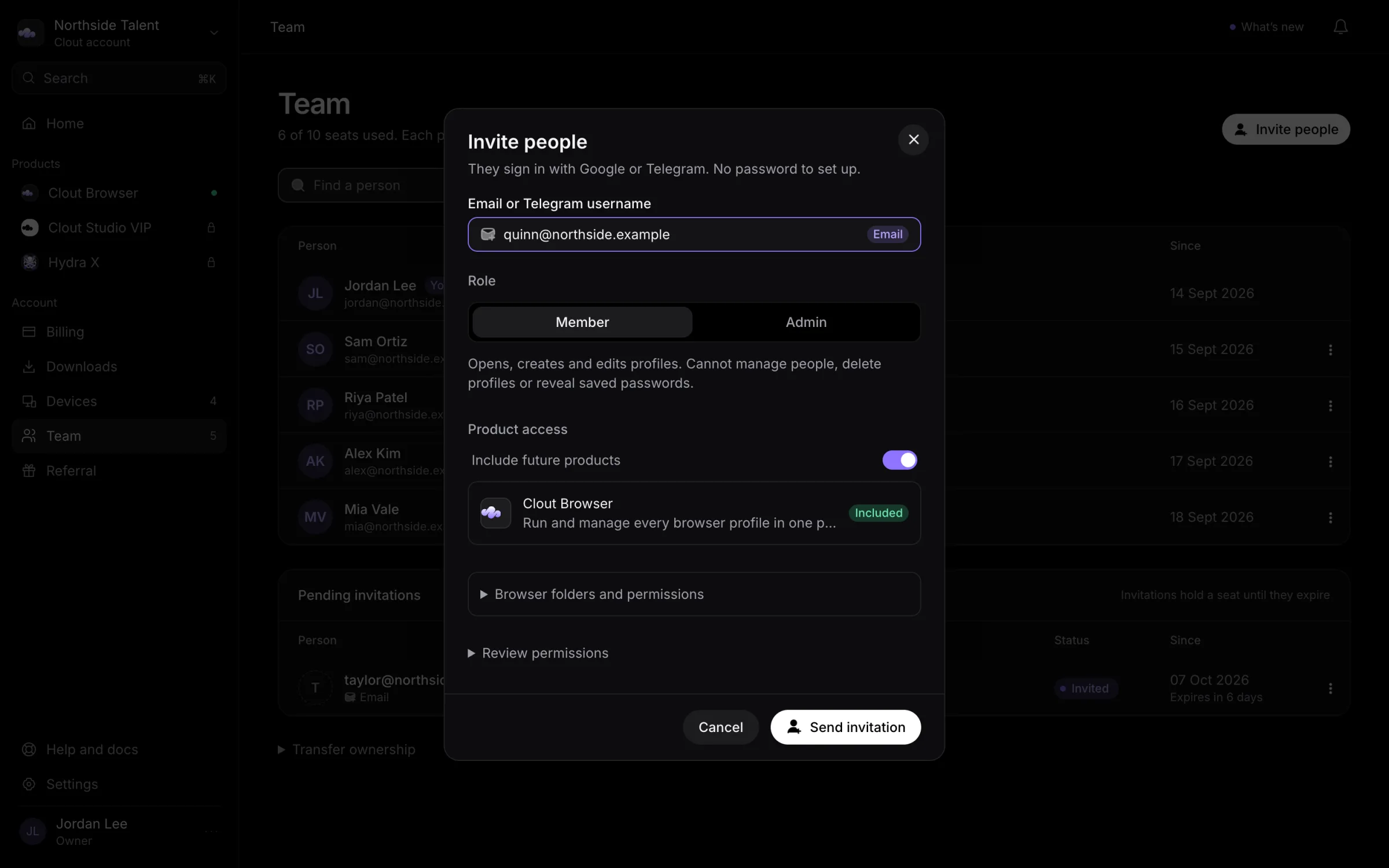
Nothing is emailed. The person sees the invitation in the portal when they sign in with the matching identity. If they are already signed in, they can open the portal to see the invitation.
See Product access before granting access to the whole suite.
Accept an invitation
Sign in with the Google email or Telegram username the invitation names. The invitation appears above the portal page.
Select the Join button naming the team to accept, or Decline to refuse. If the invitation is missing, ask the inviter to check the identifier and whether the invitation is still pending.
Understand the portal roles
| Role shown in the portal | What it allows |
|---|---|
| Owner | Holds the workspace and its billing, manages access, and can transfer ownership. |
| Admin | Manages members and has the Member's profile controls, plus deleting profiles and revealing saved passwords. Billing and ownership transfer belong to the Owner. |
| Member | Opens, creates, and edits profiles. Cannot manage members, delete profiles, or reveal saved passwords. |
Product restrictions and reduced permissions can narrow what someone can do within their role. Use Edit access in the person's row menu to review those choices.
Seats and pending invitations
The count at the top of Team shows how much of the seat allowance is occupied. An unanswered invitation holds a seat as well as a joined member.
When every seat is occupied, Invite people is disabled. To cancel a pending invitation, open its row menu and select Withdraw invitation. You can also select Ask about more seats to discuss the workspace's allowance. Clout Browser seat limits come with the plan; see current plans.
Remove someone or leave
Use Remove from team in another person's row menu, then confirm Remove. The Owner cannot be removed through that menu.
On your own row, use Leave team if you are not the Owner. An Owner who needs to leave must first hand over ownership.
Removing a teammate ends their membership; it does not delete the workspace's profiles.