Authenticators and backup codes
Set up an authenticator, save one-time backup codes, and protect sensitive account changes.
On this page
Open Settings → Security to manage Two-factor authentication and Backup codes. Confirmed authenticators provide the codes requested for sensitive actions such as account deletion and ownership transfer.
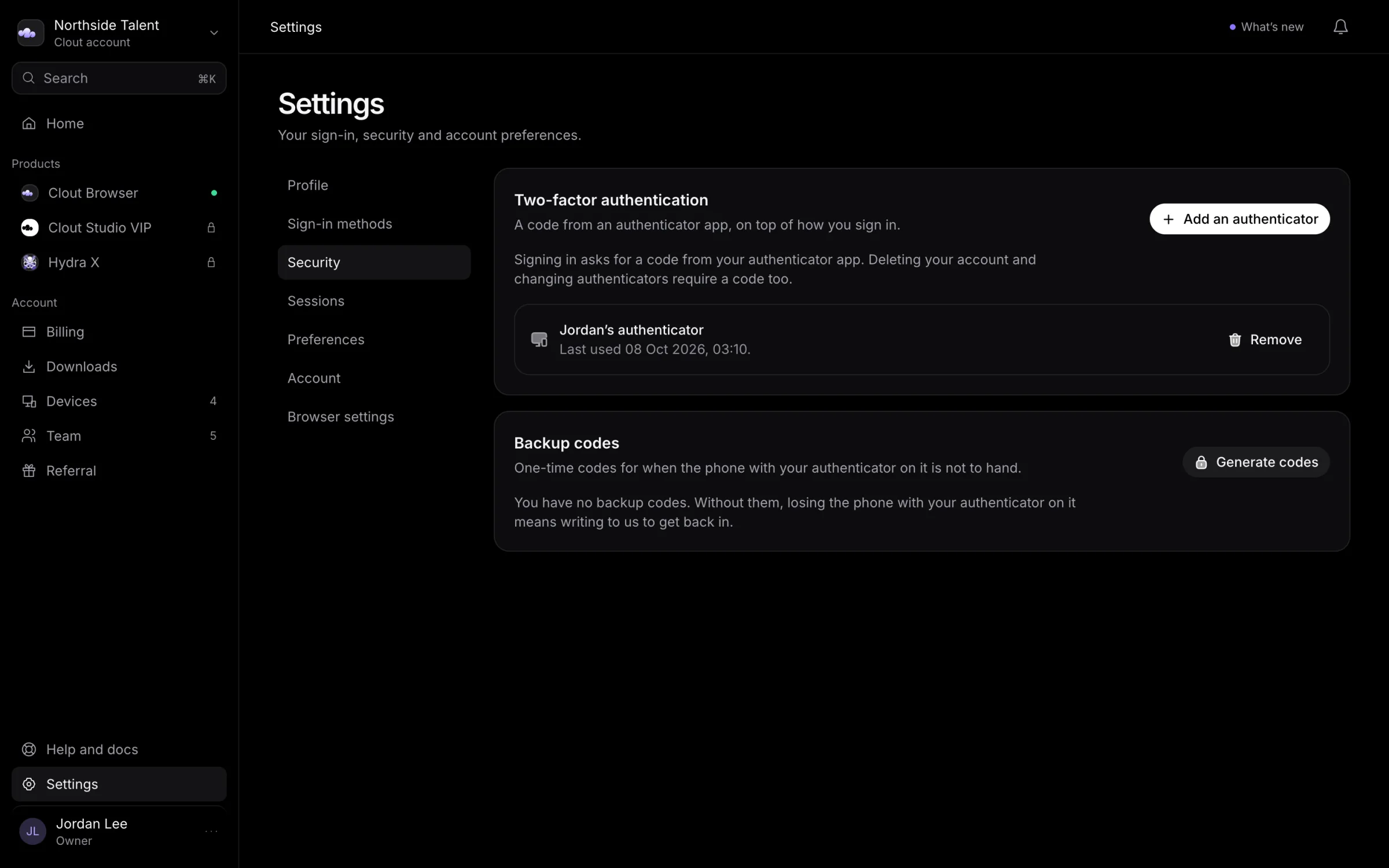
Add an authenticator
- Under Two-factor authentication, select Add an authenticator.
- Give the phone or authenticator app a Name, then select Continue.
- Add the displayed setup key to your authenticator. You can copy the key or use Open in an authenticator app on this device.
- Enter the six-digit Code from the app.
- Select Confirm.
The setup key is shown once. Finish confirmation before the deadline shown in the dialog; an unconfirmed setup expires after 10 minutes and does not protect account actions.
You can have up to five authenticators, including pending setups that have not expired. If the account is full, remove one before adding another.
Save backup codes
After confirming an authenticator:
- Under Backup codes, select Generate codes.
- Enter a code from your authenticator and select Generate.
- Save all ten codes somewhere separate from the phone holding your authenticator.
- Select I have saved them after storing them safely.
Each backup code works once. The codes are shown only in that dialog and cannot be retrieved later. Generating a new set immediately invalidates the previous set, so replace your saved copy.
An unused backup code can stand in for an authenticator code on account actions that accept it. The panel reports how many codes remain.
Remove an authenticator
Select Remove beside the authenticator. Enter a code from any confirmed authenticator on the account, or an unused backup code, and select Remove it.
Review the remaining authenticators before removing one you depend on. Removing the last confirmed authenticator ends the protection those factors provide.
If a code is refused
Check that you entered the current authenticator code or an unused backup code. Repeated wrong codes trigger a shared lockout; the panel shows when attempts can resume. Wait until that time before trying again.
Keep backup codes outside the authenticator's phone. Do not rely on support being able to retrieve a setup key, recover a used code, or bypass a required second factor.
Review access too
Secure the Google or Telegram account you use to sign in. Use Devices to end an unfamiliar sign-in or block a lost computer. If you suspect someone has reached your account, contact Clout.