Browser engines
Understand the two engines, exact version pins, downloads, updates and safe removal of unused engines.
On this page
The app and the browser engine are separate downloads. A profile needs an engine installed on the computer where you open it.
Which engine opens which profile
| Profile source | Stored launch format | Engine |
|---|---|---|
| Created in Clout | AdsPower-compatible | SunBrowser |
| AdsPower | AdsPower | SunBrowser |
| Dolphin Anty, Multilogin or GoLogin | Converted to AdsPower-compatible | SunBrowser |
| Kameleo | Kameleo | Chroma |
Clout routes from the profile’s stored format. There is no engine toggle that converts a SunBrowser identity into a Chroma identity.
SunBrowser is downloaded by Clout. If AdsPower is installed, its kernel directory is also checked for usable engines. Kameleo profiles use Chroma from Kameleo’s installation; keep the required Kameleo engine installed on every computer that will run those profiles.
Understand conversion
Dolphin, Multilogin and GoLogin fingerprints are mapped into the format SunBrowser reads. Canvas, WebGL image and audio noise are engine-specific; moving the configuration does not preserve the original vendor’s output hashes.
Kameleo follows its original format and engine rather than that conversion path. This describes routing, not a guarantee of identical site behaviour after migration. Cookies and local data also depend on what the importer could obtain.
For an established Creator account, inspect the imported identity and session before moving the rest of your fleet. Importing profiles explains each source’s requirements.
Open Browser engines
Use the download icon in the top navigation. The page is headed Browser engines and compares installed engines with the versions your profiles pin.
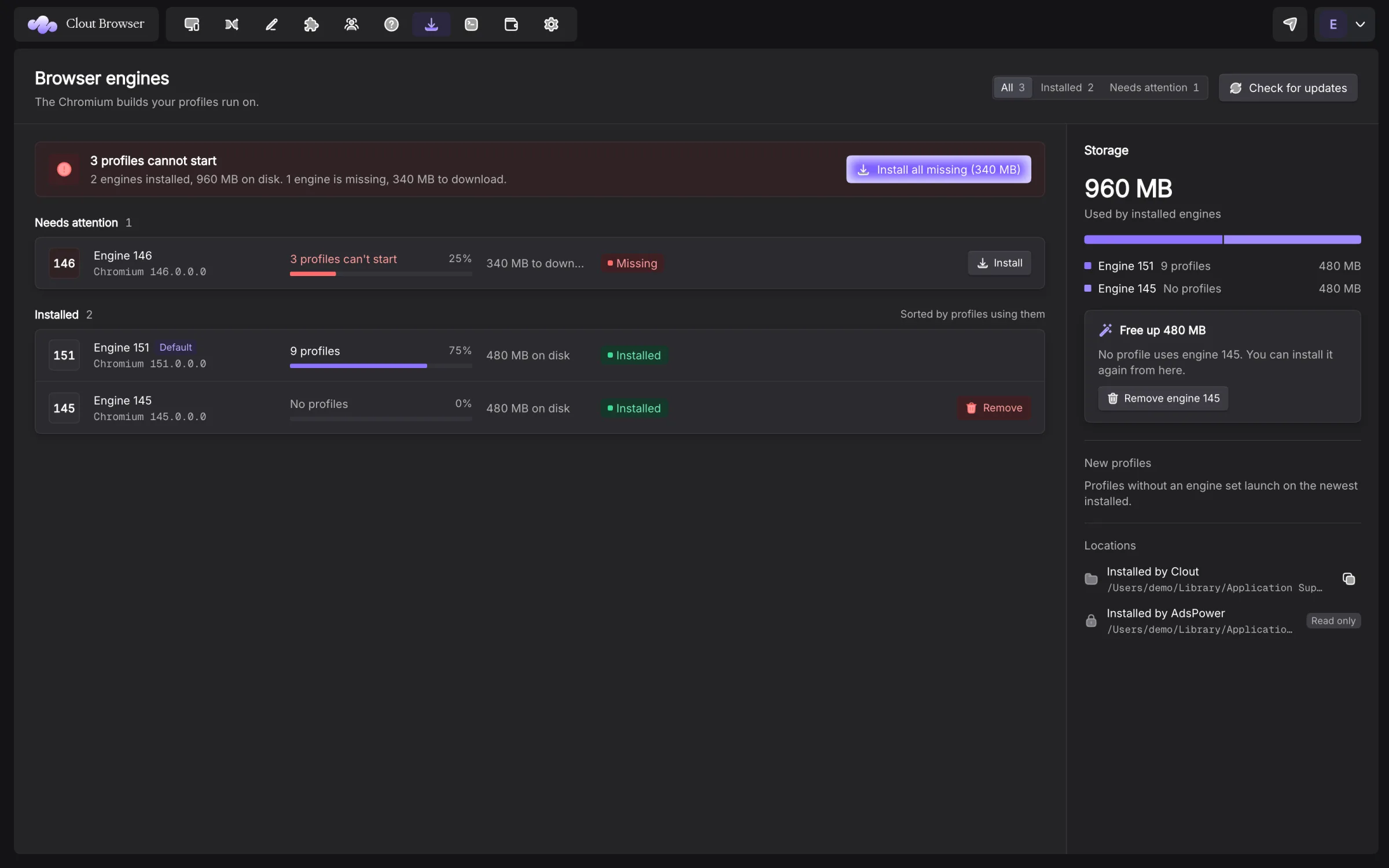
The filters are All, Installed and Needs attention. Rows are grouped into Needs attention, Downloading, Installed and Not installed when those groups have entries.
Each row shows the engine major, build when known, profiles using it and either disk usage or download size. Availability is read for this computer’s platform. Do not use an old list of published majors to decide whether a profile can run here.
Install a missing engine
- Open Needs attention.
- Find the major the profile pins.
- Press Install, or use the summary’s action to install the missing set.
- Let verification and unpacking finish.
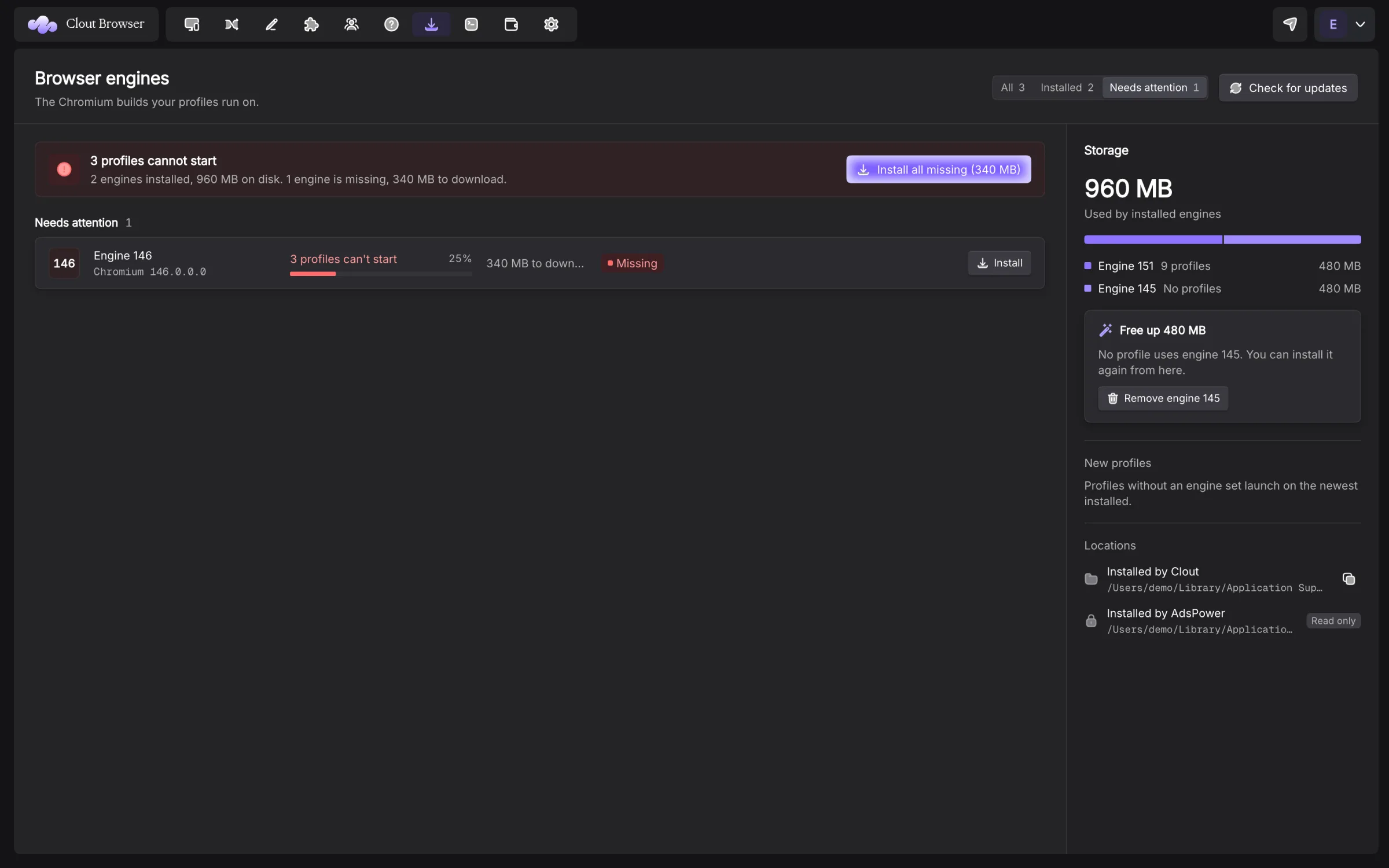
Downloads run one at a time. A failed major does not cancel the rest of the queue. Retry restarts a failed one. A row’s Cancel affects that item; Cancel all stops the queue. Cancel keeps the partial download so a later installation can resume.
Starting a profile can initiate the required download automatically. The waiting launch resumes when its own engine is installed.
Pins, Auto and updates
A pinned profile needs its exact major. Clout does not silently substitute a newer major. An unpinned profile uses the newest installed engine, while the creation form’s Auto choice follows the identity it is preparing.
Check for updates re-reads published builds. Update on an engine replaces that major’s installed build. An engine update and an app update are separate operations.
If the row says Not published for this machine, installing more copies cannot fix it. Use a computer with the matching package or deliberately change the profile’s version and identity after reviewing the consequences.
Reclaim engine storage
The storage panel shows which directories hold engines and what can be removed. Remove is offered for an unused engine in Clout’s own root. An engine used by profiles is retained, and an AdsPower-owned installation is read-only to Clout.
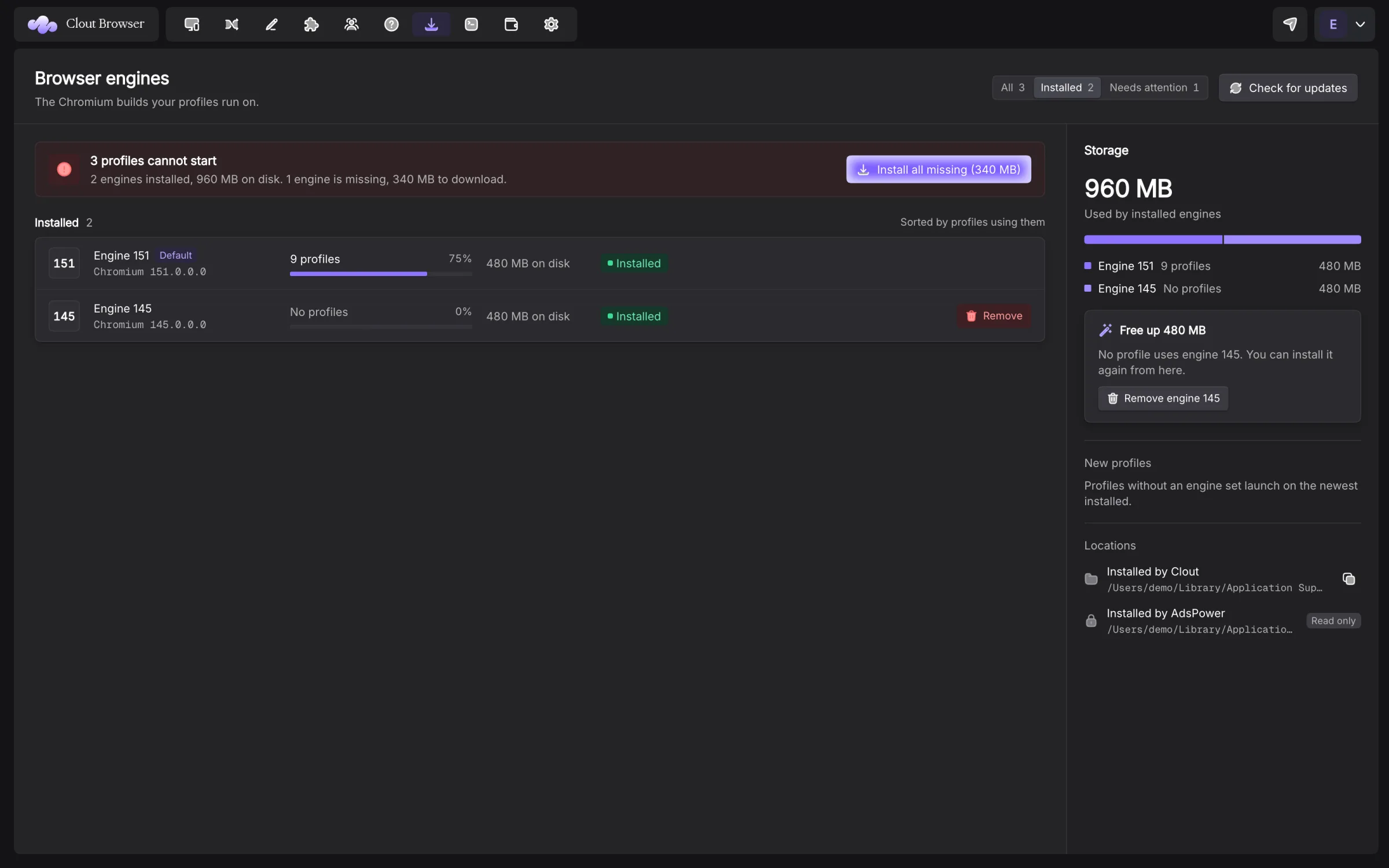
Removing an unused engine leaves profile records intact. You can install it again if you need it. Use Settings → Storage for profile storage rather than deleting kernel directories by hand.