Creating profiles
Create a profile or batch, set a proxy and inspect every fingerprint and launch setting before saving.
On this page
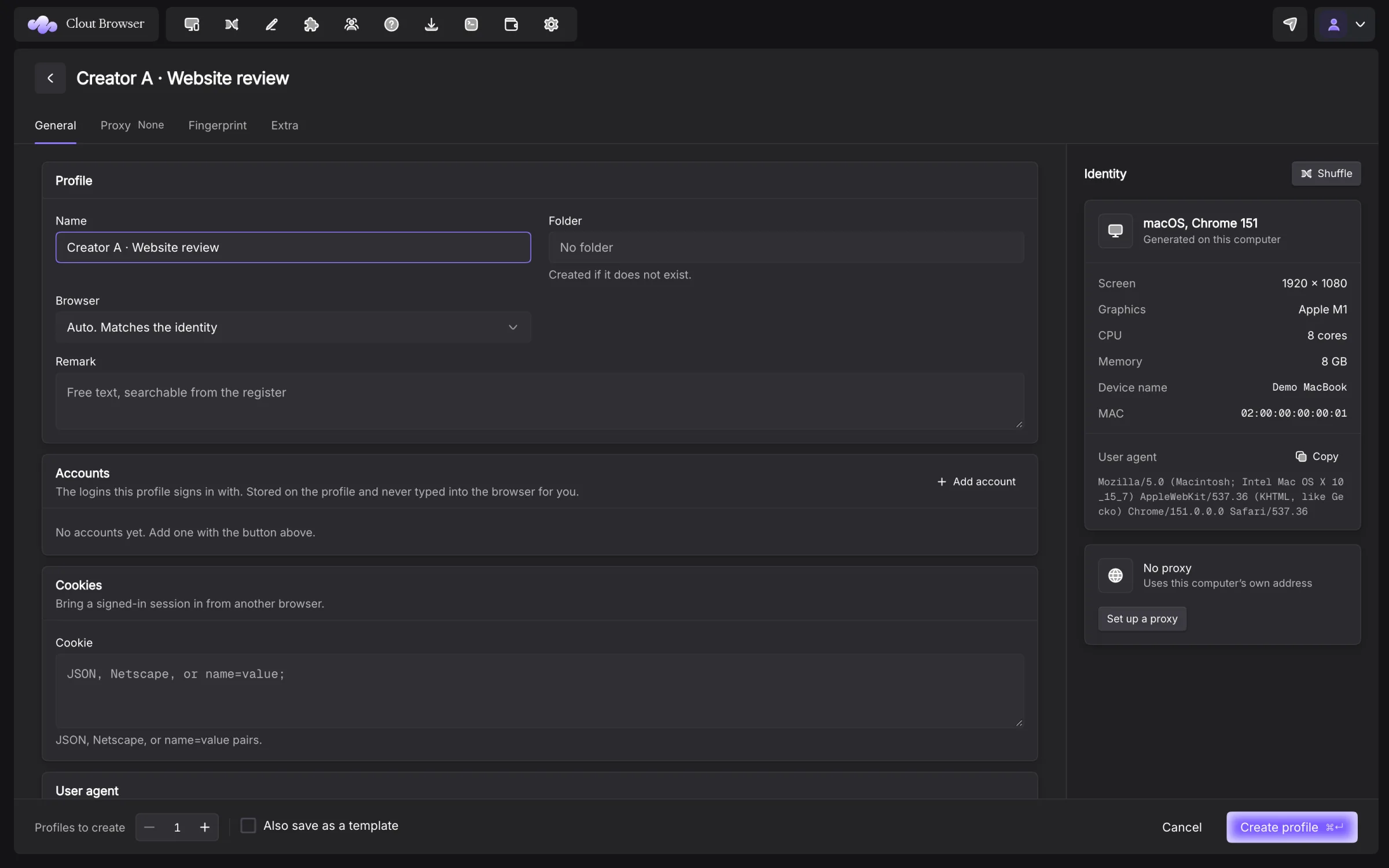
Press Create on Profiles to open New profile. Quick reaches the same creation form with an identity prepared for you. The four tabs are General, Proxy, Fingerprint and Extra.
Create one profile
- In General, enter Name and, if useful, Folder and Remark.
- Choose Browser, or leave Auto. Matches the identity.
- Open Proxy and enter the connection, then press Check proxy.
- Review the Identity panel and the Fingerprint settings.
- Set Save to my account for a profile that should reach your other computers.
- Leave Profiles to create at 1 and press Create profile.
A blank name defaults to the profile ID. The Folder field creates its destination when it does not exist. A remark is searchable from the register.
General
| Field or control | What it does |
|---|---|
| Name | Your label in the register |
| Folder | The form’s filing destination |
| Browser | The engine major used by this identity; installable entries say Downloads on first start |
| Remark | A searchable note |
| Accounts → Add account | Adds stored platform logins to this profile |
| Cookie | Accepts JSON, Netscape format or name=value pairs |
| User-Agent | The generated browser identity string; an override must agree with the rest of the fingerprint |
| New user agent | Regenerates the user agent preview |
| Save to my account | Places the profile and its browser data on your account; off keeps it on this computer |
The Accounts card collects the platform login, username, password and two-factor key. These are stored login records, separate from the profile configuration. The card explicitly says they are “never typed into the browser for you”. Adding a row is not signing into a site.
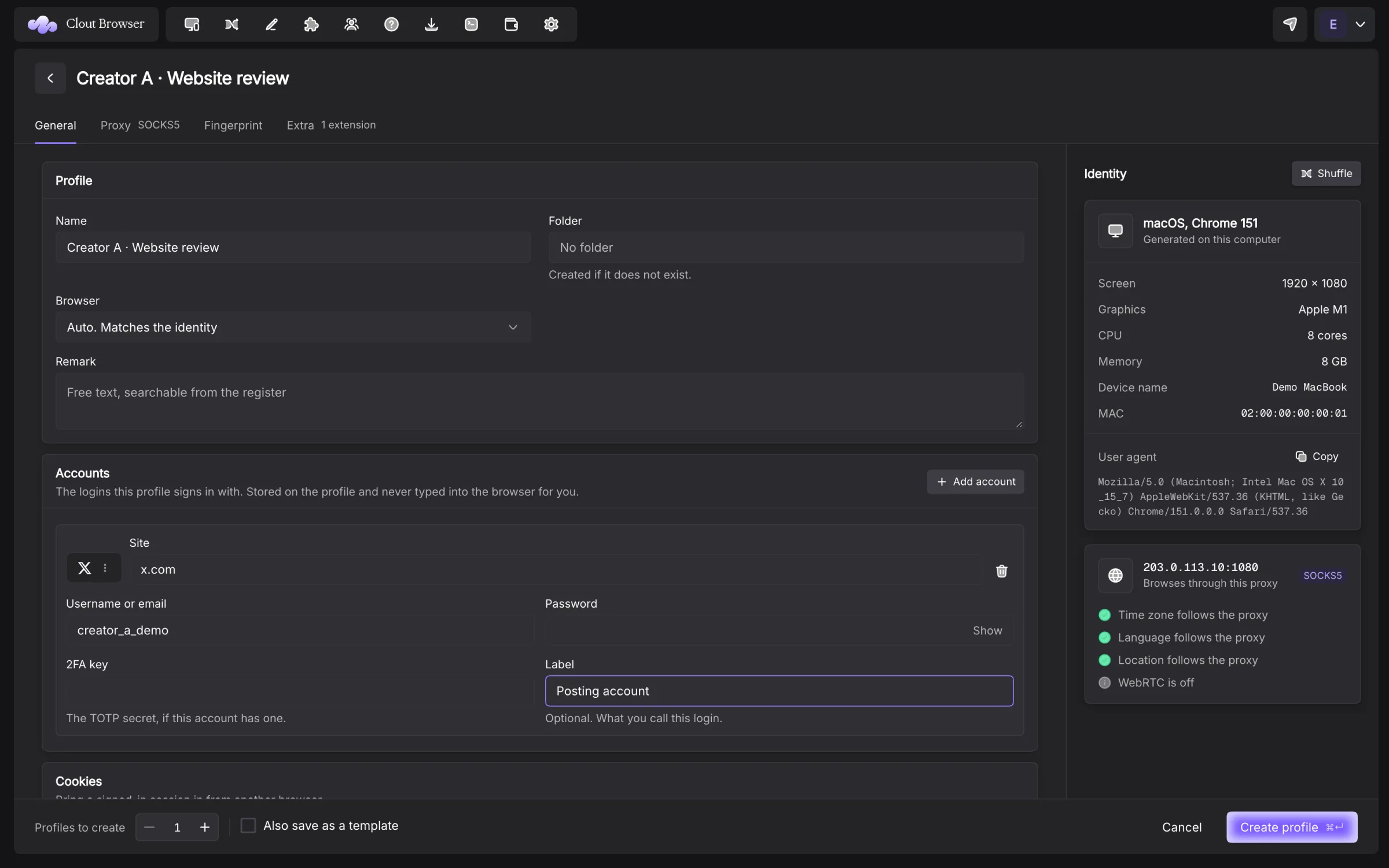
Pasted cookies can grant access to an account. Keep them out of screenshots, shared notes and support messages.
Read the identity
The identity is generated locally from the app’s fingerprint corpus. Generating it does not need AdsPower or a network call. Saving to an account is a separate operation and does need the account service.
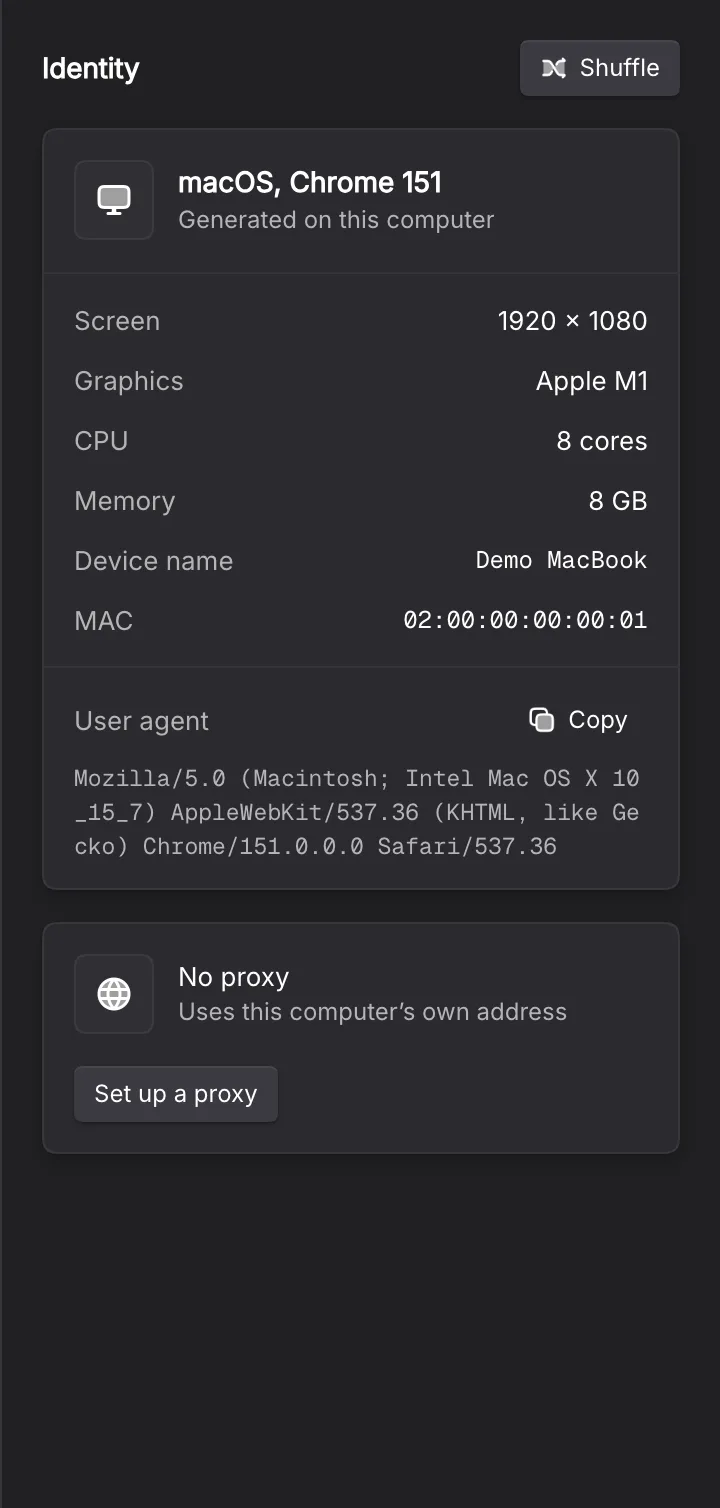
Identity shows the claimed system and Chrome version, screen, graphics, CPU, memory, device name, MAC and user agent. Shuffle generates a replacement before creation. Check the resolved values shown beside the fields, especially after an override.
Proxy
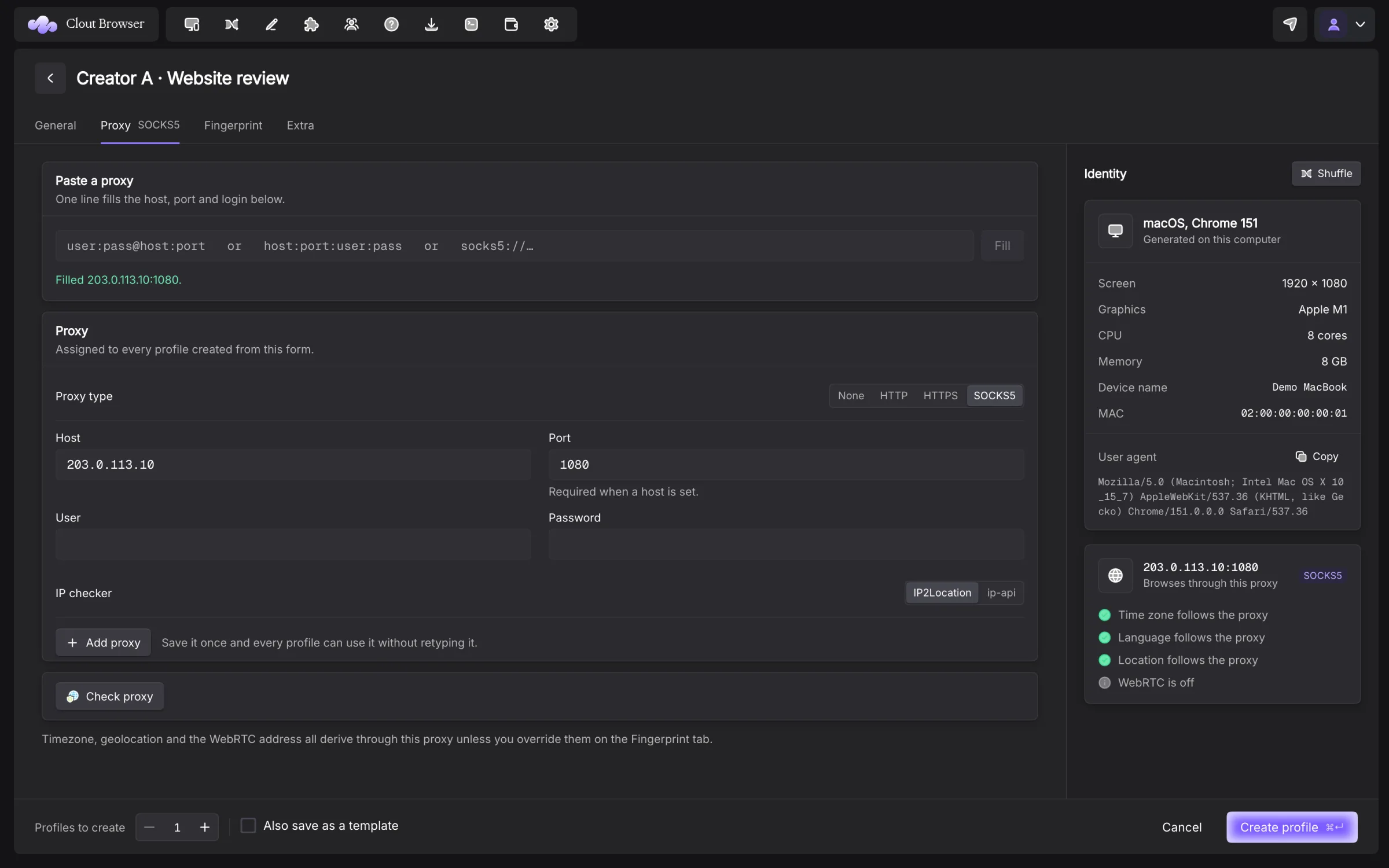
You can enter Proxy type, Host, Port, User and Password. Types are None, HTTP, HTTPS and SOCKS5. Choose IP2Location or ip-api as the IP checker.
Paste a proxy fills the fields from a connection line. Press Fill, or paste a full line into a connection field. A bare connection line moves No proxy to HTTP; an explicit scheme selects its type. Host and port are required for a configured proxy.
If you have saved proxies or proxy templates, choose one in the picker. Editing a connection field releases that choice. A saved password is applied by the app rather than displayed in this creation picker. Proxies and traffic covers checks and sessions.
Fingerprint
A fingerprint is a claim about a computer. Its user agent, operating system, graphics and hardware need to agree. Review the generated values before changing them.
| Area | Controls |
|---|---|
| Screen | Screen resolution: Random, This computer’s, Based on User-Agent, Predefined or Custom; Resolution for a fixed size |
| Network identity | WebRTC: Disabled, Replace (proxy address), Forward, This computer’s or Proxy UDP |
| Time | Timezone: From proxy, This computer or Custom; Timezone value for Custom |
| Position | Location: Based on IP, Custom or Block; Ask before granting; Coordinates for Custom |
| Language | Language: Based on IP or Custom; Locale for Custom |
| Browser menus | Display language: Based on language, This computer’s or Custom; Display locale for Custom |
| Graphics | Graphics card, Vendor, Renderer; WebGPU: Based on WebGL, This computer’s or Disabled |
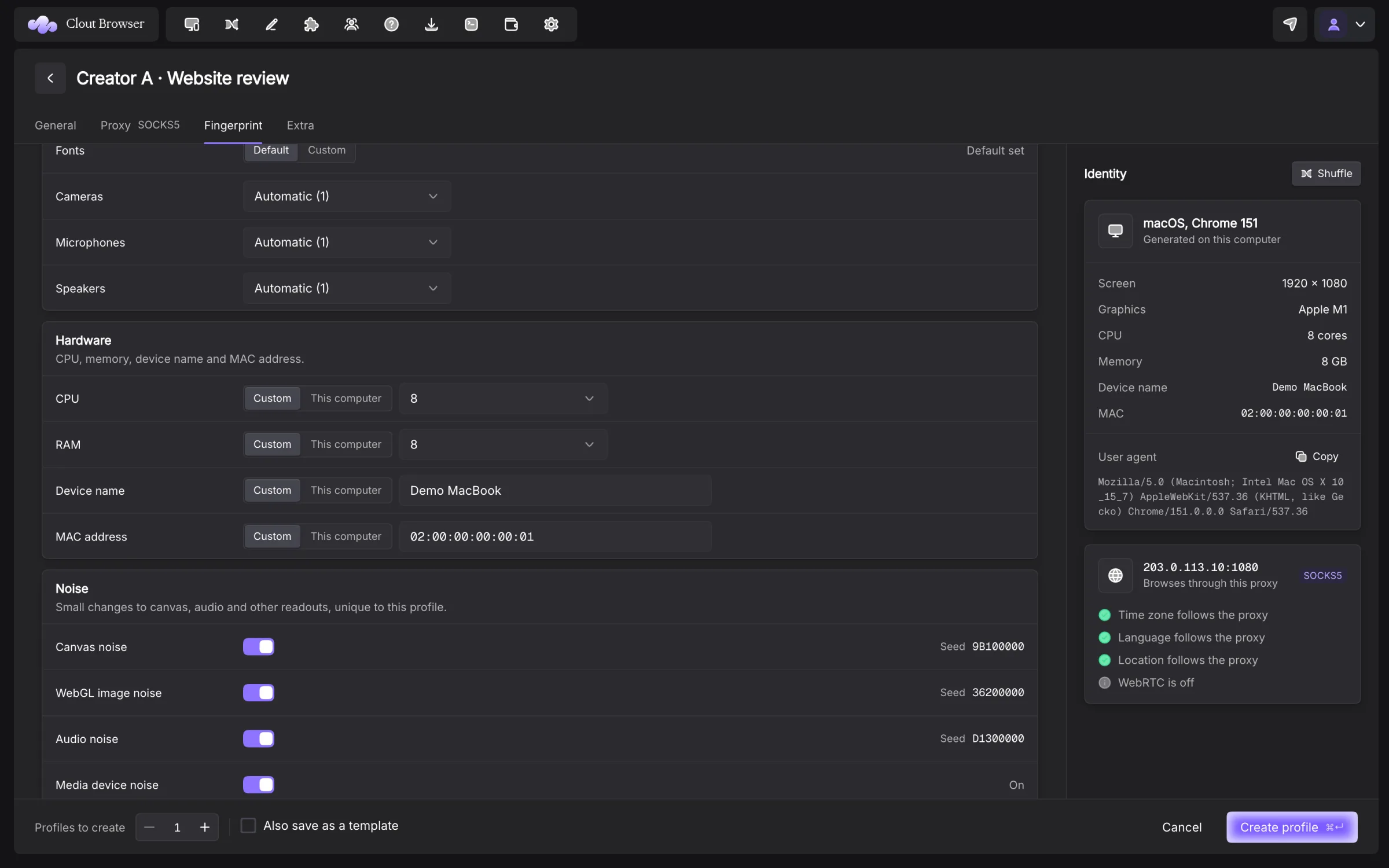
| Fonts and devices | Fonts, Disabled fonts, Cameras, Microphones, Speakers |
| Hardware | CPU, Cores, RAM, GB, Device name, Name, MAC address, MAC |
| Noise | Canvas noise, WebGL image noise, Audio noise, Layout noise, Voice list noise, Media device noise |
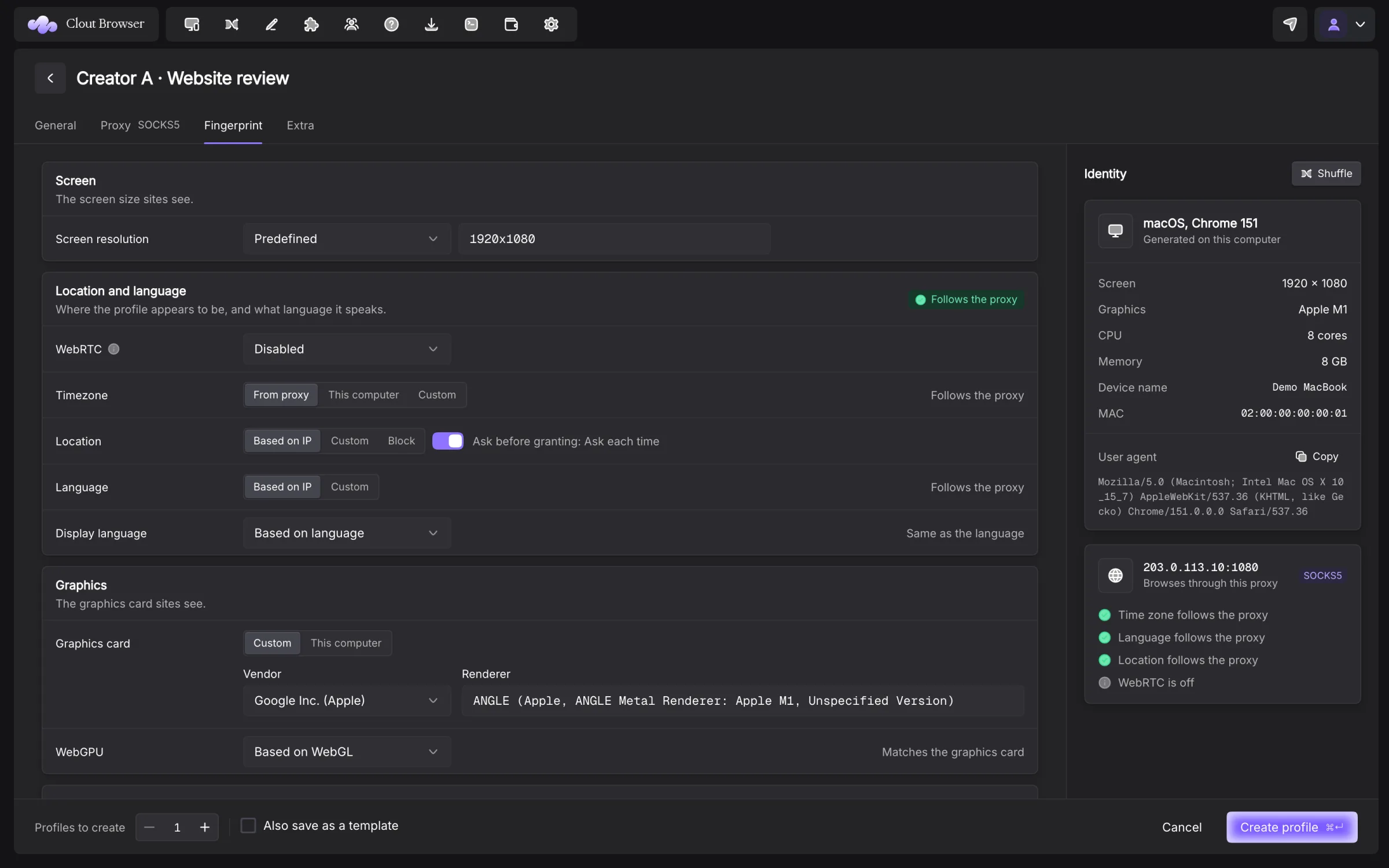
Custom coordinates take latitude and longitude, with an optional accuracy in metres; the field’s default accuracy is 1000 m. Disabled fonts are one font family per line. Media counts offer Automatic (1) and 0–4. CPU and RAM use their supplied menus rather than arbitrary numbers.
The generated defaults enable the six noise channels and keep Re-roll on launch off. Use IP-derived time and language when the proxy should decide them. WebRTC → Disabled prevents that channel from exposing the real address; the other modes have different network behaviour.
Extra
Tabs accepts one start URL per line. An empty list starts with a blank tab. Launch args accepts one argument per line.
| Control | Choices or meaning |
|---|---|
| Do Not Track | Default, On or Off |
| Port scan protection | On or Off; Allowed ports names exceptions |
| Hardware acceleration | Default or Off |
| Re-roll on launch | Off keeps one identity; On changes it each launch |
| Disable TLS features | Off or On; On exposes Cipher blacklist |
| Cipher blacklist | Selects a cipher by its hexadecimal suite ID |
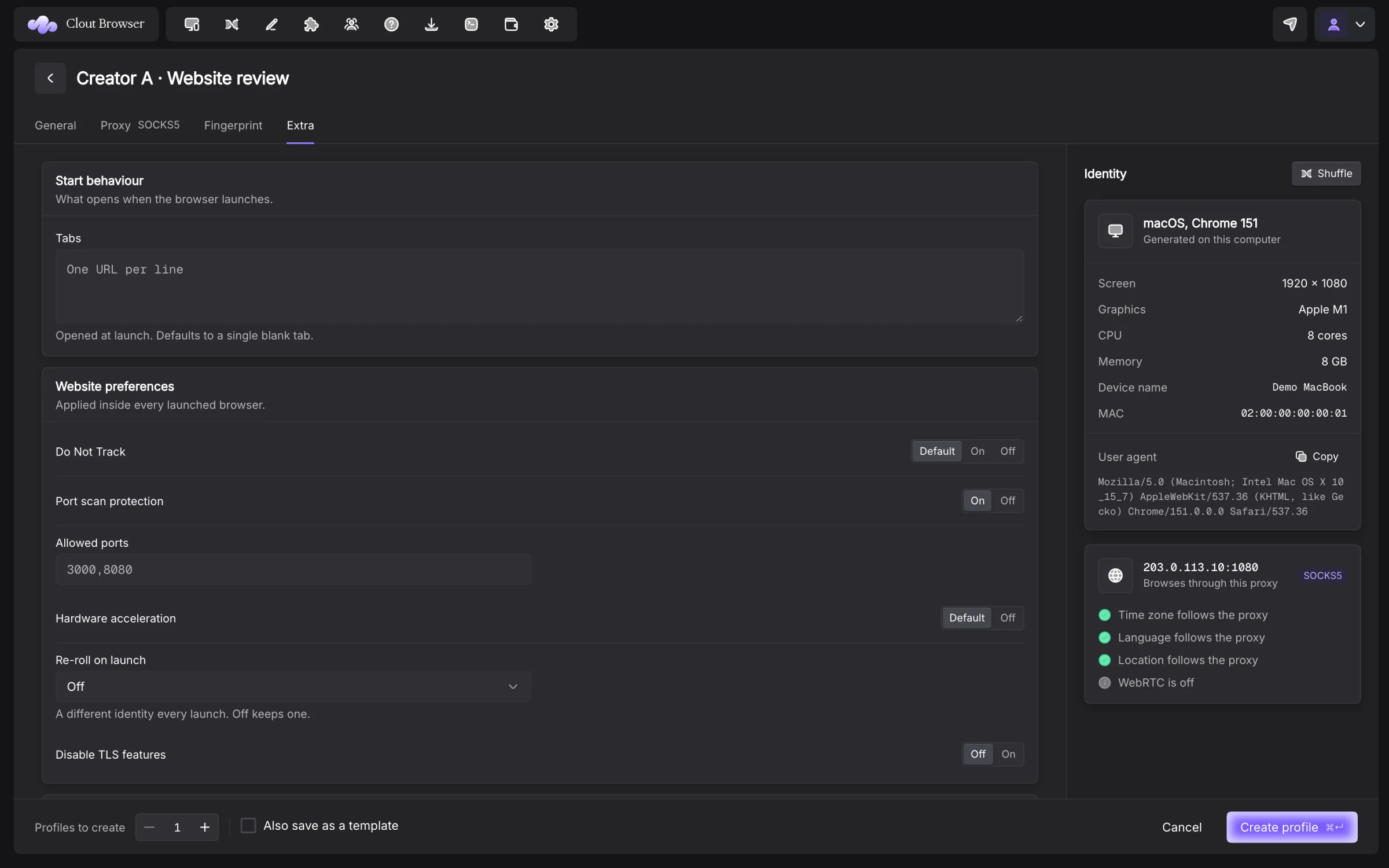
Avoid re-rolling an established signed-in identity as a routine maintenance step. A new identity is a visible change to the site.
Create a batch or save a template
Profiles to create accepts 1–50. Each profile in the batch gets its own minted identity. Account limits can still refuse the requested total.
Also save as a template stores the reusable choices. Start from fills the form from an existing template. Templates omit the name, cookies, proxy password and minted identifying values; Templates and extensions explains that boundary.
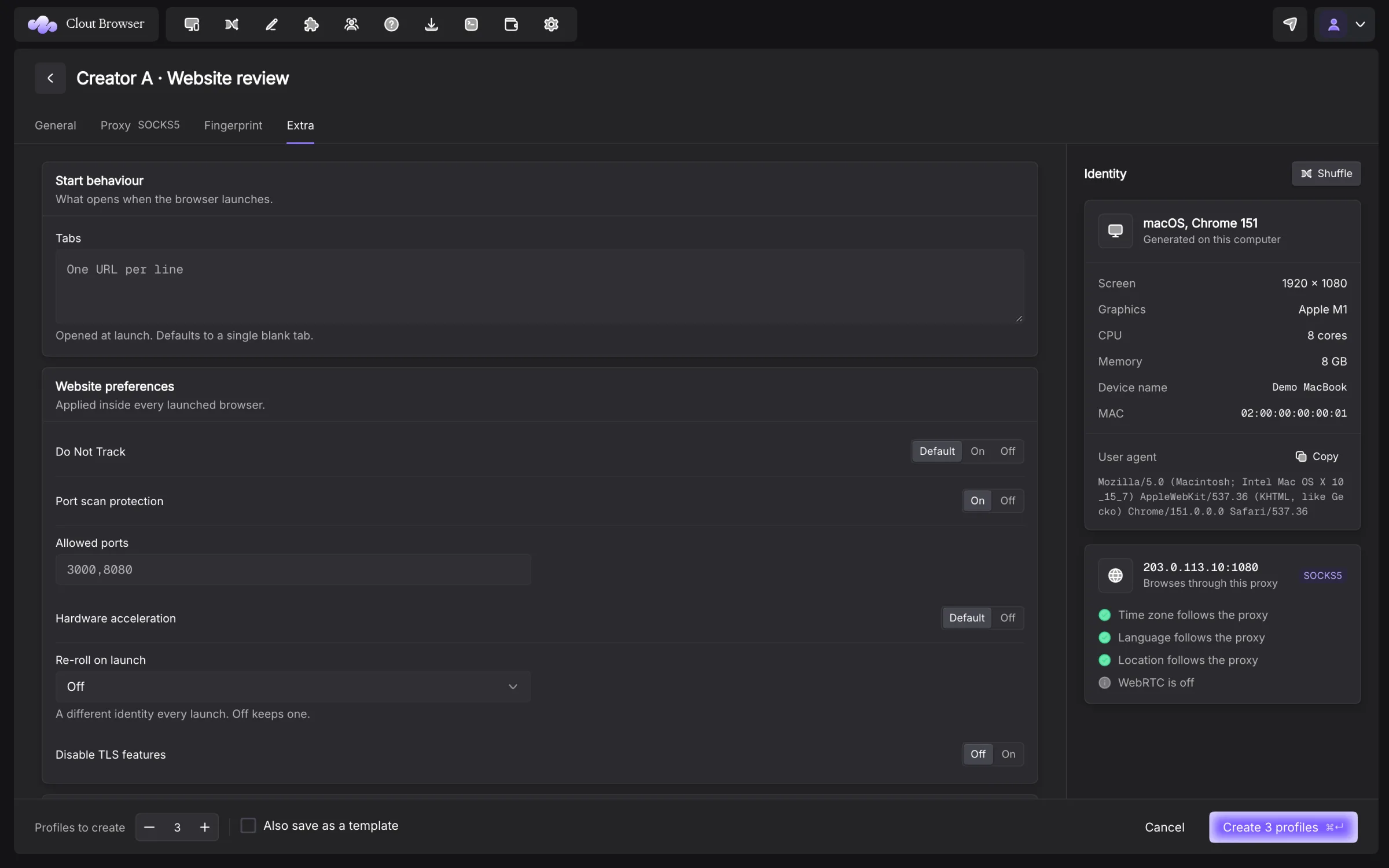
Press Command+Enter on macOS to create from the form. If a batch reports that only some profiles saved, read the reported count before repeating it.