Desktop screens and dialogs
Find every desktop destination, its dialogs and the guide to using it.
On this page
Use the top navigation to change rooms. Profiles, Proxies, Profile templates and Extensions also have a sidebar. The workspace menu opens Activity, What’s new and Keyboard shortcuts; How it works on the register starts the tour. Settings and Account share one room with a section rail.
Desktop screens
| Screen | What you use it for | Guide |
|---|---|---|
| Profiles | All profiles, Running profiles, Favorites, folders and Trash bin; search, filter, select and arrange | Profiles |
| New profile | General, Proxy, Fingerprint and Extra; the identity preview and creation footer stay visible | Creating profiles |
| Edit profile | General, Proxy, Fingerprint and Launch and data; review changes before saving | Edit a profile |
| Proxies | Saved proxy book, In use connections, provider Templates and Traffic | Proxies |
| Profile templates | Reusable settings, details and the template editor | Templates |
| Extensions | Essentials and User installed; All extensions, Enabled and In use filters | Extensions |
| Team | Members, invitations, groups, folder access and the permissions matrix | Team |
| Billing | Subscription usage and Pricing; billing management opens in your system browser | Billing |
| Account and Settings | Personal information, Security, Runtime preferences, About, General, Browser, Startup, Storage and Diagnostics | Account, Settings |
| Browser engines | All, Installed and Needs attention; download, storage, locations and removal | Browser engines |
| MCP & Local API | Server status, MCP client setup, script example, Server settings and Command line | Local API, MCP, cloutctl |
| Sign-in and setup | Account sign-in, device joining, offline recovery, engine preparation, import and tour | First-time setup |
Quick profile opens the same creation screen as Create. Desktop navigation does not expose Tasks, Referrals or a proxy-pool room. Use the implemented HTTP operations or CLI commands for those automation resources.
Profile and folder dialogs
| Dialog or control | What to review before acting |
|---|---|
| Create new folder / child folder | Name and parent; creating a folder does not create a profile |
| Rename folder | The new folder label |
| Move folder | Destination; a folder cannot enter its own subtree |
| Delete folder | Subfolder and profile counts; profiles remain, but their membership in that subtree is removed |
| Move to folder | Selection and destination; this replaces memberships, and No folder clears them |
| Manage tags | The entire draft tag list is applied to every selected profile; recovery offers Use previous tags or Reload tags |
| Edit note | The selected profile’s remark; save this separately from a profile-form draft |
| Manage columns | Enabled columns and order; Apply changes applies the draft, Reset layout resets it |
| Search filters | Operating system, Storage and Tags; Clear all filters is separate from clearing the search text |
| Export profiles | Selection and JSON, ZIP or CSV format; credentials, cookies and proxy passwords are excluded |
| Import profiles | Source discovery, preview, selected targets, replacement decisions and per-item results; see Import profiles |
| Signed-in sites | Domain and cookie count only; this does not verify that a session is valid |
| Import cookies | Required overwrite reason and the complete replacement jar; a selection receives the same jar |
| Export cookies | Format and session-file acknowledgement; each selected profile gets its own save panel |
| Credentials | Imported fields are read-only; Platform accounts can be edited; secrets are masked until revealed |
| Proxy check | Each selected profile’s actual check result; one failure does not describe the rest |
| Clone profiles | Copies per source, destination and preserved or fresh fingerprint; browser data is not copied |
| Edit selected profiles | Only changed choices are written; running or unreadable profiles and partial results need attention |
| Launch or stop manifest | Targets, skipped direct profiles, concurrency, confirmation and per-item outcomes; background execution continues after closing |
| Cookie robot | Sites, visit order and running results; browsers are visible and this does not sign in to sites |
| Delete permanently / Empty trash bin | Type the displayed count; permanent deletion cannot be undone |
| Profile limit | Remaining capacity and the requested count; reduce the batch or review current plans |
| Arrange windows and Choose a layout | Running profiles, Grid, Columns or Cascade, screen and page; windows that do not fit retain their positions |
Follow Profiles for the actions in this table. Import’s native file and directory pickers select a source; choosing a file alone is not consent to replace an existing profile.
Proxy, template and extension dialogs
| Dialog | What you do |
|---|---|
| Add proxy / Edit proxy | Set title, protocol, connection and optional location or note; Check proxy tests the draft; a blank password on edit keeps the stored password |
| Import proxies | Paste lines, choose the default protocol and note, then review accepted and rejected rows; Stop retains entries already saved |
| Assign proxy | Change only intended profile selections; removing an assignment makes that profile direct; review account and revision refusals |
| Show profiles | Inspect the complete set linked to a connection before changing it |
| New proxy template / Edit template | Choose a supported Proxy plan, address/session behaviour, country, city and duration |
| What it sets | Inspect a profile template’s saved, fresh and omitted values |
| Profile template editor | Change future creation settings; existing profiles are unchanged |
| Add extension | Inspect a link, folder, CRX or ZIP; check Manifest V2 and duplicate-path warnings before adding |
| Rename extension | Change Name and Note without changing its files |
| Assign to profiles | Select attachments and their enabled state; restart open profiles to apply changes |
| Extension publication review | Compare local and account details; Replace cloud version publishes yours, Keep cloud version adopts the account copy |
| Delete or remove confirmation | Check the named resource; deleting a template keeps profiles, and removing an extension retains its original source files |
Use Proxies and Templates and extensions for the full workflows. Native extension pickers and Locate… select local files; missing files prevent that entry from loading.
Account and application dialogs
| Dialog or state | What you do |
|---|---|
| Invite team member | Enter Email address or Telegram username, Role and Folders; an unanswered invitation holds a seat |
| Access for a member | Review folders, rank, group and permissions before saving; no selected folders means all folders |
| New group / Edit group | Set Name, Description, Rank and permissions; group membership is separate from profile folders |
| Member or group removal | Read the named confirmation and any effect on access |
| Available on paid plans | Not now closes it; See plans opens the current plan choices; terms are on Pricing |
| Activity | Select a recorded run and read Succeeded, Failed, Concurrency, timing and item outcomes |
| What’s new | Read the release notes for app changes; engine packages have a separate lifecycle |
| Keyboard shortcuts | Review the actual bindings and which ones require the profiles register |
| Update available | Review version and running-profile count; Update now restarts the app while browsers keep running; Later defers for this session |
| Update available with Download | This copy cannot install itself; use its download link and install the new copy |
| This app could not check for updates | Read the reported failure, Check for updates or Get the latest version when offered |
| Retired build | Install a supported version; the blocking retirement screen does not offer ordinary operation |
| Edited in two places | Keep theirs, Keep mine or Pick per field, then Apply these picks; the current revision is checked again |
| Browser data changed in two places | Open Edit profile → Launch and data, then check and review that profile’s Browser data; see Sync |
| Browser data restore or overwrite review | Compare local and account data and the named kinds; choose intentionally before replacing either side |
| Device join token creation or revocation | Treat the newly shown token as a credential; distribute it privately and revoke it if exposed |
| Computer removal or account logout | Read which computer or session loses access; this is separate from deleting profiles |
Permission rows marked Not enforced yet describe no server guarantee. Team explains the enforced choices. Computers and sync explains revision conflicts, data-transfer reviews and device revocation.
Keyboard reference
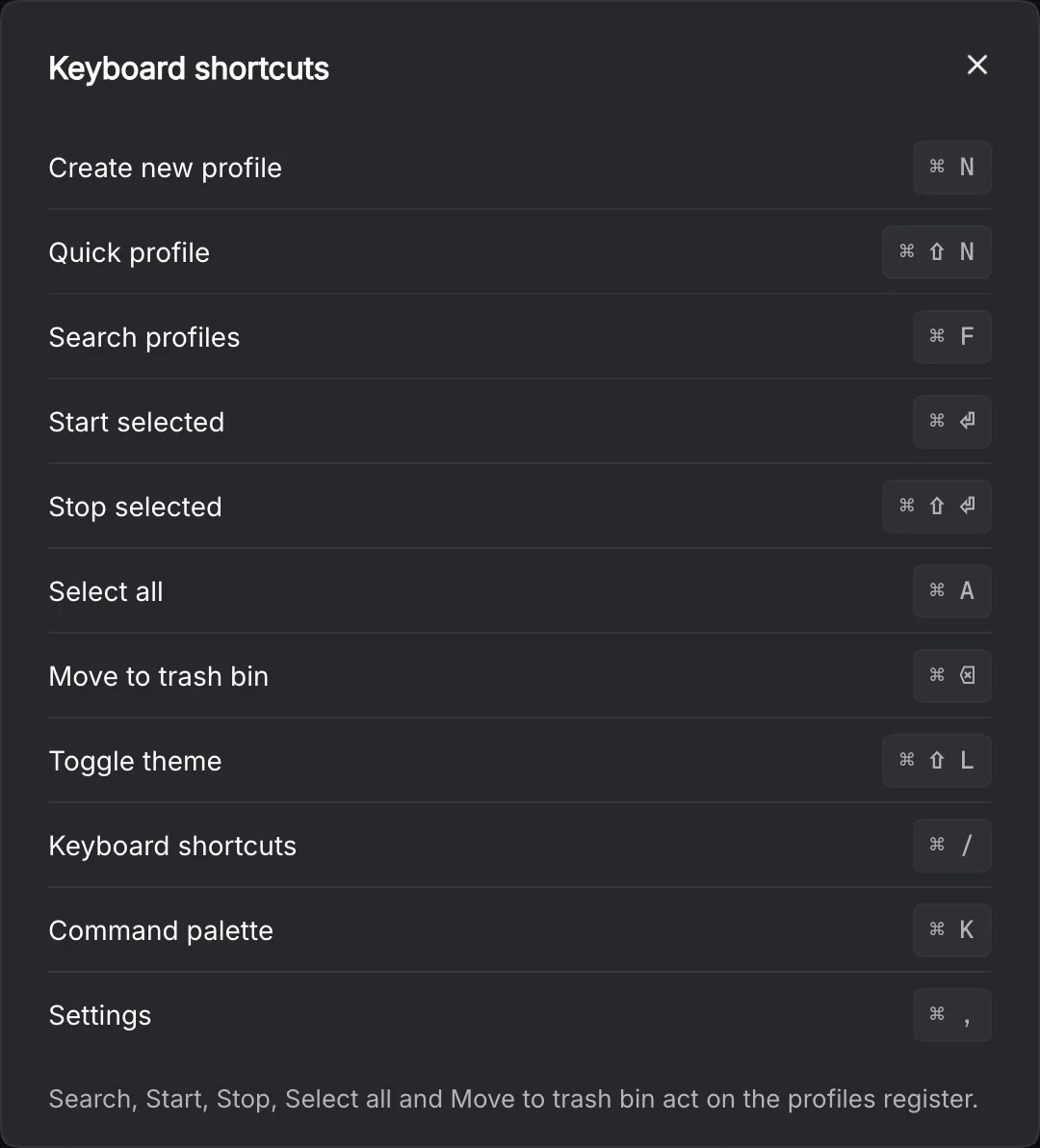
Use Command on macOS and Ctrl on Windows or Linux for the modifier below. Search, Start, Stop, Select all and Move to trash bin act on the profiles register; text fields keep their normal editing shortcuts.
| Action | Keys |
|---|---|
| Create new profile | Modifier+N |
| Quick profile | Modifier+Shift+N |
| Search profiles | Modifier+F |
| Start selected | Modifier+Enter |
| Stop selected | Modifier+Shift+Enter |
| Select all | Modifier+A |
| Move to trash bin | Modifier+Backspace |
| Toggle theme | Modifier+Shift+L |
| Keyboard shortcuts | Modifier+/ |
| Command palette | Modifier+K |
| Settings | Modifier+, |
The palette searches available actions. A dialog owns its keyboard focus while open, so close it before starting an unrelated action.