Proxies and traffic
Save and check proxies, assign sessions, use proxy templates and read measured traffic and bypass balances.
On this page
A proxy determines where a profile’s connection exits. Without one, the profile uses this computer’s connection. Choose that deliberately before launching several Creator accounts.
The saved proxy book
Open Proxies. The saved book stores the gateway connection once and lets several profiles attach to it.
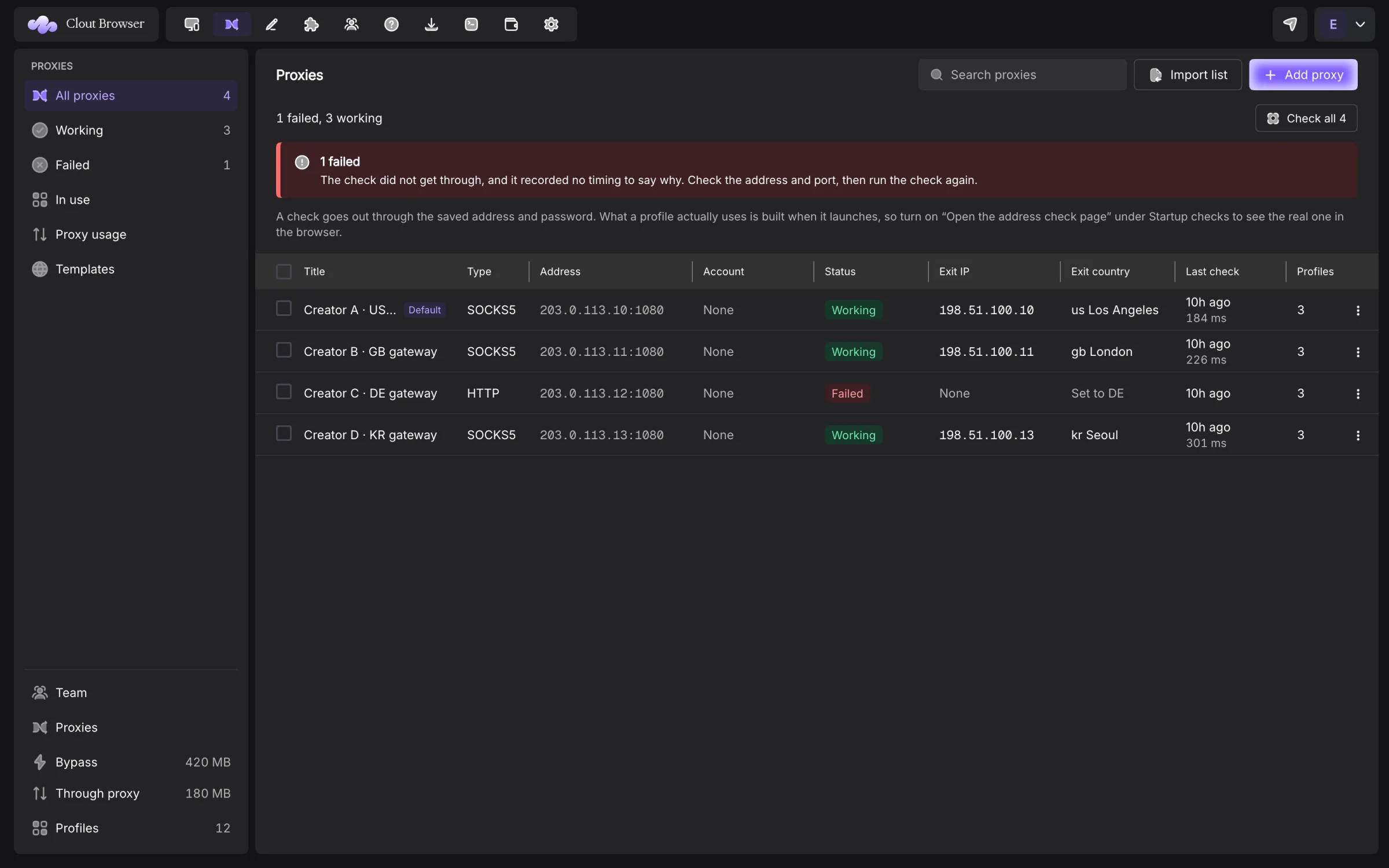
Add proxy opens fields for title, type, host, port and login. A title is your label; the address is the provider’s gateway. Passwords are not listed in the table.
The table shows Title, Type, Address, Account, Status, Exit IP, Exit country, Last check and Profiles. All proxies, Working and Failed filter the saved entries. In use inspects profile connections; Proxy usage opens traffic measurements.
Import a provider list
Use Import list to paste multiple connection lines. Review parsing results before saving. The parser accepts common host, port and credential layouts, with optional http://, https:// or socks5:// schemes. Invalid rows are reported rather than turned into invented endpoints.
Save a new provider list under distinct titles so you can recognise it later. A pasted provider credential can contain session or location parameters; keep those intact.
Check the connection
Use a row’s Check connection, or the book’s Check all action. A check makes an actual request through the saved address and credential and records the exit IP, country and latency when available.
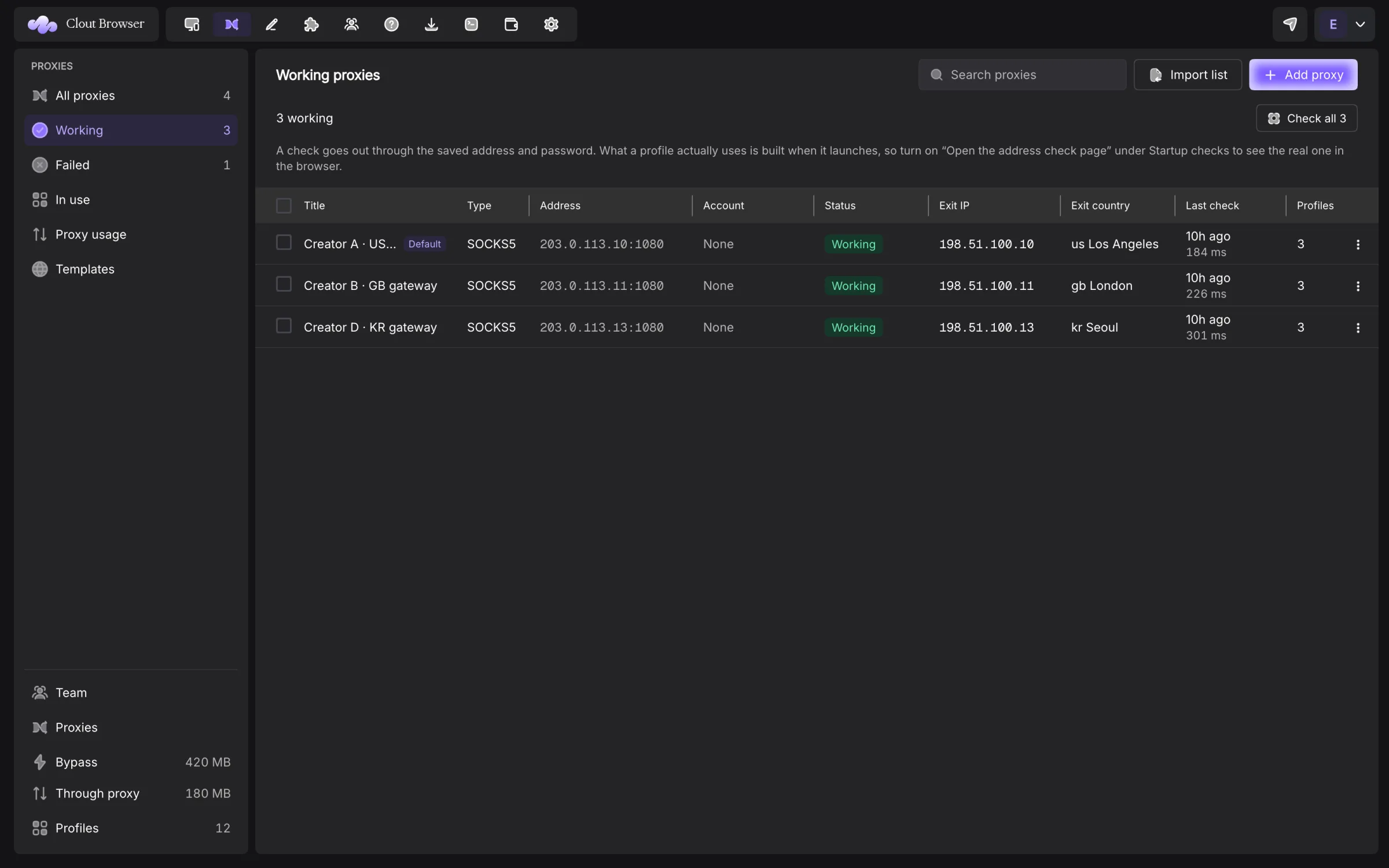
The table’s result describes that saved gateway check. A launched profile may add a per-profile provider session, so verify its actual exit with the browser’s IP check page when that matters. Enable Open IP check page under Startup.
A failed or unperformed check is not a measured zero. Read the result before editing a credential that may be working but whose check service was unavailable.
Assign a proxy
Choose the saved entry in a profile’s Proxy tab or use the assignment action on selected profiles. The saved-proxy picker in the create form applies the stored credential without displaying the password there.
A supported provider credential can receive a session token per profile. The assignment dialog’s Share one session asks selected profiles to share an exit instead; read its account-managed restriction before changing that choice. This requests separate sticky sessions; the provider decides the resulting exits and duration. It is not a guarantee of a unique IP.
The profile keeps that session for its other connected computers. If the account cannot store a session change, the app reports the failure rather than applying a local-only rotation.
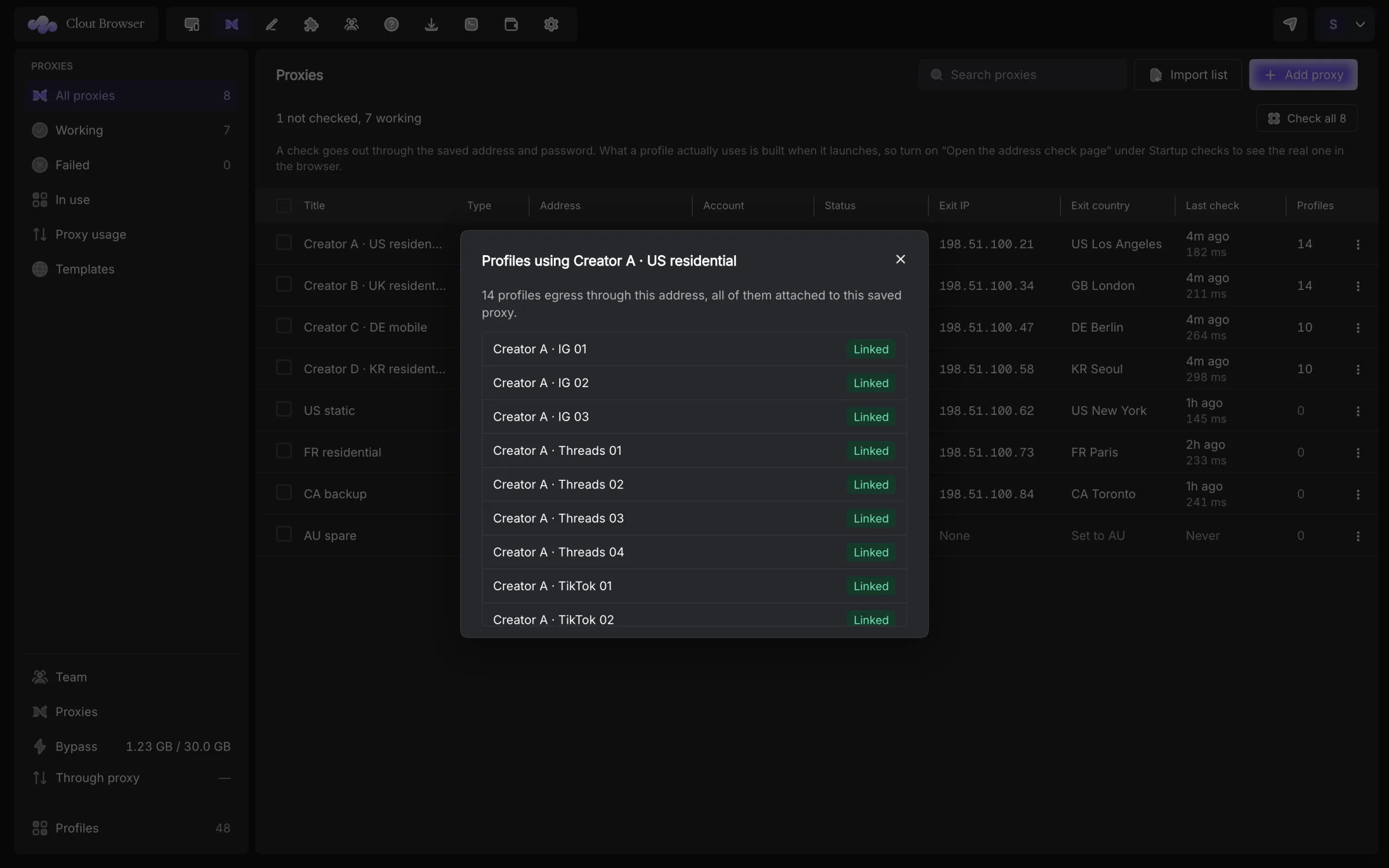
The Profiles count opens a list of attached profiles. Use it before changing a shared entry.
A saved proxy can be marked as the default for new profiles. The form identifies that default. Choosing None, choosing another entry or typing over a connection field releases it.
Refresh an IP
Refresh IP changes the provider session for selected profiles. The next launch uses the new session. Close the profile first: running profiles and credentials with no supported session setting are skipped and named in the result.
Keep an established Creator account’s exit stable unless you intend to change it. Refresh IP changes the connection, not the profile’s fingerprint.
Proxy templates
The Proxies sidebar’s Templates destination is for provider connection templates. It is separate from Profile templates.
A proxy template describes the gateway, provider login pattern, country, city, sticky session and duration. The login is composed for each profile when it is created. A sticky template requests a held address; a rotating template describes an address that changes on its own.
The selection appears beside saved proxies in the creation form. A profile receives its composed credential once. Editing or deleting the template affects future choices; existing profiles keep the credential they already received.
Provider grammar is not interchangeable. Use the template’s preview and a profile check to verify the connection you supplied.
Read Proxy usage
Proxy usage shows Total traffic, Through proxy and Saved. Choose All time, Today, Last 7 days or Last 30 days, then Refresh to request current totals.
The page labels its scope: Across your account or This computer. Periods use UTC. Daily traffic shows up to the latest 365 days; Activity calendar displays recorded daily activity. Top profiles and Top sites rank the selected period.
These are measured response bytes and a lower bound. Requests, DNS, handshakes and traffic while the observer was detached are not all counted. They are not your proxy provider’s bill. Offline · Last synced marks cached data; an unavailable read is not replaced with zero.
Proxy bypass balance
Billing shows Proxy bypass traffic, the period allowance, wallet, remaining balance and reset date. Included allowance and prepaid packs come from your account’s current plan. See Pricing for current options.
When the balance is spent, bypass turns off and traffic continues through the proxy. There is no arrears balance. Control the account’s bypass setting in portal Billing. The traffic page’s Saved measurement and the billing wallet answer different questions: bytes measured versus credit remaining.
Edit and remove saved entries
From a proxy’s row menu, Edit opens Edit proxy. A blank password on an edit preserves the saved one. Duplicate creates a copy without its password; set the password before using the copy. Set as default for new profiles changes future creations, and Clear default removes that choice.
Delete proxy removes the saved entry after confirmation. Profiles with a directly stored connection keep those details. The confirmation names rotation pools that lose the entry; a pool with no enabled member cannot launch its profiles.
Inspect In use
In use groups connections only when their type, host, port, full username and password match. Different session parameters produce separate rows. Passwords remain hidden. Expand a row with Show the profiles to see attached and own session labels.
Use Save as a proxy for an unsaved connection, Assign profiles… to change attachments, or Rotate sessions for supported stopped profiles. Checks of unsaved connections and individual sessions remain on this screen and are cleared when you leave it; saved-book check results persist.
Complete a proxy import or assignment
Import list checks lines as you paste. Select Protocol for lines without one and, optionally, Note on every one of them. Repeated, already-saved and unreadable lines are reported. Stop leaves the entries already saved in the book.
In Assign proxy, search and tick the profiles you want attached. Unticking a previously attached profile returns it to this computer’s direct connection. Untouched profiles keep their current setting. Review the attach and detach totals, then save. Reload re-reads revisions after an account or profile change.
An account refusal can leave a local edit saved while the account copy needs attention. Read that result before relying on another computer to use it.