Teams and permissions
Invite teammates, choose ranks, narrow folder access and manage permission groups and seats.
On this page
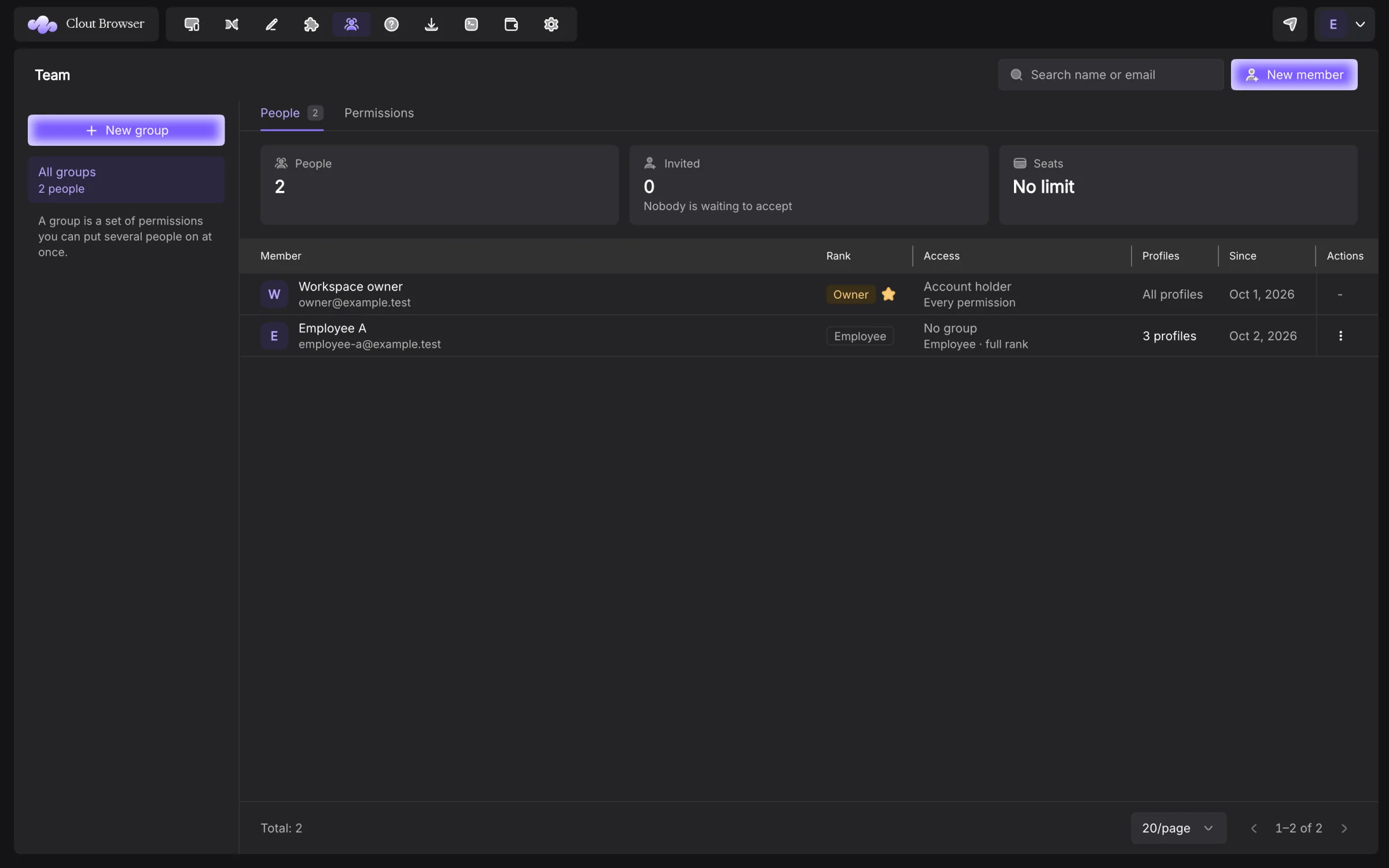
The team shares a workspace fleet. A teammate does not receive a separate copy of every profile. You decide their rank, the profiles they can reach and any permissions narrowed within that rank.
Invite a teammate
- Open Team and press New member.
- Enter Email address or Telegram username.
- Choose Role.
- Choose Folders if access should be limited.
- Press Send invite.
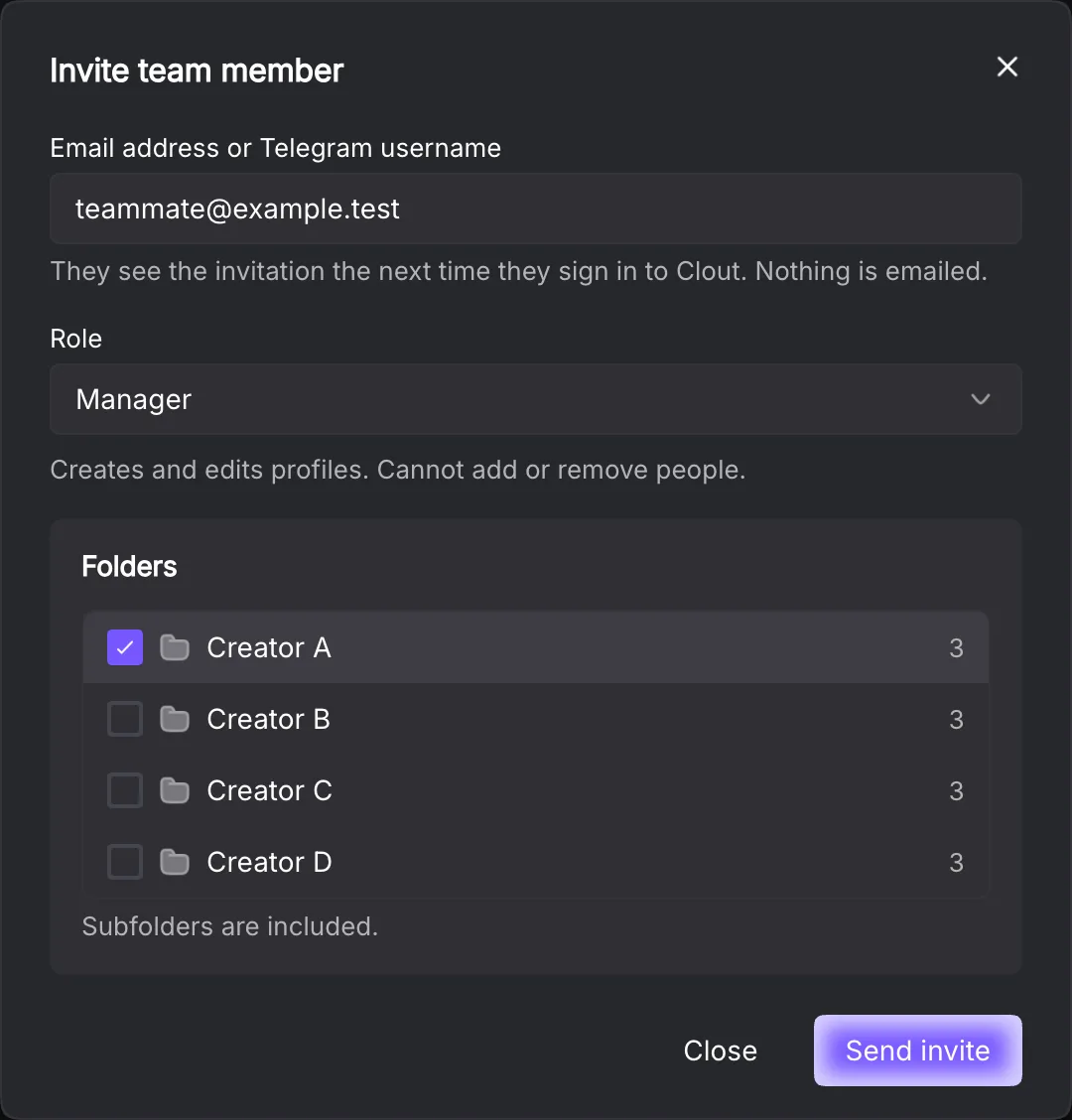
An email is accepted, or a Telegram username of 5–32 letters, numbers or underscores. The dialog says: “They see the invitation the next time they sign in to Clout. Nothing is emailed.” Tell the teammate which Clout identity should accept it.
Pending invitations appear under Invited. Cancel one from its menu when it is no longer needed.
Understand ranks
| Rank | Working scope |
|---|---|
| Owner | The account holder; controls the workspace and billing |
| Admin | Runs the team and fleet; cannot change billing |
| Manager | Creates and edits profiles; cannot add or remove people |
| Employee | Opens assigned profiles; cannot create or edit them |
The account server supplies the labels and capabilities. Manager can appear as member or manager in API data; Employee uses launcher. Those wire names are not additional customer ranks.
Use Change rank from a member’s menu. The owner is not offered a rank-change option. A permission narrowed for a member cannot give them authority their rank does not hold.
Set profile access
Open Folders and permissions for the person. Choose folders to narrow access, or Give access to all profiles.
Subfolders are included. No folders selected means access to all profiles, not access to none. If this computer has no folders, the picker says the member will be able to work on every profile. Create the folder structure before inviting somebody who needs a narrow scope.
The Profiles column distinguishes All profiles from an assigned count. Removing a person’s membership is the way to take away workspace access entirely.
Set permissions
The Permissions tab and member editor separate three kinds of row:
| State | Meaning |
|---|---|
| A working on/off control | The server allows this capability to be narrowed for the person |
| Comes with the rank | The capability is enforced, but changing the rank changes it |
| Not enforced yet | This row does not provide an access-control guarantee |
Some rows share one underlying capability and move together. For example, profile-edit controls can share the same gate. Use Only what is enforced to focus on effective permissions.
Seeing a profile and revealing its password are different permissions. A person who can launch an assigned profile can use its session in the browser even if they cannot reveal a stored secret in Clout.
Member groups
New group creates a reusable set with Name, Description, Rank and Permission choices. A member group is separate from profile groups and folders.
Put a person on a group from their menu. They take its rank and permission list. Differs means their current permissions no longer match the group. Reapplying the group restores its list; Take off the group removes group membership.
An empty group can be deleted. Review who uses a group before editing its shared settings.
Seats and removal
The Seats figure belongs to the workspace owner’s plan. Active memberships and open invitations both claim seats. If No seats are free appears, cancel an invitation, remove a member or change the plan in Billing.
Remove from workspace removes the person’s access immediately. The profiles remain in place. Removing a member does not mean deleting their Creator profiles.
For computer access and device revocation, use Computers and sync, not the member roster.