Templates and extensions
Reuse profile settings without copying identities and add, assign, update and sync browser extensions.
On this page
Templates save setup choices. Extensions change what the launched browser can do. Both help standardise an agency workflow, but they attach to profiles in different ways.
Create a profile template
Use Profile templates → New template, or tick Also save as a template while creating profiles. Give the template its own name and note, then save the form’s reusable settings.
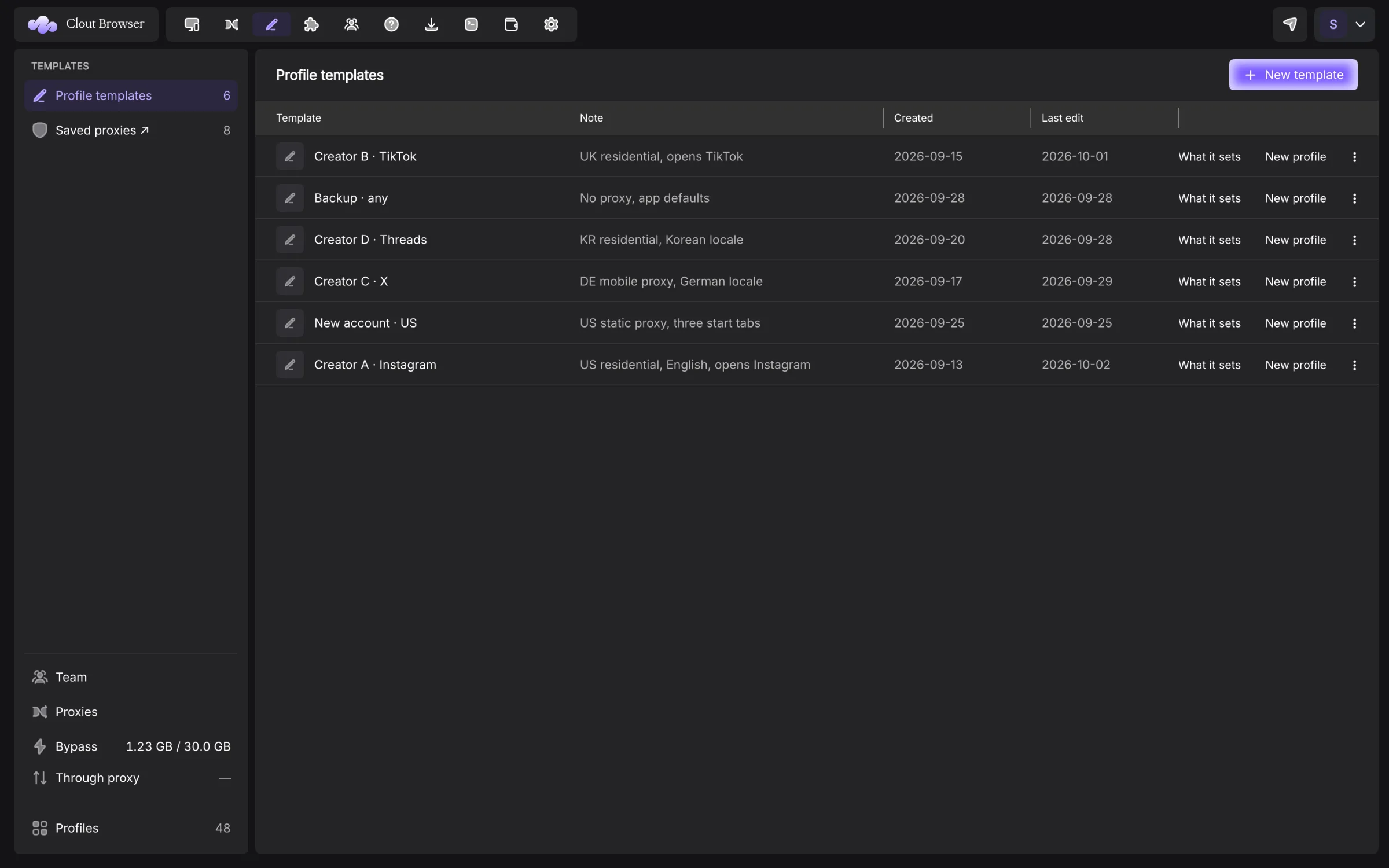
A template carries proxy choices, fingerprint settings and launch preferences. It omits the profile name, user agent, WebGL renderer, device name, MAC, proxy password, cookies and account username. Per-profile noise seeds are also excluded.
CPU, memory, browser version and GPU-family choices can be reused. The identity is minted around those choices for every new profile. A template is not a signed-in profile or a cookie backup.
Use and inspect a template
New profile on a row opens the create form filled from it. Start from at the top of the create form selects a saved starting point.
What it sets opens the details. It distinguishes saved choices from defaults, names values made fresh per profile and lists values not carried at all.
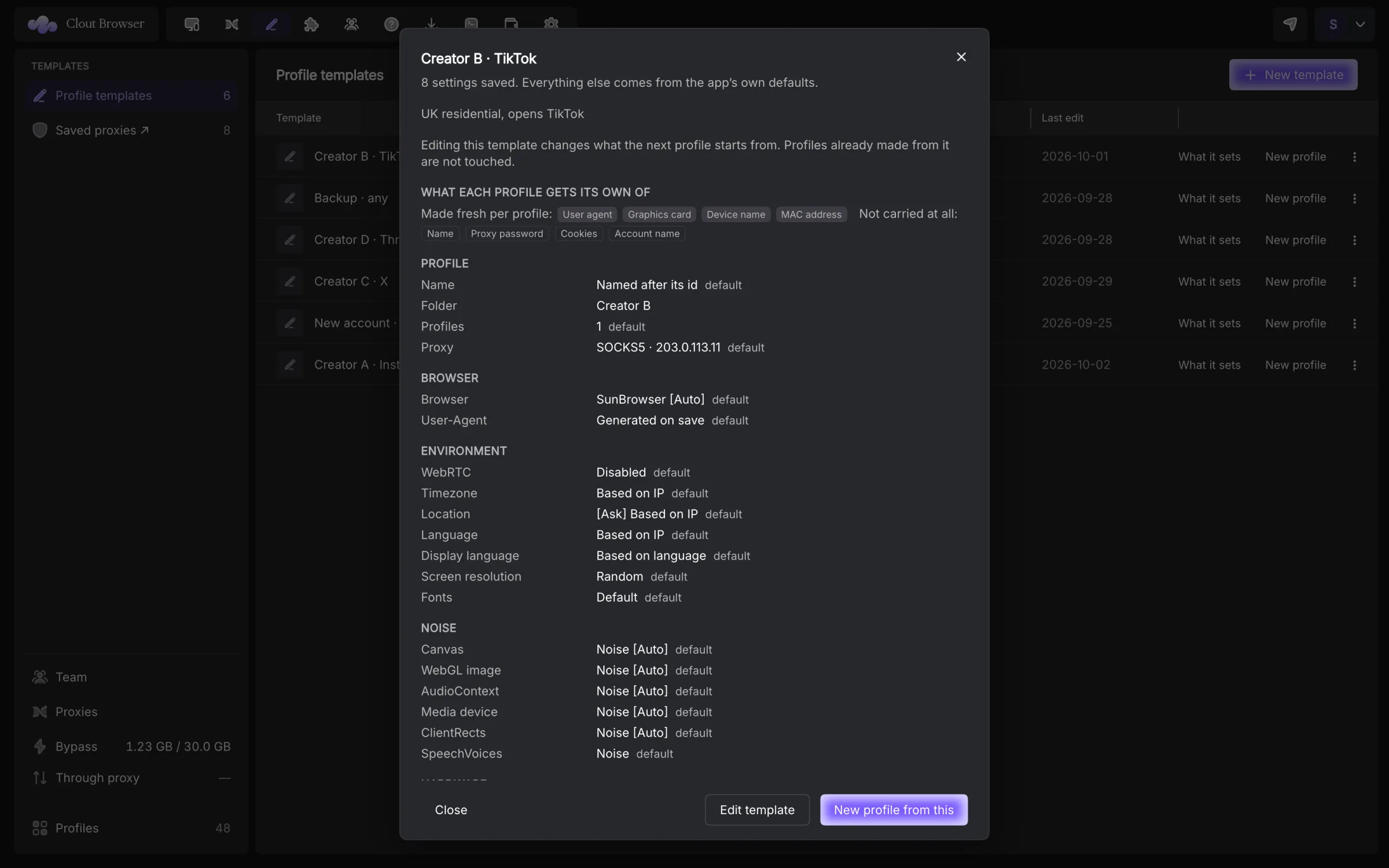
Edit template changes the next creation. It does not edit profiles already created from the template. Duplicate template makes another reusable starting point. Delete template removes it permanently while retaining existing profiles.
A proxy template is a separate feature. Use Proxies → Templates when you want per-profile provider logins rather than a complete profile setup.
Add an extension
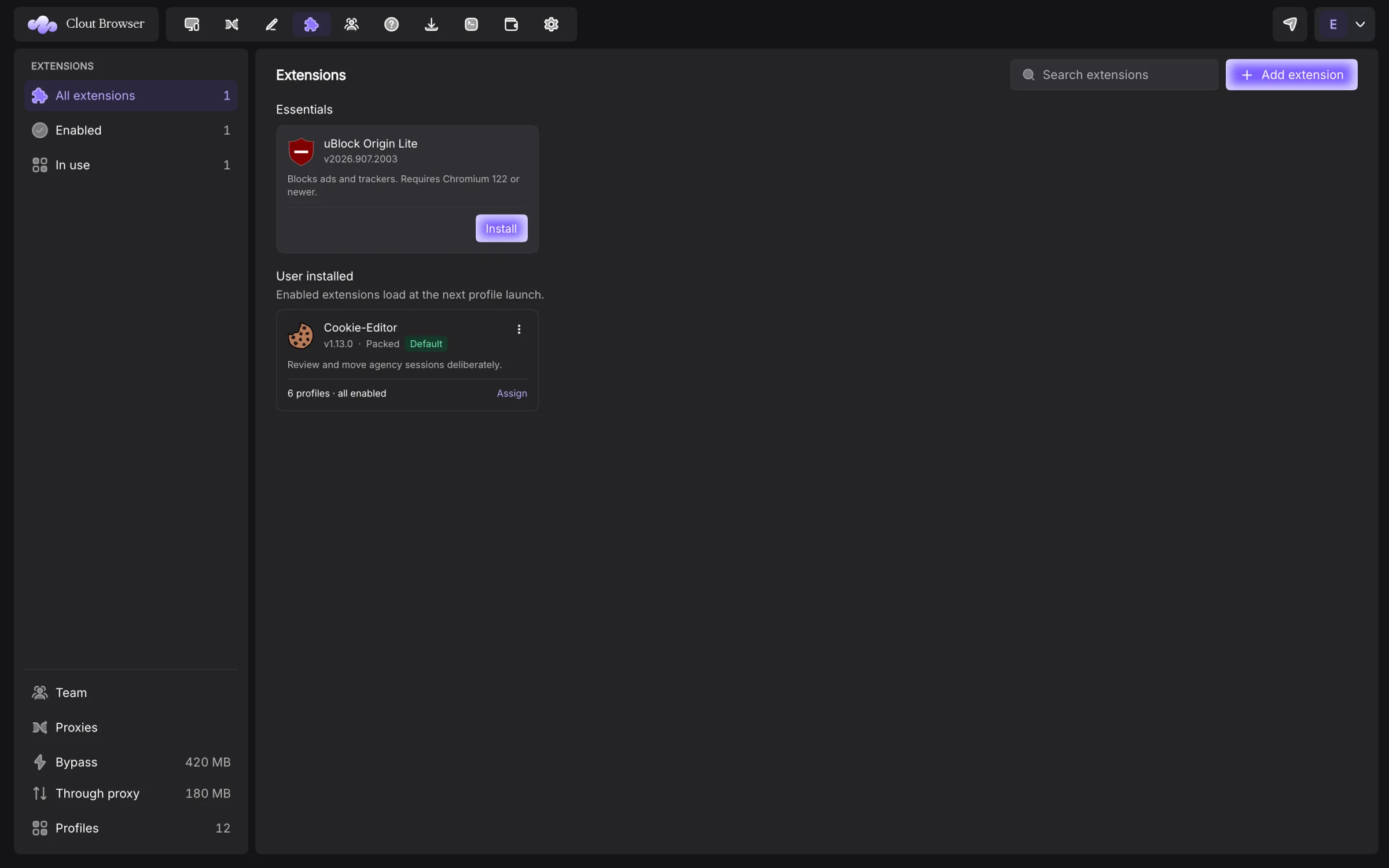
Open Extensions and press Add extension.
- Paste a Chrome Web Store link and press Add from link, or choose a file.
- For a local source, use an unpacked extension folder,
.crxor.zip. - Review the inspected extension.
- Add it to the library, then choose the profiles that use it.
Direct CRX and ZIP links also work. A dropped local file is resolved by the app’s native bridge.
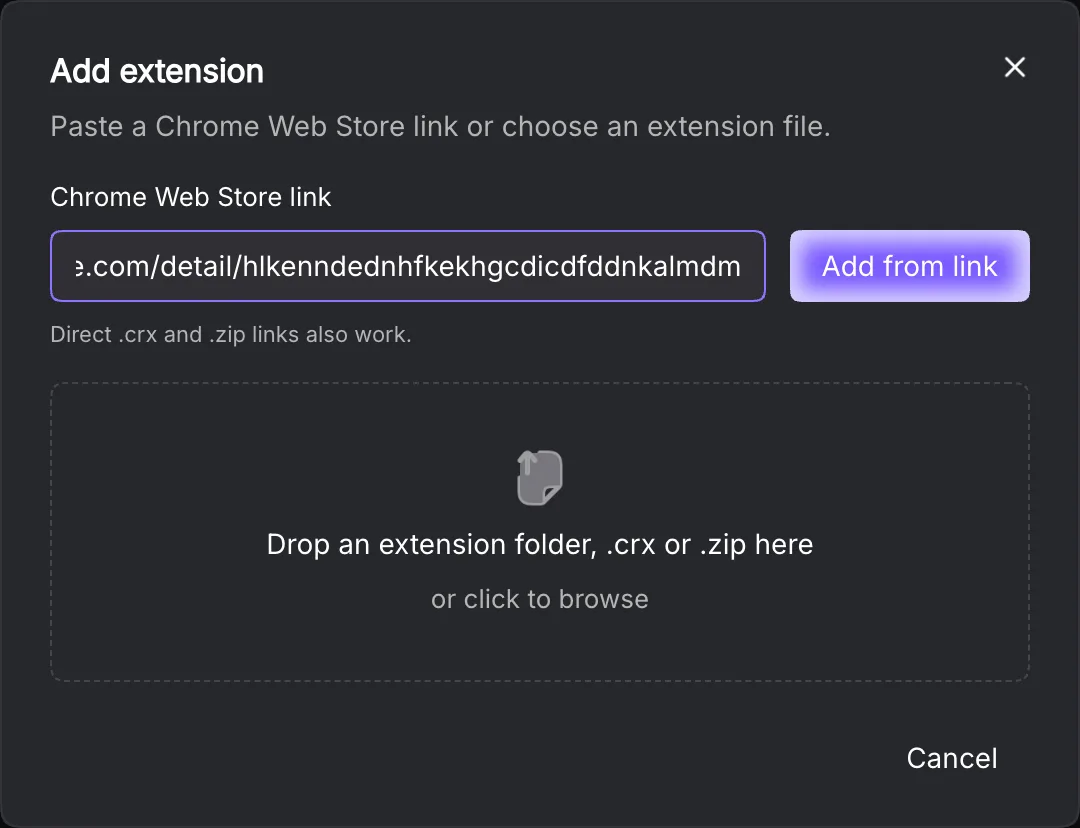
The Essentials section offers uBlock Origin Lite and Cookie Editor. It shows each packaged version and the minimum Chromium requirement. Use the requirement displayed in your build rather than assuming every extension runs on every pinned engine.
Choose the profiles that use it
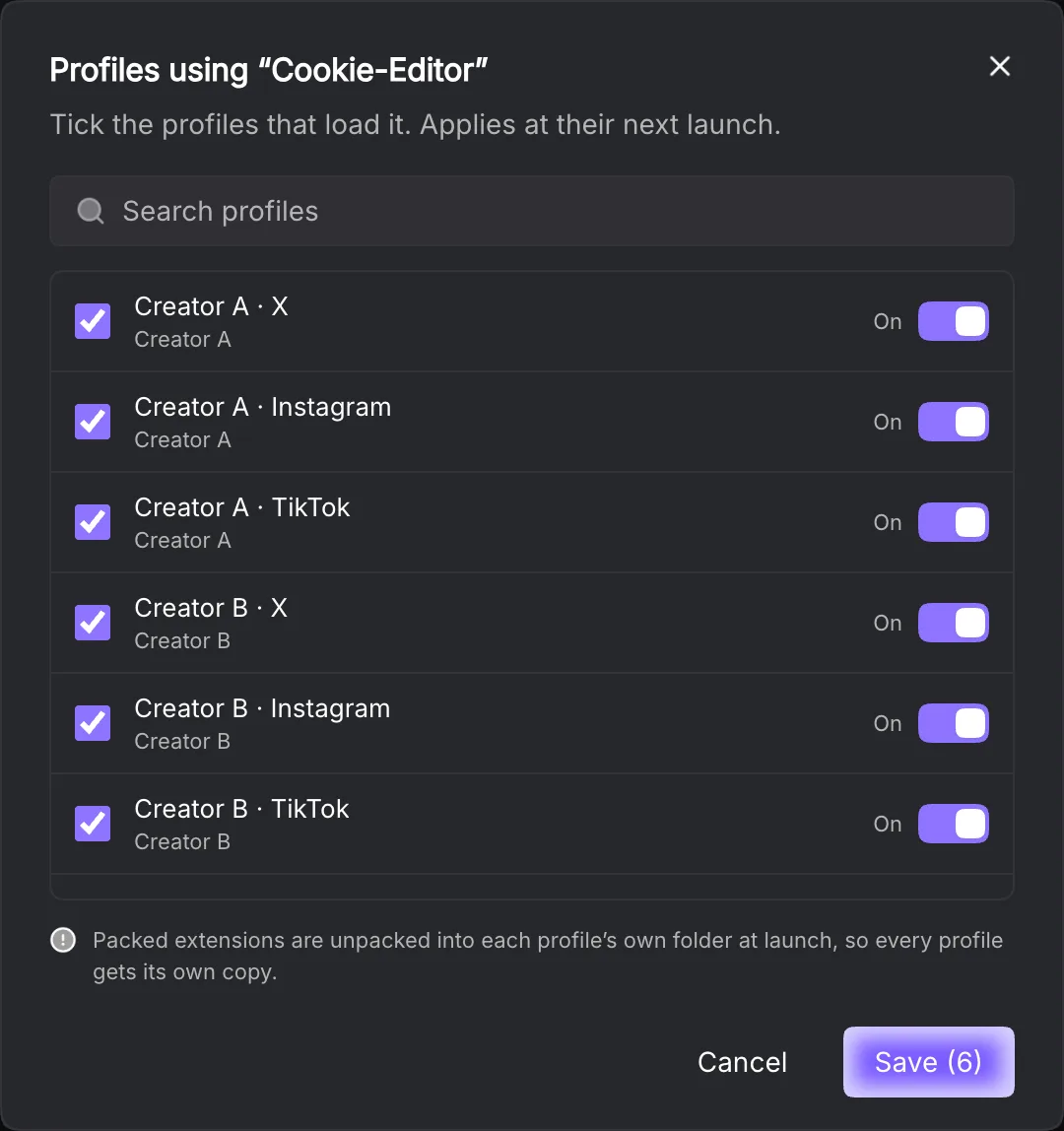
The library filters All extensions, Enabled and In use. Search by name, note or location. Open an extension’s profile assignment control, select profiles and set their enabled switches, then save.
Marking an extension for new profiles makes it a starting default. Existing profiles are unchanged. Remove that default when future profiles should stop receiving it.
Changes take effect after running profiles restart. Downloading or refreshing files does not replace the extension underneath an open browser.
Sync the library
Settings → Storage → Keep extensions in sync copies added extensions into Clout and publishes them to the account so other computers can download them. The library’s cloud actions publish and retrieve versions explicitly when needed.
If both the account and this computer changed, Clout reports the difference. Replacing the cloud version overwrites the account change for everyone; keeping the cloud version replaces this computer’s files and details with that version. Review before choosing.
Remove an extension
Use the library’s removal action and read the named confirmation. Profiles using it will no longer receive it from that entry. If a browser is already open, restart it to apply the changed extension set.
Use only Clout-managed extensions under Settings → Browser restricts launch to assigned extensions. With none assigned, none run. This is useful when your agency wants the library to define the whole extension set.
Repair files and review publication
A card marked Files missing on this computer. Profiles will not load it. offers Download and Locate…. Download retrieves the account version; Locate opens the native file picker so you can point the library entry at its moved files. Restart running profiles to apply it.
Rename extension changes Name and Note only. It does not change files on disk. The menu’s default action controls new profiles separately from Assign.
A publication review compares the account and local name, version, note and files. Replace cloud version publishes your reviewed local copy for everyone. Keep cloud version adopts the reviewed account copy here. If the account or revision changes while you review it, reload rather than repeating the old choice.
Removing a library entry unassigns it from profiles. The removal confirmation says that the original folder or CRX on disk is retained.
Read extension inspection warnings
After selecting files, Add extension shows the inspected name, version, source and location. An already-listed path warns before you add a duplicate entry. A Manifest V2 warning means recent Chromium builds may not load it; choose an extension suitable for your profile’s engine.
Essentials lists installable entries you have not already added. After installation, the extension appears under User installed, where you assign it and manage its default. The shelf’s packaged versions can change with an app release.