Computers and sync
Connect computers, sync browser data, resolve conflicts and recover interrupted transfers without silent overwrites.
On this page
Sign-in registers a computer; sync connects its profile store to your account. Account-owned profiles can then follow you between computers, with credentials fetched separately when needed.
Connect another computer
- Install Clout Browser and sign in with the account that has workspace access.
- Open Settings → Runtime preferences → This computer.
- If it says Not connected, press Connect.
- Check that it reports Connected and syncing.
- Open Browser engines and install the versions the profiles need.
A profile created with Save to my account on is placed on the account. With it off, the profile remains local. Check the register’s Storage column instead of assuming that every local profile has already been uploaded.
What sync carries
Profile records and organisation, account settings and supported shared library data reach connected computers. Session cookies and passwords do not travel in ordinary metadata pages; the app uses separate credential and browser-data operations.
Browser data supports Cookies, Bookmarks, Local storage, IndexedDB, Extension data and Browsing history. Saved browser passwords are not included in the browser-data transfer.
For an account-owned profile with automatic browser-data sync, Clout restores account data at start and uploads at stop. Cookies are collected while the browser still runs; file-backed data is collected after it closes. Upload failures are reported and do not make a browser impossible to stop.
Review one profile’s browser data
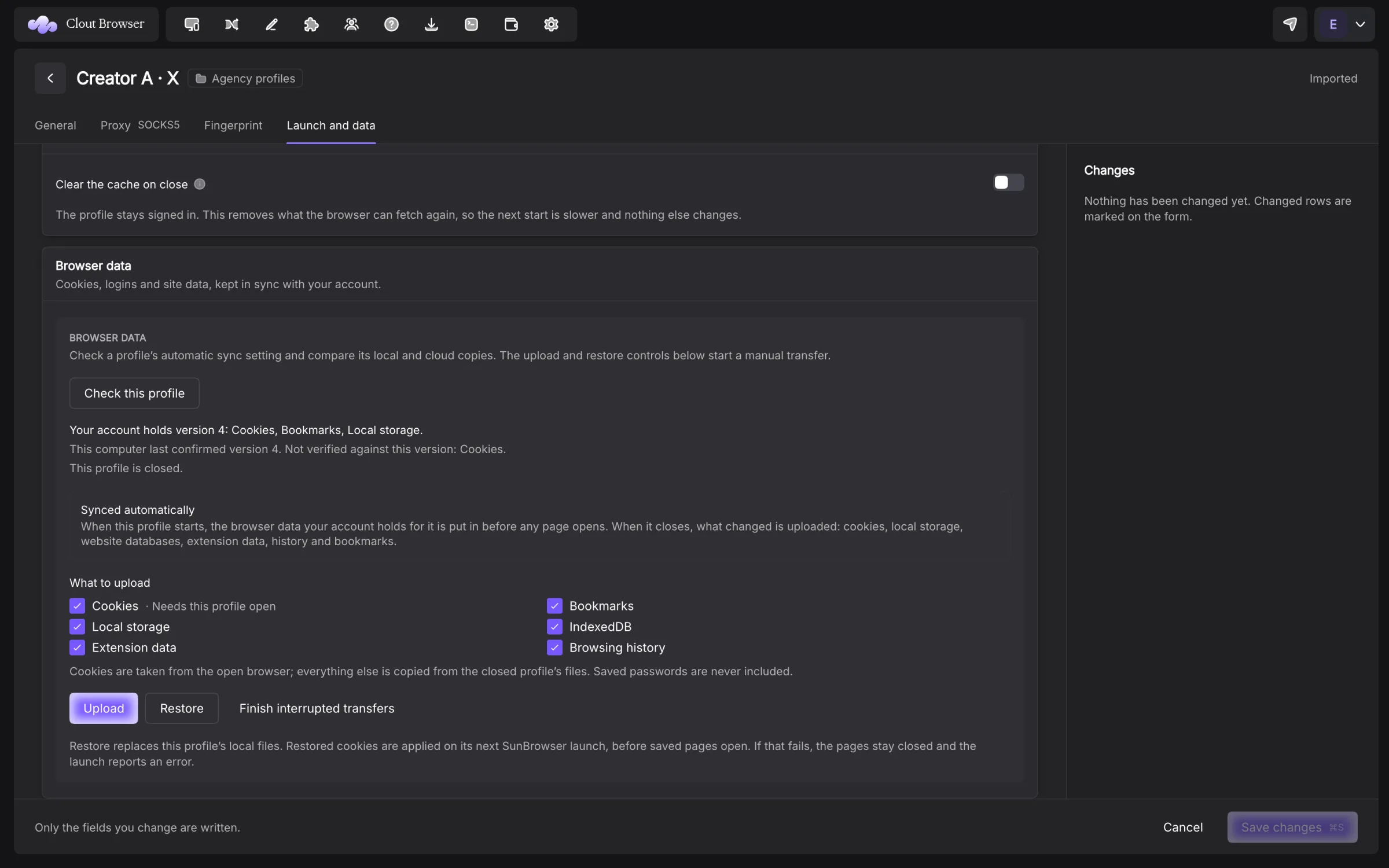
Open Edit profile → Launch and data and find Browser data. Press Check this profile to read its local and account state.
| Control | What it does |
|---|---|
| Synced automatically | Sets whether this profile automatically restores at start and uploads at stop |
| What to upload | Chooses supported kinds for a manual upload |
| Upload | Sends the kinds that can be read safely in the current browser state |
| Restore | Restores the reviewed account version to this profile |
| Finish interrupted transfers | Settles interrupted work recorded for the profile |
| Keep local cookies | Cancels a pending cookie restore without changing the local jar or cloud copy |
Cookies need an open browser for capture; other kinds need its files closed. The panel reports skipped kinds. Close the profile before restoring files.
Restore replaces local files. Restored cookies are applied on the next SunBrowser launch before saved pages open. If applying them fails, those pages remain closed and the launch reports the failure.
If the cloud version lacks data that exists here, the panel requires a decision: Match cloud copy can delete the named local kinds; Keep this computer’s data keeps them. Re-check the displayed version before deciding.
Resolve profile conflicts
An amber marker beside a profile name means it was edited in two places. Click it to open Edited in two places. The dialog shows your base revision, the current server revision and changed fields.
Keep theirs drops your conflicting edit without writing to the server. Keep mine writes your side against the reviewed server revision. Pick per field lets you choose Yours or Theirs for every changed field, then Apply these picks.
If the server changes again while you decide, the operation is refused and you must review the fresh conflict. Clout does not silently retry your old choice against a new revision.
A browser-data conflict is a separate decision. Review the profile’s Browser data panel rather than treating it as a merge of ordinary text fields.
Work offline
A connected computer can go 60 minutes without successful sync contact before new profile launches are refused. The message says: “This computer has not reached the sync service for over an hour, so new profiles will not open.” Reconnect to the internet.
Browsers already open keep running. This sync window differs from the licence-cache window; Account and billing covers the latter. A local-only profile and a computer bound to account sync do not have the same launch constraints.
Device join tokens
An Owner or Admin can create Device join tokens under Settings → Security. Choose Label, Expires and Computers, then Generate token. Expiry choices run from 1 day to 1 year, or Never. Computers can be limited to a whole number of at least 1 or set to Any number.
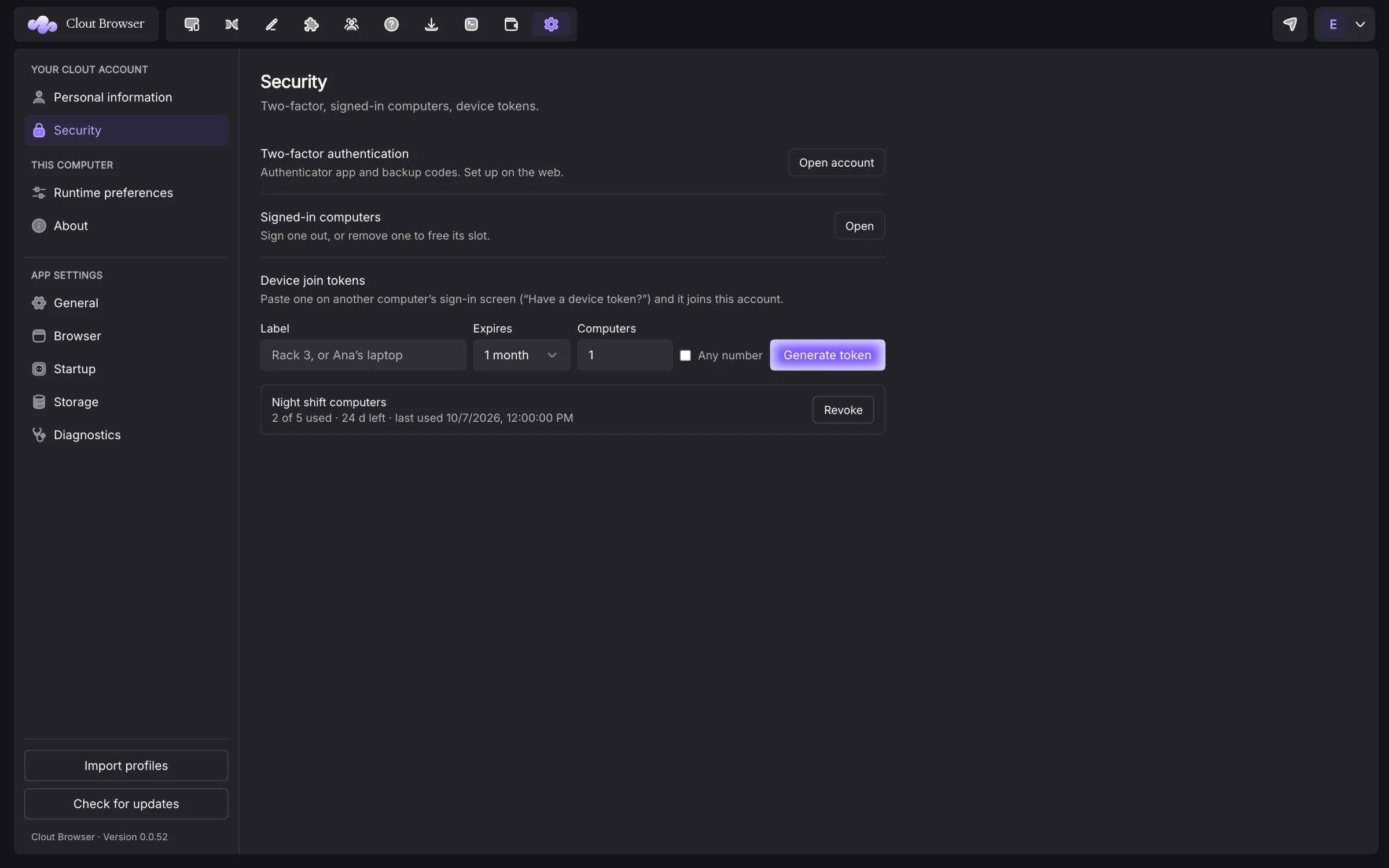
The token is shown once. Use Copy token, then store it securely. A second computer can choose Have a device token? on its sign-in screen; a server can use cloutctl auth join --token -.
Revoking a join token prevents future joins. It does not revoke computers that already joined. Remove those computers from Devices in the portal.
Retire a computer
Open Devices in your account portal. Signing a session out and removing a computer are different actions. Removal revokes the computer identity; enforcement applies on its next request, while the offline window bounds new launches without contact.
Read the removal confirmation before proceeding. If a removed machine is refused when it tries to sign in again, contact Clout rather than deleting its identity files to work around revocation.