Settings
Set application language, browser and startup defaults, storage and diagnostic preferences.
On this page
Open the gear icon, Settings. Its rail separates Your Clout account, This computer and App settings. Save applies edited settings; Revert returns an unsaved draft to its previous values.
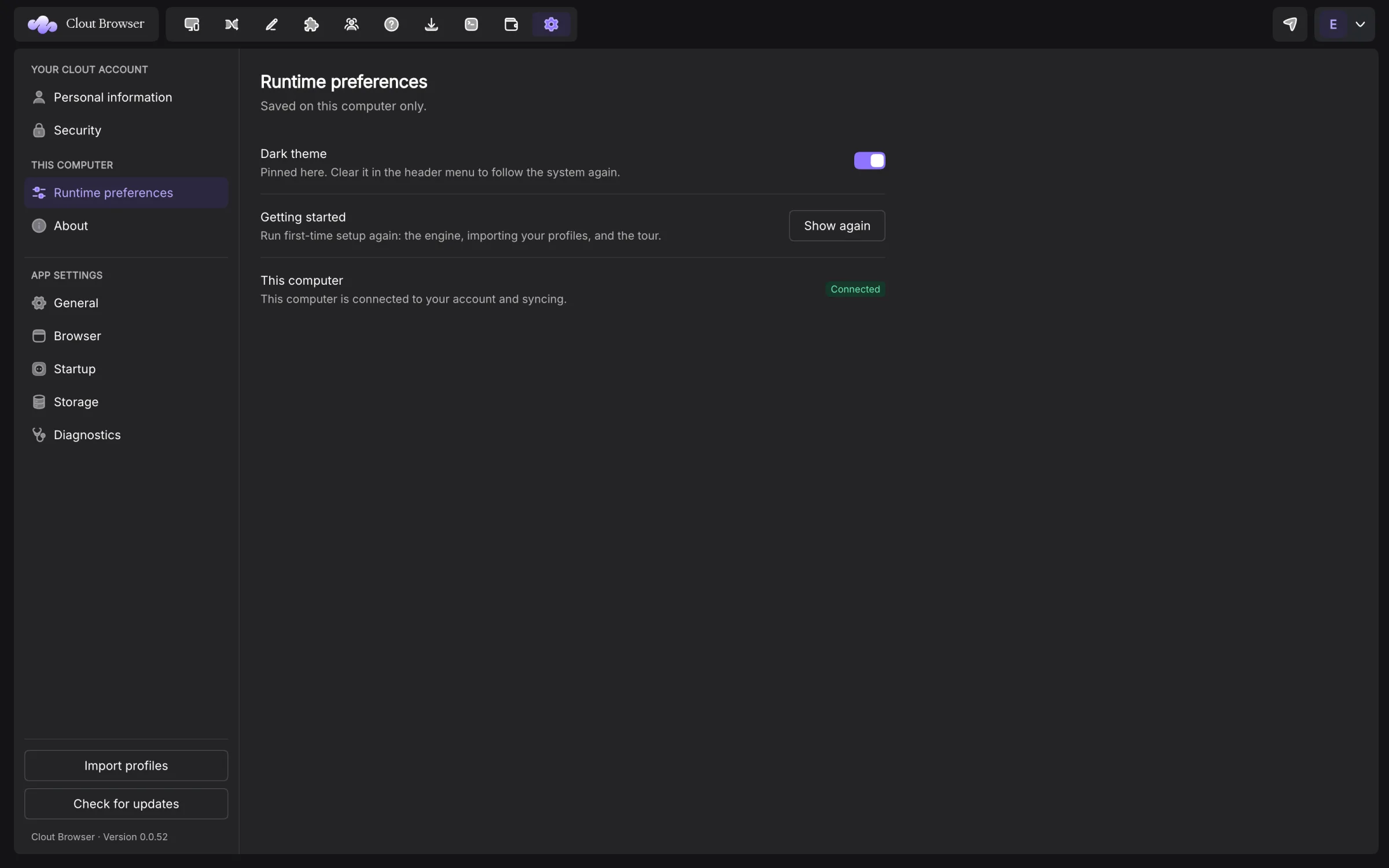
Language and theme
The workspace menu’s Language picker offers English, Português (Brasil), Español, Français and Deutsch. On first start, 0.0.52 follows the operating system’s preferred supported language and falls back to English.
An explicit choice is saved on this computer. Changing language reloads the window because some labels are computed when the app starts. This changes the Clout interface, not a profile’s browser language; set the latter in Fingerprint.
Theme follows the system until you pin a choice. Runtime preferences → Dark theme changes this installation. The header’s Light theme or Dark theme control also pins a choice.
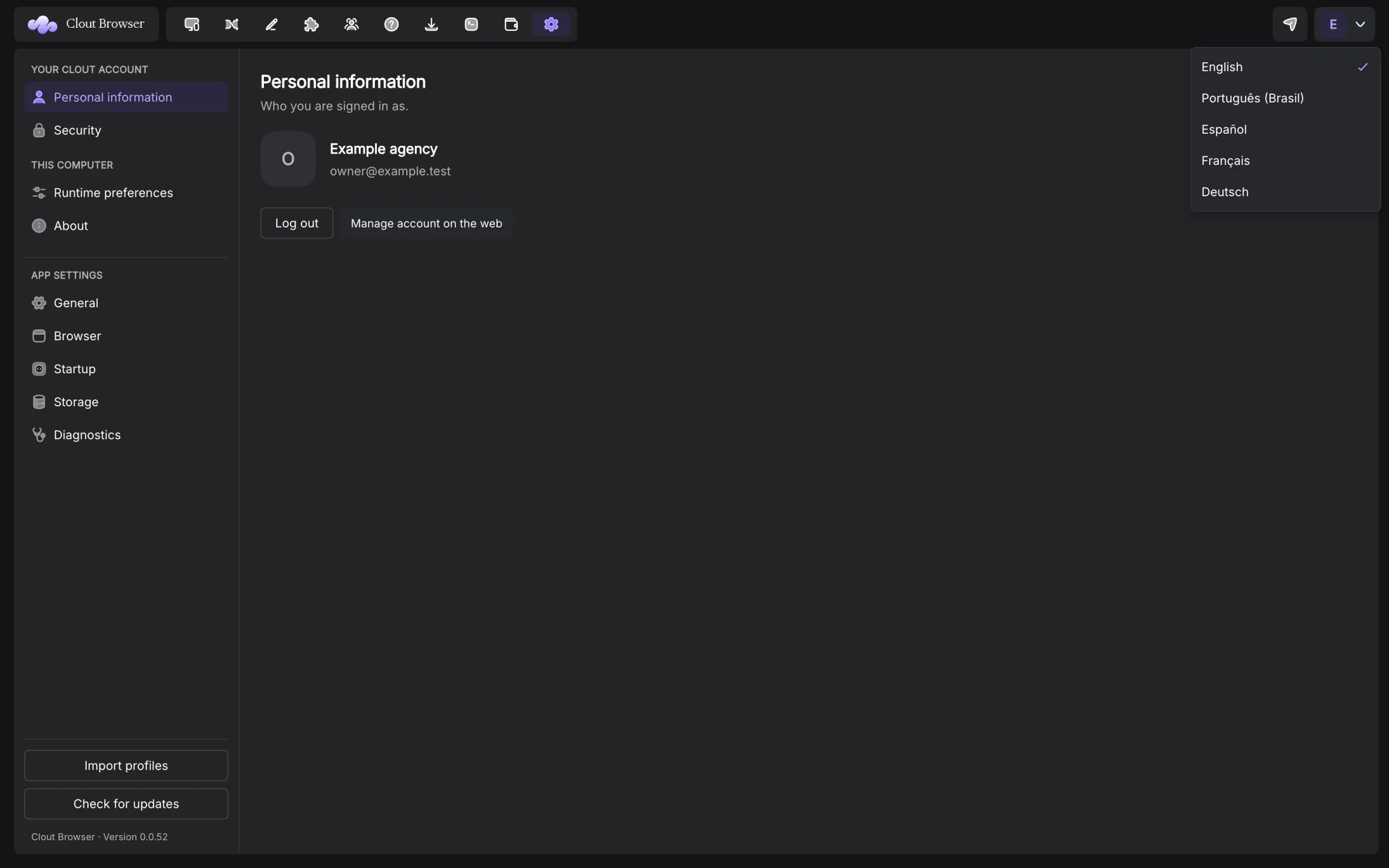
General
Canvas protection exceptions lists sites that receive the real canvas fingerprint, one per line. Use it only for a site that breaks with protection enabled.
Default window position takes x,y. Disable Chrome’s password save prompt controls whether launched browsers offer to save passwords. These are defaults for launches; changing them is not changing every profile’s existing browsing data.
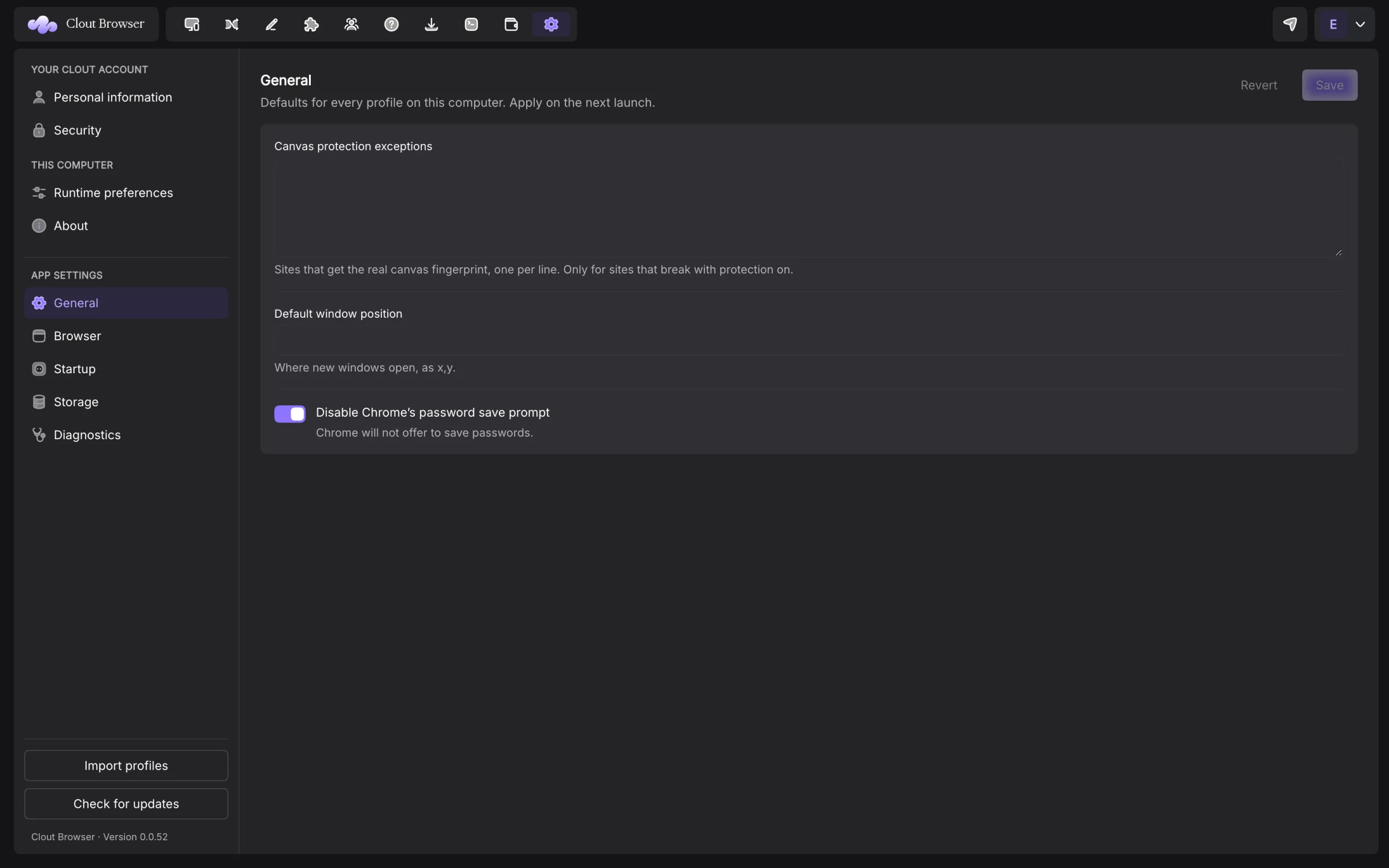
Browser
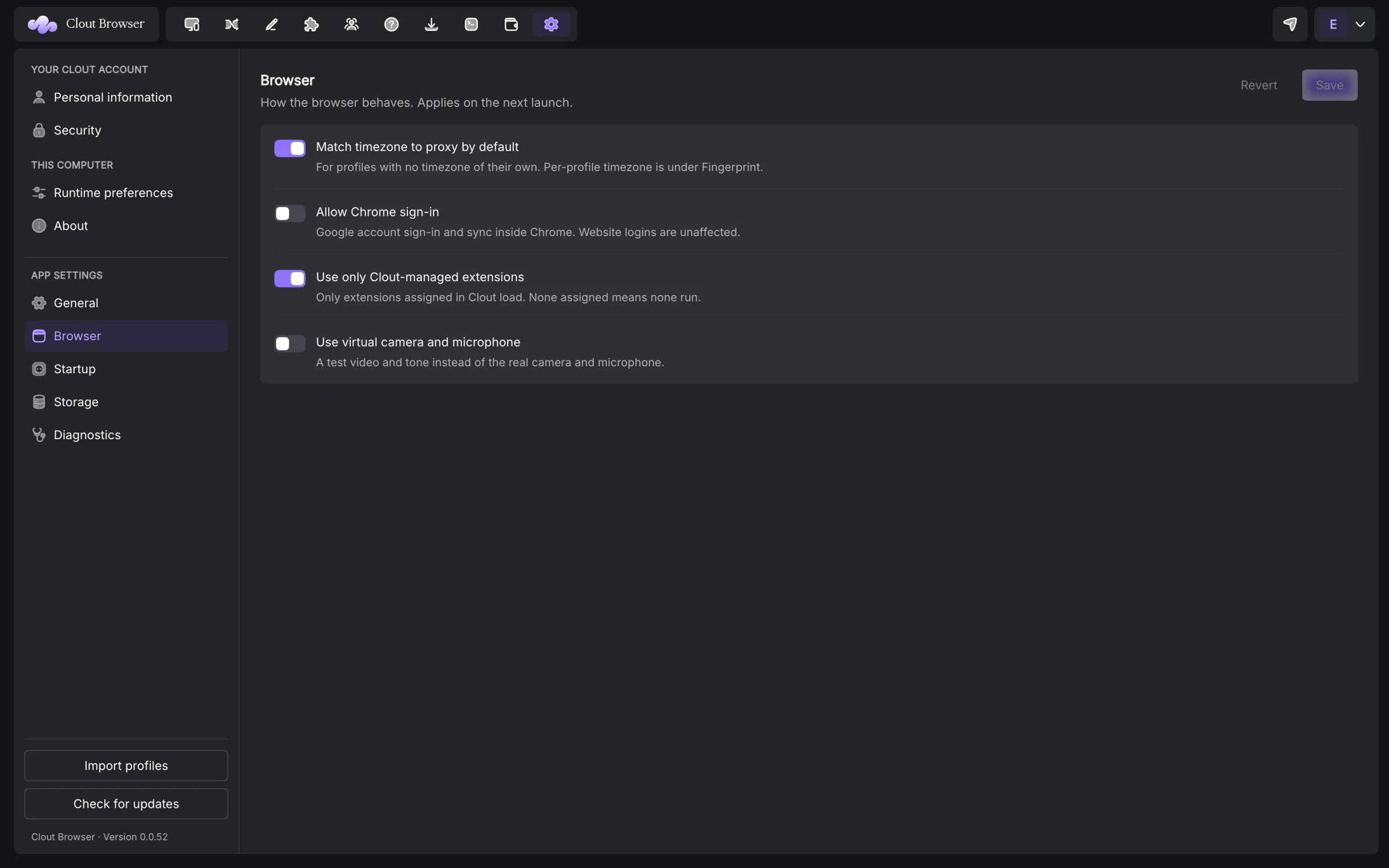
| Setting | Effect on the next launch |
|---|---|
| Match timezone to proxy by default | Applies when the profile has no timezone of its own |
| Allow Chrome sign-in | Allows Google account sign-in and sync inside Chrome; website logins are separate |
| Use only Clout-managed extensions | Loads only assigned extensions; no assignment means none run |
| Use virtual camera and microphone | Supplies a test video and tone instead of the real devices |
Per-profile settings remain in the profile form. Change an account-managed default only with permission; the page says when the account controls a setting and whether your role can write it.
Startup
These checks prevent a profile from opening with the wrong connection or incomplete session. They apply through desktop and Local API launches.
| Setting | Effect |
|---|---|
| Do not open a browser or create a profile without a proxy | Refuses the direct-connection case |
| Do not open from a new country | Refuses an exit country different from the previous one |
| Wait for the profile’s data | Pulls newer account browser data before opening; a failed pull holds the launch |
| Do not open a browser without a working proxy | Tests the proxy first; no answer means no launch |
| Reopen the last pages | Restores the previous tabs |
| Open IP check page | Opens the check even with custom start pages |
| Show browser check by default | Shows the exit check when no start page is configured |
| Try HTTPS first | Prefers HTTPS, using HTTP when required |
| Block video | Reduces traffic; video players may break |
| Skip images above | Sets an MB threshold; 0 fetches every image, maximum 1024 |
| Clear before each launch | Clears selected Cookies, Local storage, IndexedDB, Cache or History |
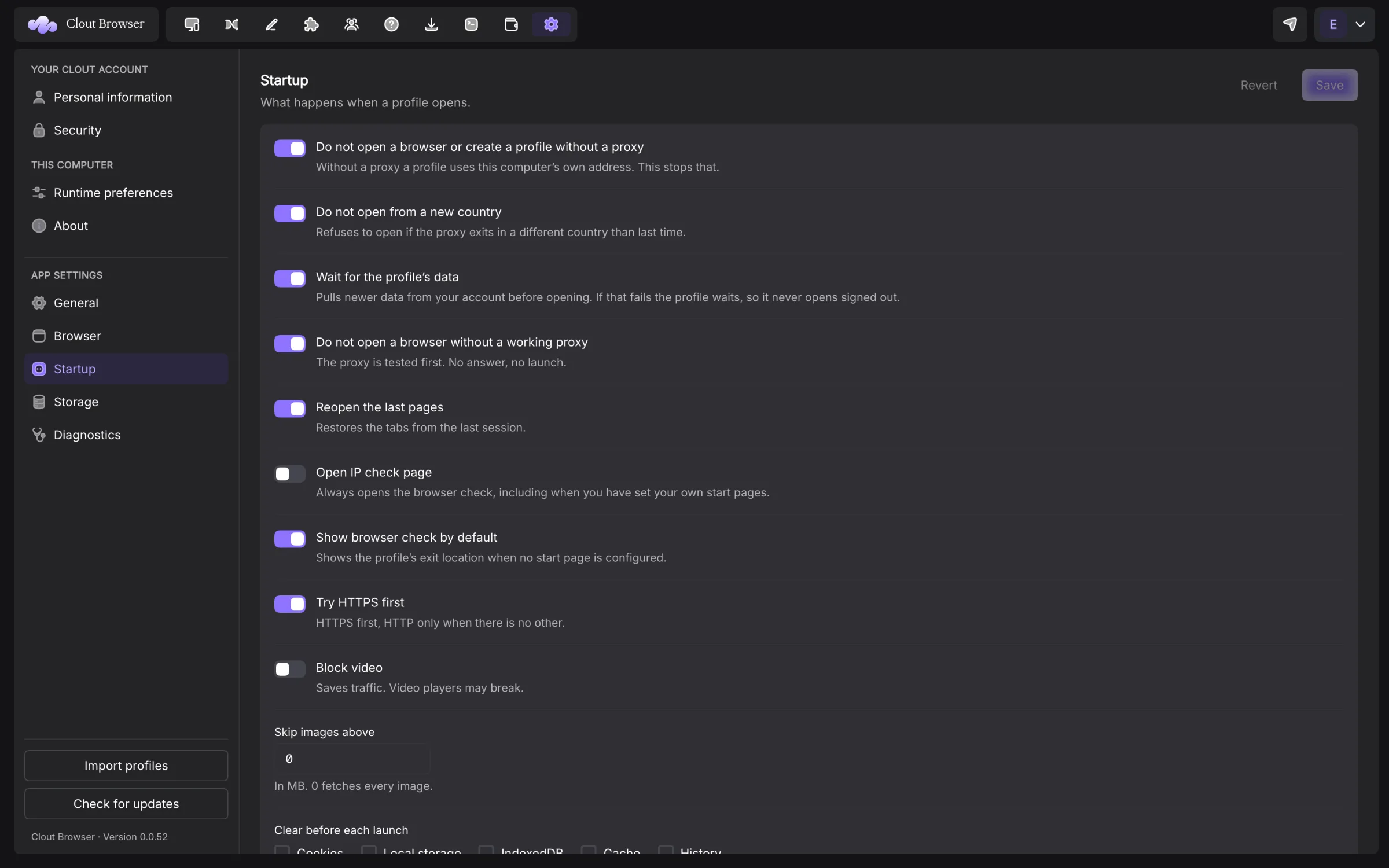
Selecting Cookies under Clear before each launch signs the profile out. Clearing only Cache is a different operation. Review data-clearing settings before reporting a lost session.
Storage
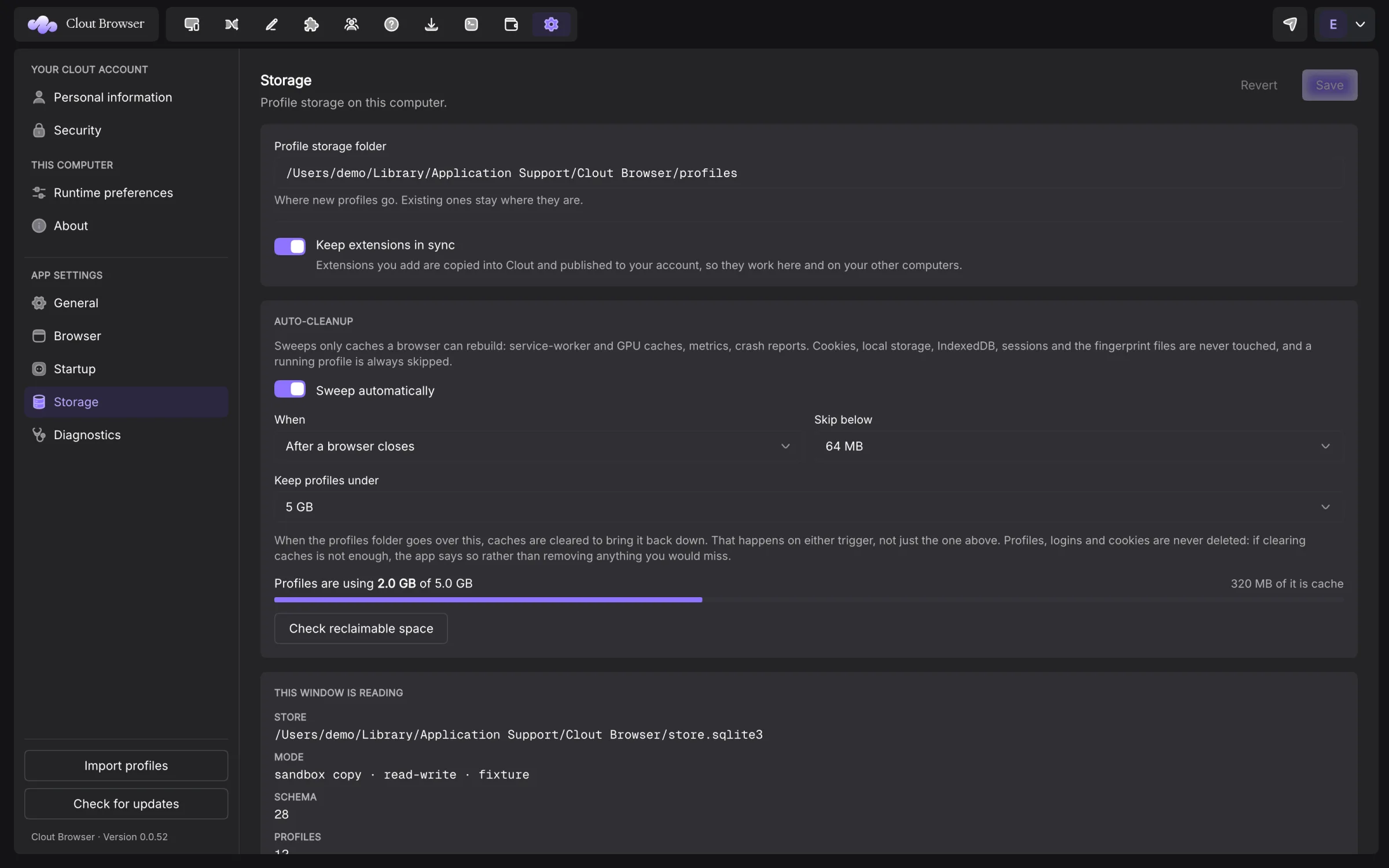
Profile storage folder changes where new profiles go. Existing profiles stay in their directories. The page reports the actual store path and its state; copying a folder yourself does not update those records.
Keep extensions in sync copies extensions into Clout and publishes them to your account. Templates and extensions covers version conflicts.
Browser-data controls for one profile live in Edit profile → Launch and data, not in a global Data sync settings page. Computers and sync explains them.
Reclaim cache space
Auto-cleanup sweeps rebuildable caches and skips running profiles. It retains cookies, local storage, IndexedDB, sessions and fingerprint files.
Enable Sweep automatically, then choose When: After a browser closes or On app quit. Skip below sets the per-profile threshold. Keep profiles under sets a ceiling for the whole profiles folder; No limit leaves it uncapped. When the ceiling is exceeded, cache cleanup can run on either trigger. If all reclaimable caches are insufficient, the page reports that rather than deleting profiles.
Check reclaimable space measures what a sweep could recover. Review that measurement before Reclaim it. Cleanup choices save immediately through their own policy; other edited app settings still use Save.
Diagnostics
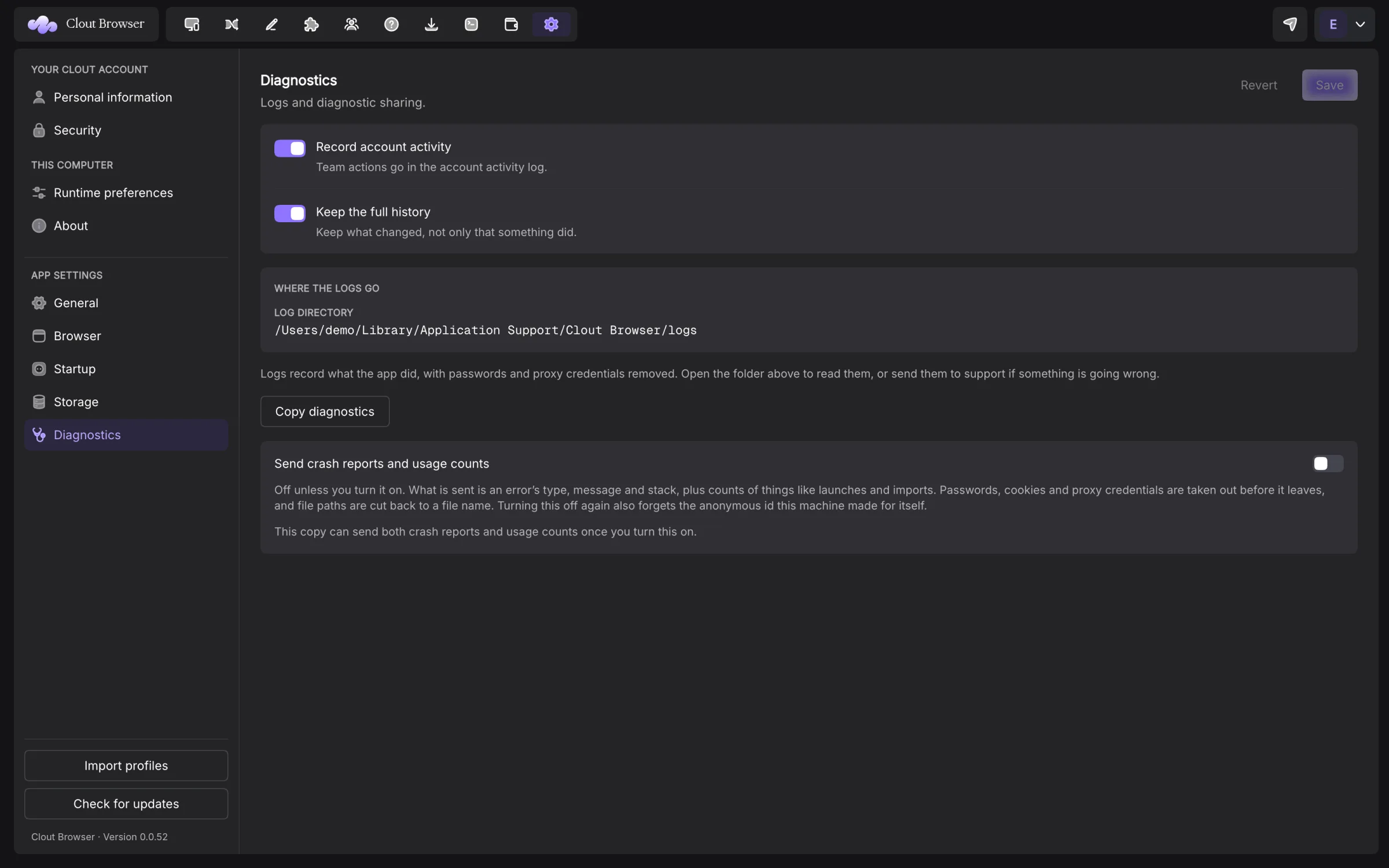
Record account activity records team actions. Keep the full history keeps what changed as well as the action record. Send crash reports and usage counts is off unless you turn it on. Its status also says whether this build has reporting configured. Turning it off clears this computer’s anonymous reporting ID. Account activity recording does not enable it.
Use Copy diagnostics for a support report. Inspect what you send and add the app version, operating system, profile ID and operation that failed. Never add a raw cookie jar, proxy password, login password or join token.
Keyboard shortcuts and command palette
Open Keyboard shortcuts from the workspace menu. On macOS, Mod means Command; on Windows and Linux it means Ctrl.
| Keys | Action |
|---|---|
| Mod+N | Create new profile |
| Mod+Shift+N | Quick profile |
| Mod+F | Search profiles |
| Mod+Enter | Start selected |
| Mod+Shift+Enter | Stop selected |
| Mod+A | Select all |
| Mod+Backspace | Move to trash bin |
| Mod+Shift+L | Toggle theme |
| Mod+/ | Keyboard shortcuts |
| Mod+K | Command palette |
| Mod+, | Settings |
Search, Start, Stop, Select all and Move to trash bin act on the Profiles register. The command palette lets you search available navigation and actions without memorising their icons. In the create form, Mod+Enter creates; in the editor, Mod+S saves.
About and updates
About shows the app version, runtime versions, engine information and data directory. Copy version and Copy path make those facts available without guessing a platform path.
Check for updates checks the app feed. The Browser engines page checks engine packages separately. Getting started → Show again reopens first-time setup.
If a preference appears read-only, read the page’s explanation: account policy, an unavailable sync key and a failed settings read require different fixes.