Profiles
Find, organise, start, edit, export, clone and recover profiles from the register.
On this page
The Profiles register is your working list. One row is one browser identity. Use the sidebar to open All profiles, Running profiles, Favorites, a folder or Trash bin.
Find and organise profiles
Search the register by the values recorded on the profile, including its name and remark. Use Search filters to narrow the list. Manage columns chooses which details the table shows; the Browser column helps explain engine requirements.
The star marks a favorite. To mark a batch, select the rows and use Add to favorites. When all selected profiles are starred, the action changes to remove them.
A profile has one group. Folders are separate and can be nested; one profile can be filed in several. Use the sidebar’s add-folder control, then Move to folder to file selected profiles. The folder view narrows the register without creating another identity.
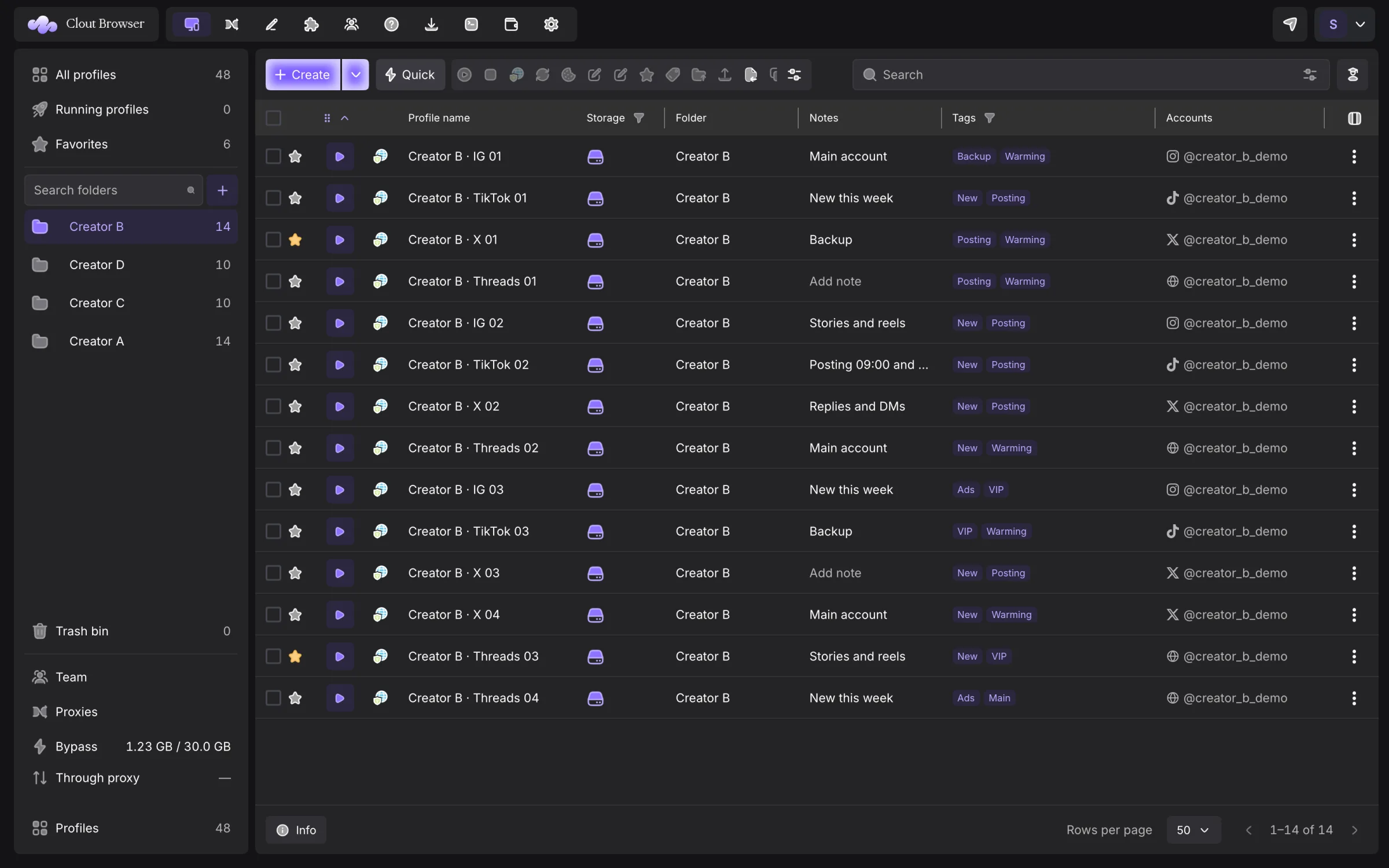
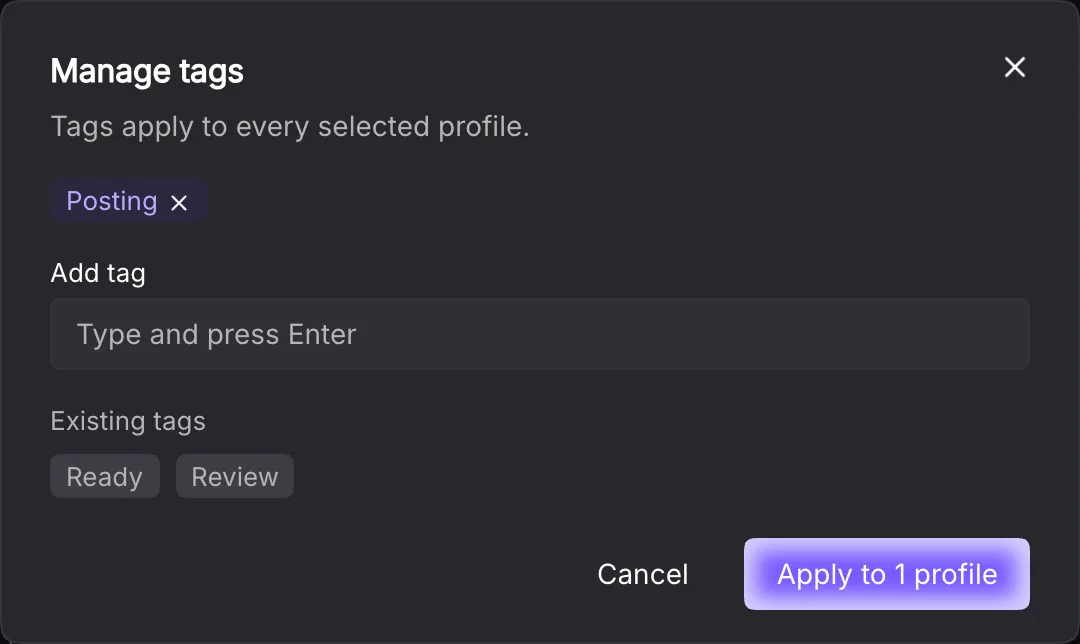
Use Manage tags for searchable labels and the note editor for the row’s remark. Drag a row to arrange profiles manually, or choose Move up, Move down, Move to top or Move to bottom from its menu. Inside a folder, ordering exchanges only that folder’s profiles. Manual order is kept on this computer.
Start and stop
Press Start on a row. Clout resolves the engine, builds the profile’s launch settings, prepares its session and opens the browser. A missing published engine is downloaded before the pending launch continues.
Close the browser to stop that profile, or select profiles and use Stop profiles. The stop path collects the exported session; account-owned profiles can upload their browser data after stopping. Give that operation time to finish before moving to another computer.
For selected rows, Command+Enter starts and Command+Shift+Enter stops on macOS. The same handlers accept Ctrl on other platforms. Starting a profile already running through the Local API returns its existing endpoint.
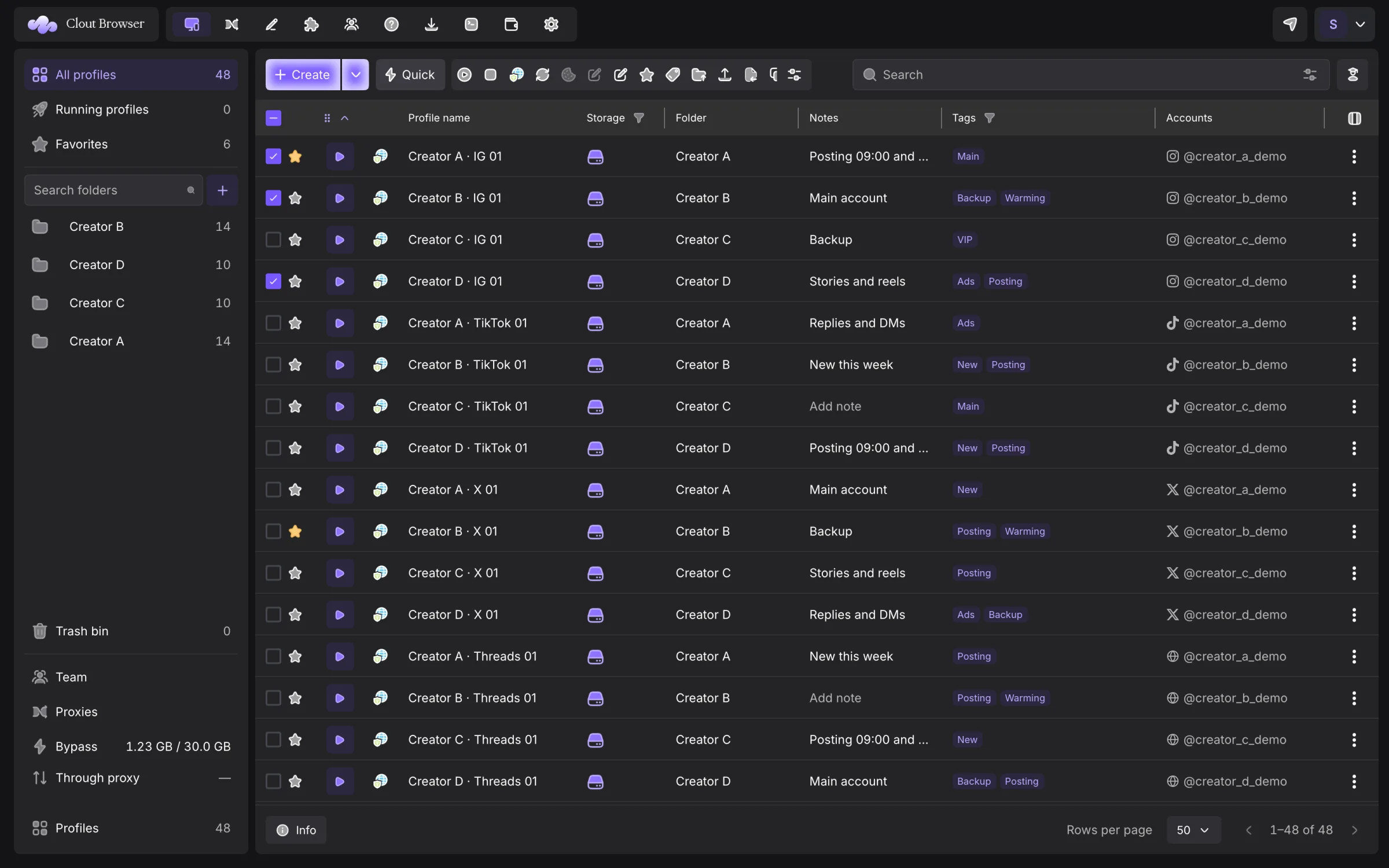
For larger start or stop batches the app shows a manifest with the profiles and outcomes. Read the per-profile refusals: a completed batch can contain profiles that did not launch.
Arrange open windows
Open Running profiles and use Choose a layout beside Arrange windows. Choose Grid, Columns or Cascade, then press Arrange windows. The app moves existing windows and reports the result. Profiles that do not fit stay where they are; the screen controls let you work through additional pages of windows.
Review activity
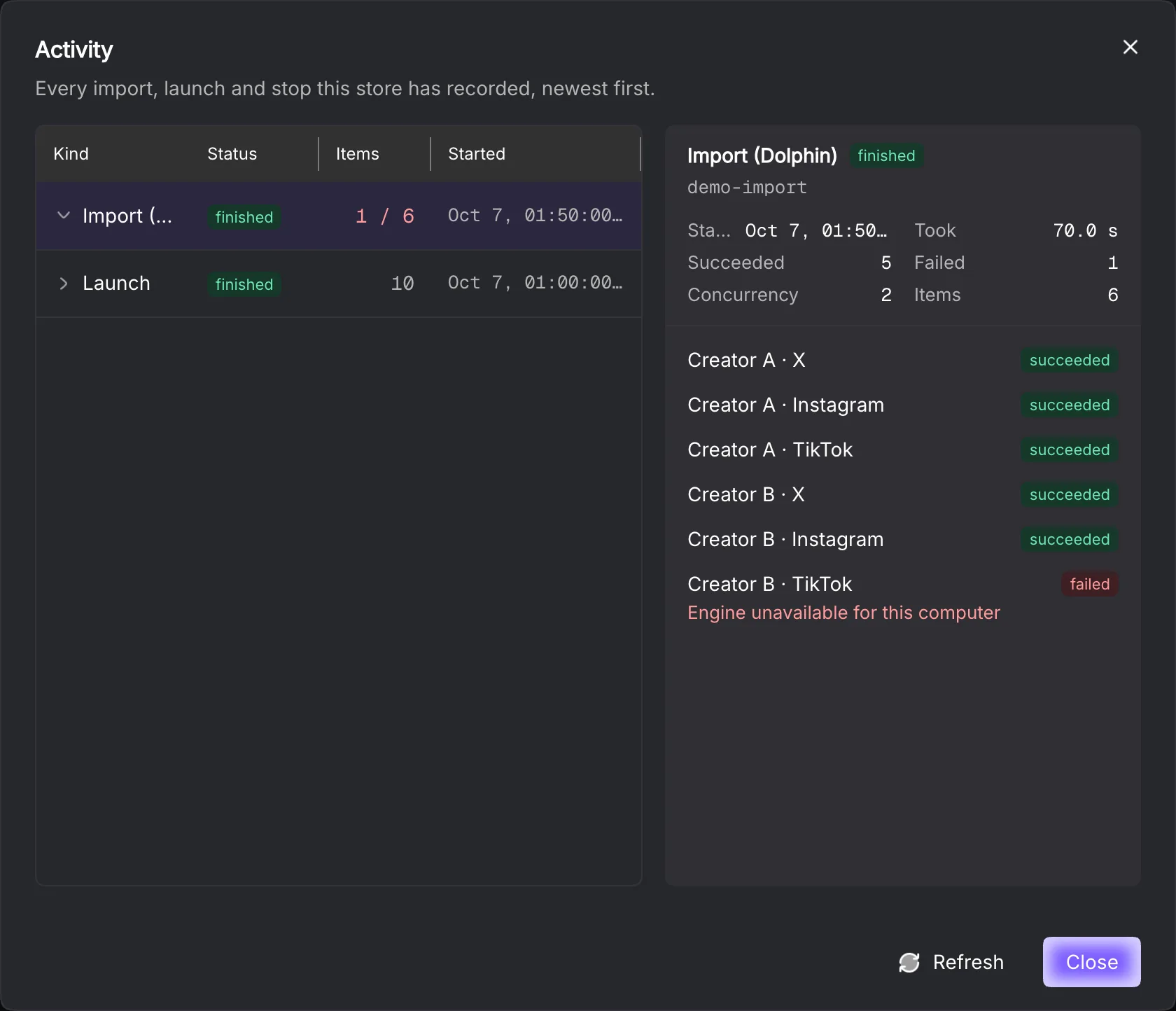
Open the account menu’s Activity. Import runs and batches that start or stop ten or more profiles record an item manifest. Choose a run to inspect Succeeded, Failed, Concurrency, timing and each profile’s outcome. A run that completed can still contain failures; use the item details to decide what needs attention.
Edit a profile
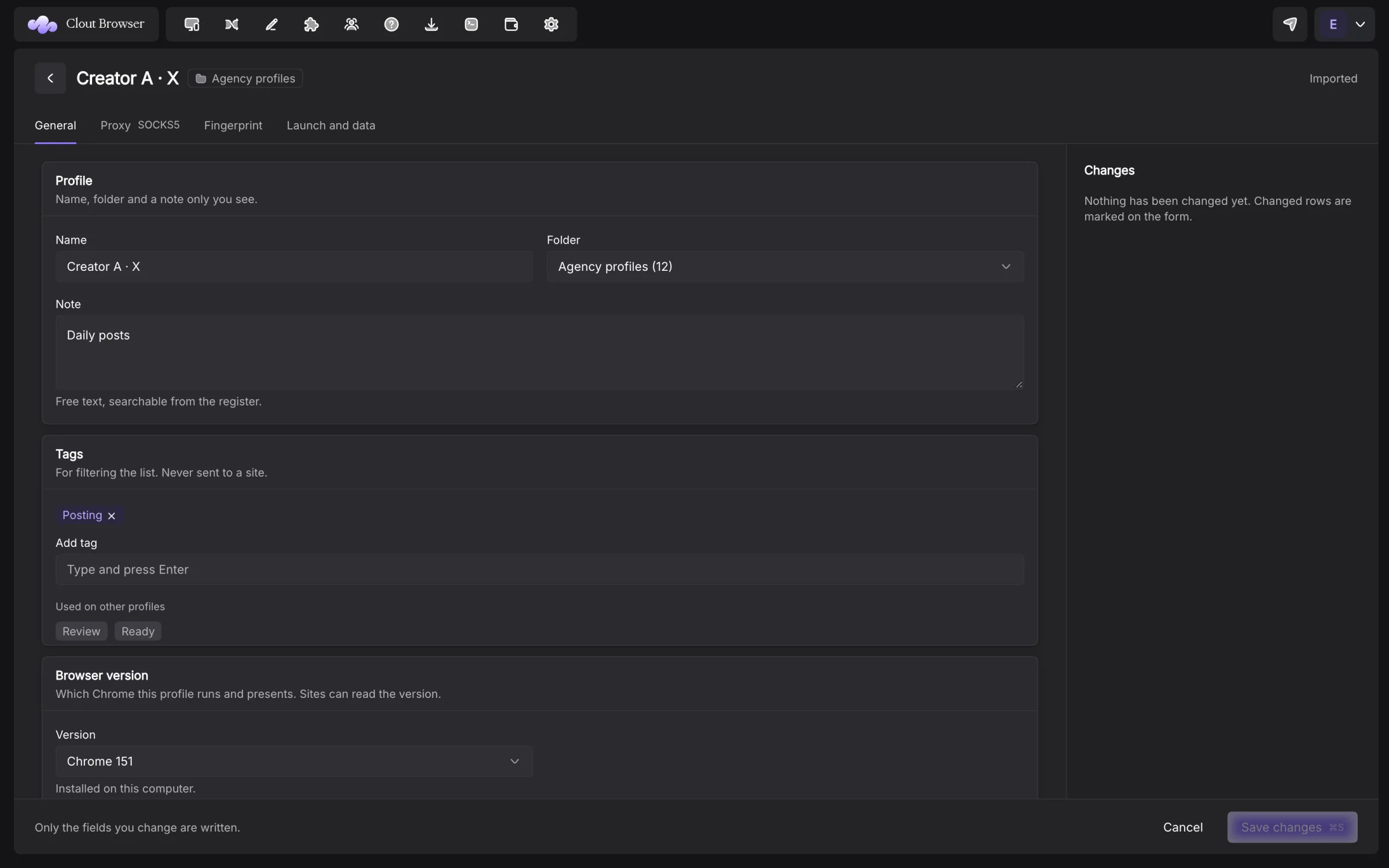
Choose Edit profile from the row menu. The editor loads the stored values and offers General, Proxy, Fingerprint and Launch and data. If its browser is open, use Close browser to close it and enable editing.
Changed settings show their previous value and an undo action. Changed on Fingerprint narrows the view to edited fields. Save with Save changes or Command+S on macOS; discard the draft to return to the stored values.
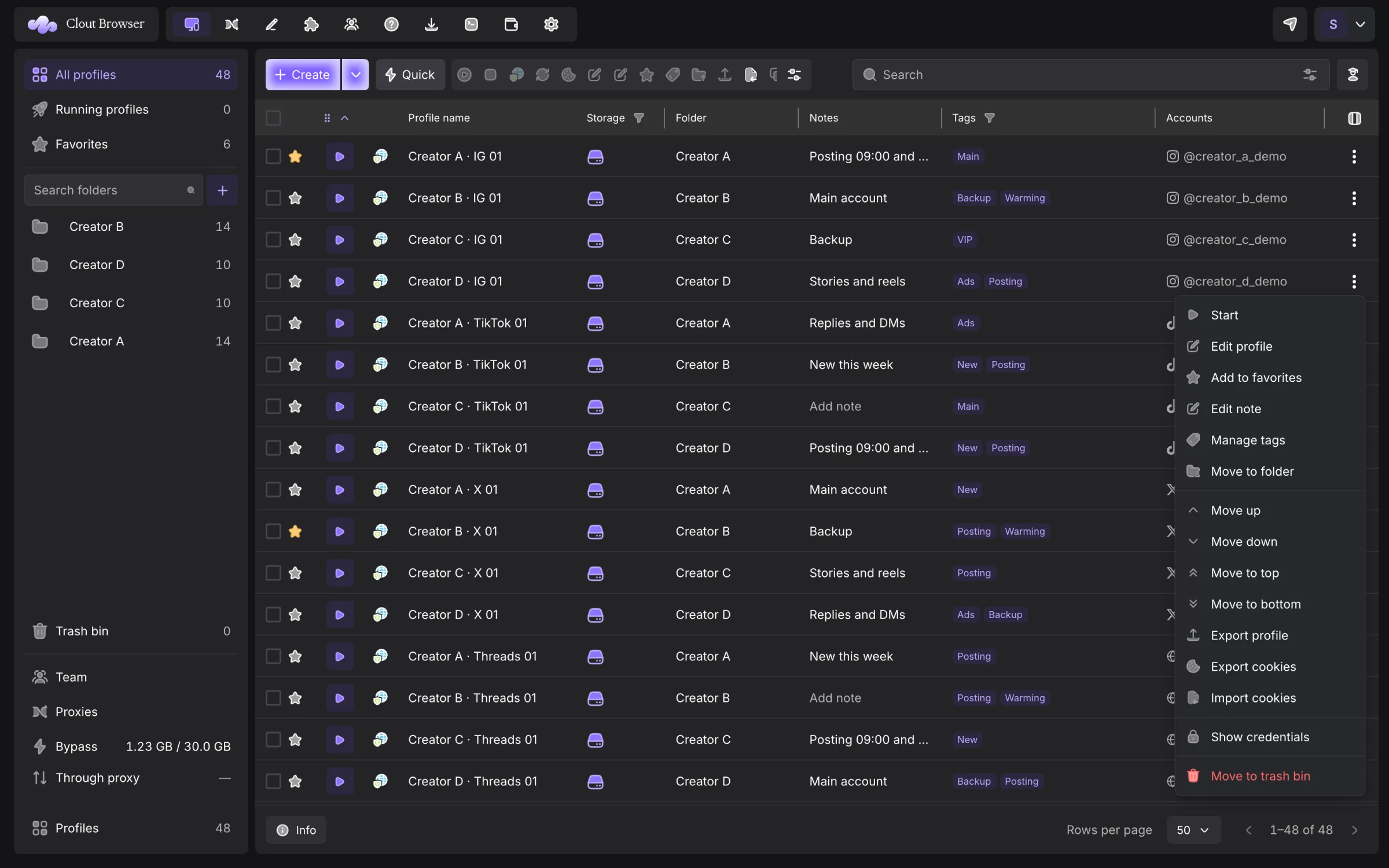
The engine distinguishes labels, launch preferences and machine identity. Name, remark, group and tags organise the row. Proxy, tabs, launch arguments, IP checker and cache behaviour affect launches. Fingerprint and browser-version edits change what the site sees, including on imported profiles; review their change list before saving.
Edit selected profiles changes a batch. Fields start at “leave as it is”; only choices you change are submitted. Use it for shared launch settings, then read its saved and refused counts.
Inspect sessions and credentials
Signed-in sites lists cookie domains and counts for one profile. It does not show cookie values. A cookie on a domain does not prove that the site’s session is still valid.
Cookie import and export are separate from profile export. Show credentials uses the account’s reveal permissions. Copying a credential is handled by the app and cleared from the clipboard after 30 seconds if the clipboard still contains that value.
Export and re-import
Export profiles offers:
| Format | Use |
|---|---|
| JSON — one file per profile | Preserve browser identity for re-import |
| ZIP — profile JSON files in one archive | Move several profile documents together |
| CSV — spreadsheet inventory | Review inventory in a spreadsheet |
Profile exports exclude account credentials, proxy passwords and cookies. Export cookies separately when you intend to move a session. A profile file is not a backup of the whole browser directory.
A Clout profile file is previewed before import. If its ID already exists, replacing it is a separate decision; check the destination before overwriting.
Clone
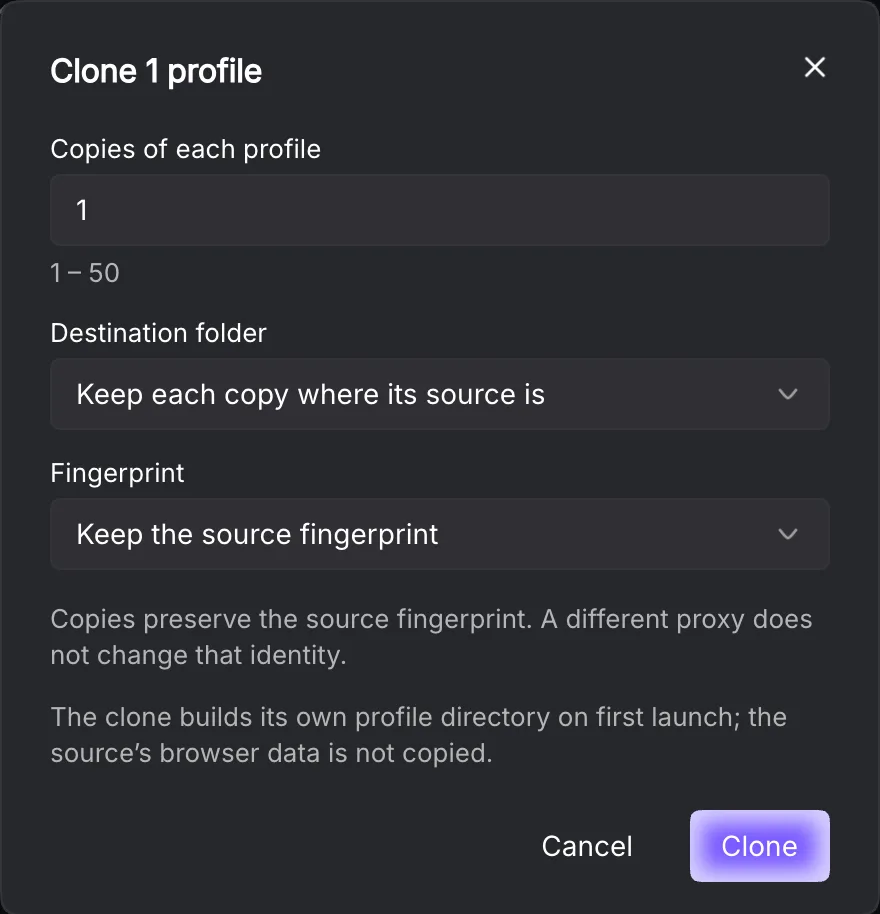
Clone profiles takes Copies of each profile, 1–50, a Destination folder and a Fingerprint choice.
Keep the source fingerprint copies its identity. Generate a fresh Clout fingerprint gives each copy a new local identity and is for SunBrowser profiles. A changed proxy alone does not change a copied fingerprint.
The source’s browser data is not copied. A clone builds its own directory on its first launch. Use fresh identity creation for separate accounts rather than treating clones as copies of a signed-in session.
Cookie robot
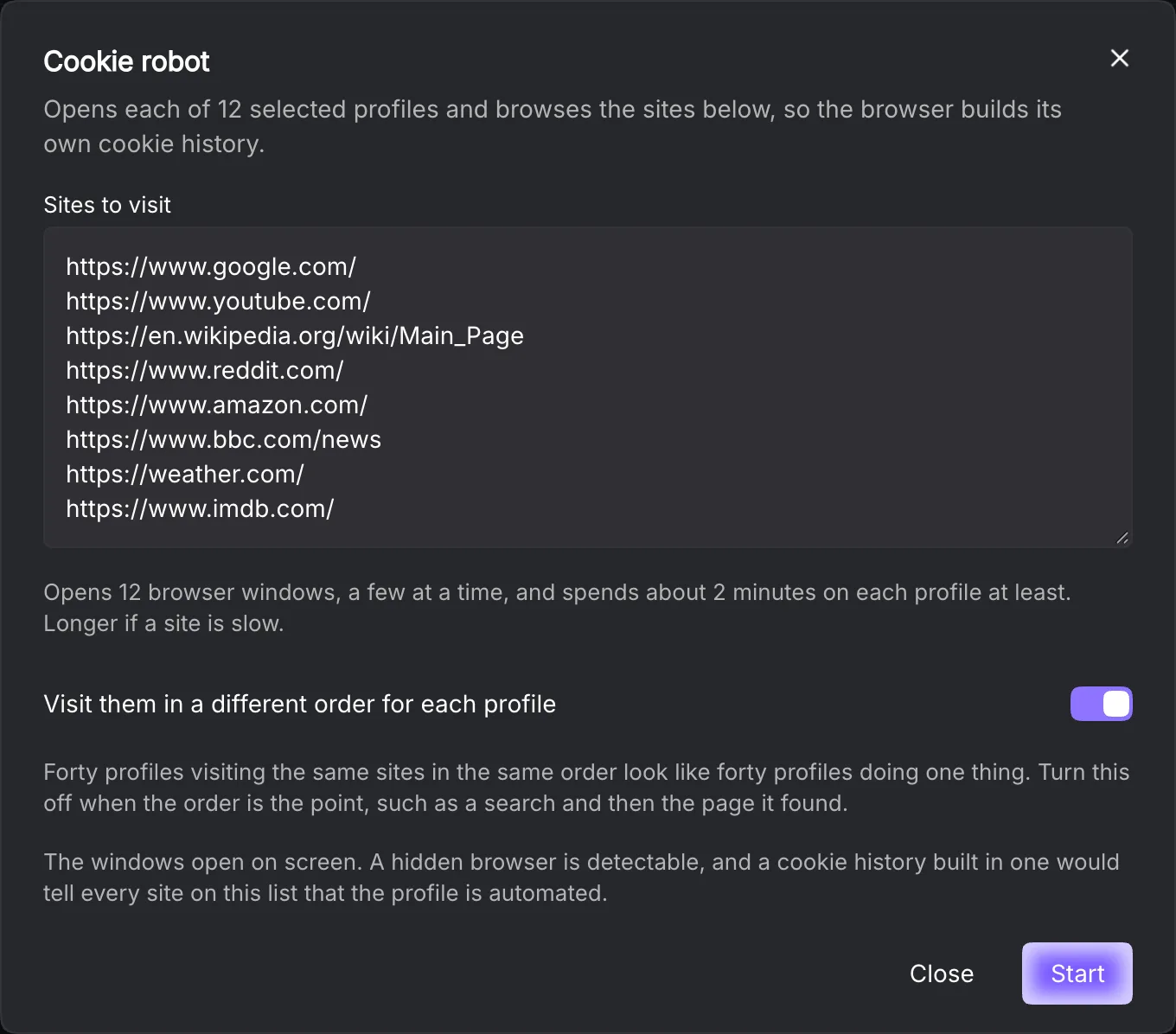
Select profiles and choose Cookie robot. Set Sites to visit, one address per line. Visit them in a different order for each profile is on by default. Press Start to open visible browser windows and visit the sites; Stop ends an active run.
The report names profiles, visits, failures and cookies gained. It refuses unsuitable sites and uses the shared launch queue. This is a browsing-history workflow, not a sign-in workflow, and it has no headless switch.
Trash and permanent deletion
Move to trash bin hides profiles from the normal register while retaining them for recovery. In Trash bin, select rows and use Restore profiles or Delete permanently. Empty trash bin applies to everything in the bin.
Permanent deletion removes the profile and its local browsing data and cannot be undone. Read the count in the confirmation. Closing or trashing a profile is a different operation.
Manage folder structure
The plus beside folder search opens Create new folder. Enter Folder name, then Create. A folder menu can create a child, rename it, move it or delete it.
Rename folder changes its label. In the move dialog, choose Move inside or Top level, then Move folder. A folder cannot move inside itself or one of its children.
Delete folder removes the folder and its subfolders after showing their counts. It unfiles profiles from that subtree; it retains the profiles themselves.
Move to folder on selected profiles replaces their folder membership with the chosen destination. No folder takes them out of every folder. Use the Local API’s additive folder operation if you need to preserve other memberships.
Choose columns and filters
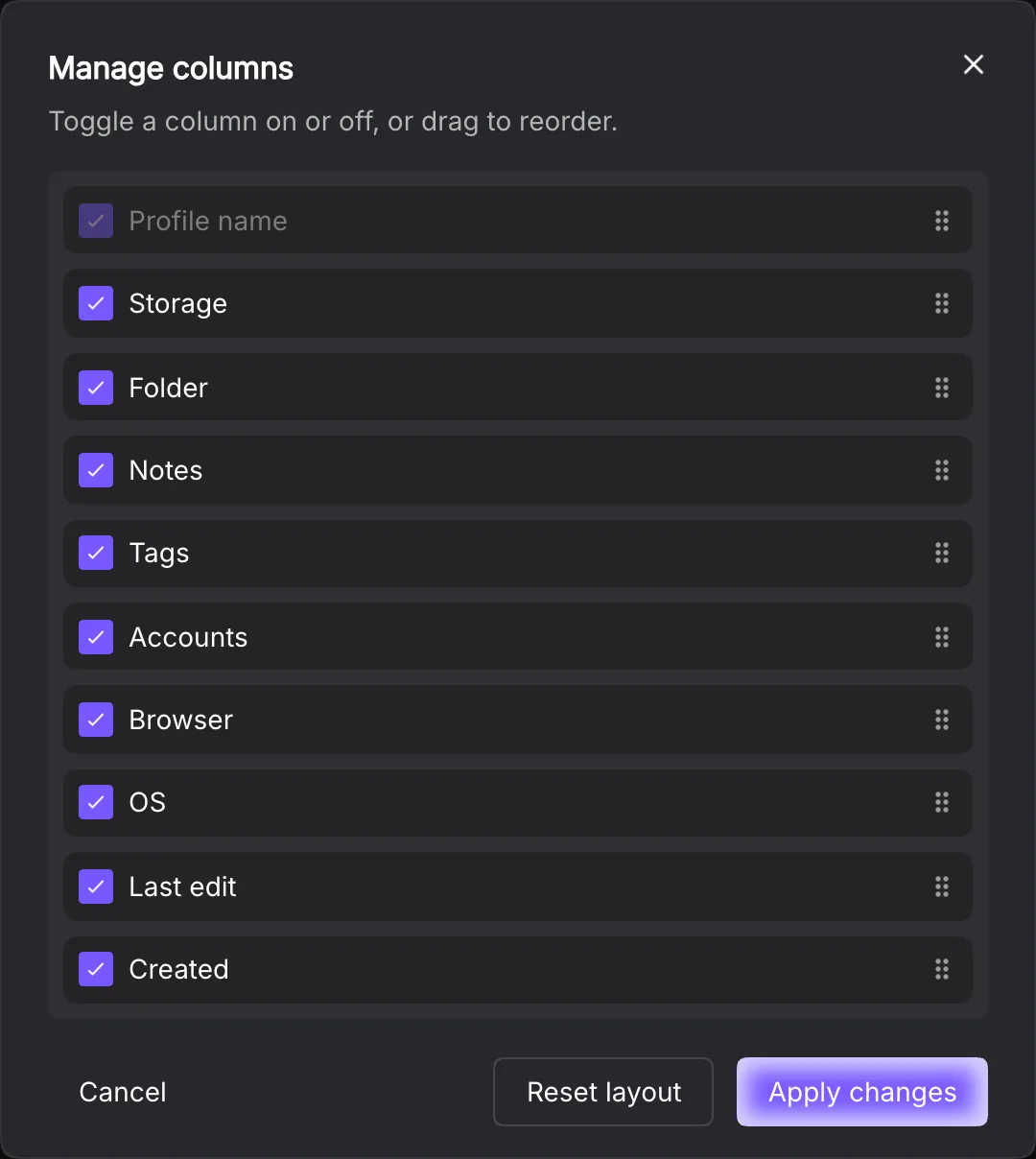
Manage columns lets you turn columns on or off and drag them into order. Reset layout restores the default draft; Apply changes applies it. The app reports when a layout applies for the current session but cannot be saved.
Search filters includes Operating system, Storage and Tags. Clear all filters removes the filter choices. Clearing the text search and clearing filters are separate controls.
Replace or export cookies
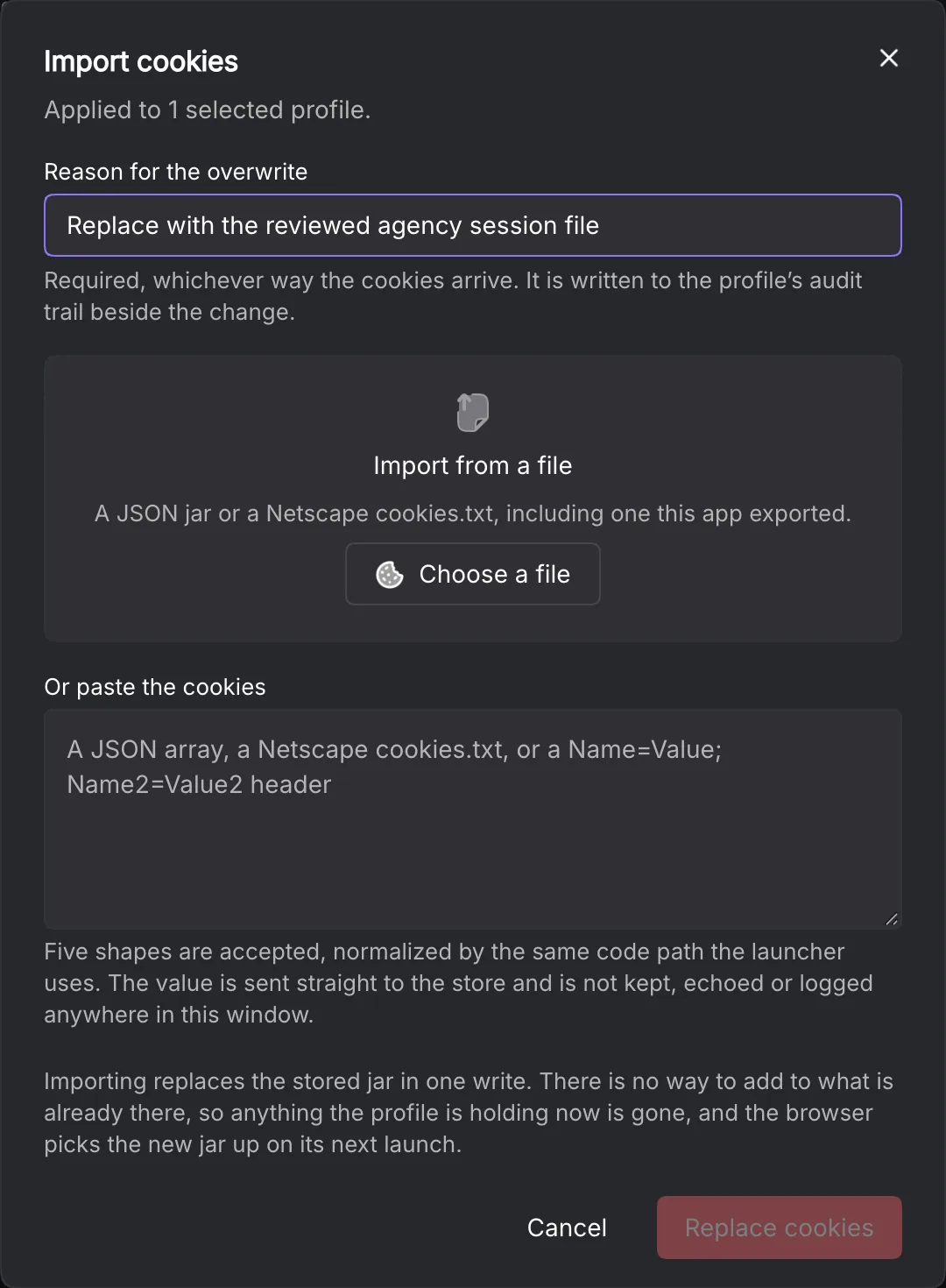
In Import cookies, enter Reason for the overwrite first. Then choose Choose a file, or fill Or paste the cookies and press Replace cookies. This replaces the whole stored jar. The browser receives it on its next launch.
If several profiles are selected, the same jar goes to every one of them. Read that warning before proceeding. A partial failure reports how many profiles were written before it failed; those earlier writes remain.
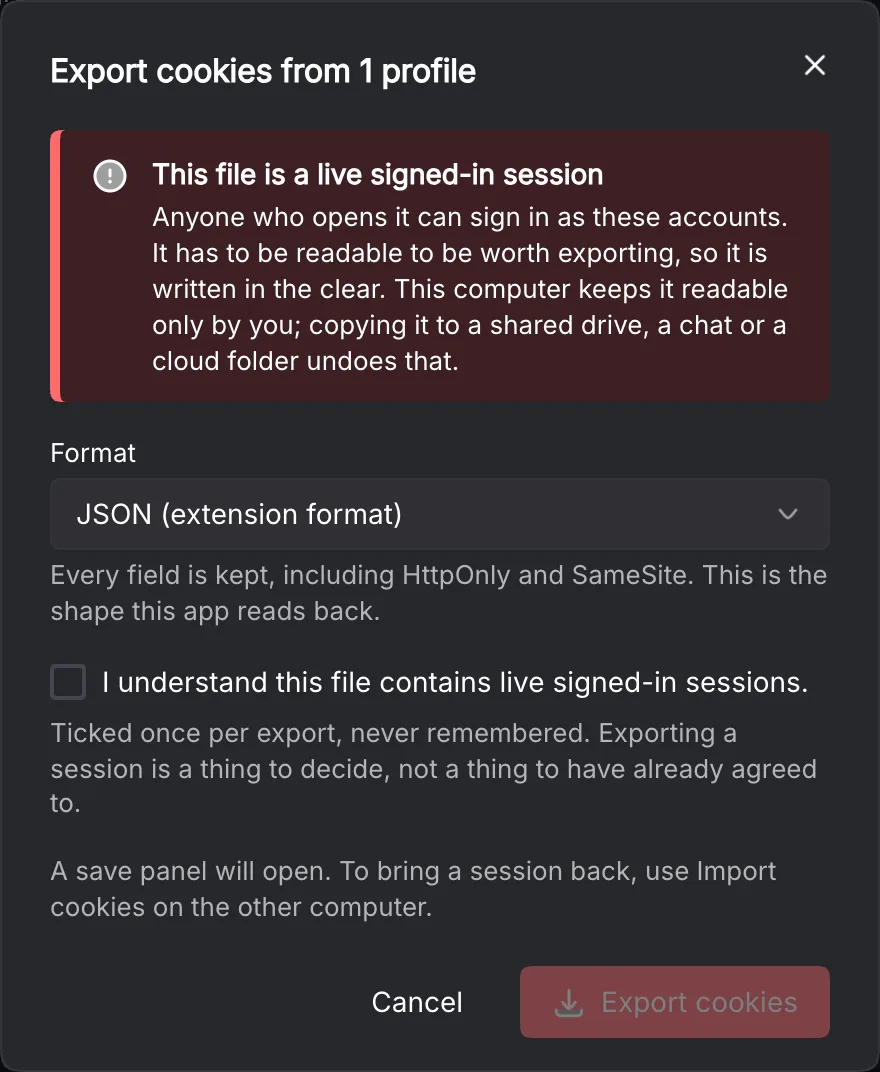
Export cookies offers JSON (extension format) or Netscape cookies.txt. Tick I understand this file contains live signed-in sessions. for this export, then Export cookies. For a selection, the app opens one save panel per profile. Keep the resulting files private.
Edit platform accounts
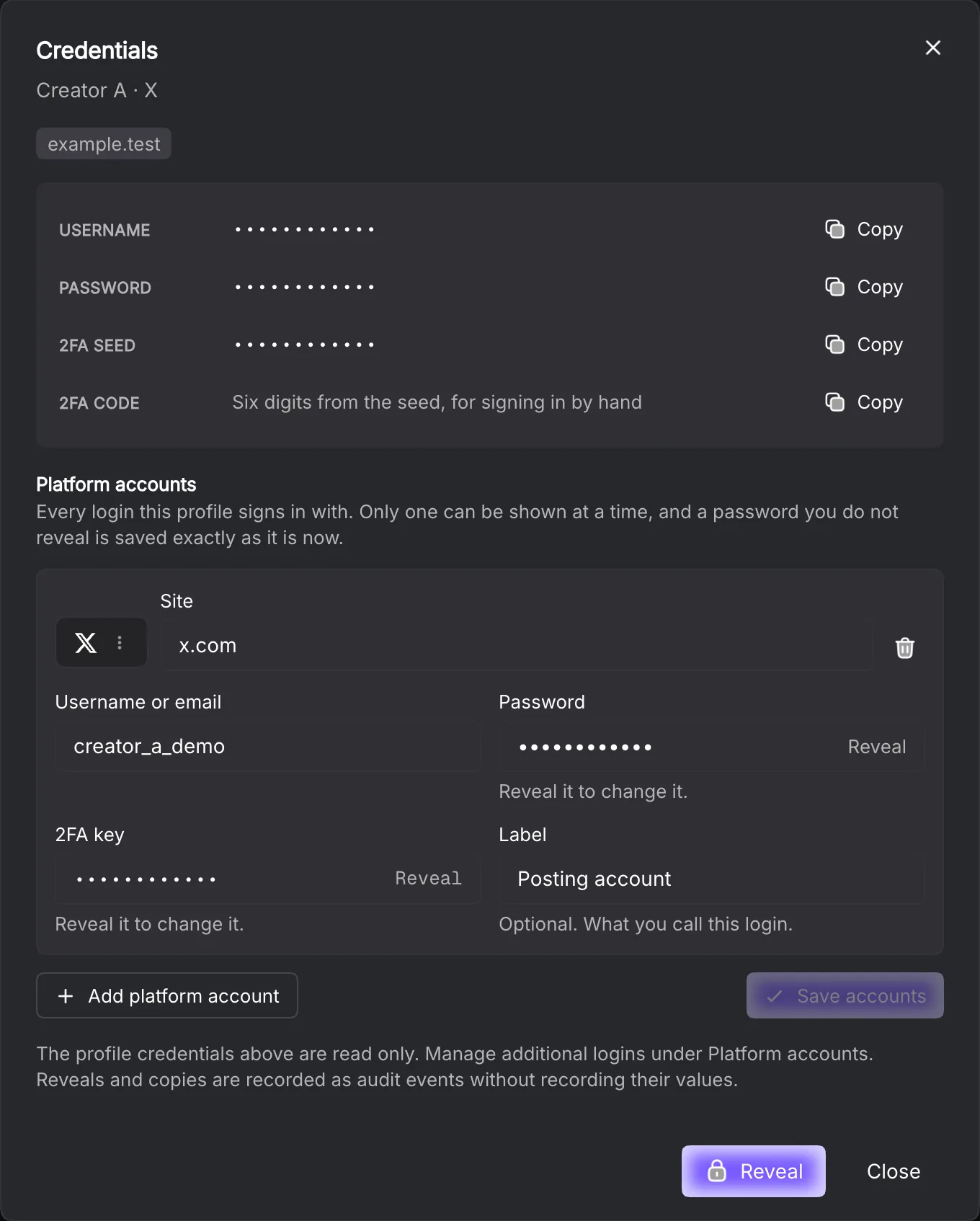
Open Show credentials. Imported profile credentials at the top are read-only. Platform accounts lets you use Add platform account, choose a platform and edit Username or email, Password, 2FA key and Label. Finish with Save accounts.
Reveal a stored secret before changing it. A password you leave masked is preserved from the store; a failed read refuses the save instead of replacing it with an empty value. Only one platform account can be revealed at a time. Hide conceals it; the reveal also expires after 30 seconds.
Copy copies an imported credential without returning its value to the renderer. 2FA code copies the current six-digit code when a seed exists. The clipboard countdown and Clear now let you clear it sooner; the timed clear leaves a newer clipboard value alone.
Read a bulk manifest
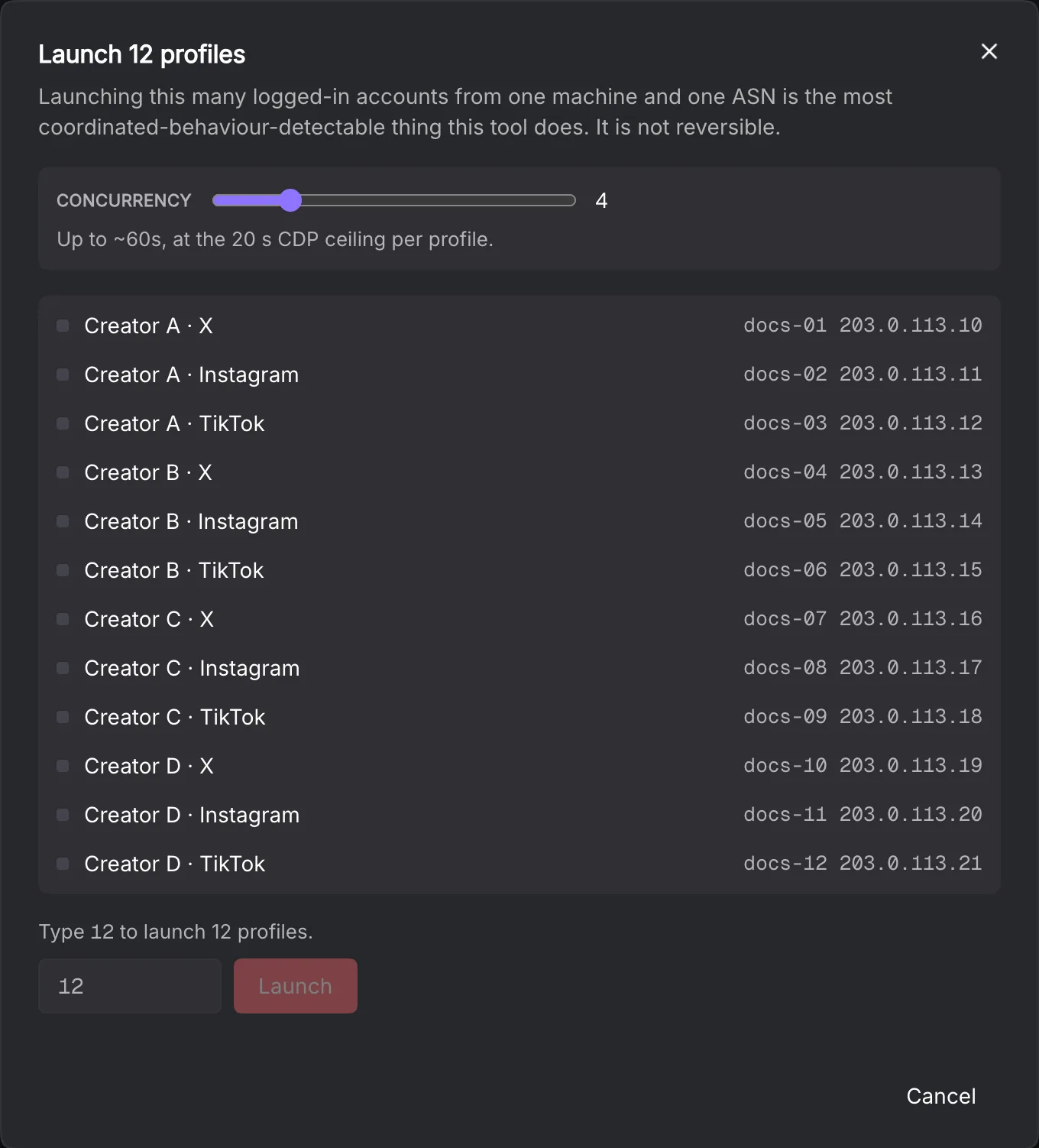
For a large launch or stop batch, review the listed targets and Concurrency. If the dialog asks you to type the profile count, type the displayed number before starting. Review any profiles excluded from the run before choosing Include them anyway.
During execution, Run in the background closes the dialog while the work continues. Open the run opens the recorded result in Activity. A cancelled run and a closed dialog are different actions. Read every failed item before repeating a batch.
Edit a batch deliberately
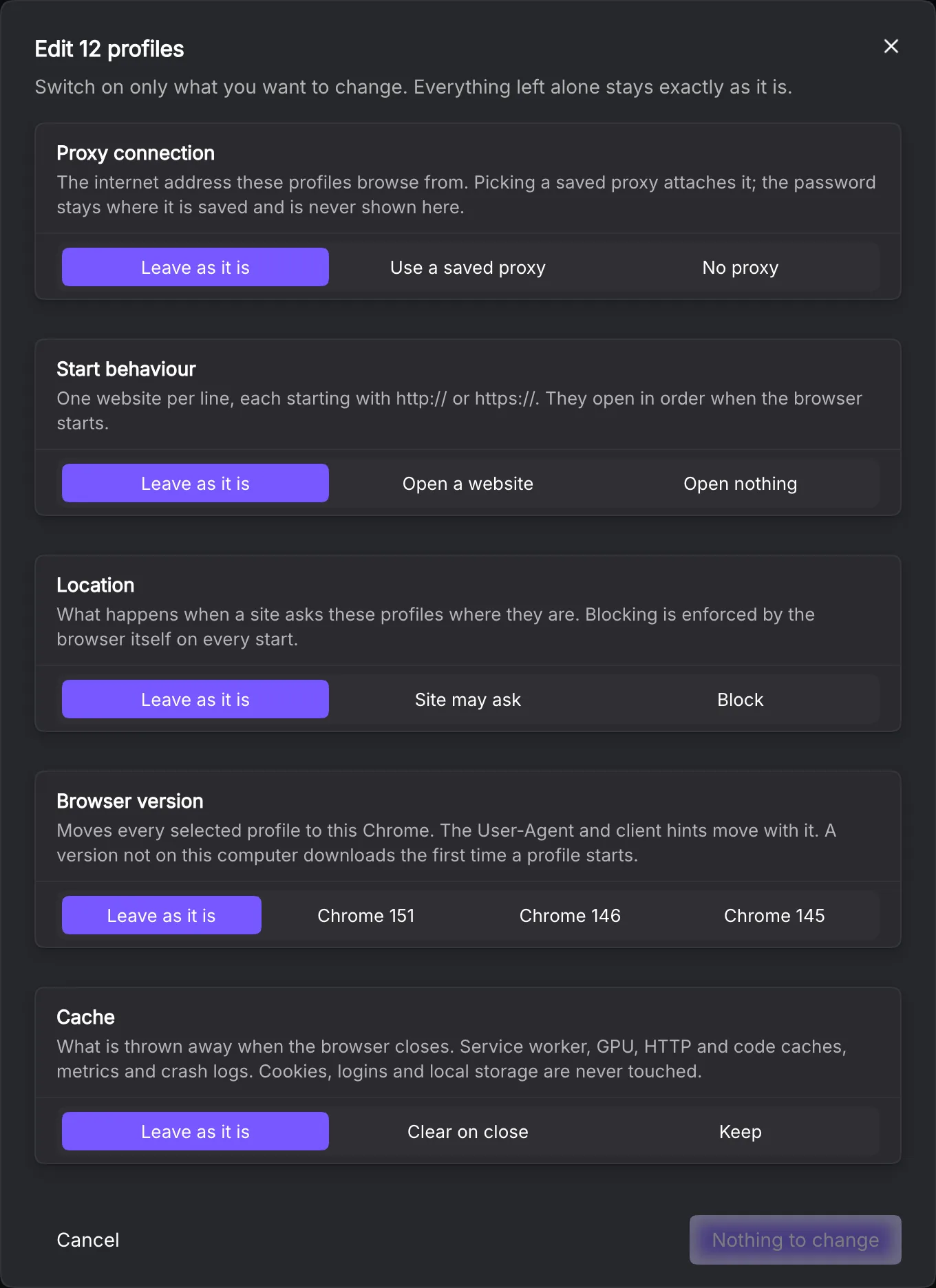
Edit selected profiles starts every control at Leave as it is. You can change Proxy connection, Start behaviour, Location, Browser version, Cache and the profile remark. Choosing Use a saved proxy attaches that saved connection; No proxy makes it direct. Location offers Site may ask or Block. Cache clearing on close does not clear session cookies.
The dialog reads each profile before preparing its changes. Read refusals for running or unreadable profiles, and review the proposed changes before saving. Stop halts further saves while retaining completed ones. Its report distinguishes saved profiles and failures; Copy full report helps you review the result. A retry is another write, so inspect that result first.