Automations, workflows and calendar
Create scheduled content jobs, build workflows on the canvas and manage draft, automatic and manual posts.
On this page
Automations brings repeatable content production and the posting calendar together. An automation can make content on a schedule; a calendar post delivers selected finished media to an account.
Build an automation
Choose New automation and name it. Under Make, choose Images, Videos or Recreate from Explore. Images can be Single images or Carousel.
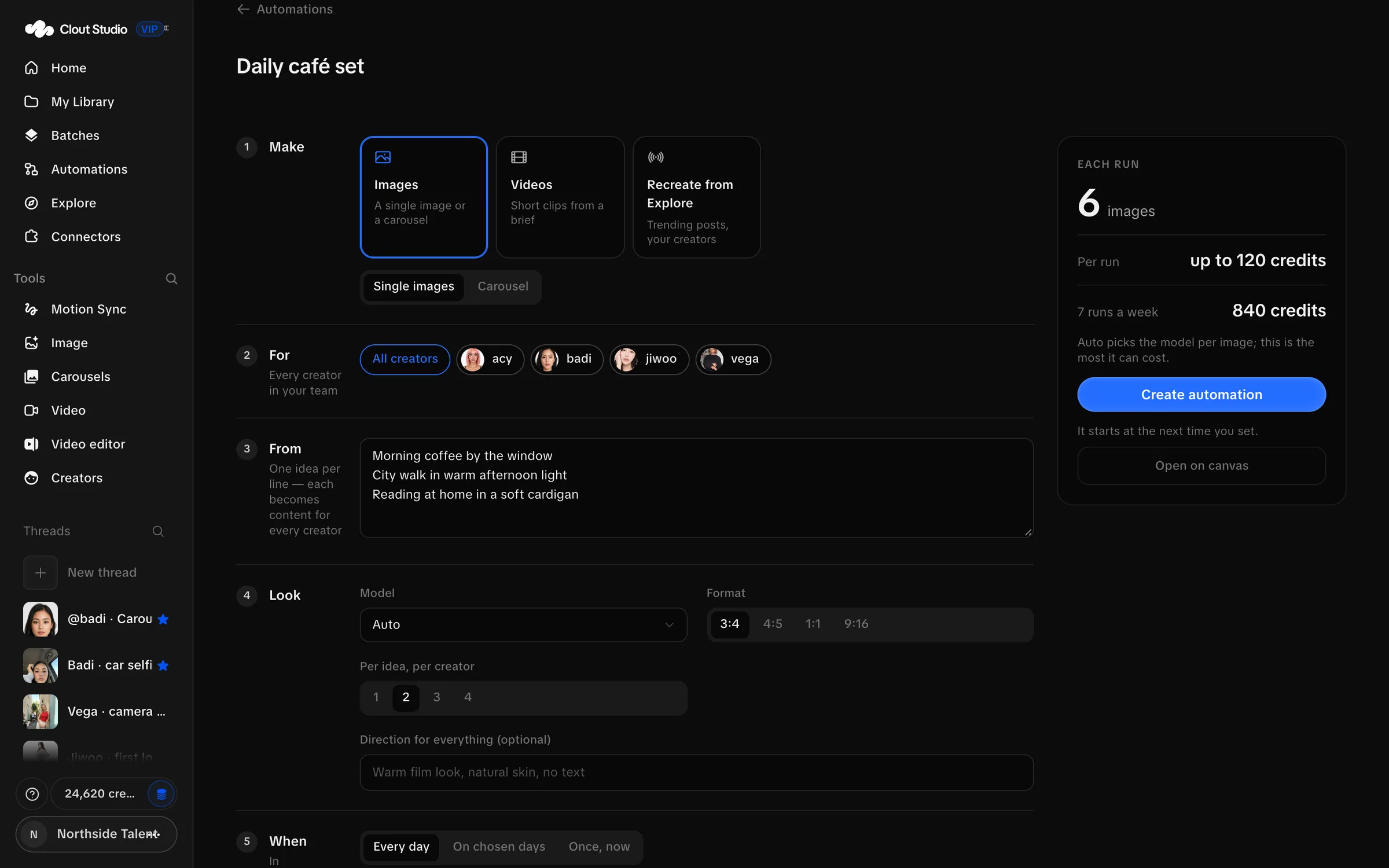
- Select All creators or the specific Creators for this job.
- Supply the ideas, one per line, or the saved source collection.
- Choose the look, model, format and output count offered for that type.
- Set When to once, daily or weekly, and check the time and timezone.
- Choose where the results go.
- Review the per-run estimate and choose Create automation, or Run it now for a one-off run.
The look choices include Auto, Burst, Photo dump, Place dump, Night out, Fit check, Mirror selfies and Photoshoot. Use the output controls visible for the chosen type.
Results go to the Library. A connected Drive folder can be an additional destination. If you enable posting, select the linked accounts and choose Next free slots, Drafts to approve or Right away. Caption templates can use {idea} and {creator}.
A run can create paid work and publish content when you configure it to do so. Review the Creators, count, destinations and schedule before enabling it.
Check and control runs
The automation list shows Running on their own, the coming week and recent runs. Use Run now for another run, or pause and resume the automation with its toggle. Duplicate makes another automation you can configure independently.
Inspect a stopped reason or failure before restarting. Retry what failed retries the failed part of a run. Deleting an automation and its history is irreversible; read the confirmation.
Canvas workflows can be shown or hidden from the list. New canvas opens a workflow you can build directly.
Work on the canvas
Follow Workflow canvas for building, activation, revisions and run inspection.
The builder’s Open on canvas opens the graph without running it. On the canvas, connect nodes by their typed inputs and outputs, then save the workflow.
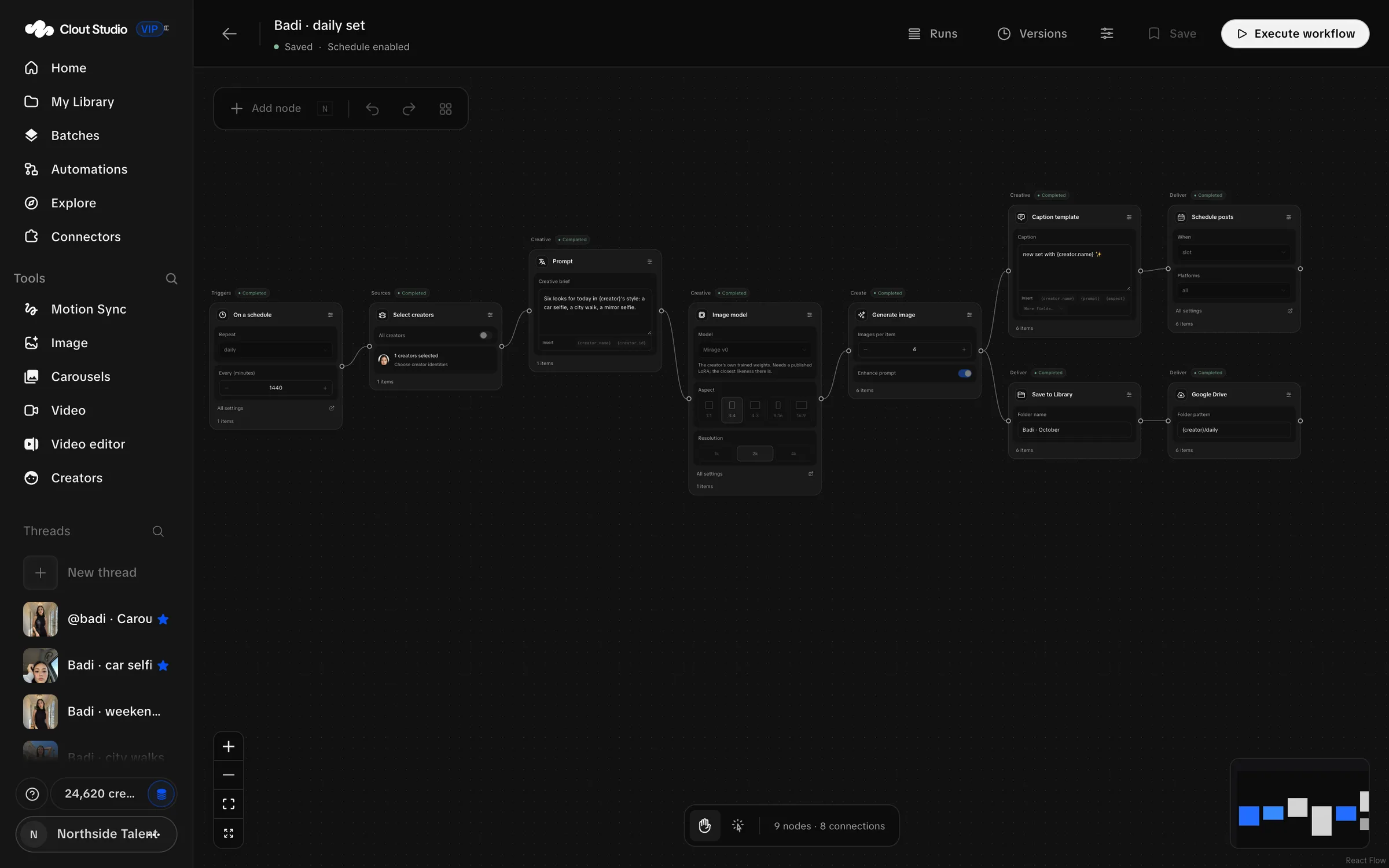
Add node opens the node catalog. Choose a node for the step you need, then inspect its fields in the canvas.
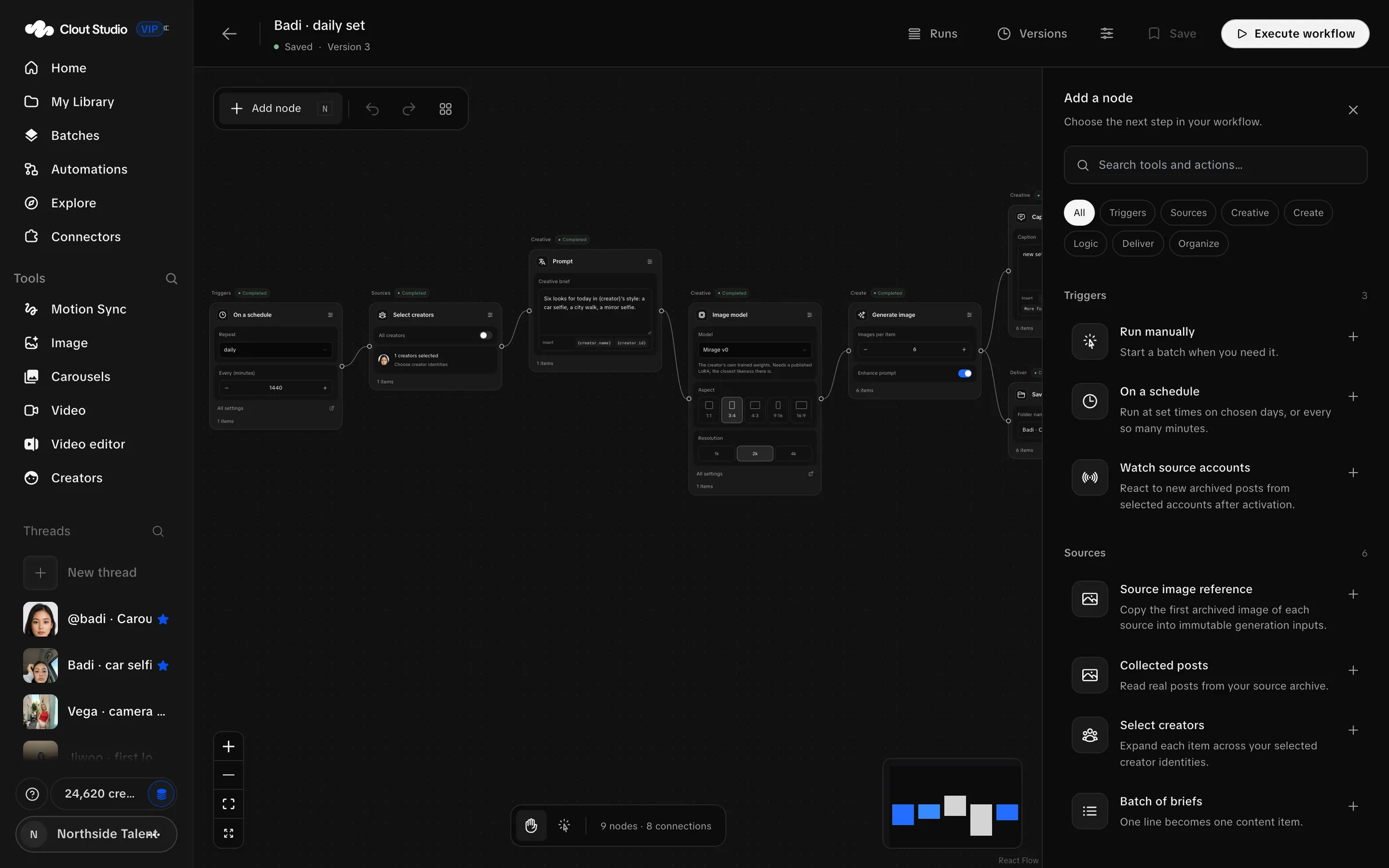
| Node family | Available steps |
|---|---|
| Triggers | Run manually; On a schedule; Watch source accounts. |
| Sources | Collected posts; Select creators; Batch of briefs; Image reference; Source image reference; Carousel links. |
| Creative | Prompt; Image model; Create variations; Caption template. |
| Create | Generate image; Generate video; Create carousel; Clone carousel; Carousel from an image. |
| Logic | Filter items; Condition; Limit items; Sort; Remove duplicates; Merge branches; Wait. |
| Deliver | Save to Library; Preview outputs; Export manifest; Google Drive; Schedule posts. |
| Organize | Sticky note. |
Caption template substitutes values; it is not an AI caption-writing step. Remove duplicates applies within a run. Watch source accounts watches archived new posts after activation.
Choose Execute workflow for a manual run. A scheduled workflow uses Activate workflow and Deactivate controls. Deactivate an enabled workflow before editing it.
Runs shows execution results; Versions keeps saved revisions. A save conflict says “Save conflict: download your local graph, then reload to reconcile it.” Preserve your graph before reloading.
Schedule a post
Follow Calendar and publishing for scheduling and resolving delivery states.
Open Calendar. Use the month controls, Today and the account filter to inspect planned work. Needs you collects drafts, manual posts that are due and failures.
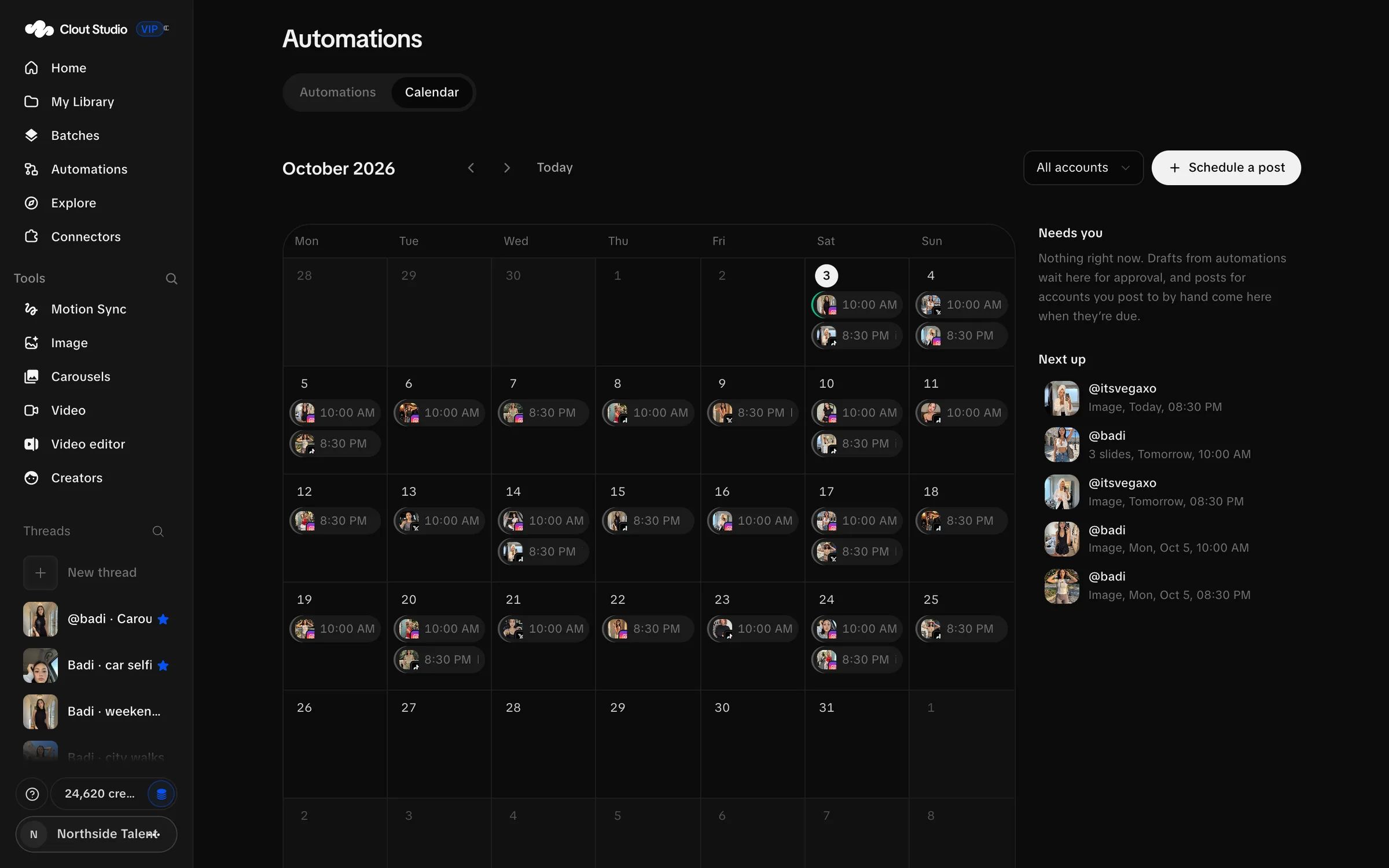
- Choose Schedule a post or the plus on a future day.
- Pick finished images in their posting order, or choose one video.
- Choose the destination account or accounts.
- Write the Caption.
- Choose Next free slot, At a time or Save as draft.
- Choose Schedule or Save draft.
Two or more images make a carousel. The picker supports up to 20 images. A video goes alone; selecting one replaces the image selection.
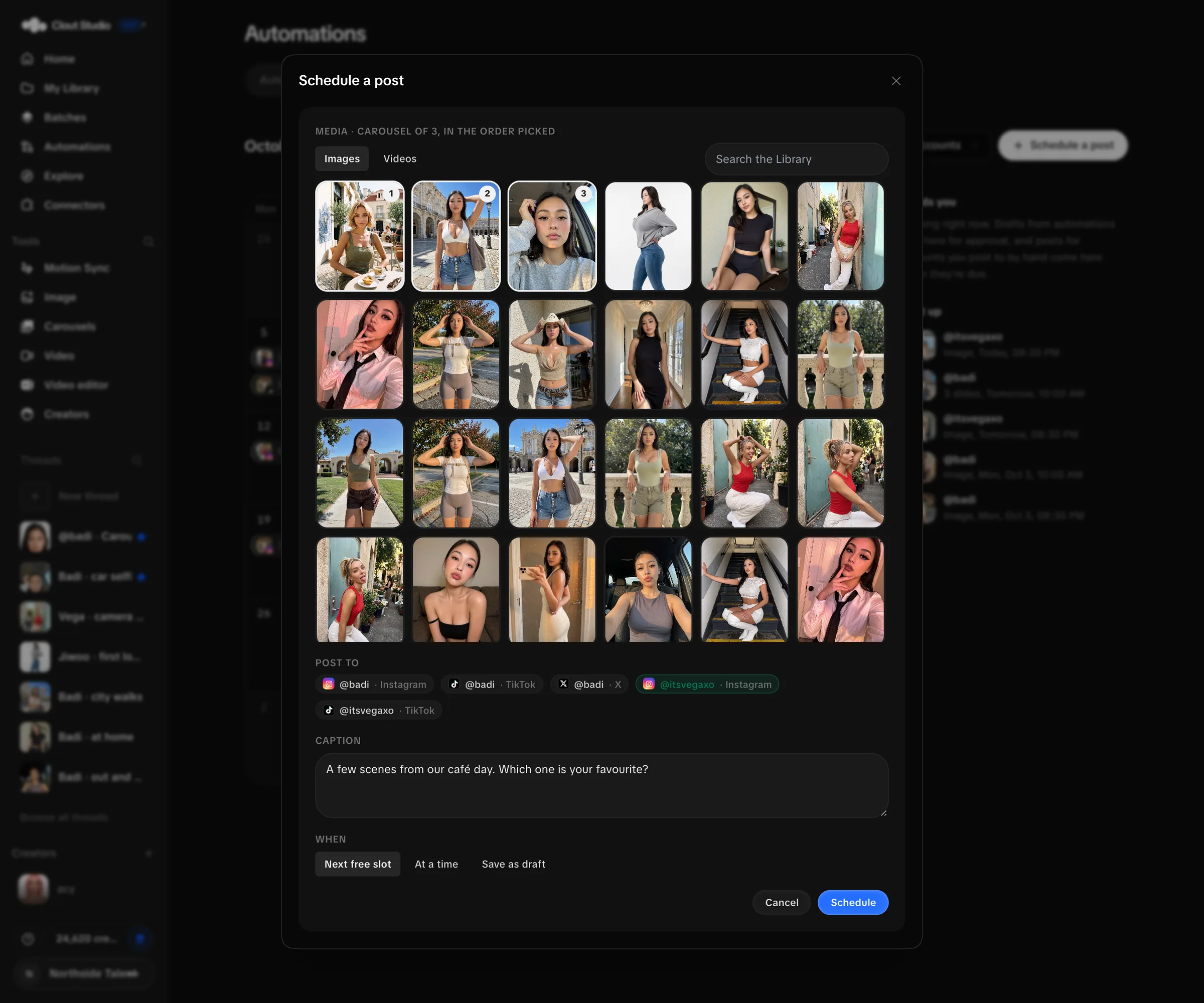
Next free slots use each account’s saved times and timezone. Configure them in Connectors.
Handle the post’s status
| Status shown in the post | What to do |
|---|---|
| Draft — waiting for your approval | Edit the caption and timing; choose Approve — next free slot when ready. |
| Scheduled | Check the account and time; edit before publishing begins. |
| Due — post it by hand | Copy the caption, save the media, publish it yourself and mark it posted. |
| Publishing now… | Wait for the publishing result; the post is locked while publishing. |
| Posted | Inspect the completed record; it is no longer editable. |
| Did not go out | Read the failure, correct its cause and use Try again now when appropriate. |
| Cancelled | The scheduled delivery has been cancelled. |
For manual posting, use Copy caption and Save media, then Mark as posted. You can supply the post link. Marking it posted records your action; it does not upload the media.
Post now can publish immediately on an automatic account. Due now makes a manual account ready for you. Discard removes a draft; Cancel post cancels scheduled work. Review these controls before using them.