Video and Motion Sync
Choose a video workflow, prepare a source and first frame, and review model-specific duration and quality limits.
On this page
Open Video to generate from a prompt or work from a source video. Motion Sync opens the motion workflow with the no-dialogue source-transfer setup.
Classify the source first
Choose No dialogue when the visible person is not speaking. Dancing, vocals in the music and background voiceover belong here if the visible person is not delivering dialogue.
Choose Dialogue when the visible person speaks, even if the source is muted. Studio offers source-video and description-based paths for dialogue; SCAIL motion transfer is not a dialogue path.
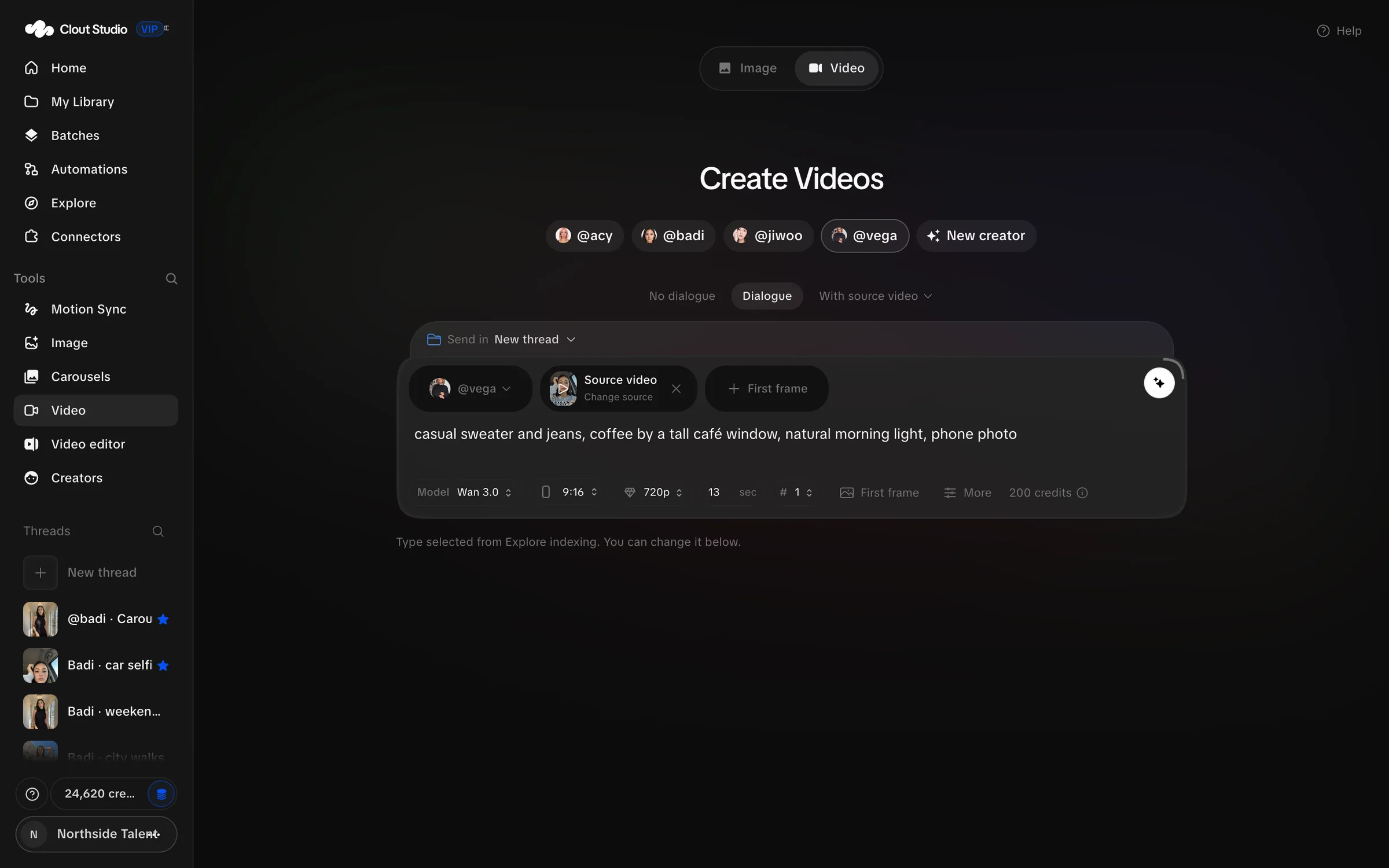
For no-dialogue work, the workflow choices include Budget motion, Premium recreation and Without source video. Budget motion transfers motion with SCAIL-2. Description-based recreation prepares an editable description instead of conditioning directly on the source video. Without source video in a recreation means the source is read but is not attached to the video generator; it does not mean no source is needed for that recreation.
Add the source and Creator
- Choose the Creator.
- Open Ref Video or Source video.
- Paste a source link, upload a video or pick a source from Explore.
- Wait for import and analysis to finish before submitting again.
- Choose a First frame when the workflow needs one, or let the supported workflow prepare it.
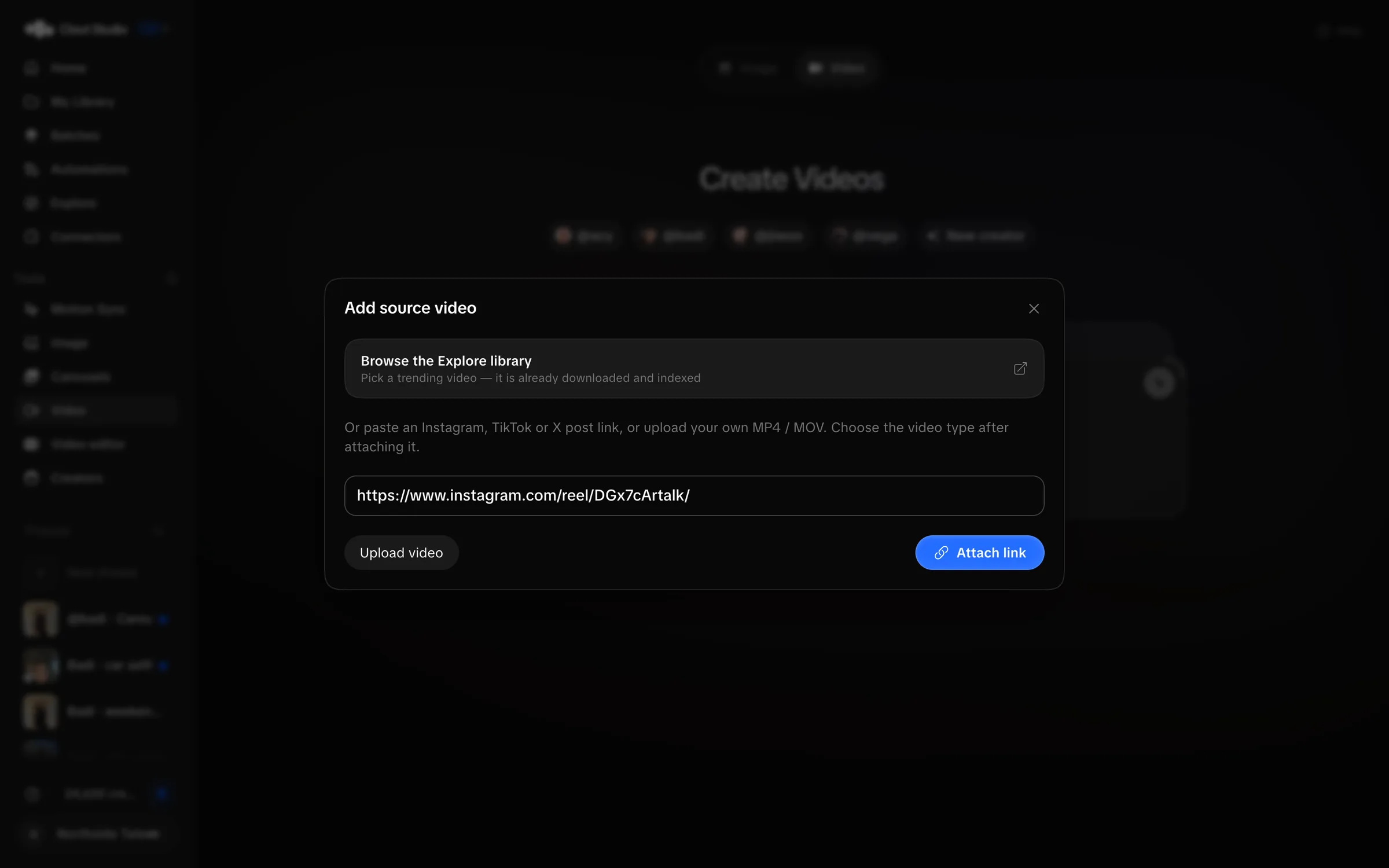
Source videos must be at most 120 seconds. Longer input produces “Source must be at most 120 seconds”. Trim the source before trying again.
The Creator’s saved Video appearance is included automatically. Review those details if the generated description has the wrong hair, features or proportions.
Choose the model and output
Model, Format, Quality, duration and Videos control the request. A request can make 1–4 videos, with a separate job for each. Available combinations depend on the selected workflow and model.
| Model | Quality choices in the catalog | Duration behavior |
|---|---|---|
| SCAIL-2 | 480p, 720p | Requires a source; uses its duration, from 2 to 120 seconds. |
| Wan 3.0 | 480p, 720p, 1080p | From 2 seconds; up to 30 without a source, with longer source workflows up to 120. |
| Wan 3.0 Prime | 480p, 720p, 1080p | From 2 seconds; up to 30 without a source, with longer source workflows up to 120. |
| Seedance 2.5 | 480p, 720p, 1080p, 4k | From 4 seconds; up to 30 without a source. |
| HeyGen Video 1 | 480p, 768p | A single clip from 5 to 15 seconds; audio is always generated. |
The general formats are 16:9, 4:3, 1:1, 3:4 and 9:16. Seedance 2.5 and HeyGen Video 1 also list 21:9. Use the choices shown for the workflow; a format in the catalog may still be incompatible with another setting.
If Studio says “Unsupported model, quality or format combination”, choose an available combination. If it says “Output is too short for this source; increase duration or trim the source”, change the duration or source.
Review a prepared prompt
Where the workflow needs a description, choose Write video prompt. Review the Video prompt before choosing Generate video. Change the scene or action there if the source was read incorrectly.
Under More, review Generate audio where it is available. Do not assume the source’s soundtrack and newly generated audio are the same thing.
Review and finish the result
Open the output in its thread or the Library’s Videos tab. Check motion, likeness, hands, speech and the beginning and end of the take.
Use the video editor for clip assembly, text and export. Continue this clip is a separate paid generation action: it uses Wan 3.0 to add 2–30 seconds, with 480p, 720p or 1080p and the source aspect ratio.
For many source videos, use a video batch so you can inspect each source and launch only the ready rows.