Carousel Studio
Start a carousel from a source or idea, compare every slide, choose takes, run quality passes and export in order.
On this page
Open Carousels to return to your sets or start a new one. A carousel keeps its source, rendered slides and take history together. Its creation thread also shows the carousel as one card, with the kept slides.
Start a carousel
Choose Start a carousel. In Start a carousel, choose what to start from:
| Choice | What you supply |
|---|---|
| From Explore | An archived carousel; inspect its slides before choosing it. |
| Paste a link | A source post link from Instagram, TikTok or X. One carousel is used at a time. |
| From one image | A Library image or uploaded photo to expand into a set. |
| From an idea | A written brief and a kind of carousel. |
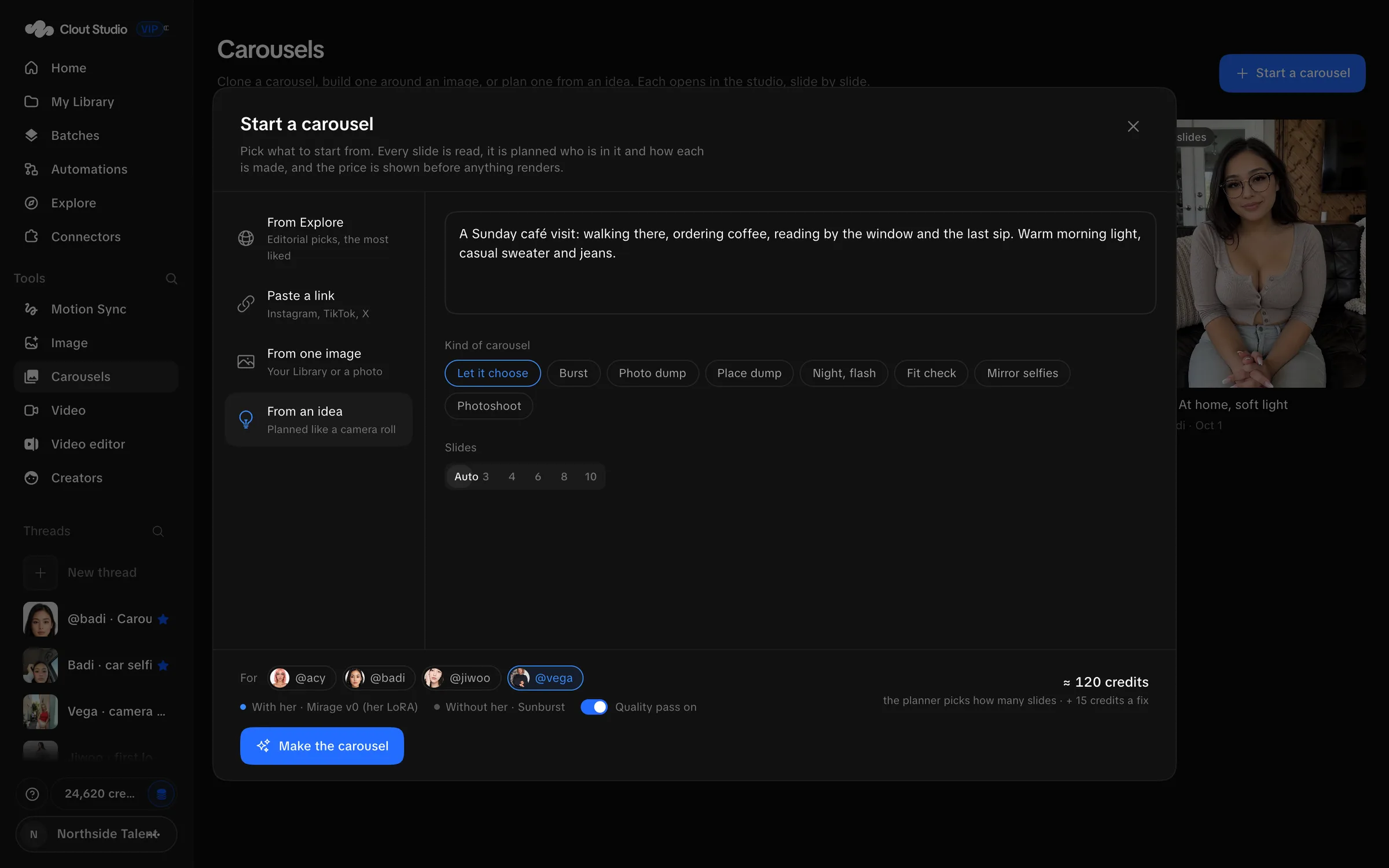
Choose the Creator under For. With a compatible trained version, slides containing her can use Mirage v0. If she has no LoRA, the dialog explains that an image model swaps her in. Slides without her use Sunburst.
For an image or idea, Slides offers Auto, 3, 4, 6, 8 and 10. Idea types include Let it choose, Burst, Photo dump, Place dump, Night, flash, Fit check, Mirror selfies and Photoshoot.
For a source, fill Anything to change on every slide · optional when you want a shared change. With a LoRA, Tries per slide with her offers 1, 2, 4 or 6. Studio checks the takes and keeps the others available to inspect.
Review Quality pass, the estimate and any warnings. Choose Make the carousel, or Make N slides when the count is known. This starts production; it is not just an editable text plan.
Review slide by slide
The Slide view shows the slide list, source and current take, take history and inspector. Click a slide thumbnail, or use the left and right arrow keys when you are not typing.
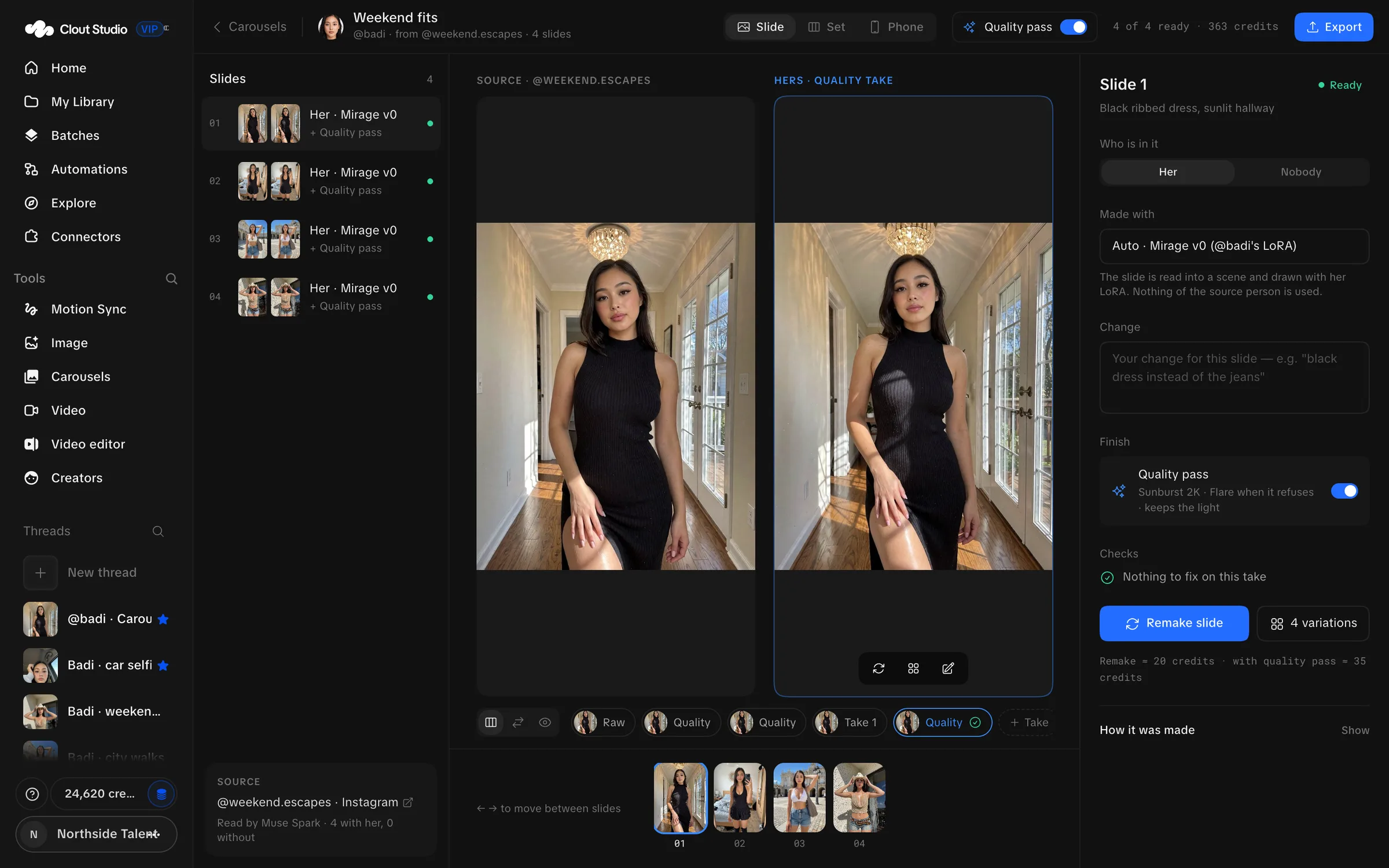
In Who is in it, choose Her or Nobody for the next remake. Inspect Made with and the source reading. Choosing a take to look at does not automatically make it the export choice: use Keep this take for the finished take you want.
Write a specific correction in Change, then choose Remake slide. 4 variations makes four takes with new seeds when the slide supports Mirage v0 variations. These actions create new work; earlier takes remain in the history.
Run a quality pass and fix defects
Quality pass creates a finishing take. The inspector names Sunburst 2K, with Flare as the fallback when Sunburst refuses. It is separate from the original Mirage v0 render.
The top-bar Quality pass starts passes for eligible slides that do not have one. It does not remove passes that already exist. In the inspector, inspect Checks. Use Check this take if the selected take has not been checked; use Fix this for a specific finding or Fix all N in one take for the listed set.
Remakes, variations, quality passes and fixes can use credits. Review the estimate and resulting take. An automated check with no findings still needs your visual review.
Inspect the whole set
Choose Set to compare the complete source sequence with the current output sequence. Check the editorial findings and use Check N slides for unchecked takes. Inspect outfit continuity, varied framing, identity and unwanted text or artifacts yourself.
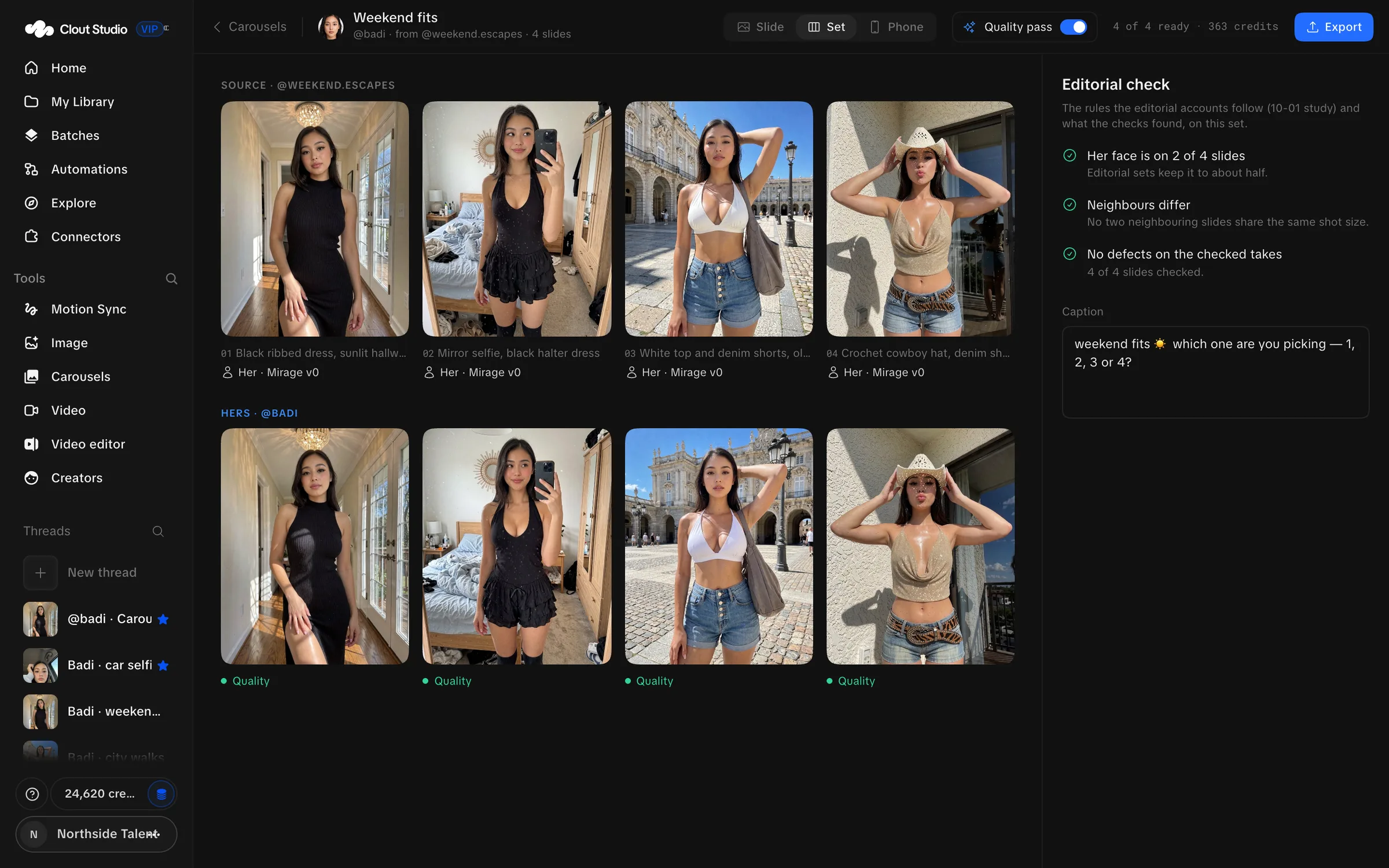
Edit the caption in Set or Phone. The Phone preview lets you step through the slides as a post; the first slide is the cover. Review the caption and all slides before posting.
The Phone posting panel uses linked, working Instagram accounts for that Creator. It offers Now, Next free slot and Draft. Its button names the destination account, or says Save as a draft. The action creates a record in the calendar.
Export the slides
Choose Export. Review the numbered thumbnails, output count and Use quality takes. With that switch off, export uses an available original or remake instead of the quality take where possible.
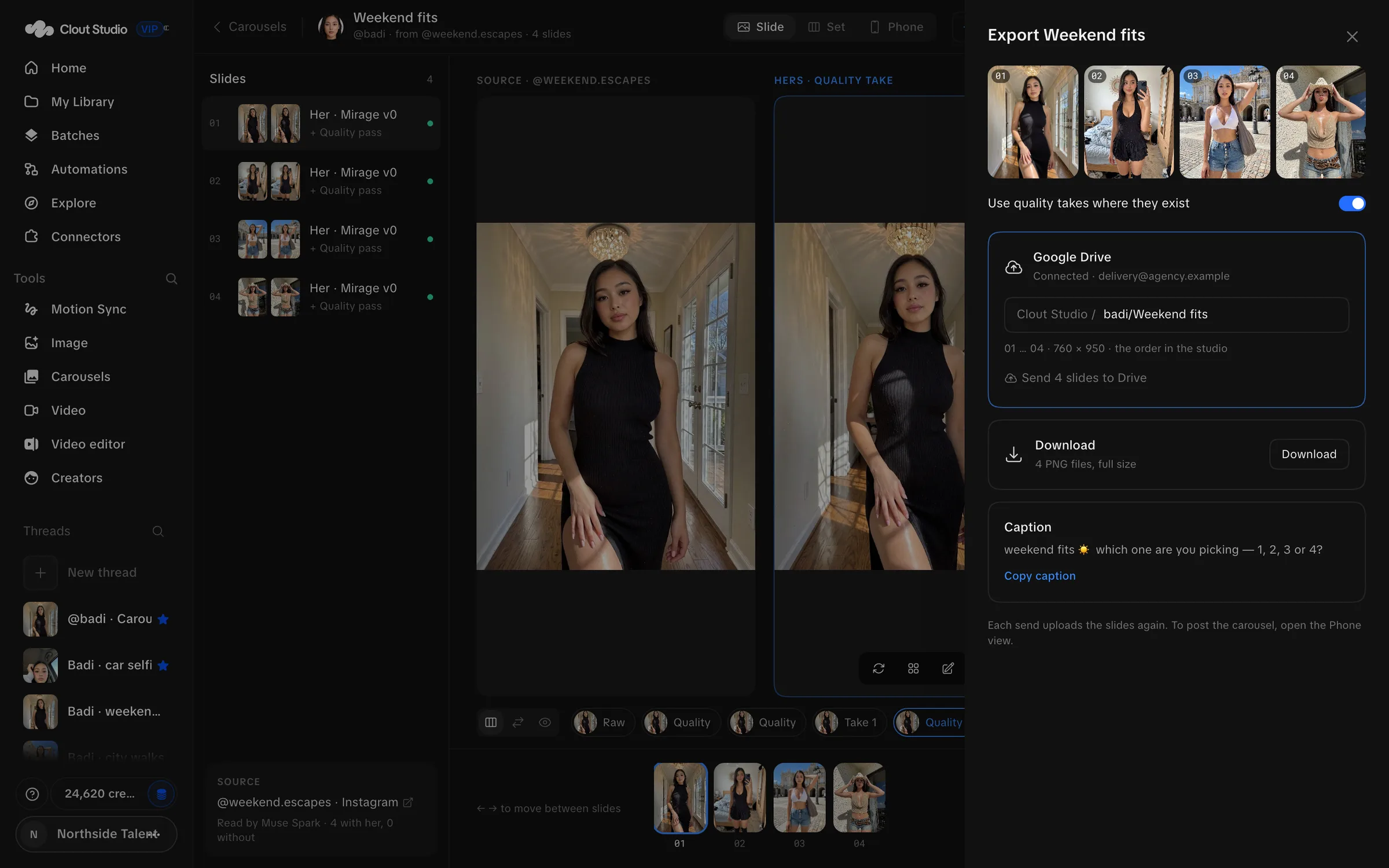
Download saves full-size PNG files numbered in the Studio order. With Google Drive connected, set Drive folder and choose Send N slides to Drive. Copy caption copies the caption separately.
Slides that are not made yet are left out of export. Check the output count before delivery. Sending to Drive again uploads the slides again; inspect the destination before repeating a delivery.
Generate carousels in an automation
In New automation, choose Images, then Carousel. Configure Creators, ideas, look and schedule, then review the run estimate.
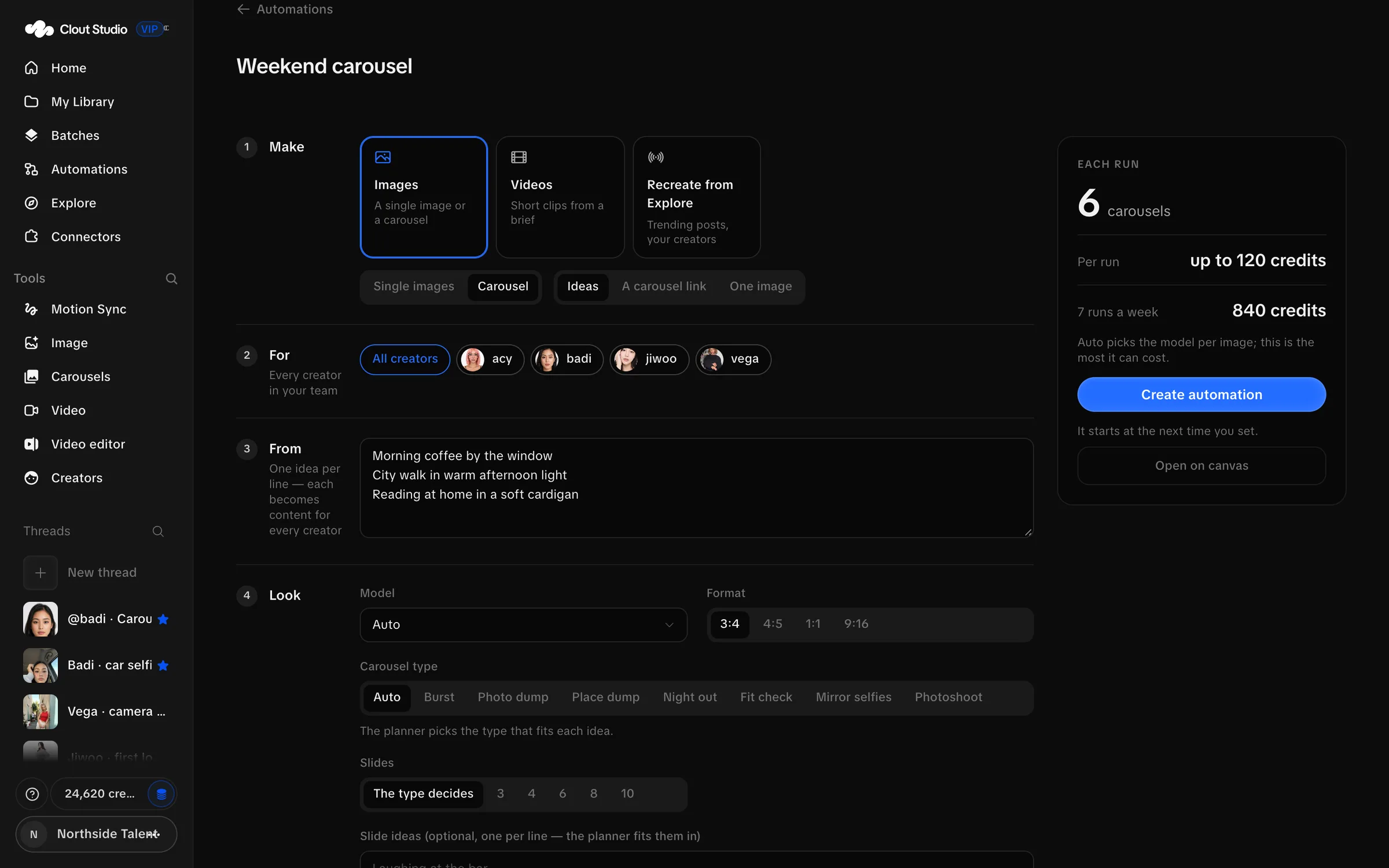
The workflow canvas also has Create carousel, Clone carousel and Carousel from an image nodes. Their output can go to the Library, Drive or posting steps.
For other posting platforms, use the calendar media picker. It accepts up to 20 images, but each destination has its own media limits.