Batches
Import source groups, configure ready rows, launch video work and review picture versions in waves.
On this page
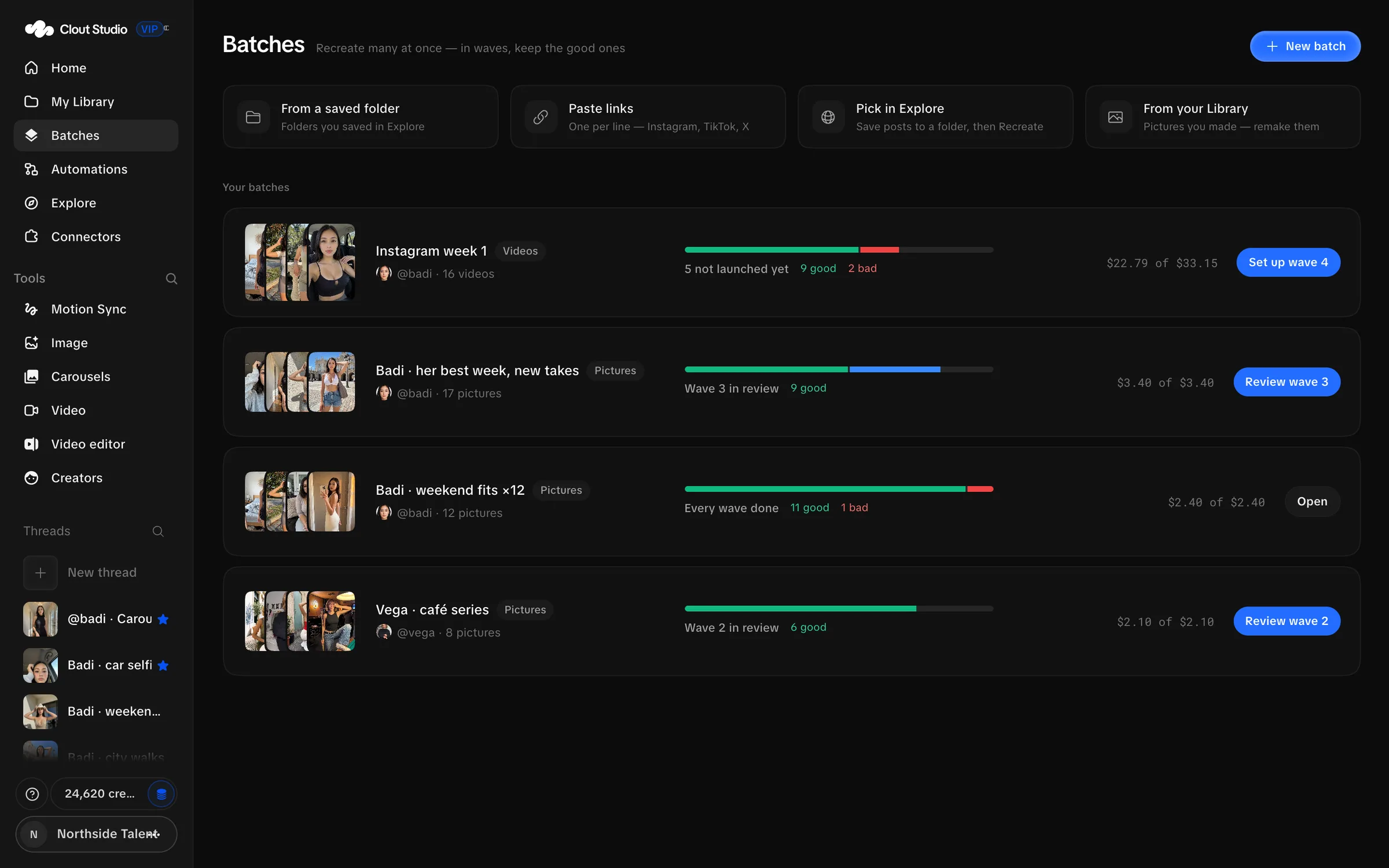
Use Batches when the job starts with several source posts. A batch keeps the source, settings, attempts and review decisions together. Creating the batch reads and imports sources; you still choose what to launch.
Create the batch
- Choose New batch.
- Choose Videos or Pictures.
- Use Saved folder from Explore or Paste links.
- Choose the platform and the saved folder or links.
- Choose the Creator and enter a name.
- Choose Create batch.
A saved Explore folder can also send you here with Recreate this folder. On an existing batch, Paste links and Add from Explore add more sources.
Wait for source reading to finish. A source that is still being read is not ready just because its row is visible.
Work through a video batch
Follow Video batches and review for pasted links, reader findings, row settings, launch groups and delivery.
Video batches have Set up and Review tabs. In Set up, inspect the source, its dialogue classification, chosen model and output settings. Use row settings for exceptions instead of forcing every source through the same setup.
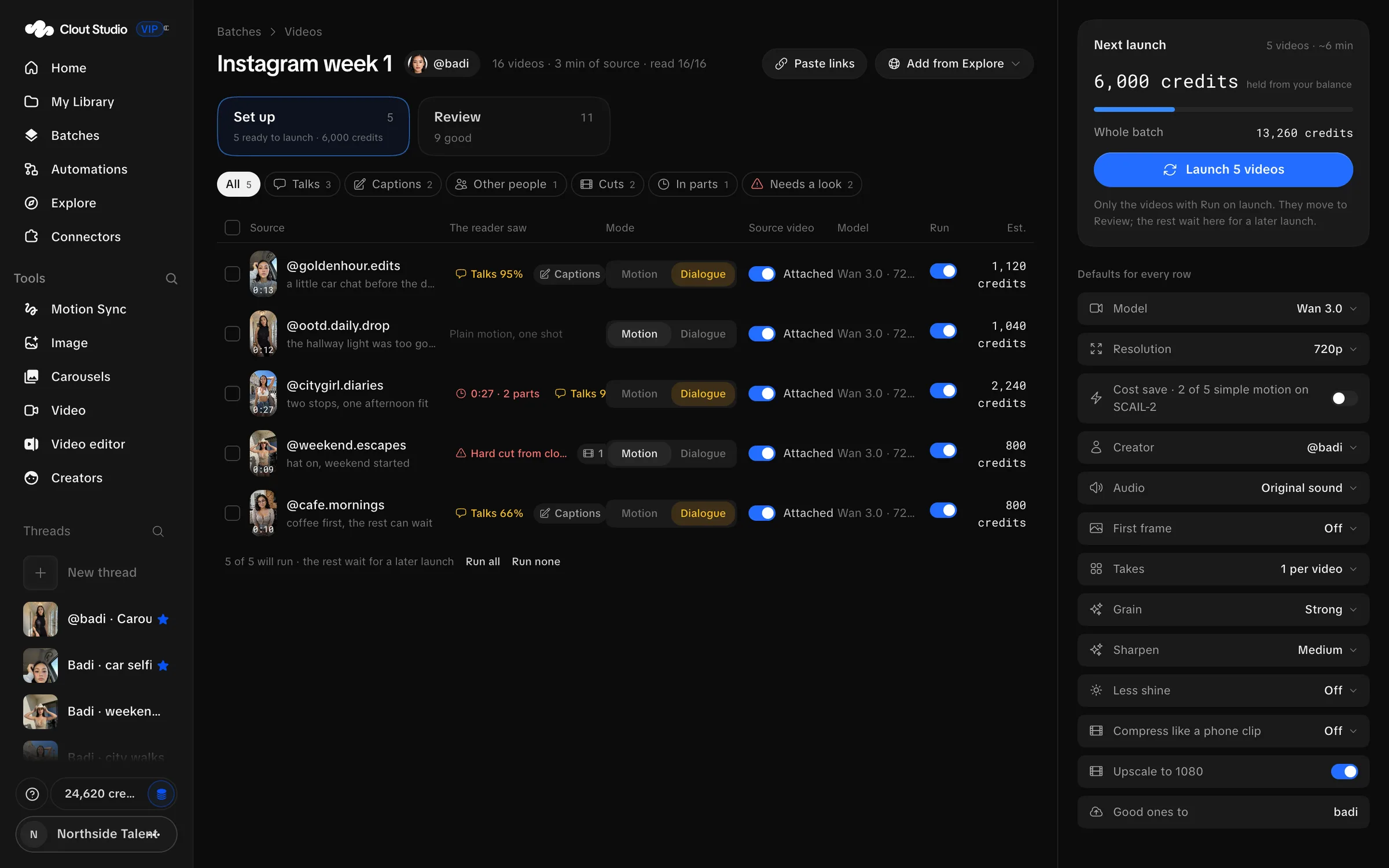
For a motion-transfer source, check the first frame before launching it. Review first frames before launch controls whether an approved frame is required. Review blocked frames or change that setting before launching. Confirm the trim, format, quality and audio settings. The next-launch summary reflects the rows enabled and ready now.
Choose Launch N videos when the selected rows are ready. The displayed estimate is for that launch. Video batches launch selected rows; they do not require the fixed-size picture waves.
Review the takes
Open Review to see the launched work. Filter by launch when you want to inspect one group. Open the comparison to play the source and take together; the source follows the take’s clock from its trim offset.
Mark the take good or bad. Record a reason or note when it helps you choose a better setup for the next attempt. Retry a failed item from its review controls.
Sending a video back to the list removes its current take to the Library’s trash. Read that confirmation before resetting rows. A retry or redo can start another paid render.
Adjust the finish
The batch defaults include Grain, Sharpen, Less shine, Compress like a phone clip and Upscale to 1080. These are finishing controls, separate from the video model.
In video review, Finish can reprocess returned takes with Grain 3 · sharpen 2, Less shine, Less shine + compressed or Heavy. This finish action reuses the model output and is free; Redo or Redo with these starts another render. Check whether you are changing the finish or generating another take.
Review a picture batch
Pictures use waves. The wave controls show current progress and the next group to launch. You can change the wave size before launching the next group.
Each row places the source next to its output versions. Choose Her when the row should use the Creator’s Mirage v0 likeness, or Nobody for a scene without the Creator.
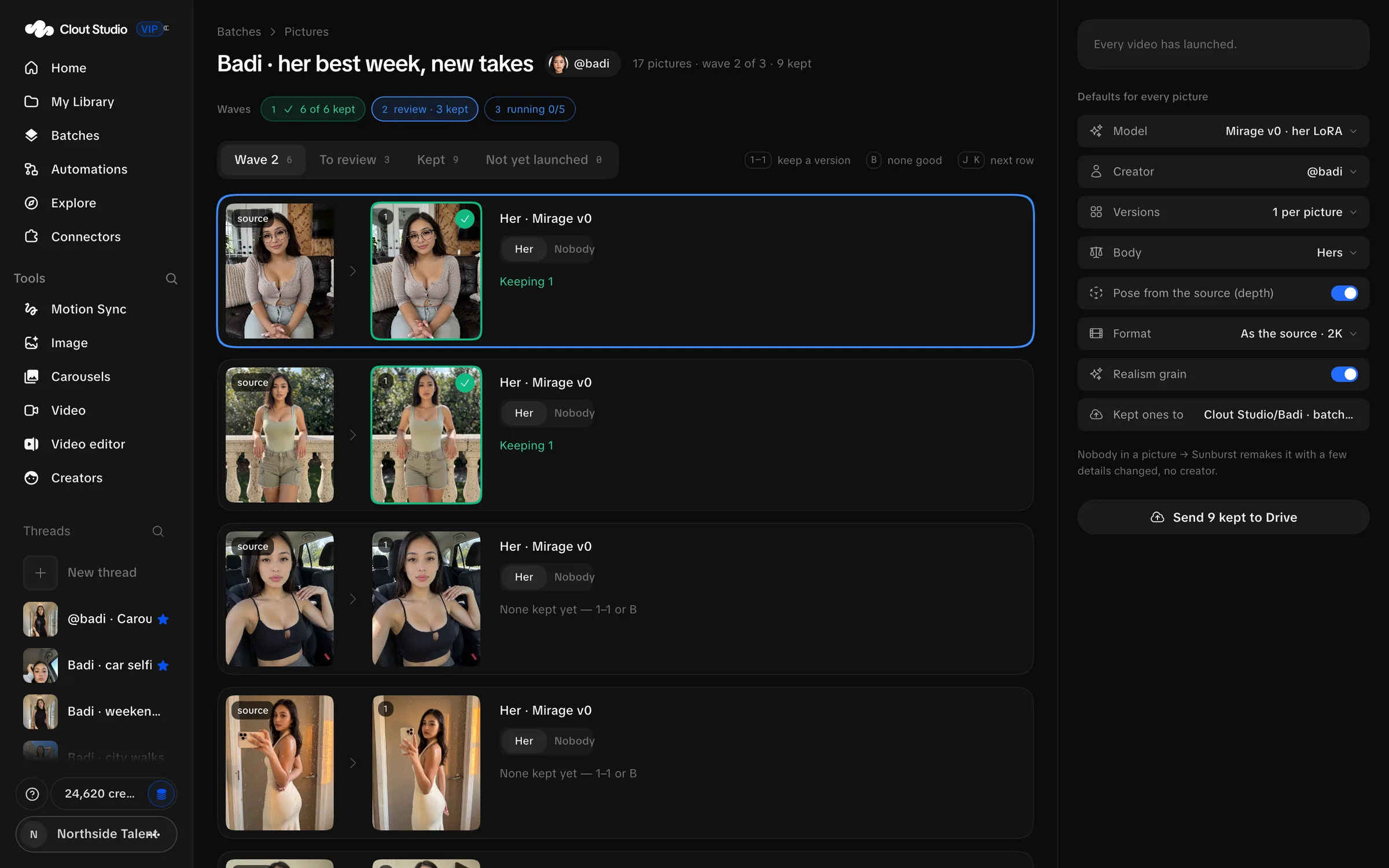
Keep one or more versions. A row with no good output can be marked for redo. Kept collects chosen versions; Not yet launched holds remaining sources.
| Key | Picture review action |
|---|---|
| 1–4, as shown for the selected version count | Toggle keeping that version. |
| B | Mark none good, or clear that judgment. |
| J | Move to the next row. |
| K | Move to the previous row. |
Use Redo the N with none good for another attempt at rejected rows. Send N kept to Drive delivers the kept versions to the connected destination. Check the kept set before delivering it.
Avoid duplicate work
Leave a running batch and return to it to check progress. Before launching again, inspect the row status and attempt history. Paid work already queued can continue even if the page closes.
See video workflows for dialogue and model choices, and Explore for organizing the sources before you make the batch.