Workspace, roles and credits
Manage workspace members and roles, read your credit wallet and usage, and find current billing options.
On this page
A workspace owns its Creators, threads and Library together. Check Account → Workspace before you create or deliver content for a different agency.
Switch or create a team
Open the profile menu and inspect Teams. The current team is checked. Choosing another team reloads Studio in that workspace, including its Creators, Library and usage.
+ New team opens a Team name field; enter the name and choose Create. A new team has its own workspace state. Switching teams does not transfer existing content or an assistant connection.
Roles
| Role | Access |
|---|---|
| Owner | Work in the workspace, manage people and change owner roles. |
| Admin | Work in the workspace and manage members and viewers. |
| Member | Create and change content in the workspace. |
| Viewer | Read the workspace; cannot change it or start work. |
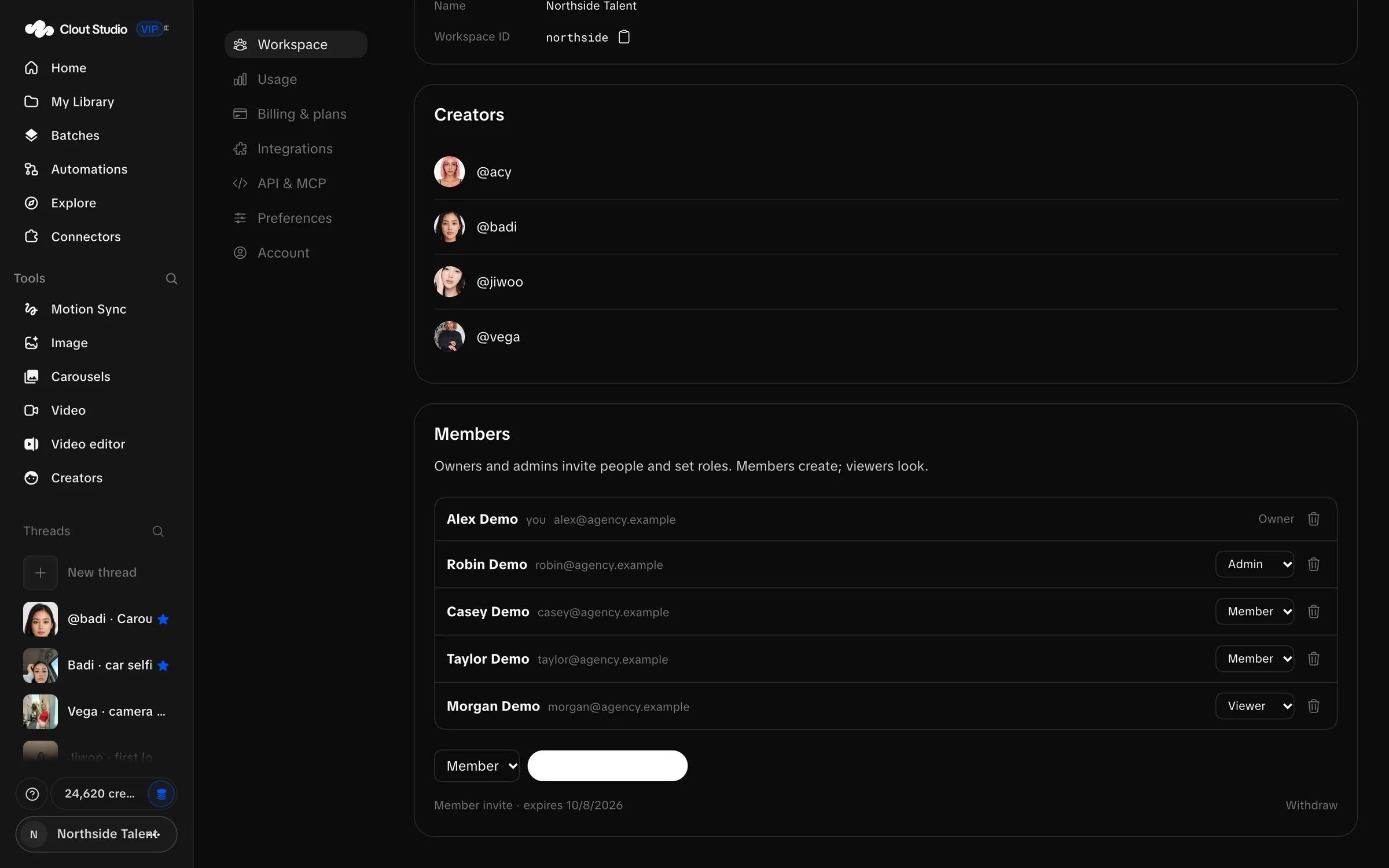
Owners and admins manage invitations. Only an owner can invite an admin or make or unmake owners. You cannot change the role of someone above you.
A workspace must keep at least one owner. Trying to remove the last owner produces “the last owner cannot leave — make someone else owner first”.
Invite and remove teammates
Choose the invite role, then Create invite link. Copy the link for the intended teammate. Pending invitations can be withdrawn with Withdraw.
Change another member’s role from their role control. Remove a person when they should no longer have access. Transfer ownership before the final owner leaves or changes role.
Current plan cards may list seat allowances. Talk to us about your workspace’s offer. These docs do not promise a particular seat count or an automatic invite cutoff.
Read the credit wallet
Open Account → Billing & plans.
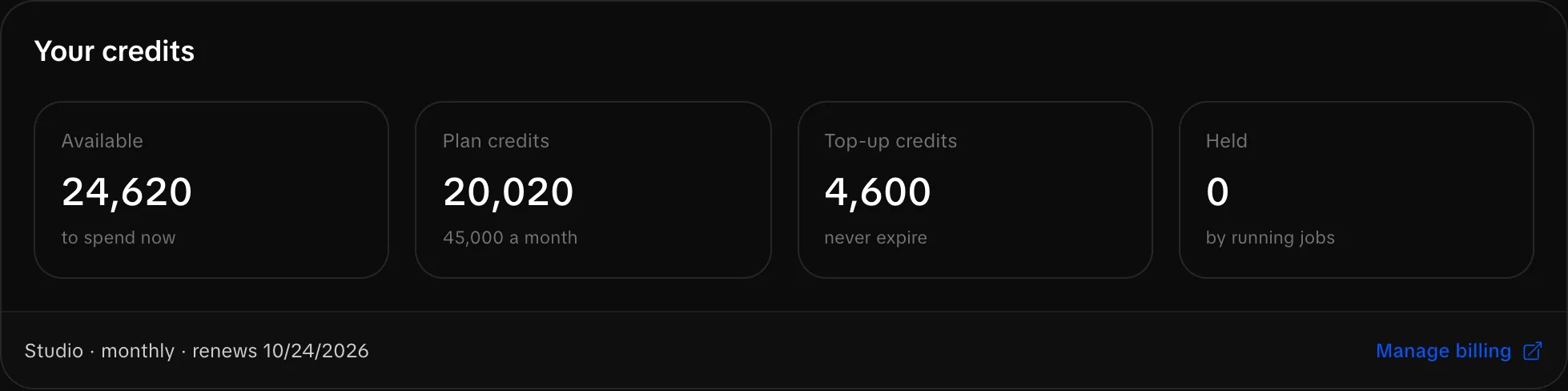
| Wallet field | Meaning |
|---|---|
| Available | Credits you can use now. |
| Plan credits | The plan-funded part of the wallet. |
| Top-up credits | Additional credits purchased or granted separately. |
| Held | Credits reserved for work that has not settled yet. |
Use the estimate before launching image comparisons, carousel remakes or video batches. Those actions can create several paid requests.
Studio reserves credits before paid work starts. When the work settles, it charges against the hold and releases the unused part. The wallet spends plan credits before top-up credits.
An estimate is a reservation or quote, not a guaranteed identical final charge. A cancellation is not a promise of a full refund for work already incurred. Inspect usage and the resulting wallet entries when checking a job.
The configured plan credit grants are monthly, including plans billed yearly. Unused plan credits carry over subject to the configured rollover cap. Top-up credits do not expire under the current billing configuration. Check Billing for the active workspace’s grant and rollover terms.
Plans and limits
Billing management requires an owner or admin. Use Billing & plans to inspect the current offer and your active plan. The UI provides monthly and yearly options, plan changes and top-up purchases where available. Top-ups require an active plan in the current billing flow.
Studio VIP is priced on request. Talk to us about plans and allowances.
Feature access, the number of Creators and concurrent image generation work are checked server-side. A visible menu does not bypass a plan restriction. A plan error directs you to Billing & plans; a concurrency limit means you should wait for existing generation work to finish.
Usage
Open Account → Usage. Review This month, All time, Creators, Trained versions and Spend by model. Download usage saves the usage record as studio-usage.json.
Use the workspace’s actual usage records to reconcile work. The synthetic balances in these screenshots are not credits granted to a new customer.