Datasets and trained versions
Build a reviewed training dataset, publish a LoRA version and keep earlier versions available.
On this page
A training learns from the images in the Creator’s working dataset. Approve images that match the Creator and remove identity errors before starting a run. Dataset edits prepare the next version; they leave published versions available.
Build the working dataset
Open the Creator’s Dataset tab. Upload adds your own images. Generate starts dataset generation from the references. New generated candidates arrive under New renders for review.
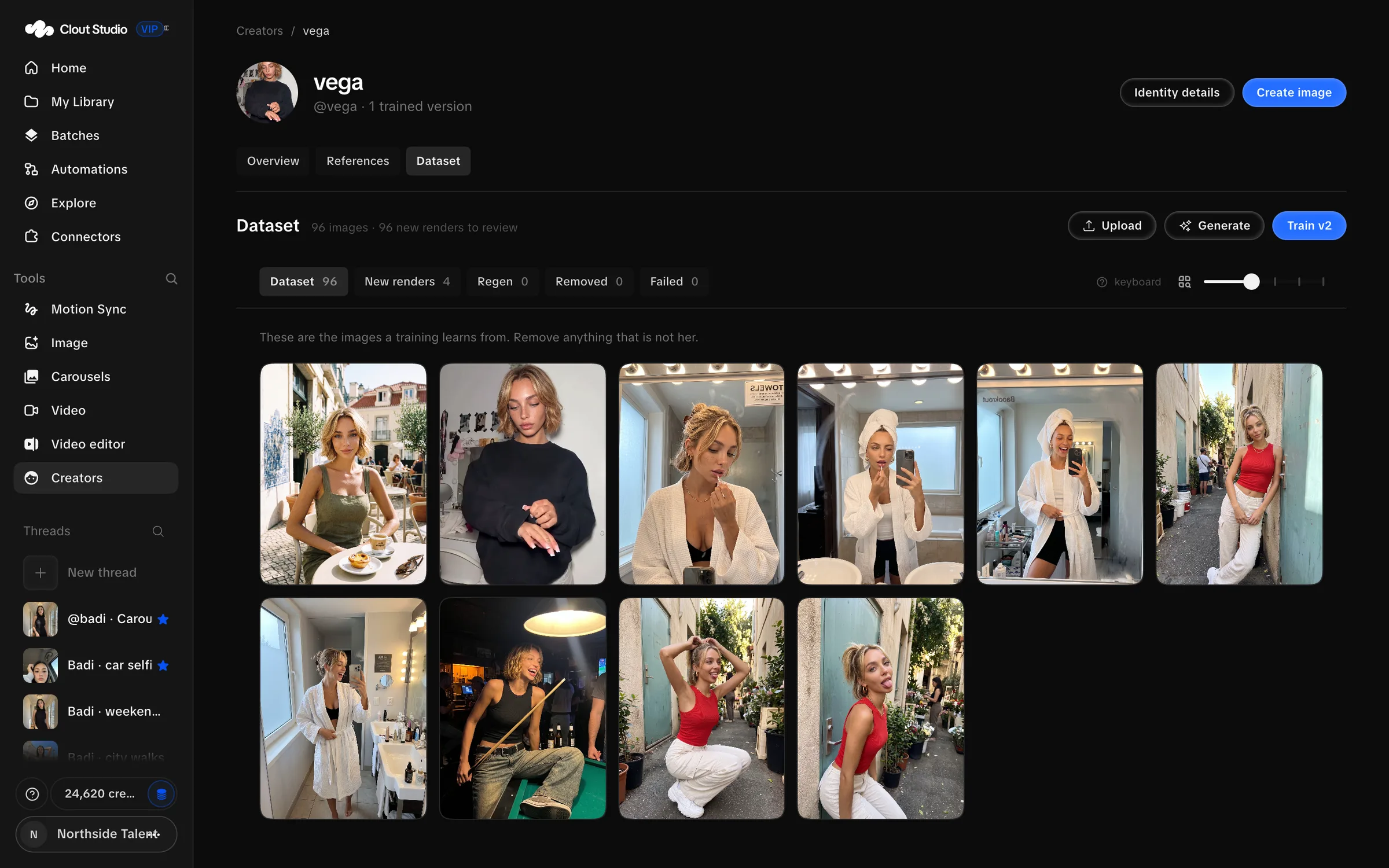
Dataset generation continues if you leave the page. Generating candidates does not approve them all or start training automatically.
Uploaded dataset files must be images. Each file can be at most 40 MB. An oversized file produces “over 40 MB”; a file that cannot be decoded produces “not an image”.
Review the candidates
| Tab | What belongs there |
|---|---|
| Dataset | Approved training images. |
| New renders | Candidates you have not added to the training set. |
| Regen | Candidates marked to be regenerated. |
| Removed | Images you removed or rejected. |
| Failed | Candidates whose render failed. |
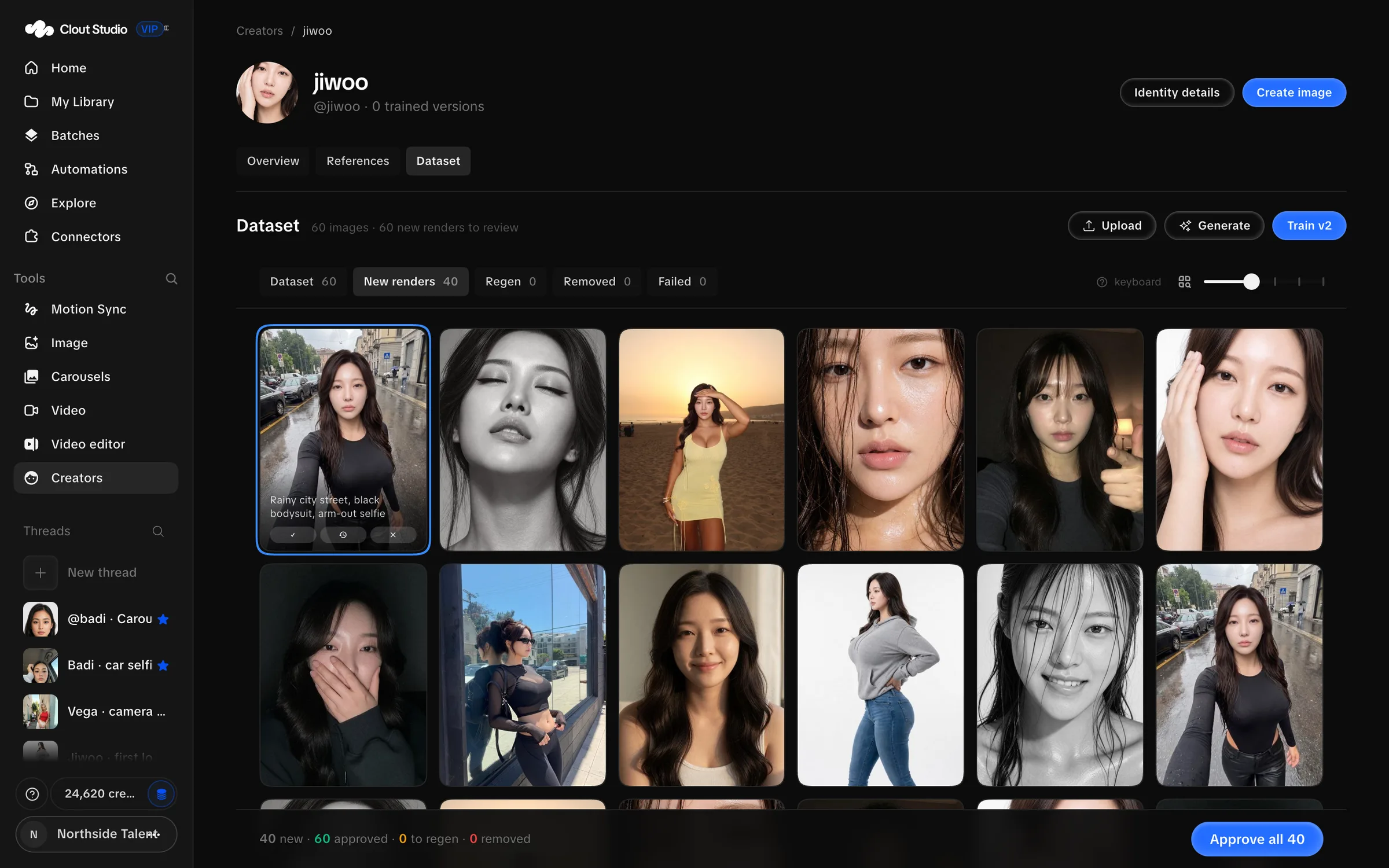
Inspect a candidate at full size. Approve adds a good candidate to the dataset. Regen marks a candidate for another attempt. Remove a candidate whose identity, body or scene makes it unsuitable for training.
Approve all N opens a confirmation before adding all the new candidates. On Regen, Regenerate N sends the marked candidates back; replacements return under New renders. Stop stops that regeneration run.
Removed offers Redo N with Ideogram. Studio reads each removed scene and redraws it using face and body references. Review the paid-action confirmation. The replacement keeps the previous render available for comparison.
For quick review, R marks a render for regeneration. The screen’s keyboard help shows the remaining review controls.
Train the next version
You need at least 10 approved dataset images. Wait for an active run to finish and resolve pending work before training.
- Choose Train vN from the dataset.
- Use Review images if you need a final inspection.
- Check that the dataset is the one you intend to train.
- Confirm Train vN to start the paid run.
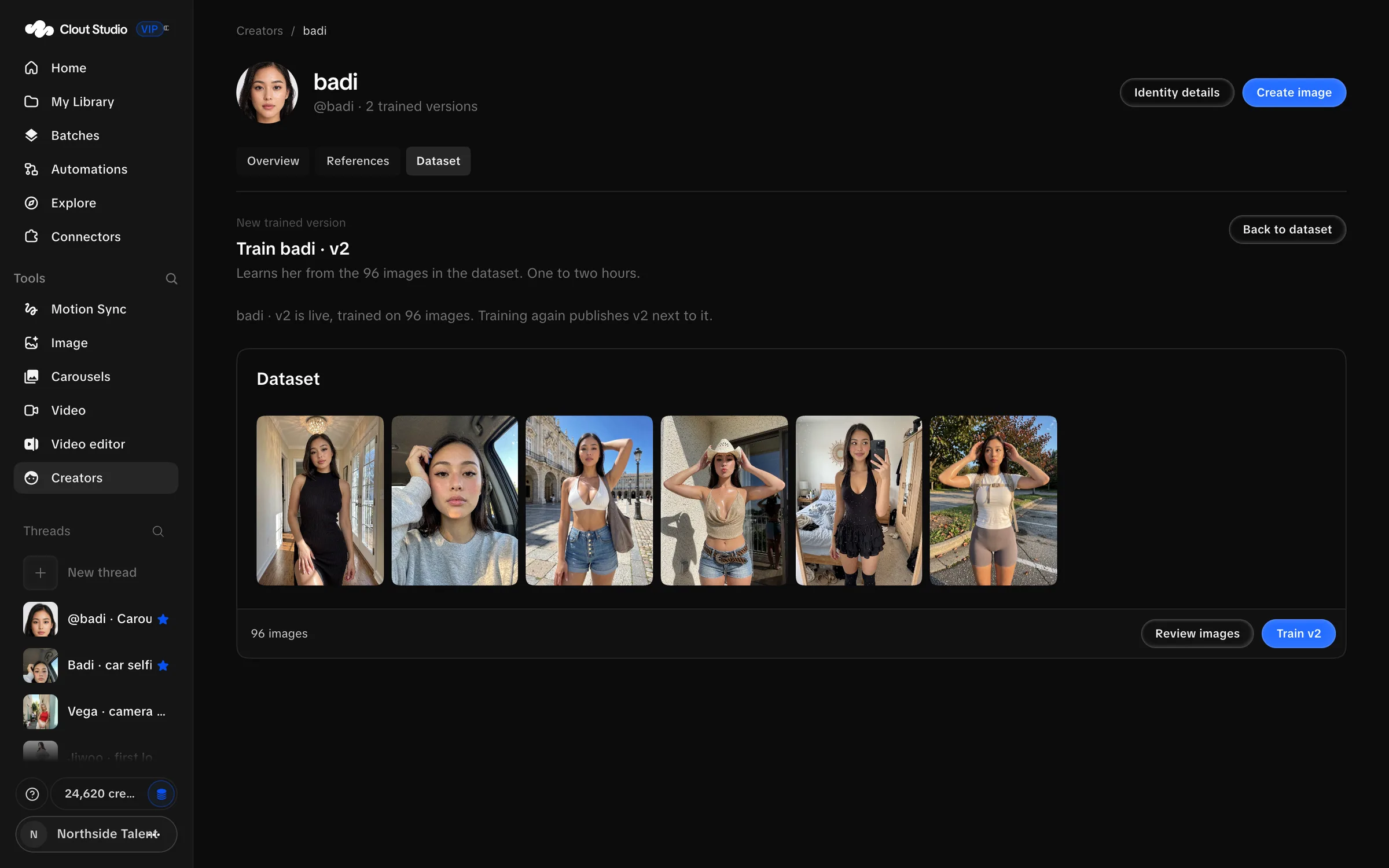
The run moves through Setting up the GPU, Training, Finishing up and Done, or Failed. You can leave the page while it runs. Stop training stops the active training.
The run’s time estimate is an estimate. Do not schedule delivery around a fixed training duration. When the version is ready, it appears among the Creator’s trained versions.
If the run fails, Studio says “The last training did not complete. Nothing was published — try again.” An earlier published version remains usable.
Inspect a published version
Open View version. Training details can include Version, Training images, Steps, Rank, Trigger and GPU, when those values were recorded. Download LoRA downloads the published weights.
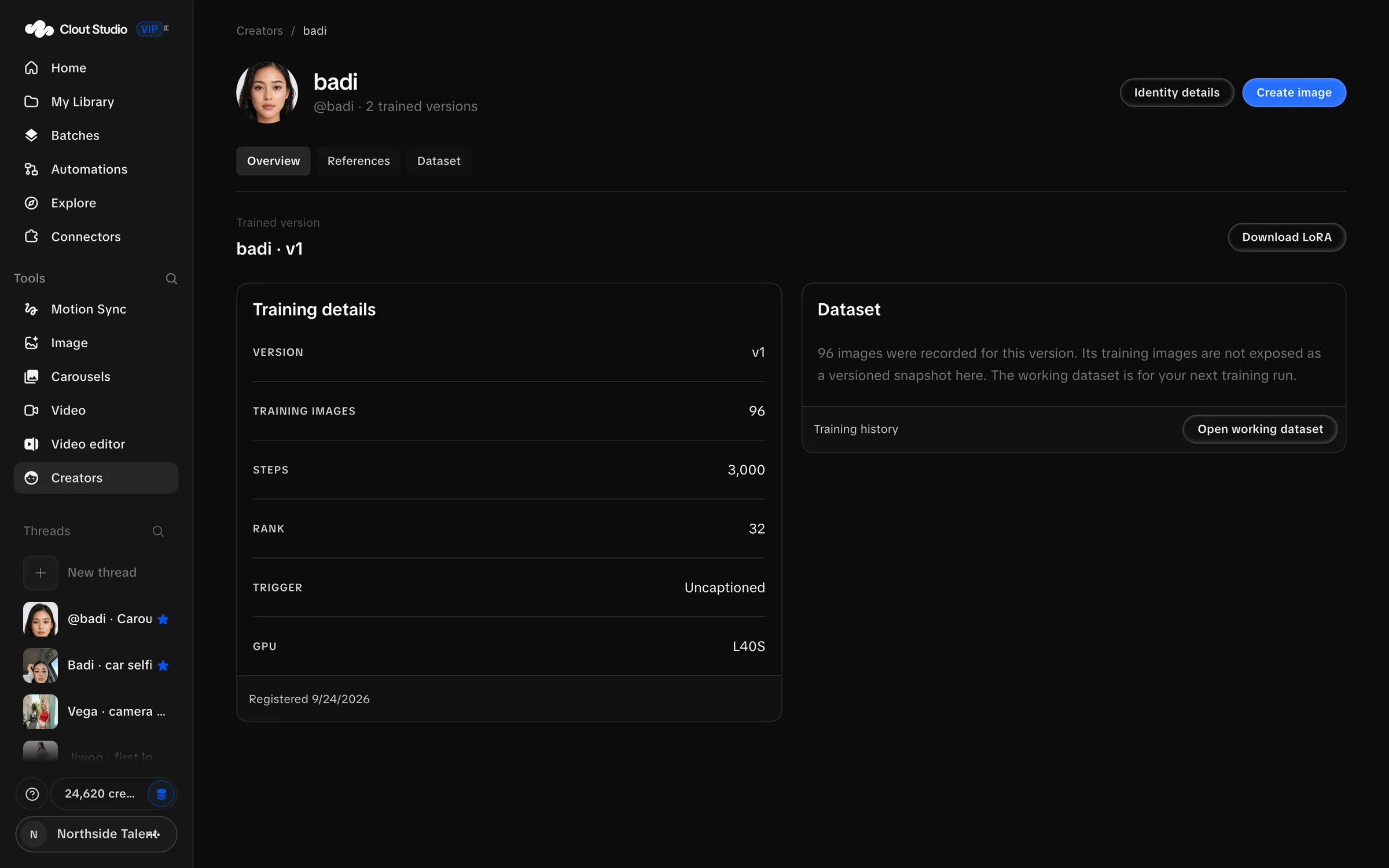
Open working dataset opens the current set for future training. It is not a frozen gallery of the images used by this older version. Use the recorded training details to identify the version, then select its LoRA vN in the image composer.