My Library
Find your finished media, organize folders, upload images and download or deliver selected work.
On this page
My Library is the workspace’s collection of generated media and saved uploads. Use the tabs to move between Images, Videos, Uploads, Threads and Activity.
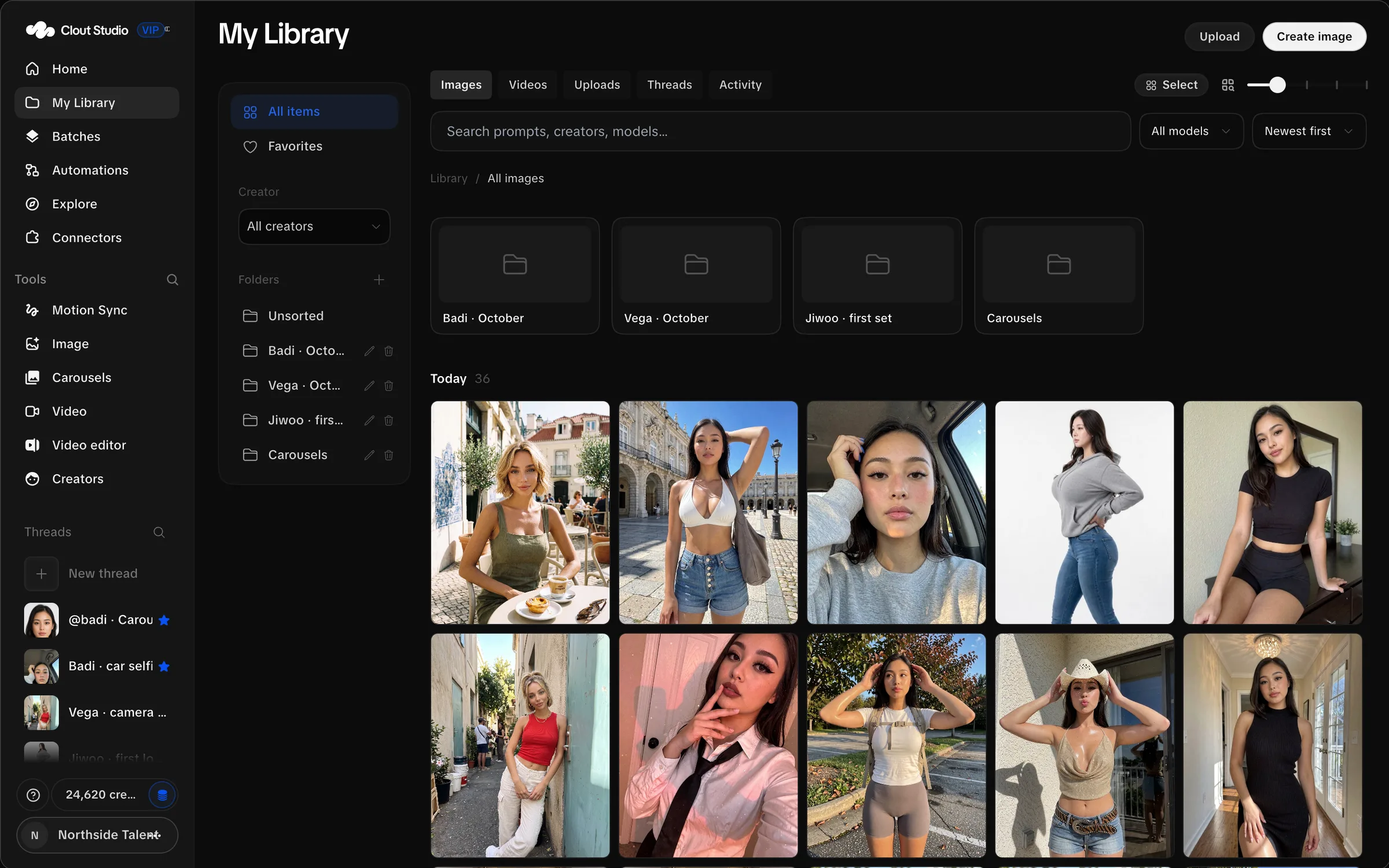
Find an image
Search prompts, Creators and models. Choose a Creator, an image model or Newest first or Oldest first ordering. All items, Favorites, Unsorted and named folders narrow the collection.
Scroll to older results and load more when needed. The recent view is not the entire lifetime history until older pages are loaded.
Open an image to inspect it at full size. Its generation retains the prompt and settings. Open the thread when you need the surrounding iterations or want to reuse the request.
Organize folders
Create a folder for a Creator, campaign or delivery. Move media into it from selection controls or by dragging items into the folder. Use favorites for work you want to find again without changing its folder.
Deleting a folder does not delete its images. The confirmation says “Its images stay in your library.”
A thread’s New outputs go to destination affects future output only. To organize existing output, move those items in the Library.
Upload images
Choose Upload. You can drop images, paste them or browse for files. The dialog stages the files so you can preview them, edit their names and choose a destination before uploading.
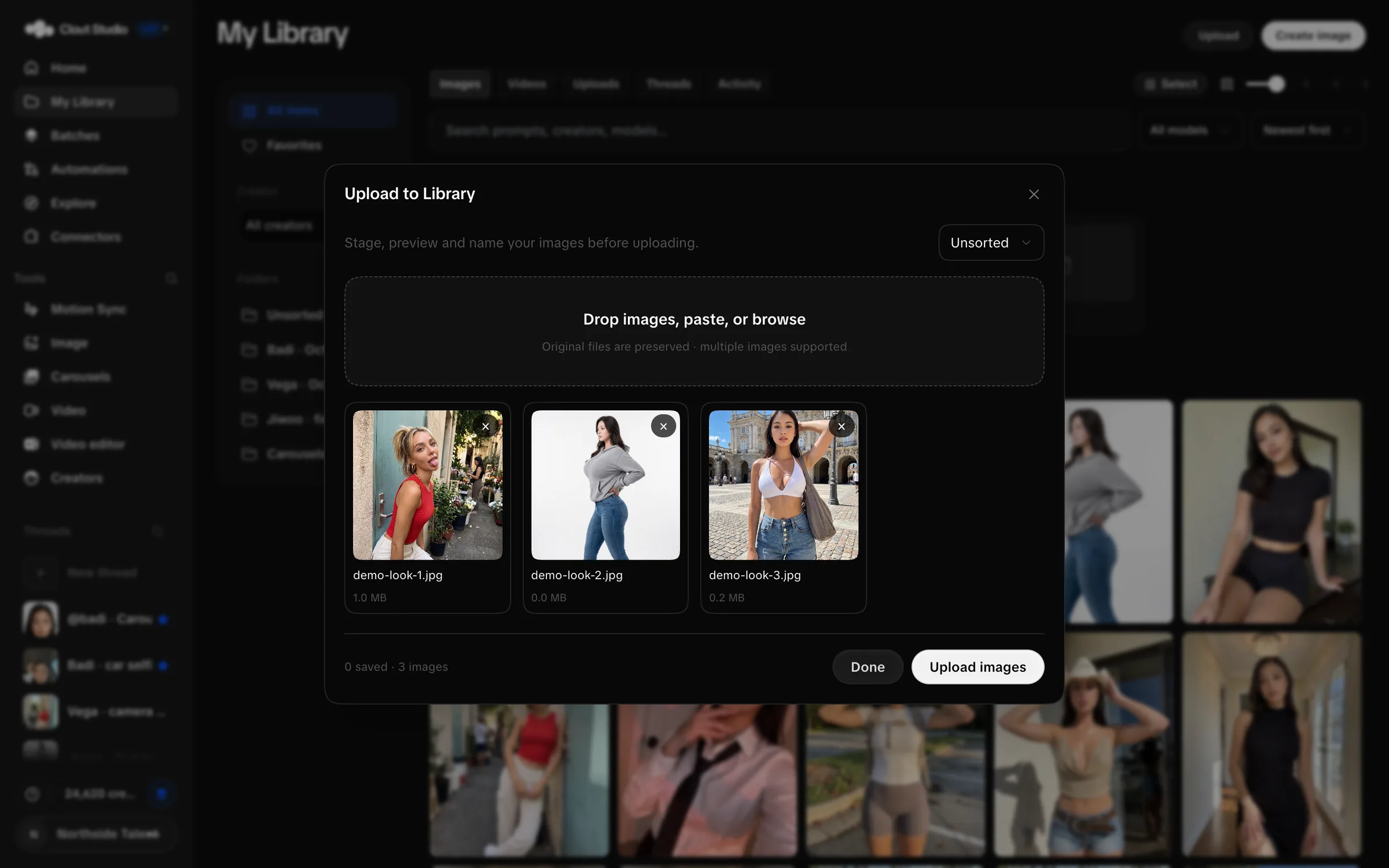
- Add the images.
- Edit Image name if the file name is not useful.
- Choose Destination folder, or leave it Unsorted.
- Choose Upload images.
- If some files fail, choose Retry remaining.
- Choose Done after checking the saved count.
Successful transfers are retained when you retry failed ones. The uploader accepts images; other file types are skipped with “Only image files are supported. Other files were skipped.” The underlying image upload limit is 25 MB per file.
Deliver a selection
Choose Select to enter selection mode. Select individual items, drag a selection rectangle or use Select all. Then favorite the selection, move it to a folder or download it.
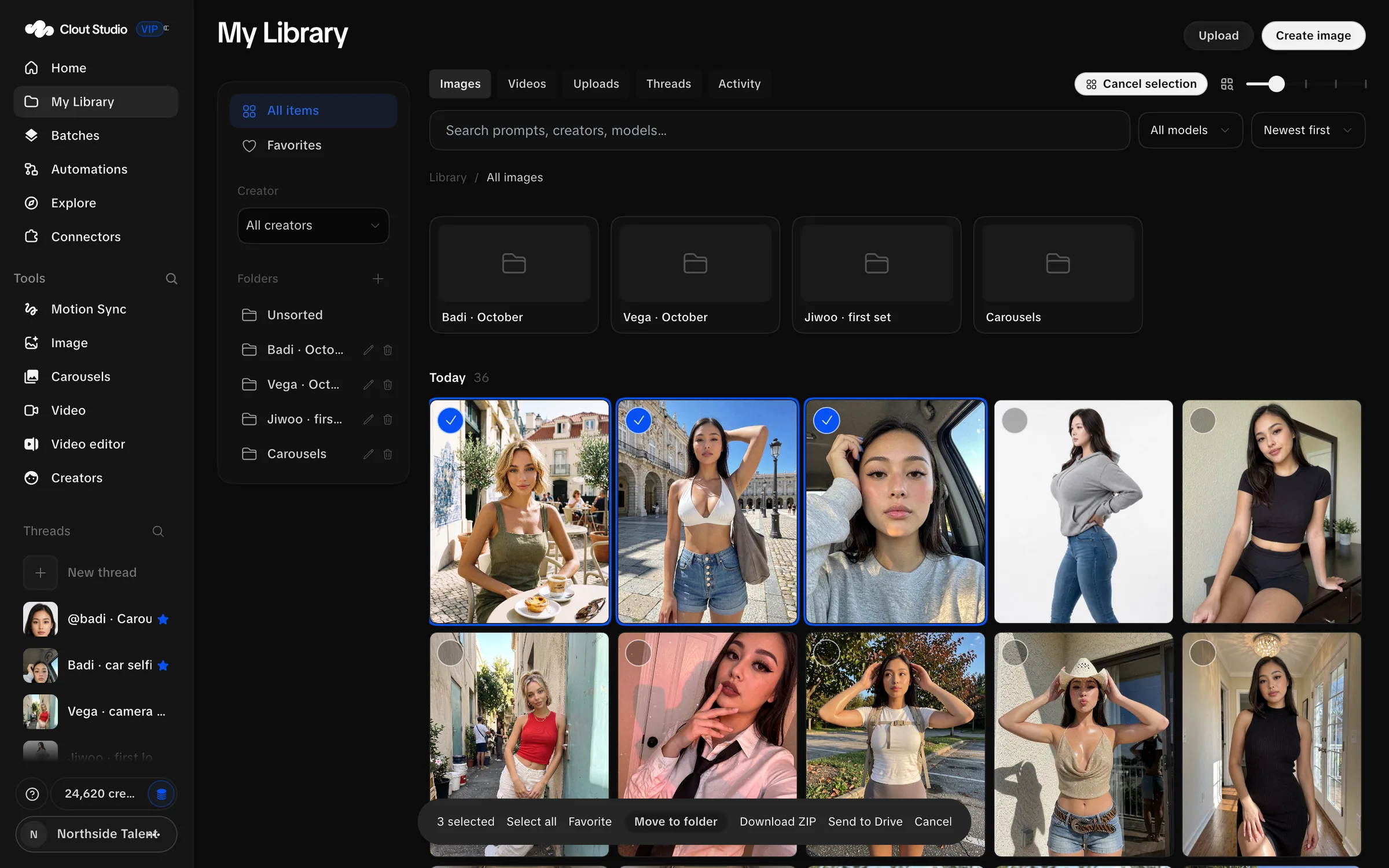
The UI’s Download ZIP selection is limited to 100 images. Split a larger delivery into smaller selections. A generation can also be downloaded as its own ZIP through the API.
Send to Drive needs a connected Google Drive destination. The image delivery action supports up to 500 selected generated images. Use Connectors to check the account and folder first.
Videos, threads and activity
Videos collects video assets and exported edits. Use its Creator, folder and search controls to find the asset; an edited export is its own asset.
See Creation threads for request history and draft handling. Threads is for finding creation work rather than just the final media. Pin active work, archive work you want to put away, and use the thread trash controls when needed. A trashed thread can be restored.
Activity helps you inspect the work behind the collection. For charges and workspace totals, use Account → Usage instead.