Images and creation threads
Use Creator references or a trained LoRA, compare image models and keep settings in creation threads.
On this page
Open Image to make a new image request. The composer brings together the prompt, Creator, references, model choices and output settings. Results belong to a creation thread and appear in My Library.
Write the request
Describe what should be visible: location, outfit, pose, framing, lighting and image style. Type @ to select a Creator rather than relying on a typed name alone. A request uses one Creator.
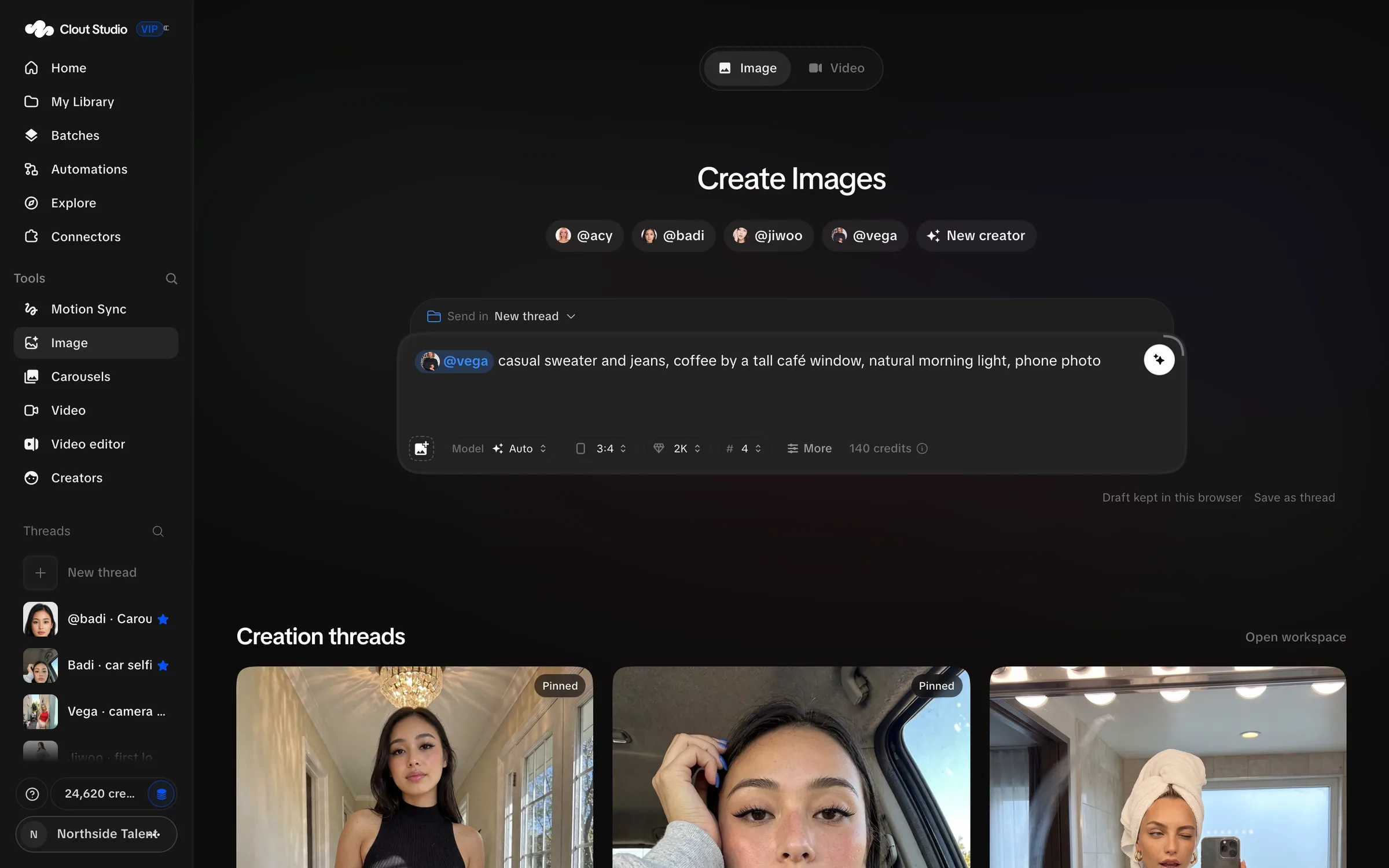
Use Send in to choose New thread or an existing destination. Save as thread saves a new draft as a thread before you generate. Open workspace returns to the thread overview.
Choose the Creator’s identity
Click the Creator mention to choose an identity mode.
| Choice | What Studio uses |
|---|---|
| References · no LoRA | The Creator’s shared references, with a model that accepts them. |
| LoRA vN | The selected published trained version, with a compatible LoRA model. |
| No creator — the bare model | The model without a Creator identity. |
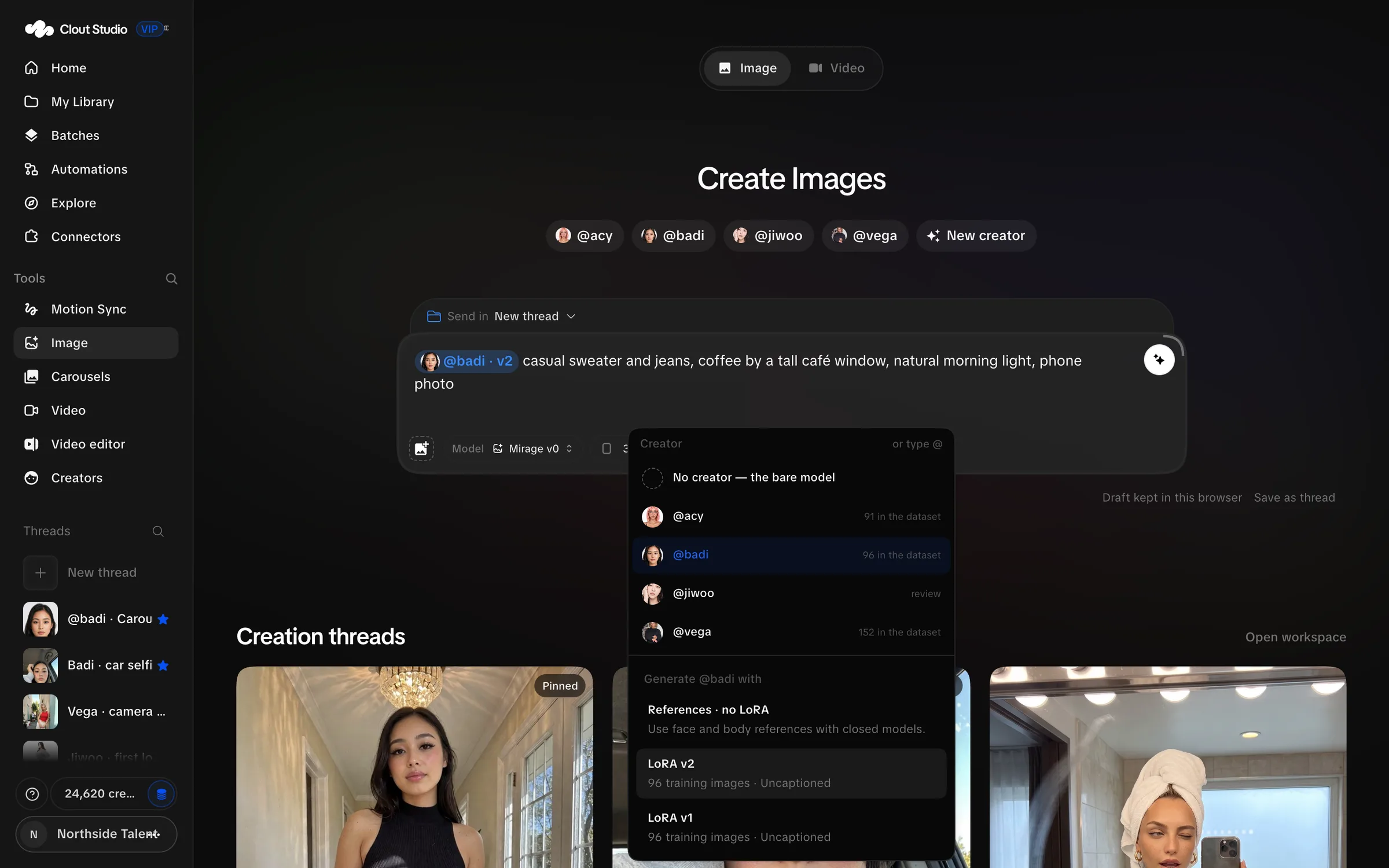
Mirage v0 needs a published compatible LoRA. Selecting references alone is not enough. If Studio says “Select an available trained version.”, choose a ready version or switch to a reference-compatible model.
Choose image models
You can select more than one model for a comparison. Each selected model makes the count you choose. For example, two models with a count of two queue two images per model.
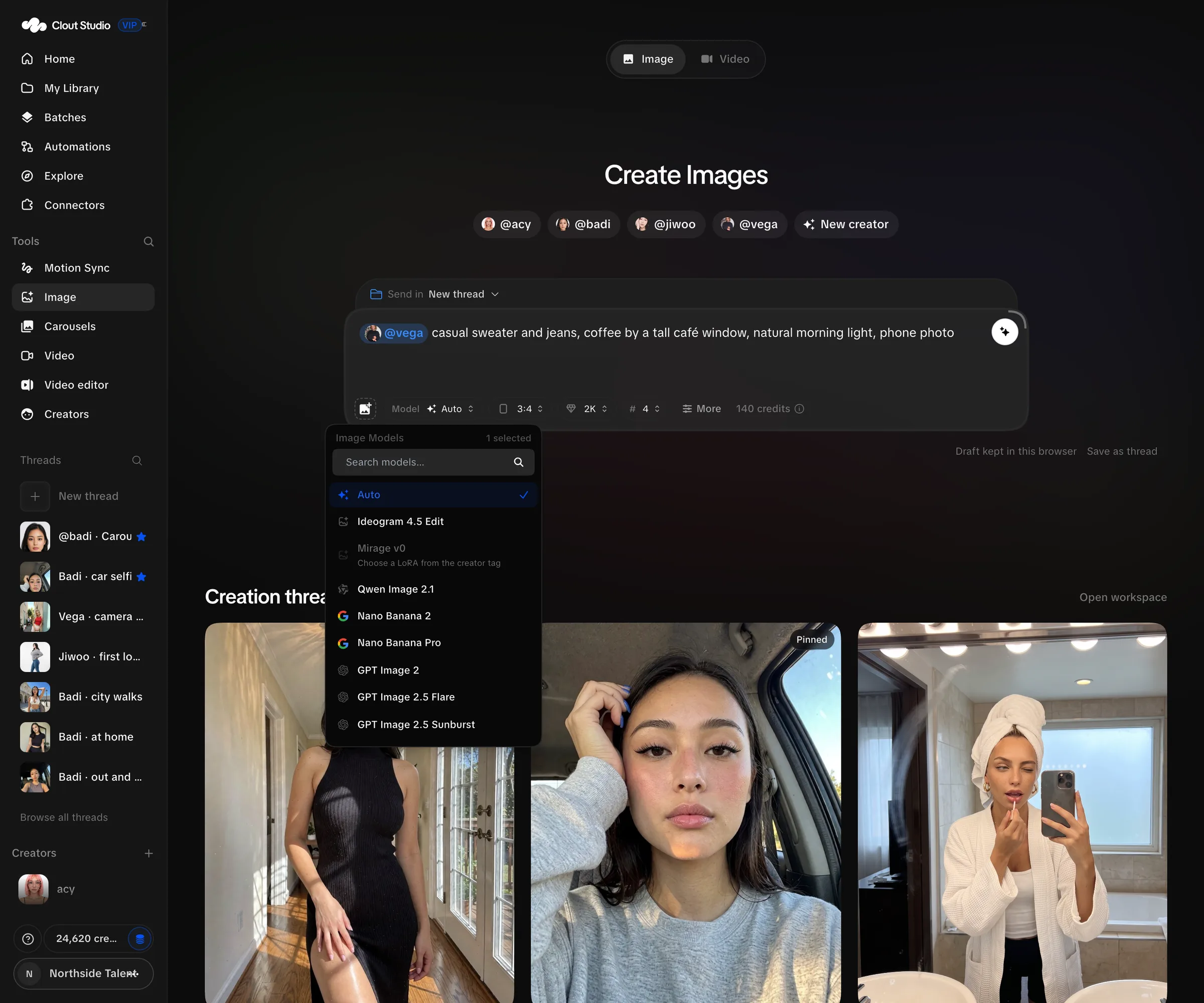
| Model | API identifier | How to use it |
|---|---|---|
| Auto | auto | Let Studio route the request; optional prompt enhancement is available. |
| Ideogram 4.5 Edit | ideogram_4_5_edit | Edit an attached source or work from Creator references. An attached edit source keeps its source size. |
| Mirage v0 | krea2 | Use a compatible trained Creator LoRA. |
| Qwen Image 2.1 | qwen21 | Use reference-conditioned generation. |
| Nano Banana 2 | gemini_3_1_flash_image | Use image generation with references where supported by the request. |
| Nano Banana Pro | gemini_3_pro_image | Choose this named model directly. |
| GPT Image 2 | gpt_image_2 | Choose this named model directly. |
| GPT Image 2.5 Flare | gpt_image_2_5_flare | Choose this named model directly. |
| GPT Image 2.5 Sunburst | gpt_image_2_5_sunburst | Choose this named model directly. |
| Seedream 5.0 Pro | seedream_v5_pro | Choose this named model directly. |
| Grok Image 2 | grok_imagine_2 | Choose this named model directly. |
| Grok Imagine Quality | grok_imagine_quality | Choose this named model directly. |
Choosing a named model keeps the prompt as written. Auto can prepare an enhanced prompt and records the chosen route. A catalog entry does not guarantee that every identity mode or reference operation is compatible with it.
Attach references
You can attach up to four images by uploading, pasting, dropping or choosing from the image picker. Each attachment is limited to 25 MB. Uploads are decoded and stored as PNG, with dimensions reduced to fit within 4096 × 4096 if necessary.
For models that receive image references directly, Studio displays their order. Creator references come before your added attachments. Refer to the displayed Image N numbers when your prompt needs to distinguish the scene, outfit or other reference.
Mirage v0 does not use an attached scene as a native image-edit input. Studio can read that image into a scene prompt. Depth guidance is a separate option for carrying the first attachment’s pose into a LoRA request.
Set the output
The composer offers formats 16:9, 4:3, 1:1, 3:4 and 9:16, resolution choices 1K and 2K, and counts 1, 2, 4, 6 and 8. With an attached Ideogram edit base, format and resolution become Source size.
Under More, check these controls:
| Control | Use |
|---|---|
| Enhance prompt | Available with Auto; lets Studio prepare the prompt. |
| Depth guidance | Uses the first attachment’s depth for a LoRA request; attach an image first. |
| LoRA strength | Adjusts a LoRA’s influence; the UI range is 0.5–1.3. |
| Seed | Leave blank for Random, or enter 0–2,147,483,647. |
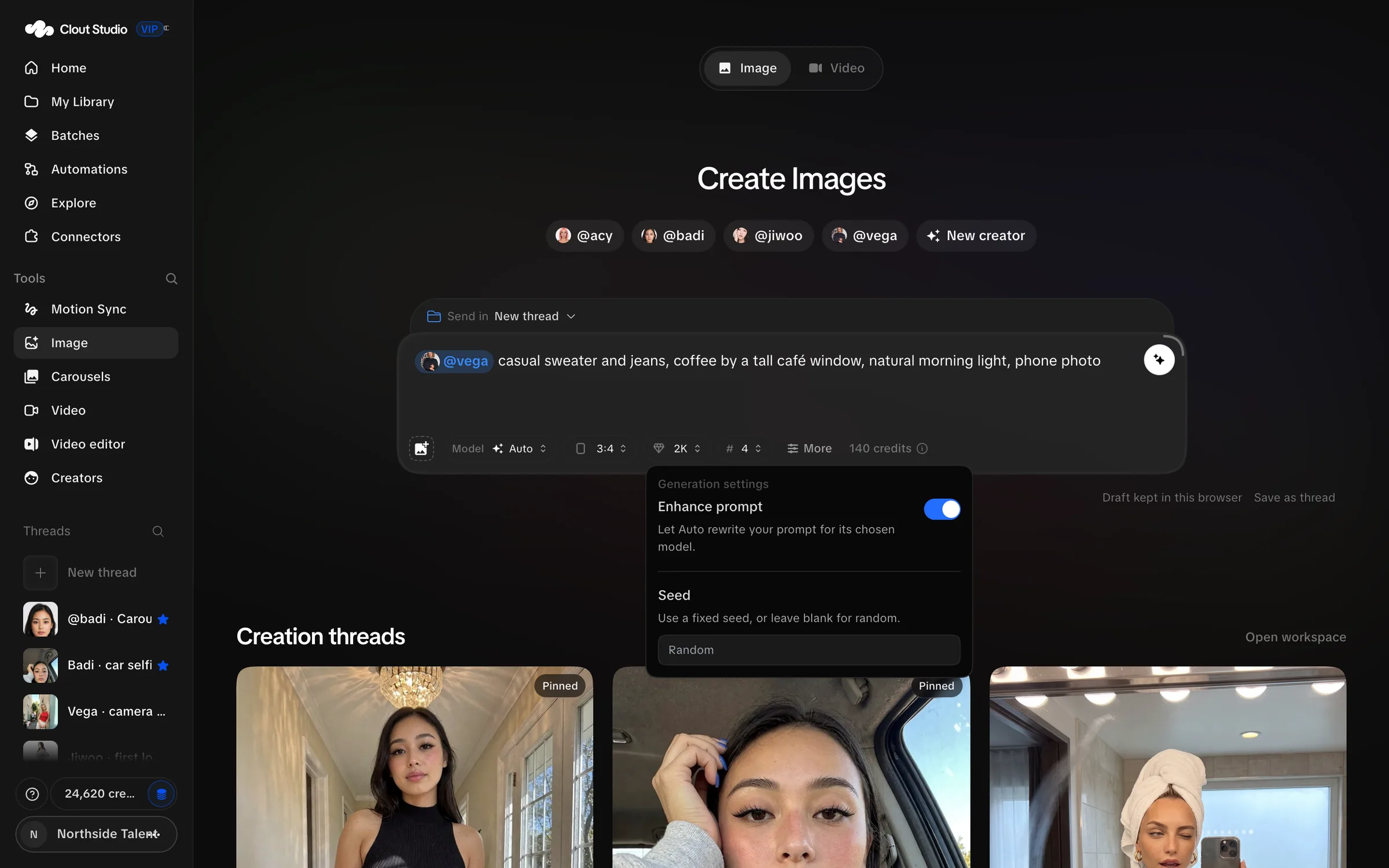
Prompts are limited to 32,000 characters. A seed is useful for comparing settings but does not promise identical results across different models.
Work in the thread
For thread selection, saved drafts and organization, see Creation threads.
Prompt history reads oldest to newest; All media shows the newest media first. Reuse settings restores the original request’s prompt and inputs into the composer so you can change them and generate again.
Rename the thread from its title control. Thread titles are limited to 160 characters. Choose a folder under New outputs go to for future results. Changing that destination does not move previous output.
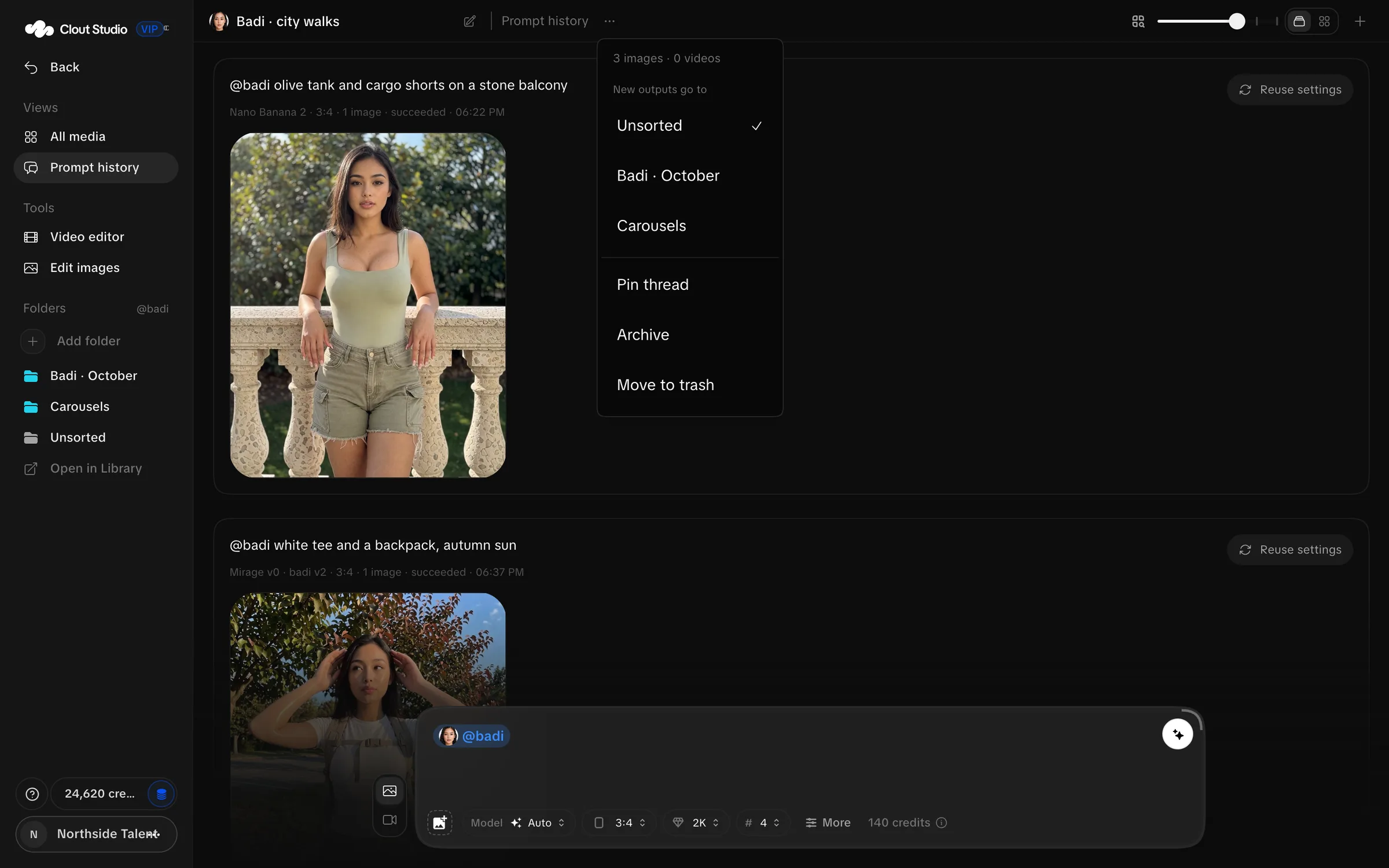
Thread actions include Pin thread, Archive and Move to trash, with Unpin, Unarchive and Restore from trash for the corresponding state. Archiving or trashing a thread changes how you find it; use My Library to manage the media itself.
A thread draft can report Draft saved or Draft not saved. If saving fails, preserve the prompt and settings before reloading; do not assume the latest draft reached the server.
A comparison with several models queues separate requests. If a later request fails, work already queued for earlier models can still run. Check the thread before submitting the whole comparison again.