Posting accounts and Google Drive
Connect posting accounts, assign Creators, configure posting slots and choose a Google Drive delivery folder.
On this page
Open Connectors to manage where Studio posts and saves work. Posting accounts, Drive and AI assistants are separate connections. A working Drive connection does not mean a social account can post automatically.
Posting accounts
Connected accounts are grouped by Creator. Check the platform, handle, posting method and linked Creator before scheduling content.
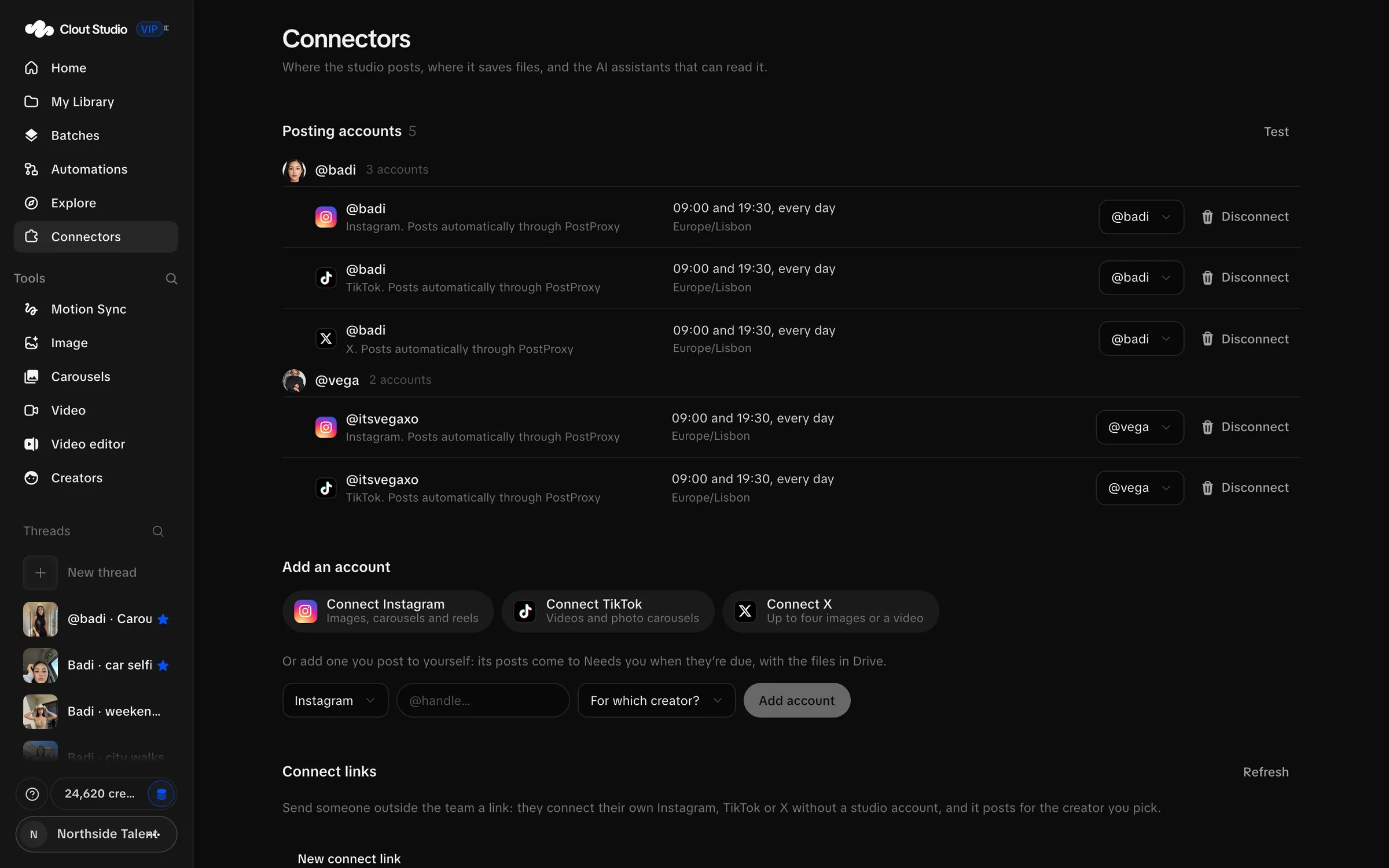
Use Connect Instagram, Connect TikTok or Connect X for the offered sign-in connection. A connection can require a browser authorization step. Do not enter another person’s password in a Studio text field.
A manual account can be added by selecting the platform, entering the handle, selecting For which creator? and choosing Add account. Manual accounts put due work in the calendar for you to post by hand.
For a connected account, the Creator selector changes which Studio Creator it belongs to. Reconnect reopens authorization when needed. Disconnect removes the account connection.
Use Test to check the connection, then read its result. A successful test is not a posted-content record; check the calendar for delivery status.
Connect links
Connect links let a person connect social accounts through a separate handoff page. Choose the Creator for the link, or let the person choose a Creator per account. Select the platforms and use Make link.
The list records the link’s connected accounts. Revoke a link you no longer want someone to use. A link is for authorizing connections; it is not an invitation to work inside your Studio workspace.
Posting times
Open the account’s slot controls. Set Times, Timezone and the days, then choose Save times. These slots feed Next free slot scheduling.
Check the timezone explicitly. Two accounts can use the same displayed time in different timezones and therefore publish at different moments.
Studio’s account UI supports Instagram images, carousels and reels; TikTok videos and carousels; and X image posts or a video. The X account support is up to four images. Check the selected platform before scheduling a larger carousel.
Automatic posting depends on the account’s connected publishing method. By hand accounts still need you to upload at the due time and mark the post as posted in the calendar.
Google Drive
Connect Google Drive, then inspect the connected identity and delivery folder. Test checks the integration; Disconnect removes it.
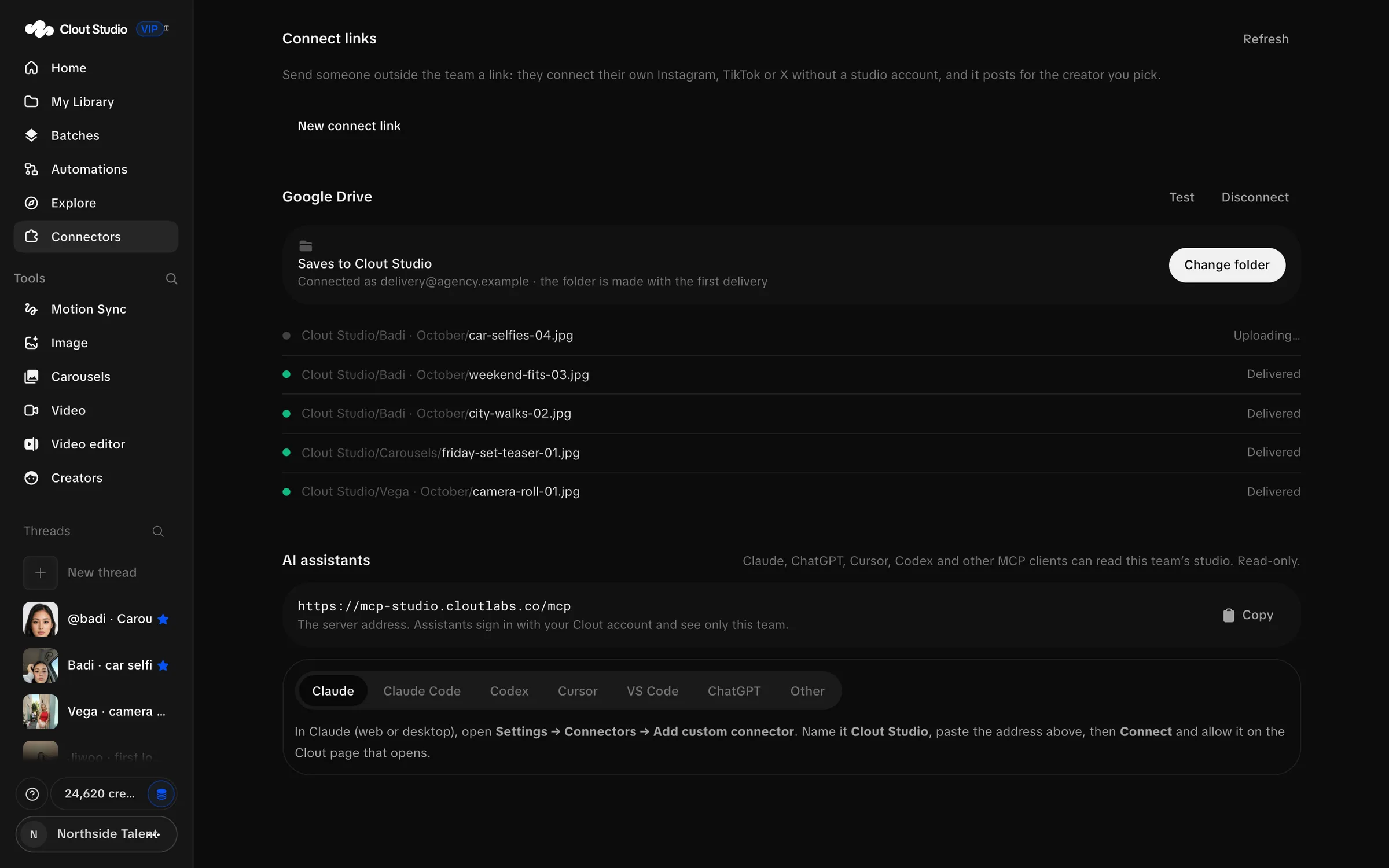
The folder browser starts at My Drive and lists folders Studio can see. Open a folder and choose Save to “folder name”. New folder lets you enter a name and choose Make and save here.
The root folder is the base for deliveries. Automation path templates create organization beneath it; changing the root changes where future deliveries go.
Inspect the last deliveries for success or failure. A queued delivery is not finished just because you clicked the button. Reconnect or choose an accessible folder if authorization or permissions fail.
You can send work from the Library, carousel exports, good video takes, kept picture versions and finished video exports. An automation can also include a Google Drive delivery step.
AI assistants
AI assistants connects a read-only MCP client to the workspace. It cannot create content, spend credits, publish or delete. See API and MCP for the address, permissions and tool reference.