Creators and references
Set up a Creator, review shared references and keep video appearance details accurate.
On this page
A Creator ties together source photos, shared reference images, a working dataset and trained versions. Open Creators and choose the Creator you want to work on.
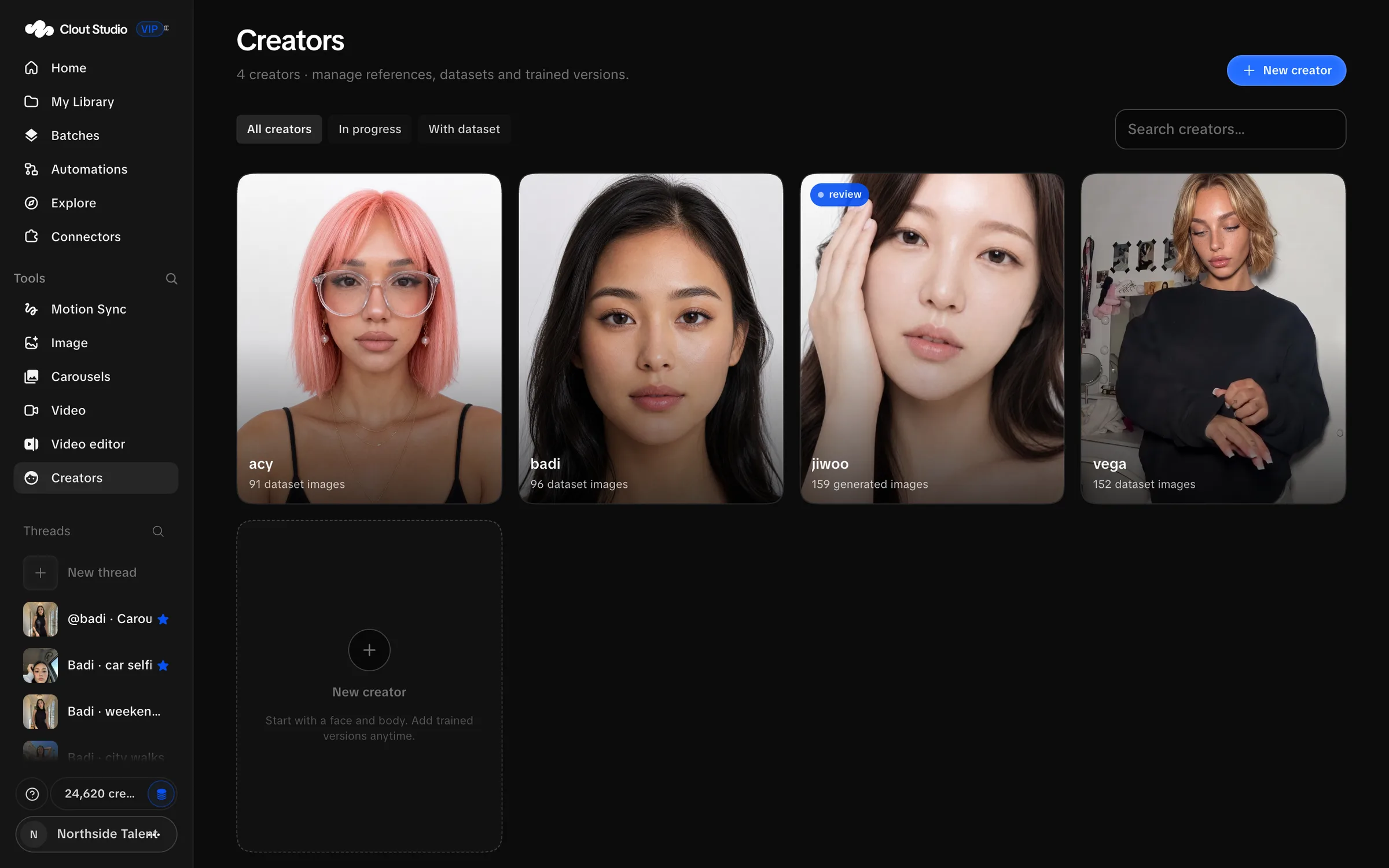
Choose a name
Creator name is normalized to lowercase. Spaces and characters outside letters, numbers, _ and - are removed. The API accepts names up to 64 characters. Check the resulting name before creating the record; you will use it in @ mentions.
If the name already exists, the form says “That creator already exists. Choose another name.”
Read the Creator page
Overview shows the shared reference images, Video appearance, available versions and the working dataset. References is where you replace and generate reference images. Dataset is where you review the training set.
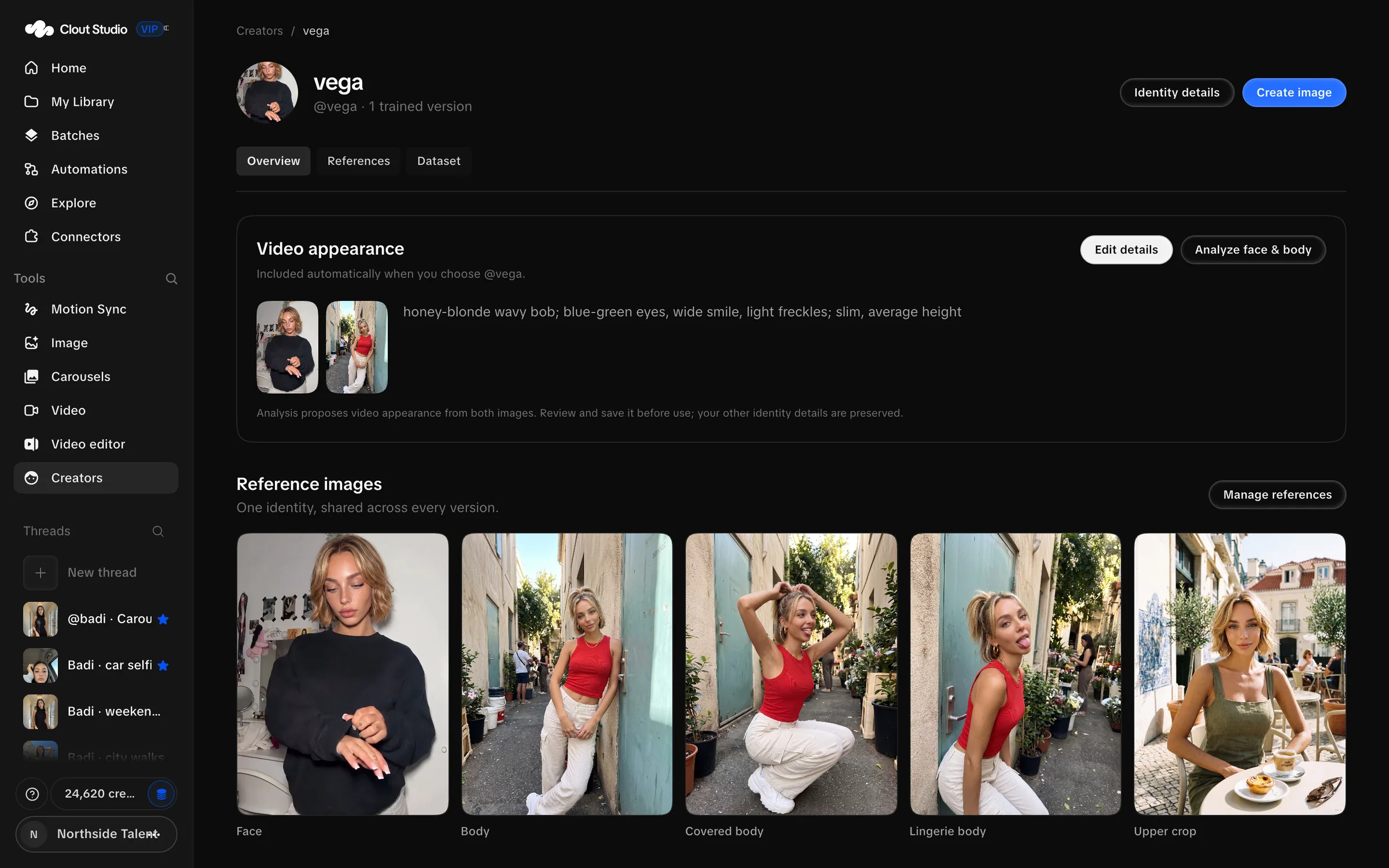
Choose Manage references to inspect the references. Add trained version starts work toward another trained version. View version opens an existing version; it does not replace it.
Review each reference
The reference screen separates the two Source photos from the prepared Smart references.
| Reference | Purpose shown in Studio |
|---|---|
| Face | The shared identity reference. |
| Body | The shared body and proportions. |
| Covered body | A clothed body reference for compatible models. |
| Lingerie body | A separate body reference when you need that reference role. |
| Upper crop | An upper-body reference used by later generation and training steps. |
The existence of a reference role does not mean you must use it for every job. Choose source material appropriate to the content you are making.
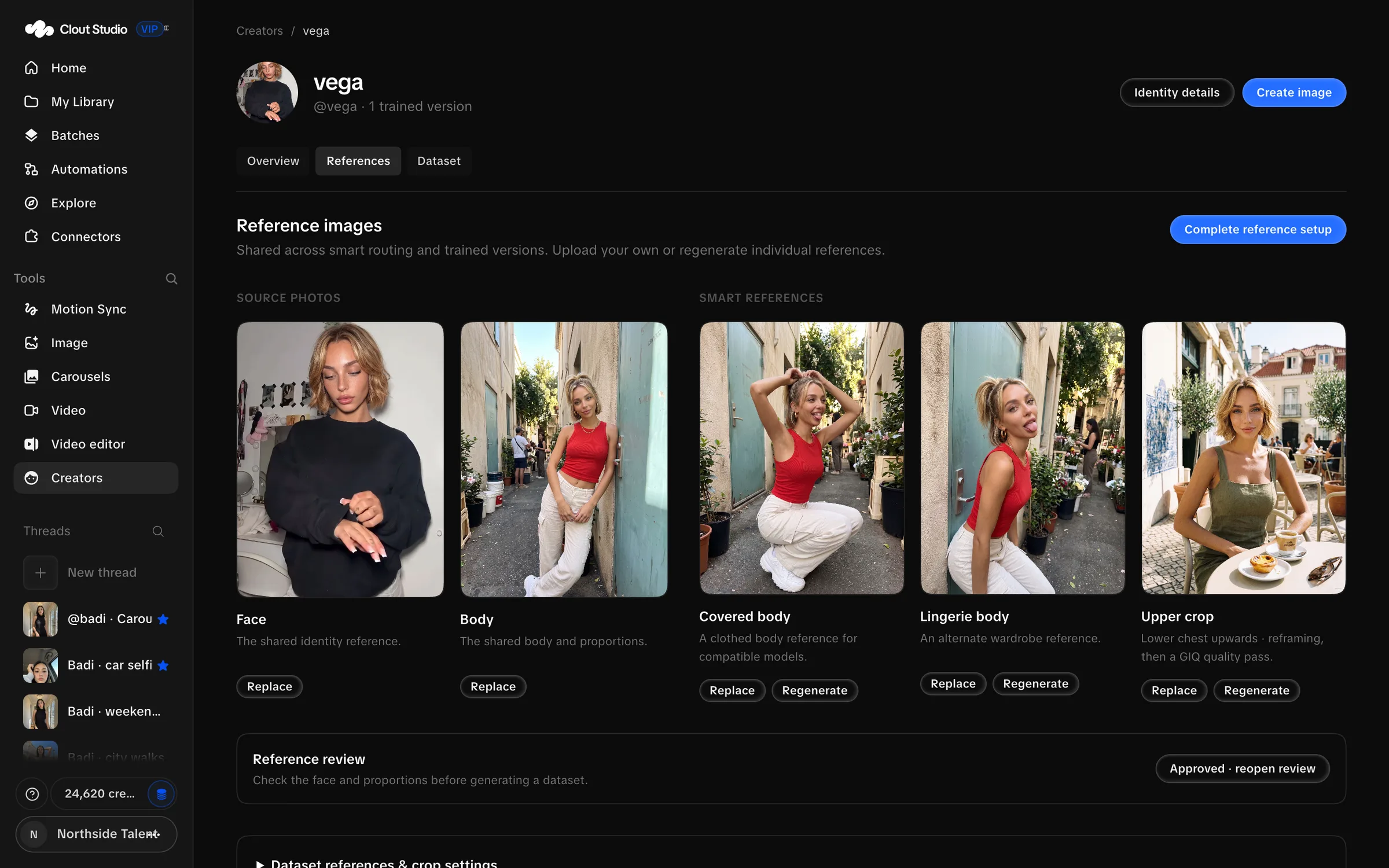
- Open each reference to inspect the face, proportions and crop.
- Use Replace or Upload to supply an image you prefer.
- Use Generate or Regenerate for a prepared reference that needs another attempt.
- Use Complete reference setup to build missing references.
- Choose Approve references when the set is ready.
Approved · reopen review lets you revisit that decision. A Needs refresh label means a prepared reference is stale after a source change. Regenerate it before using it to prepare more dataset images.
Generating or regenerating references can use paid model calls. Review the confirmation and the result before proceeding.
Crop settings and active runs
Expand Dataset references & crop settings to inspect the additional dataset reference choices. The upper crop has Local crop (52%), Regenerate and Regenerate with outfit choices.
A full reference setup, dataset run or training run holds the shared references while it uses them. If Studio asks you to wait, let the run finish or choose Stop run before replacing references. Individual reference tiles also have Stop controls while they render.
If initial creation only partly succeeds, the Creator record can already exist. Use Finish reference setup or Open creator on the form rather than creating a duplicate.
Keep video appearance accurate
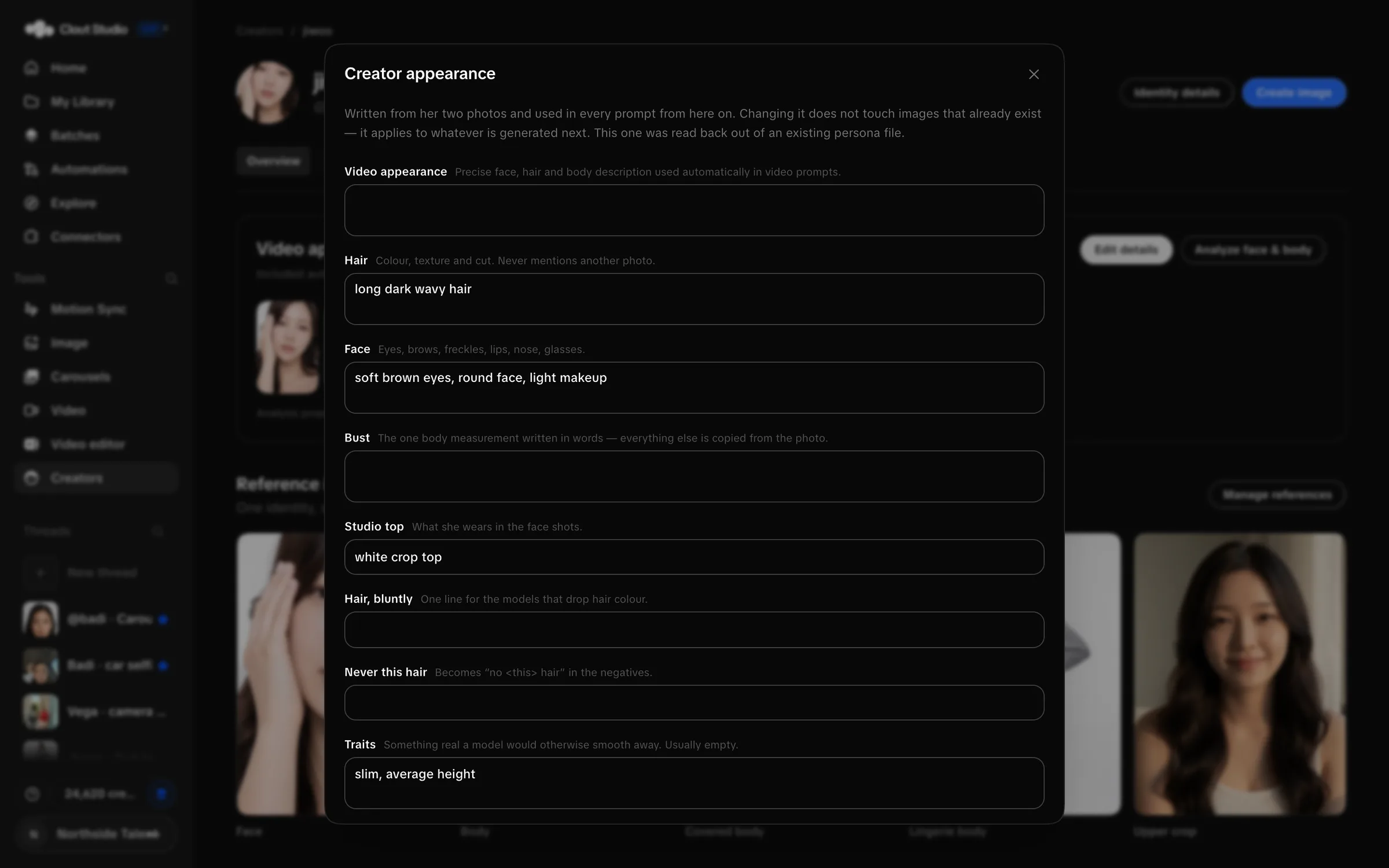
Video appearance is included when you choose that Creator for video work. It is text about the Creator; the source photos remain the visual references.
Choose Analyze face & body to propose appearance details from both photos. Review the proposal before saving it. Edit details lets you correct the stored identity details yourself.
Next, prepare a dataset and train, or make an image from references.