Video batches and review
Paste several source links, inspect the reader, configure ready rows, review launches and send good takes to Drive.
On this page
Use a video batch to recreate several source videos for one Creator. It keeps imports, per-source settings, launched takes and review decisions together. For picture waves, see Batches.
Paste the sources
Open Batches → New batch, choose Videos, then choose a saved Explore folder or Paste links. Select the platform, Creator and batch name, then choose Create batch.
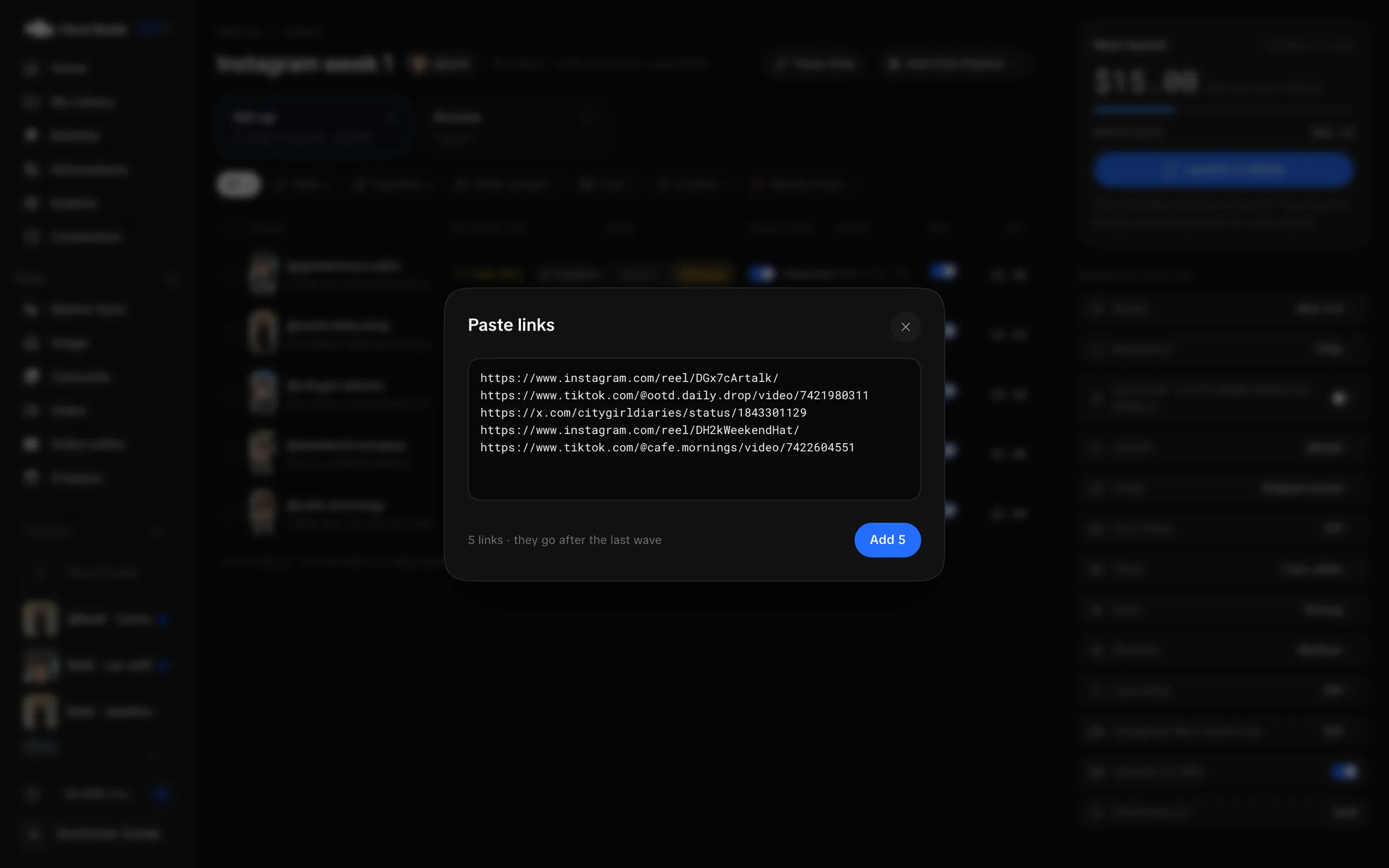
In an existing batch, Paste links adds sources to its list. Paste one link per line and check the Add N count before adding them. Add from Explore imports saved sources.
Read what the reader saw
In Set up, inspect The reader saw for each source. Flags can show Talks, captions, cuts, other people, split panels, a trimmed range or that output needs several parts. Open a row for the fuller source and settings view.
Reading… and Importing… mean the source is still being prepared. Video unavailable means source reading failed; inspect its error before another attempt.
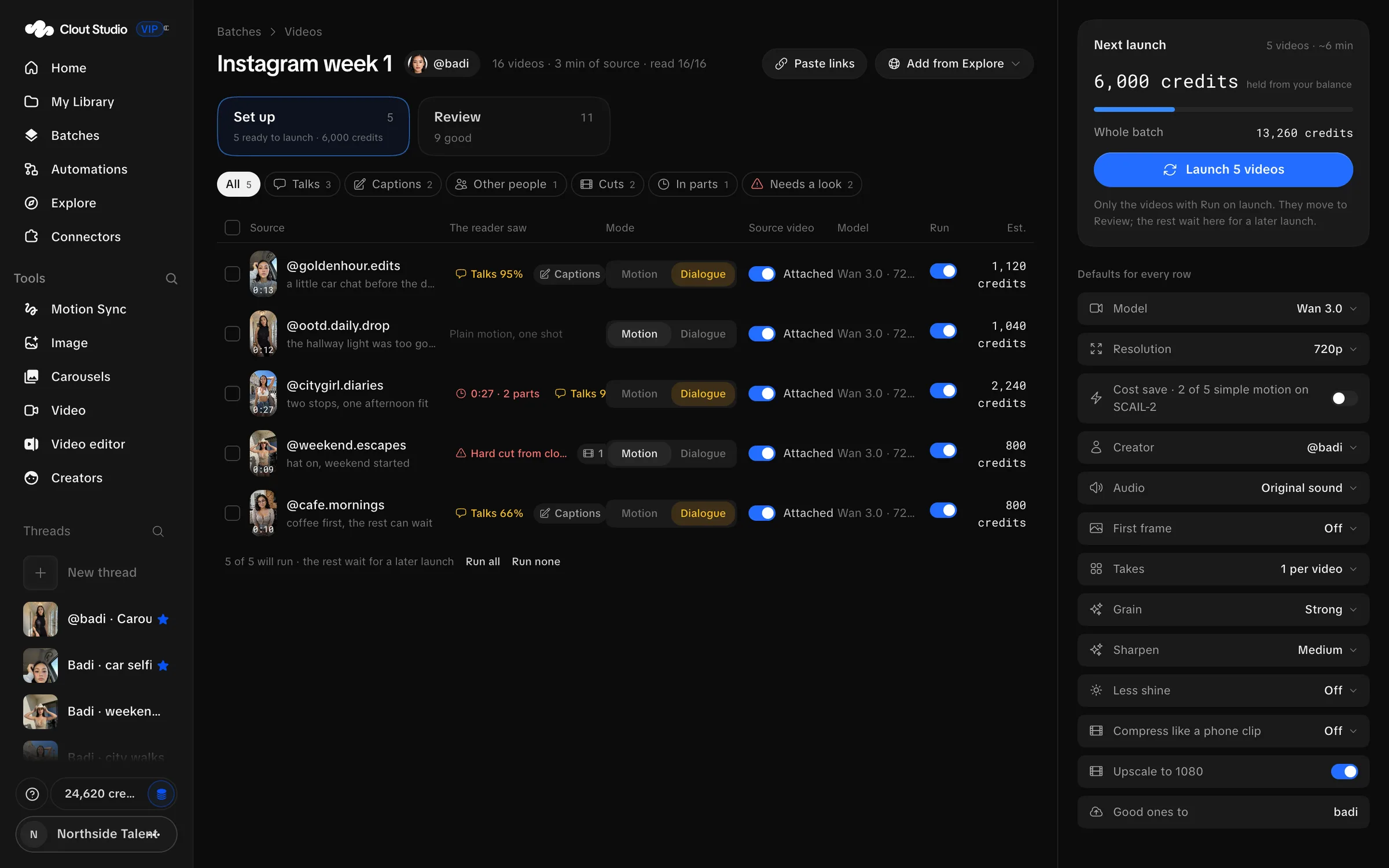
Choose Motion for a source whose visible person does not speak, and Dialogue when she does. Music vocals or a separate voiceover do not by themselves make the visible person speak. Review uncertain classifications yourself.
Configure the next launch
Check Model, Resolution, Audio, First frame, Takes, trim and the row’s Source video setting. Turn on Run for the ready rows you want in the next launch.
Attach the source video decides whether the generator receives the source. Turning it off uses a description-based recreation; the reader still needs the original source. SCAIL-2 requires Motion with a source video.
For SCAIL-2, check the first frame. Review first frames before launch requires frame approval when enabled. A blocked frame or unsupported combination must be resolved before that row can launch.
You can apply settings to selected rows and keep exceptions per row. Choose Launch N videos after checking the ready count and estimate. Video batches launch the enabled ready rows together. Numbered fixed-size waves belong to picture batches; video Review groups work by launch.
Review returned takes
Choose Review. All launches shows the collected work; select a launch to focus on one group. Double-click a result or press Enter on the focused result to open the source/take comparison.
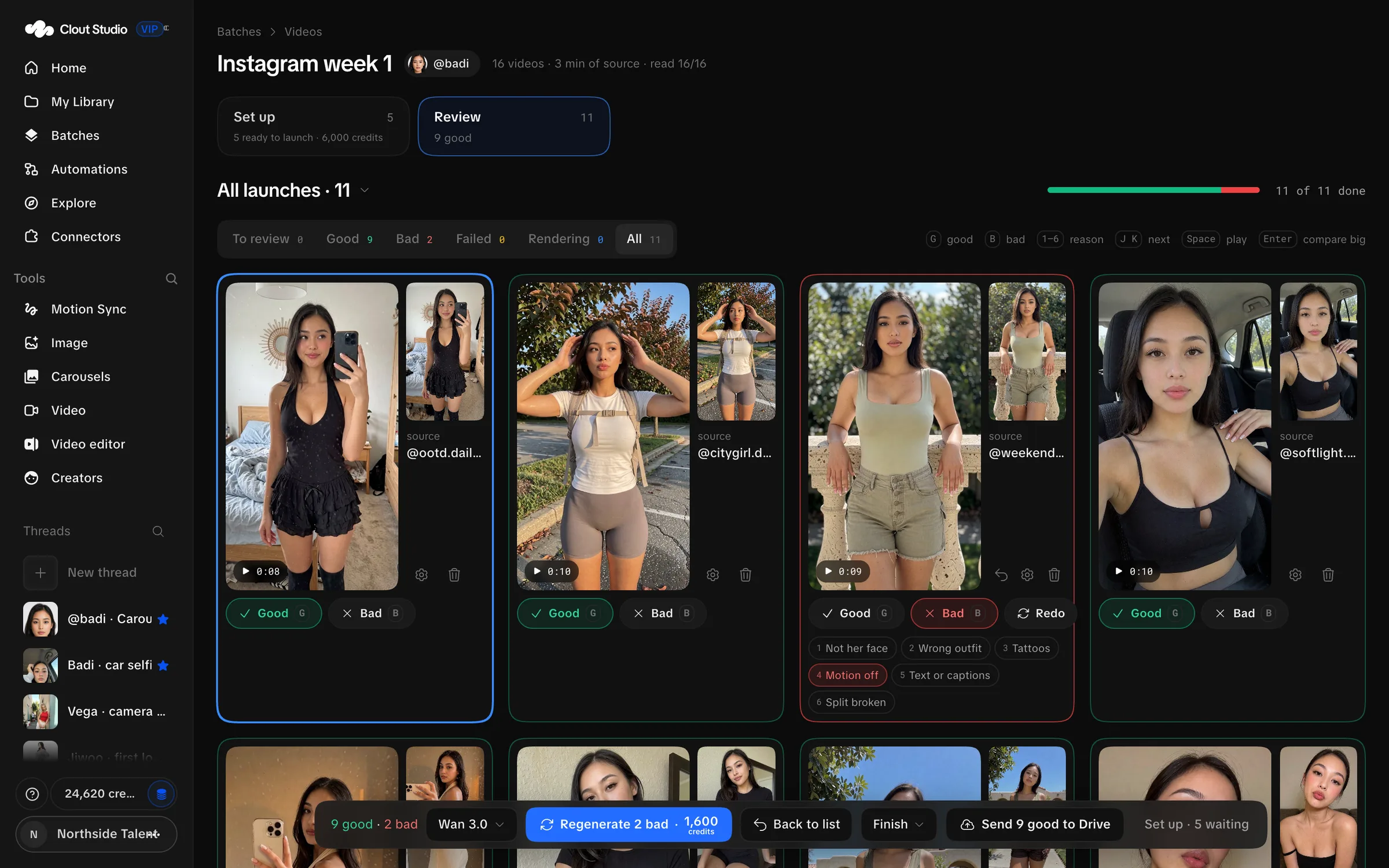
Choose Good or Bad. For bad takes, record the visible reason and a note where needed. The comparison plays the source with the take, accounting for its trim offset. Inspect likeness, motion, wardrobe, speech, cuts and the ends of the clip.
| Key | Review action |
|---|---|
| G | Mark the focused take good. |
| B | Mark it bad. |
| 1–6 | Toggle the reason shown by the review screen. |
Use a failed item’s retry control after resolving its cause. Redo and Redo with these create another render and can use credits. Sending a row back to setup moves its current take to the Library’s trash; read that confirmation before resetting it.
Change the finish or deliver
Finish can reprocess returned model output with Grain 3 · sharpen 2, Less shine, Less shine + compressed or Heavy. This reuses the model output and is free. It is separate from a new render.
Check the good set and the connected Drive destination. Choose Send N good to Drive. Read delivery status before repeating the send. You can reopen the batch later to inspect its attempts and decisions.