Accounts, groups and warm-up
Import X sessions, organise account groups, use warm-up plans and resolve accounts that need a person.
On this page
Each X account is tied to a Clout Browser profile and a machine. Hydra X records its Creator, group, proxy, health, warm-up progress and confirmed actions. Clout Browser holds the browser session.
Link an existing browser session
Use this path when the account is already signed in through Clout Browser.
- Run Clout Browser and Hydra X Runner as the same OS user on that machine.
- Open Operations → Profiles and choose Import from Clout Browser.
- Pick the Machine and choose Find profiles.
- Select the profiles and review their Creator and group assignments.
- Choose Import followed by the selected count. When it finishes, choose Open accounts to inspect the results.
Keep the profiles on the machine you imported from. A profile listed in the app is a binding to that browser installation, not a portable copy of its directory.
Import tokens
Accounts → Add accounts reads TXT or CSV files. The active formats are CSV with username and token columns and Token only, one per line.
- Upload the file or paste the rows.
- Map its columns to the recognised fields. Every selected row needs an X token.
- Choose the destination Creator and group and the machine that will check the sessions.
- Start the check and inspect each result.
- Assign the successfully checked rows.
Legacy password, mailbox and two-factor columns do not enable password sign-in. Tokens are encrypted and are not displayed back to your team. Do not put token files into shared notes or support reports.
The check establishes the signed-in account before assignment. If X asks for a captcha, phone check or email code, open the account’s browser and complete the challenge manually. Close it and recheck that row.
Assign checked rows within 24 hours after the check finishes. Unassigned import material expires. Assignment to a warming group starts its warm-up at day one; assignment to a non-warming group makes it Ready.
Read the account list
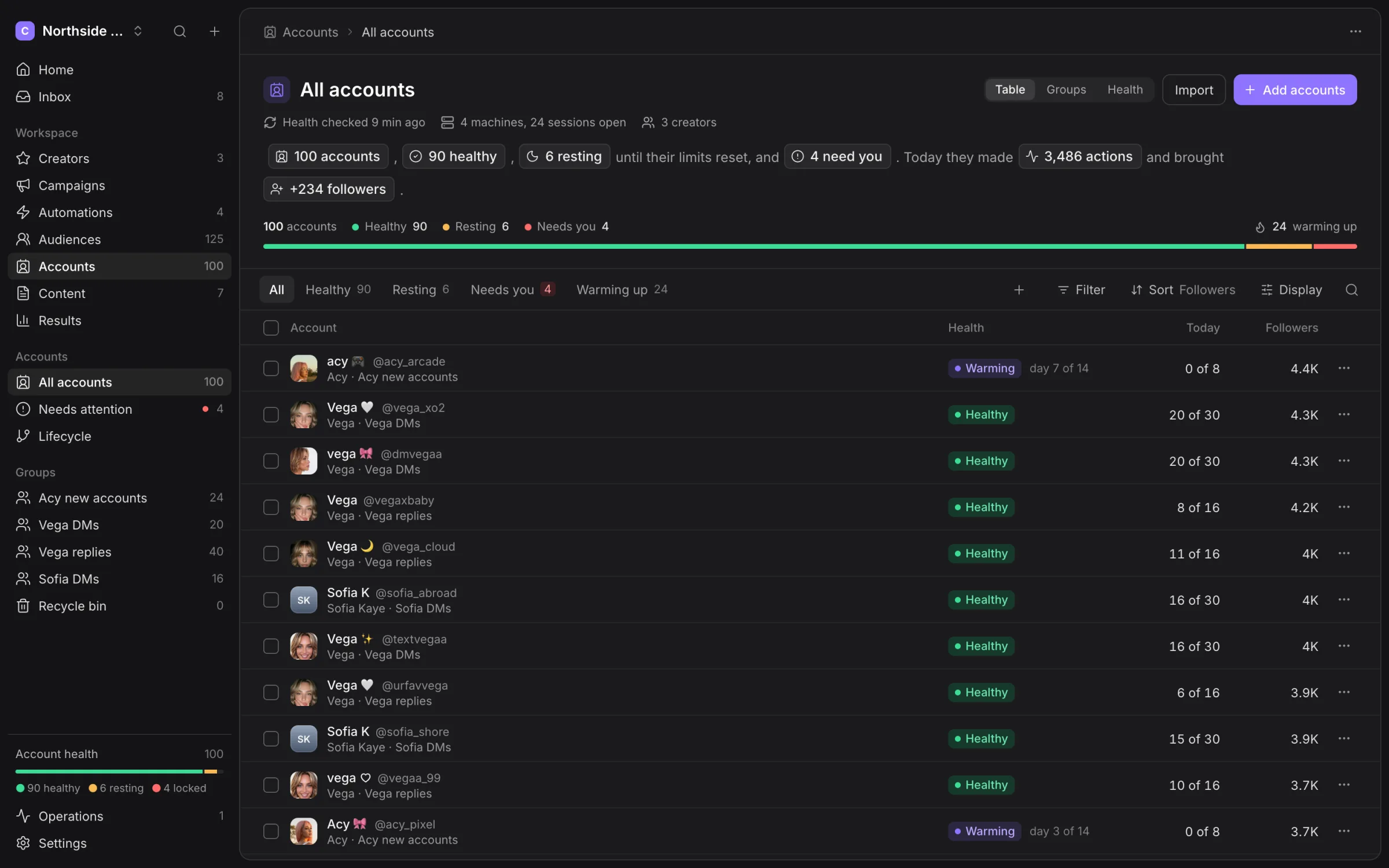
Switch between Table, Groups and Health. The All, Healthy, Resting, Needs you and Warming up views narrow the accounts. Filter, Sort and Display change how you inspect them.
An account that is resting after a limit is different from an account that needs a person. Resting work waits; a challenge needs manual attention. Open an account to see its latest check and action history.
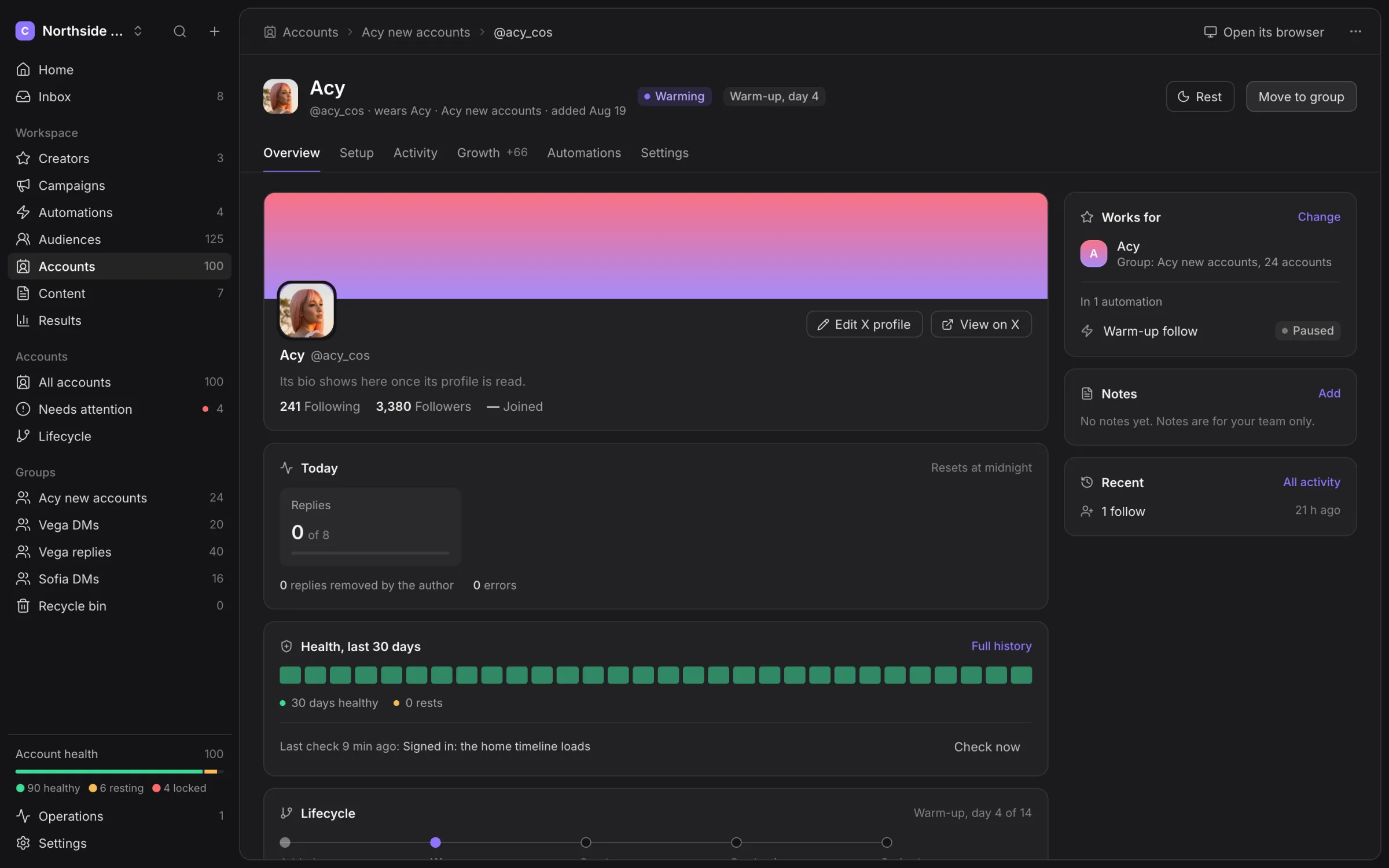
Groups and lifecycle
Groups select who acts in automations and workflows. Keep groups named for their job so your team can distinguish replying, DMs and warm-up.
Lifecycle shows groups in Added, Warming up, Ready, Working and Resting. These are operational states, not five copies of the same accounts.
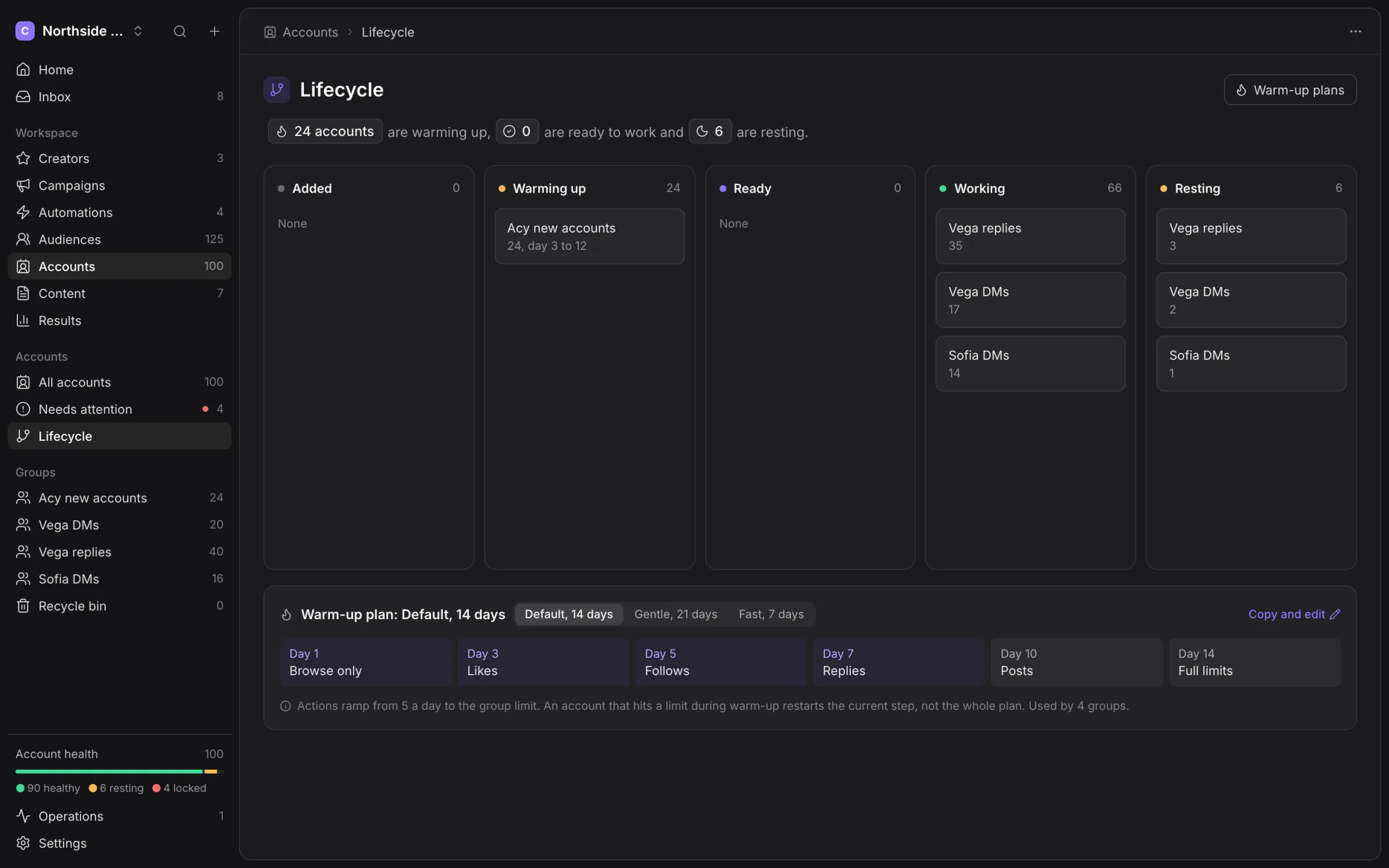
Warm-up plans
Open Warm-up plans from Lifecycle. The built-in plans include:
| Plan | Warm-up days | Browsing starts | Likes start | Follows start | Replies start | Posts start |
|---|---|---|---|---|---|---|
| Default, 14 days | 14 | 1 | 3 | 5 | 7 | 10 |
| Gentle, 21 days | 21 | 1 | 5 | 8 | 12 | 16 |
| Fast, 7 days | 7 | 1 | 2 | 3 | 4 | 6 |
Fast’s full limits start on day seven. A warm-up day is a day the account spends warming, not a guarantee of elapsed calendar time. Resting or locked days do not advance that counter. Workspace and group caps still bind as actions become available.
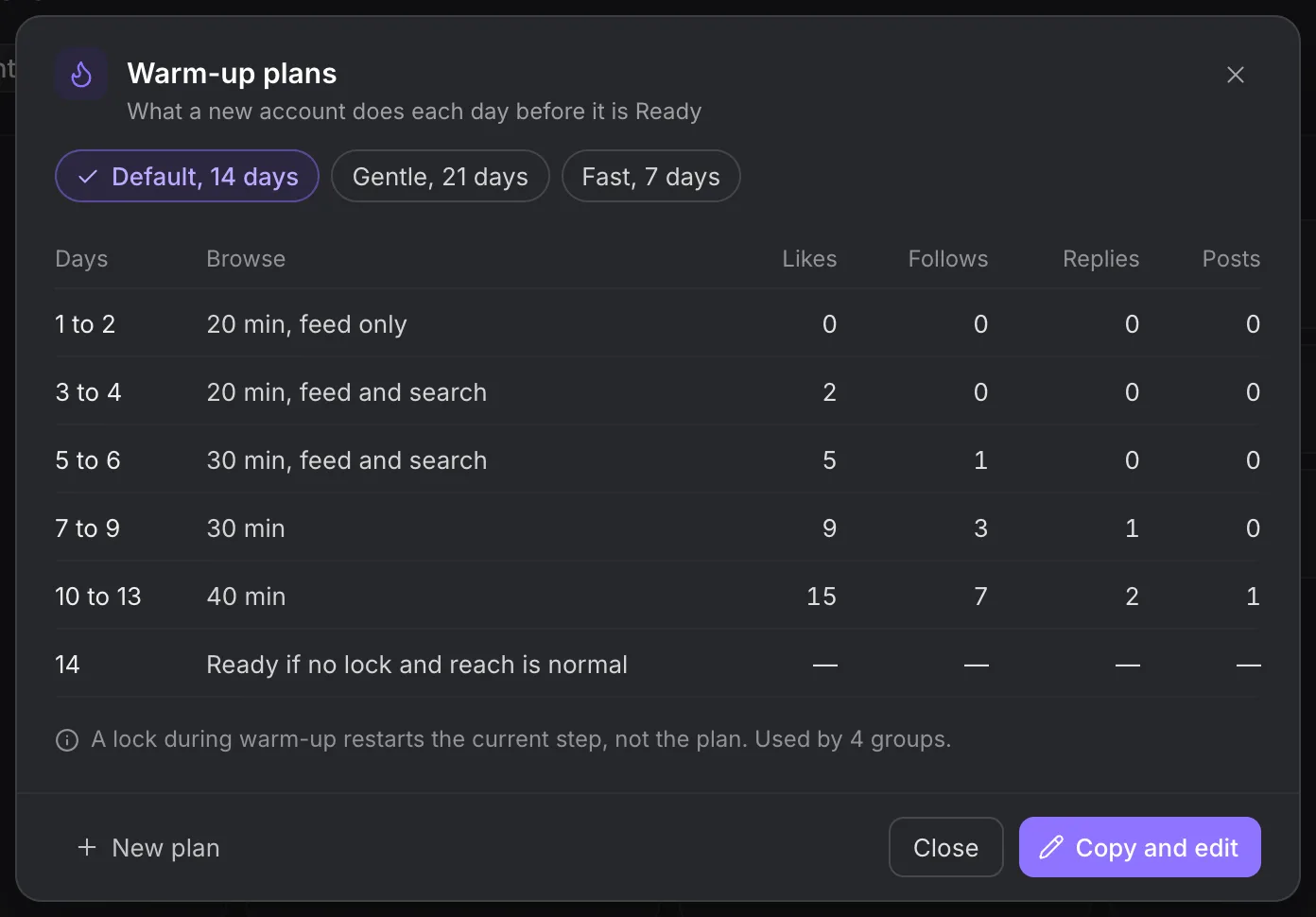
Use Copy and edit to make your own plan without changing the original. A niche-warming group can visit selected profiles instead of only the home feed. Those visits still obey warm-up and safety caps; configured targets are not guaranteed completed actions.
Common account jobs
Use Rest for 24 hours to take an account out of work temporarily. Move to group changes its group; Assign to a creator changes which Creator it works for. Review its existing jobs before changing either assignment.
Swap proxy changes its proxy binding. Sign in again starts session repair. Open its browser lets you solve an X challenge, and View on X opens its public profile.
Account details also let you manage notes and supported profile fields. Check Activity after editing a profile; only confirmed fields update the stored result.
Delete and restore
Deleted accounts go to the recycle bin for 30 days. Restore an account there if you deleted it by mistake. Permanent deletion removes its Hydra X record and retained credentials; it does not delete the Clout Browser profile on disk. Manage that browser-owned profile in Clout Browser.
See Troubleshooting for failed checks and Machines for offline profiles.
Inspect all account tabs
| Tab | Use it for |
|---|---|
| Overview | Browser binding, session health, current limits and recent work. |
| Setup | Supported profile fields and setup work. |
| Activity | Recorded actions and their available evidence. |
| Growth | Observed follower changes. |
| Automations | Jobs using this account’s group. |
| Settings | Account-specific choices and restrictions. |
Use Results Activity for a workspace-wide investigation and Live view for a browser session that needs manual work.
Inspect a group
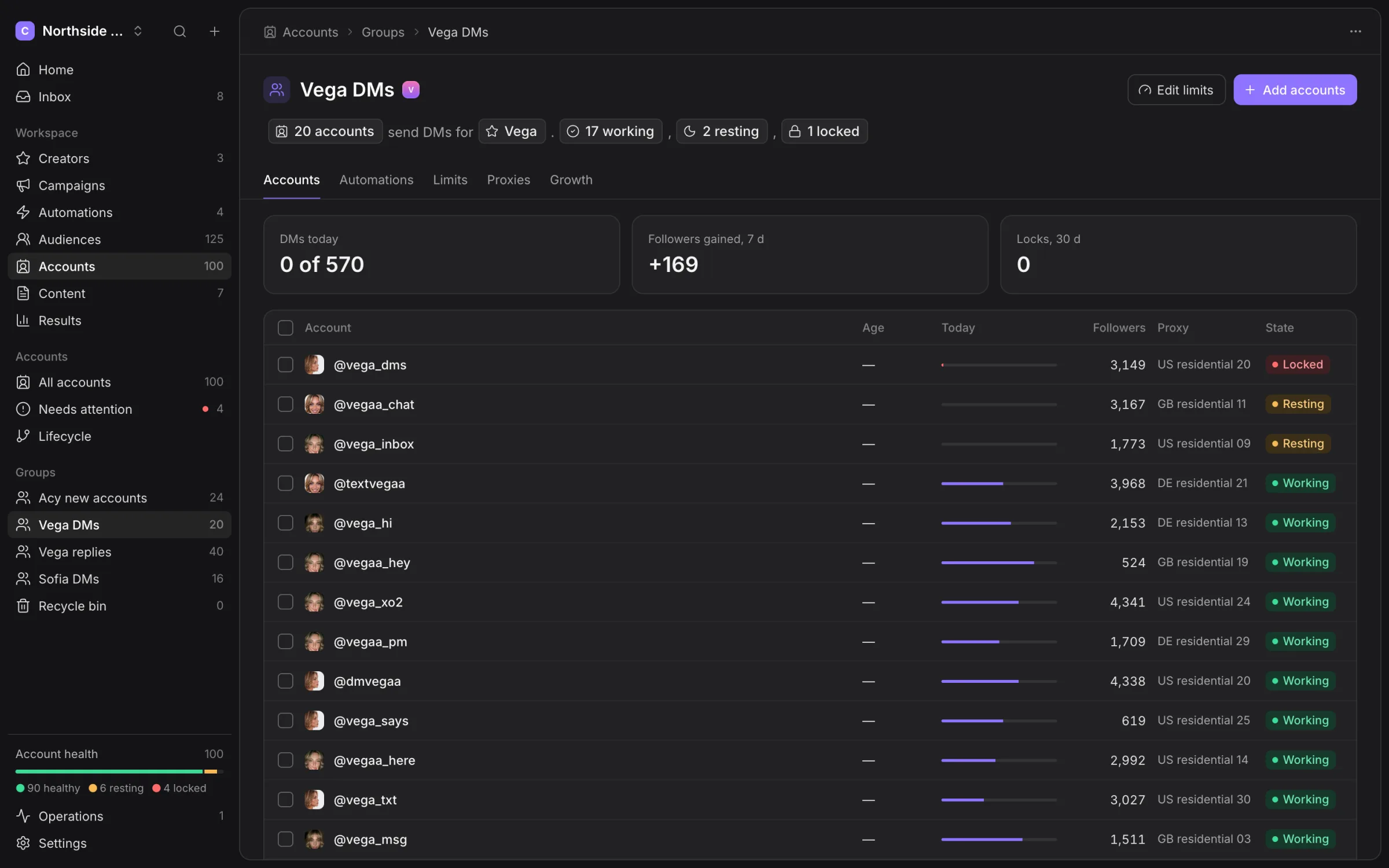
Open a group from Accounts or Lifecycle. Accounts shows its members; Automations shows the work using it. Limits holds group caps, the warm-up plan and niche choices. Proxies shows placement. Growth shows available follower readings.
Use Edit in Limits to review daily and hourly caps, pacing, active hours and the response after a limit. Workspace Safety caps still apply, and individual accounts can be stricter. A group move changes who an existing job can use; check its jobs after the move.
Resolve Needs attention
Needs attention separates problems Hydra X can attempt from checks you must complete yourself. Fix all I can starts the offered repair work; it does not solve X identity challenges for you.
Open the affected browser for a password, captcha, phone or email check. Complete it in Clout Browser, then inspect the new account check. Marking an issue fixed is not evidence that X accepted the session. Rest or move the account when appropriate, and read the repair result before returning it to jobs.
In Recycle bin, Restore returns an account resting. If its original group was archived, choose another group for the same Creator. Review it before resuming. Empty bin and permanent deletion cannot be undone.