The fan inbox
Read fan replies, send responses from the right X account, use snippets and leave private team notes.
On this page
The inbox gathers the X conversations your connected accounts read. Your team can answer from the account in the conversation and inspect the fan’s contact history alongside it.
Find the replies that need you
Open Inbox. Needs reply focuses on conversations waiting for an answer; All chats includes the wider history. Narrow by Creator or account when you are working for one client.
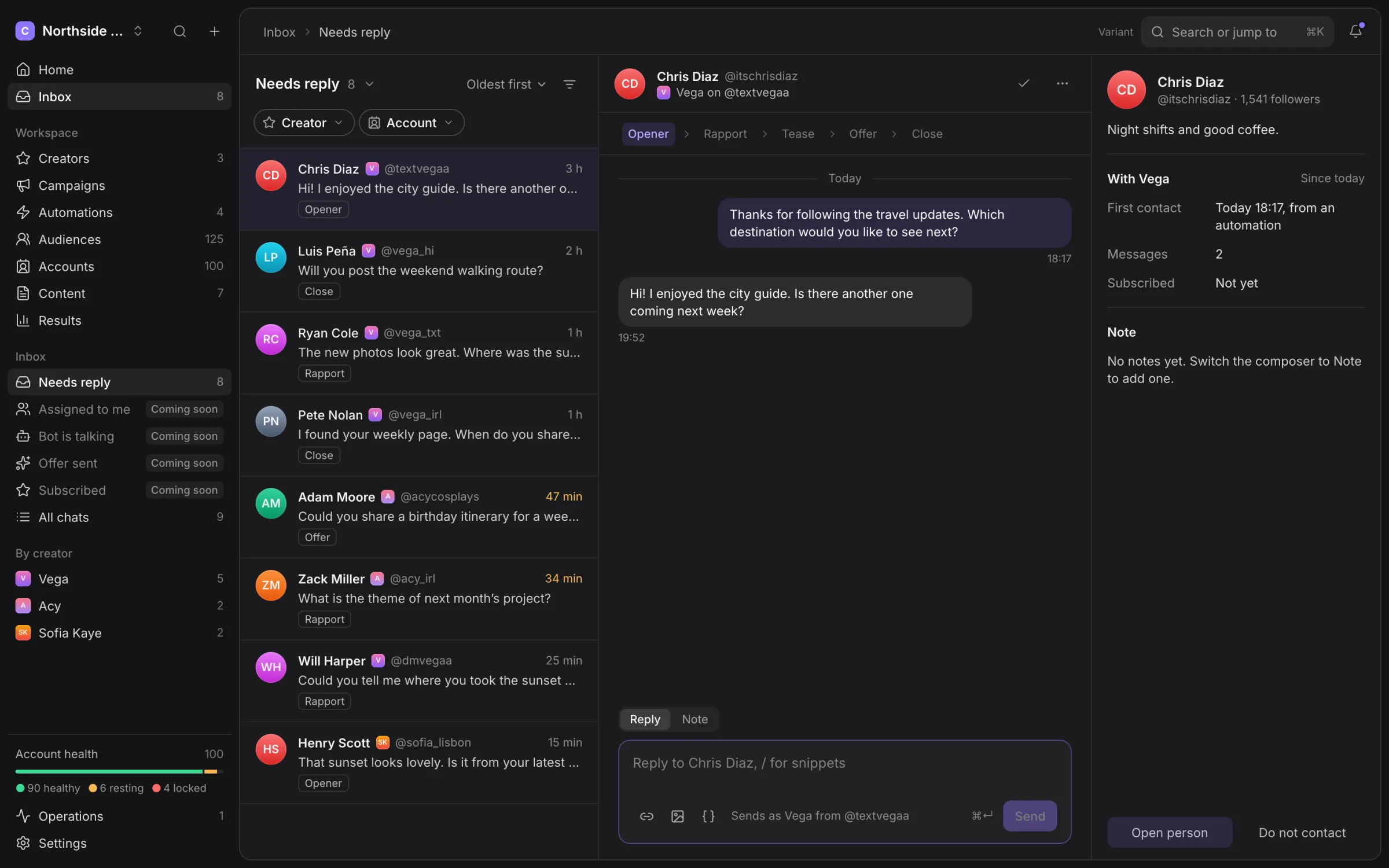
Use the search or jump control to find a chat. List, Board and Focus change the working view. In Focus, Send and next lets you answer and move to the next conversation.
Inbox reads are scheduled, not a promise of an instant full-history mirror. A newly opened chat requests a refresh, but account health, active hours and read capacity still matter.
Send a reply
Select the thread, read the messages and check the account named in the composer. Type the reply and choose Send. A sent request can still be refused or remain unverified; inspect its delivery state before sending the same message again.
Keep replies in the existing conversation. If the account is signed out, limited by X or unavailable, fix that account rather than switching to another identity without checking the fan’s history.
Insert a snippet
Type / in the reply composer to open snippets. Select the phrase and insert it, then edit the text for this conversation before sending. Manage snippets opens the content library.
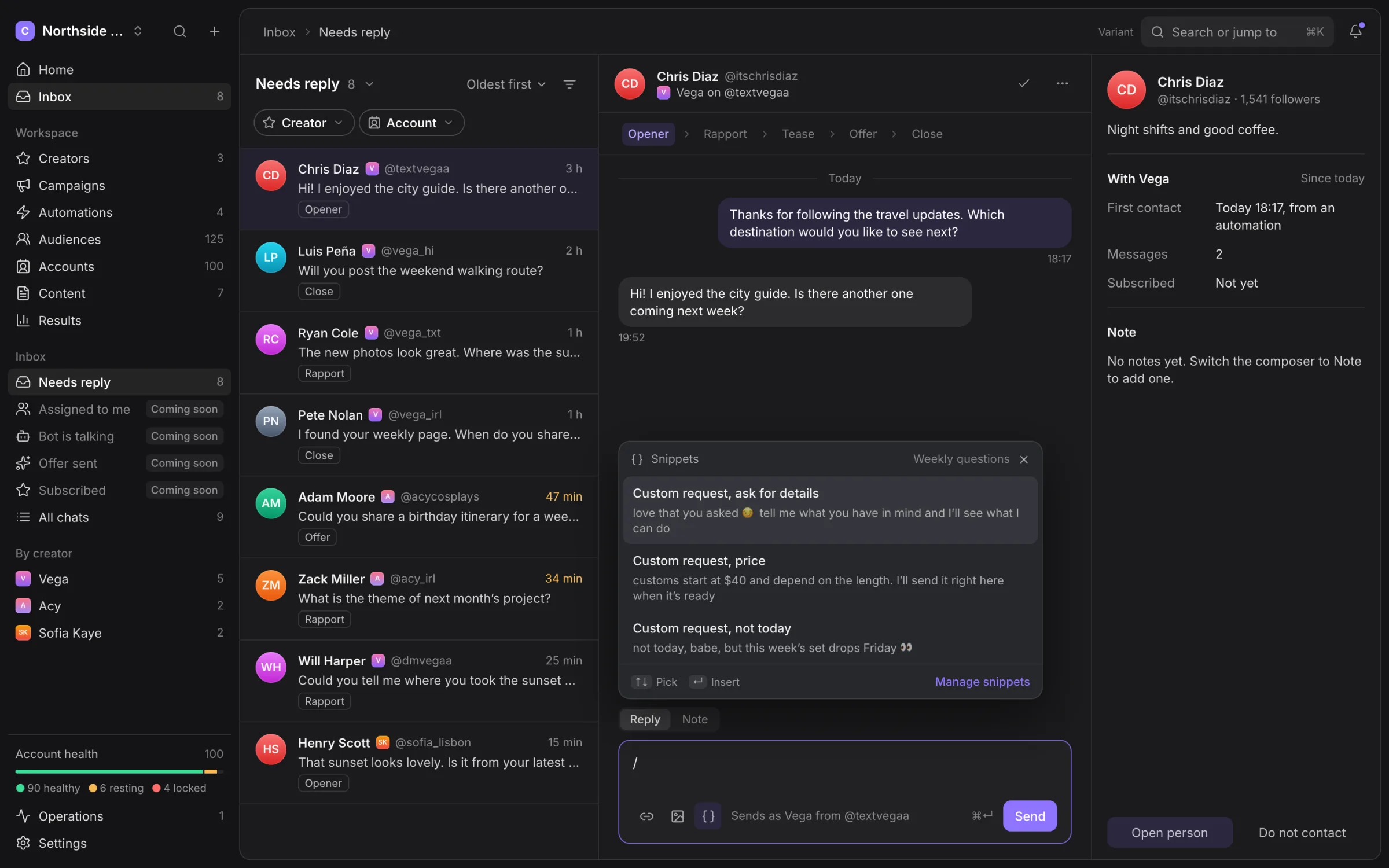
Snippet pools can contain alternatives and variables. Check the expanded text, especially names and links. Read Content to prepare the pools your Chatters use.
Leave a private note
Choose Note, type the team context and choose Add note. The note composer is amber and says Only your team sees notes. It does not send the note to X.
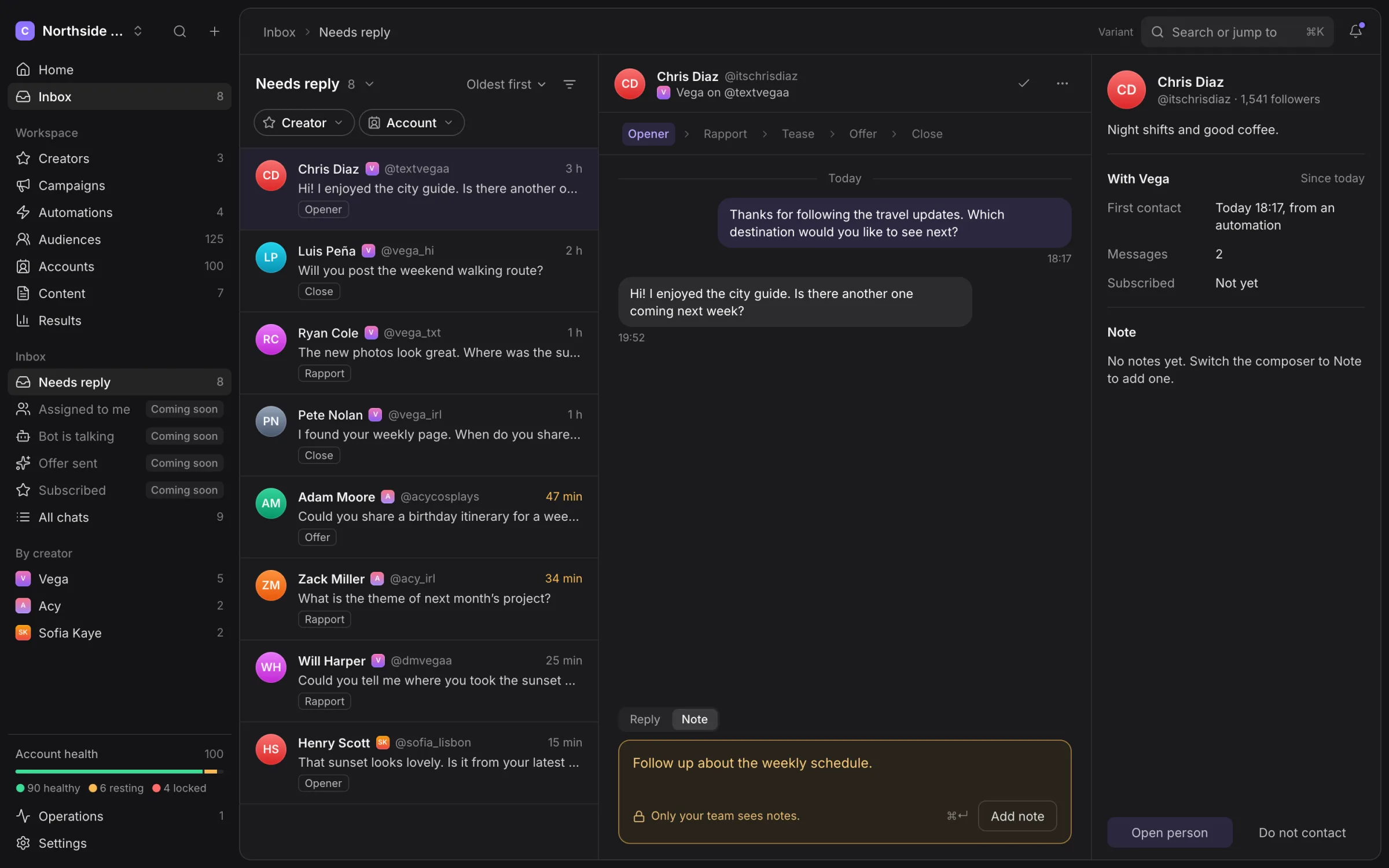
Return to Reply before writing the fan-facing response.
Hold or finish a conversation
Take a conversation when you need to prevent another teammate from handling it at the same time, then release it when you are finished. If the app says “Someone else is handling this chat.”, ask that person to release it or choose another thread.
Mark a handled conversation Done. Use Undo if you did that by mistake. Done is a team workflow state; it does not delete the X conversation.
Contact protections
Open person takes you to the fan’s audience record and history. Do not contact adds a restriction rather than merely hiding the chat. Use it when a person asks you to stop.
Suppression and possible-minor checks apply to replies as well as automations. A manual reply does not bypass those protections. See Audiences and Safety.
Keyboard workflow
Use J and K to move through conversations, / for snippets and E to mark a conversation Done. The composer’s displayed send shortcut is available while writing. Check focus before using shortcuts so keystrokes go to the intended control.
Missing or failed messages
Read the delivery state and any error attached to the message. Not verified means Hydra X could not establish delivery; it is not a confirmed failure or a safe instruction to retry.
Deep older history and unsupported conversation formats can be incomplete. Work with the messages actually shown and inspect the account in Clout Browser if a conversation needs a manual check. See Troubleshooting.
Follow a conversation across screens
Use Open person to inspect public facts, tags, list membership and recorded contact history. Use Do not contact when a conversation establishes that future outreach should stop, then check the person’s Suppression state.
Read Audience suppression for the workspace block and Data requests when someone requests export or erasure.