Team, settings and billing
Invite your team, configure role and Creator access, protect sessions and manage workspace settings and billing.
On this page
Give teammates access to the Creators and tasks they need. Workspace settings affect everyone; personal profile, appearance and notification choices belong to the signed-in person.
Invite teammates
Open Settings → Members and roles, choose Invite, enter the email addresses and select the role and Creator scope. Review Require two-factor before sending the invitation.
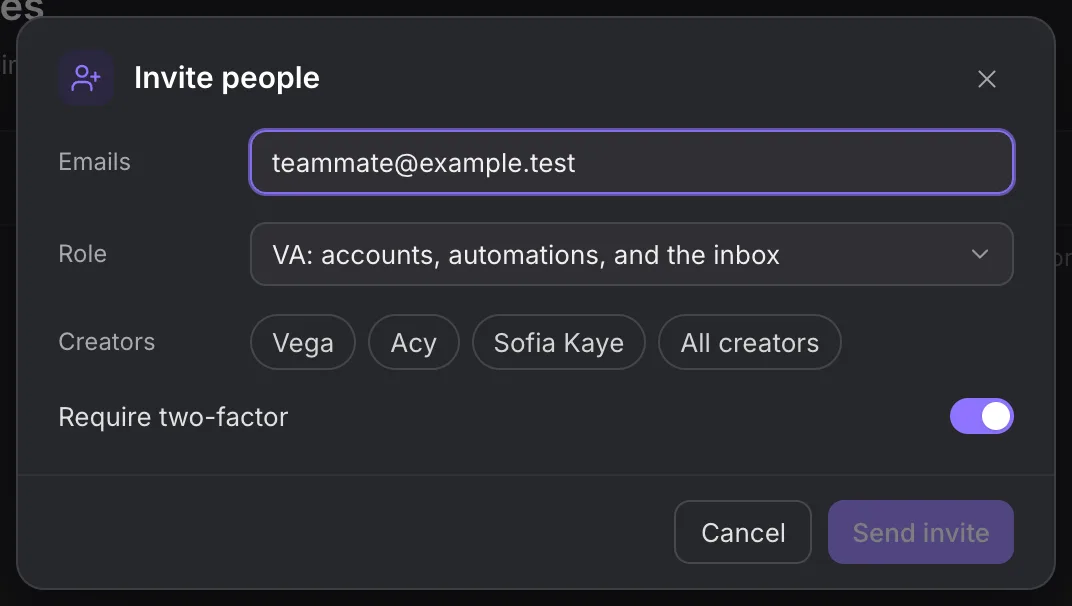
The invited person must sign in with an identity whose verified email matches the invitation. Removing a member stops their workspace access. Review their API keys and active responsibilities when you offboard them.
Default roles
Roles are bundles of permissions. An Owner can edit the role switches, so use Members and roles as the authority for your workspace’s actual permissions.
| Role | Default working access |
|---|---|
| Owner | All switches; ownership, role management, credential export and workspace deletion. |
| Admin | Results, automation running and editing, inbox, accounts and Live control; member management and fixed audit/export access. |
| Manager | Results, automation running and editing, inbox and Live control. |
| VA | Automation running, inbox, accounts and Live control. |
| Chatter | Inbox. |
Owners and Admins see every Creator. Other roles use their assigned Creator scope. Admin’s default switches do not include general settings management. An API key cannot grant its maker a permission they do not have.
Security and sessions
Open Settings → Security for workspace protection. Require two-factor for everyone requires teammates to set up their second factor. Personal second-factor and reauthentication controls are separate from Google or Telegram first-factor sign-in.
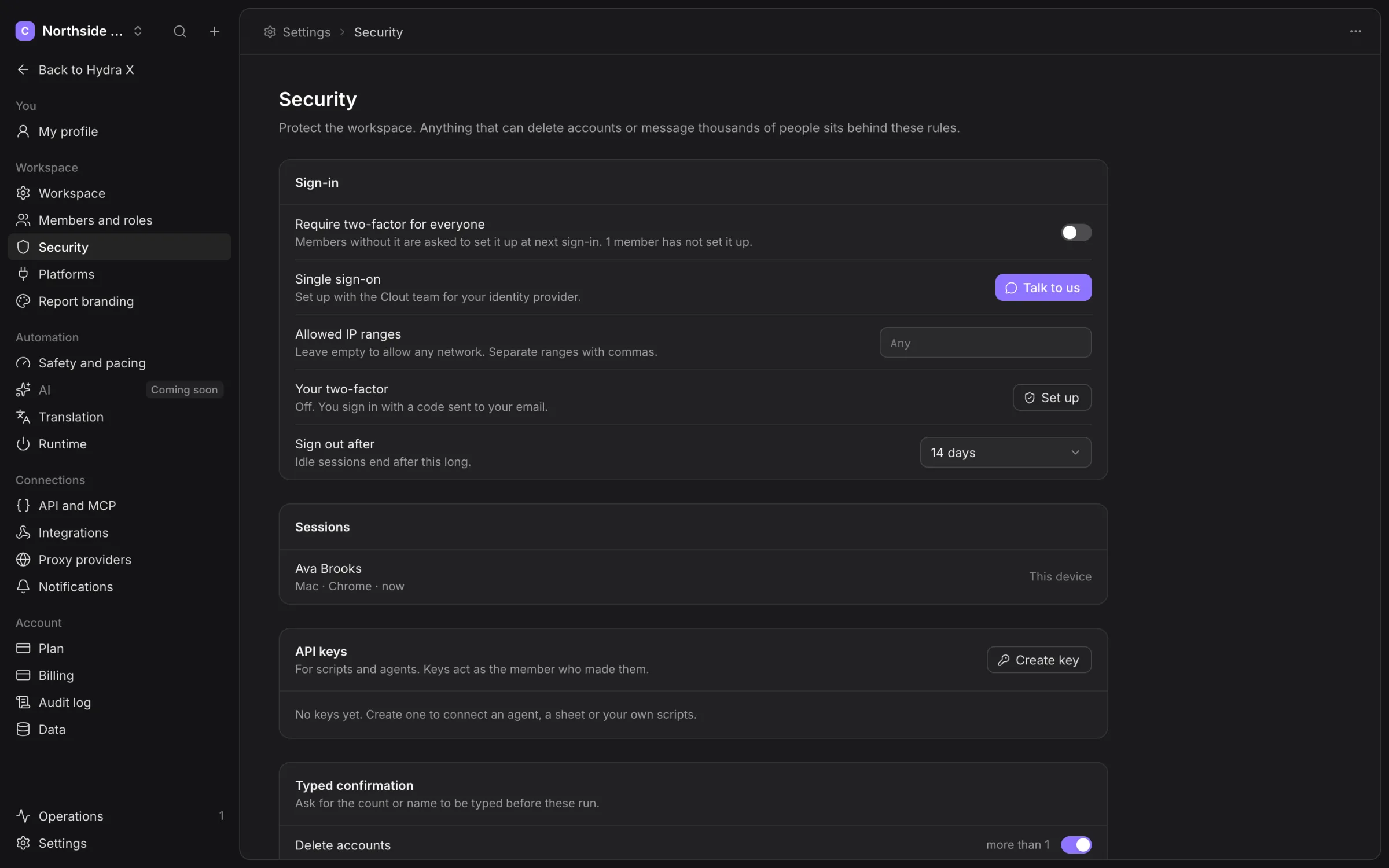
Allowed network ranges restrict the networks that may access the workspace. Include your own address; the app refuses a list that would lock you out. Confirm ranges with the team before changing them.
Use idle sign-out and session controls for shared or unattended devices. Review the listed sessions and sign out others when access is no longer expected.
Typed confirmations protect consequential actions. Read the item and affected count before entering the requested confirmation.
Workspace and personal preferences
Settings → Workspace holds the workspace name and time zone. The zone affects calendar-day accounting and jobs that use the workspace zone. Inspect upcoming schedules after changing it; the report builder displays its own schedule zone.
My profile holds your own profile and preferences. Appearance offers Dark, Light and System. Personal display choices do not change another teammate’s role or Creator scope.
Translation and integrations
Translation uses the available DeepL configuration for incoming and outgoing text. Check the language and final outgoing text before sending a translated reply.
Use Integrations for active Telegram alerts, Slack incoming webhooks and outbound workspace webhooks. Test the destination before relying on alerts. Keep connection codes, webhook URLs and signing secrets private.
Webhook delivery history lets you inspect failed deliveries and resend where offered. Rotate a signing secret deliberately: update the receiving service at the same time. A configured integration is not proof that its external destination received a message.
Notifications manages event choices, quiet periods and bundling. Critical required notifications stay enabled even when you reduce routine alerts.
Plan and usage
Open Settings → Plan to inspect usage and Talk to us for capacity. Billing shows your paid period and billing records. Hydra X is priced on request. Talk to us to arrange payment and activation.
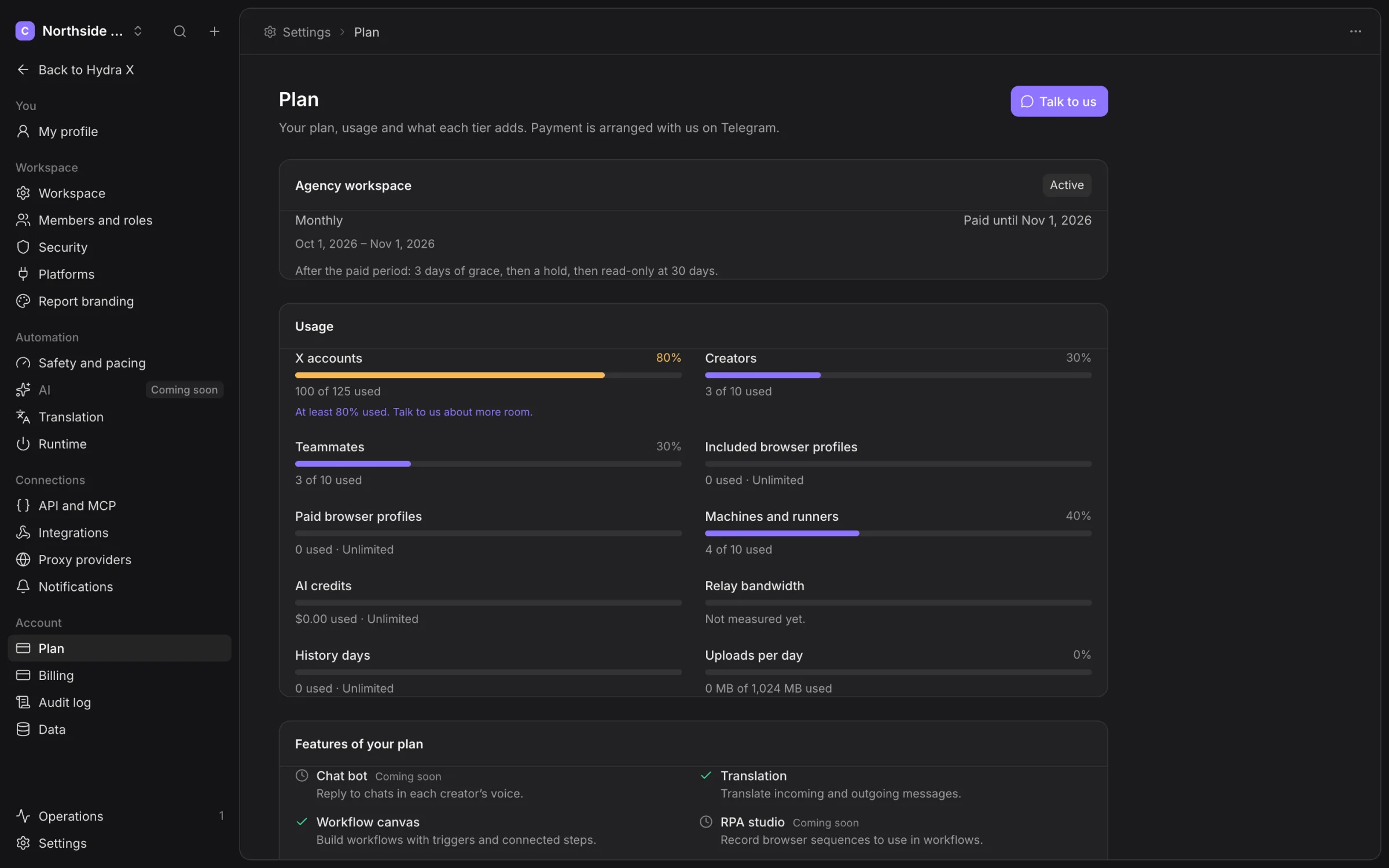
The usage screen flags a known limit at 80% used and at its cap. Not measured yet. means the meter has no measurement, not that the resource is free or unused.
After a paid period ends, the current billing rules allow three days of grace. The workspace then goes on hold, and becomes read-only 30 days after the paid period ended. Contact the team to credit the next period; paying outside the app does not update the workspace until the team records it.
Audit, exports and deletion
Audit log records consequential workspace changes. Use its filters to find who changed a job, account or setting. Export access depends on your role.
Data contains available exports, retention choices and data-erasure requests. Check the selected scope before exporting, especially if it includes audience history. Treat exports as agency data with the same access limits as the app.
A data-erasure request can also prevent future contact with the person. Read its confirmation before running it. Workspace deletion has a seven-day undo period; only an authorised Owner should schedule it after reviewing the data and team impact.
API credentials and integrations are covered in API and MCP. For activation, hold and permission errors, read Troubleshooting.
Manage your own profile
In My profile, edit your name, email, language and time zone, then choose Save changes. A changed email stays pending until you confirm it; read the confirmation prompt before assuming your sign-in identity changed. Your time zone follows the workspace until you select another one.
Review Where you’re signed in, your available workspaces and personal data controls. Keep second-factor recovery material private. Usage analytics controls your choice to share the app’s usage analytics and masked session recordings.
Check platform health and report branding
Settings → Platforms lists connected Creator pages and their health. Open the affected Creator’s connection when it needs renewed access or a failed read needs investigation. Hydra X’s active platform connection is Fanvue.
Report branding lets you upload an SVG or PNG logo and set Accent colour and Sender name for emails. Review the Email and Portal previews. Save before choosing Send me a test email, because the test uses saved branding. Availability of Hide “Powered by Hydra X” depends on the workspace’s access.
Read usage and billing records
Operations → Usage offers This period and Last period, with spend breakdowns By feature, By model and By creator. These records report available usage. Unknown relay usage does not establish a zero bill or a complete traffic meter.
The older billing comparison and workspace-size screens can remain reachable from older links. Use Plan and talk to us for the current offer and capacity; do not use legacy tier labels as a current quote.
Use Integrations and notifications for destination setup and personal alerts, Runtime for fleet capacity, and Data and audit for exports, retention and erasure.