Posts, snippets and media
Prepare post variants and threads, schedule content and manage snippet pools, media collections and reuse rules.
On this page
Use Content to prepare what your accounts publish and the phrases your team reuses. Keep drafts, scheduled posts and media organised by Creator so content goes out from the intended identities.
Prepare a post
Open Posts, create or select a draft, name it and choose the Creator and posting group. Write the text, add the supported media or poll, and inspect the account preview.
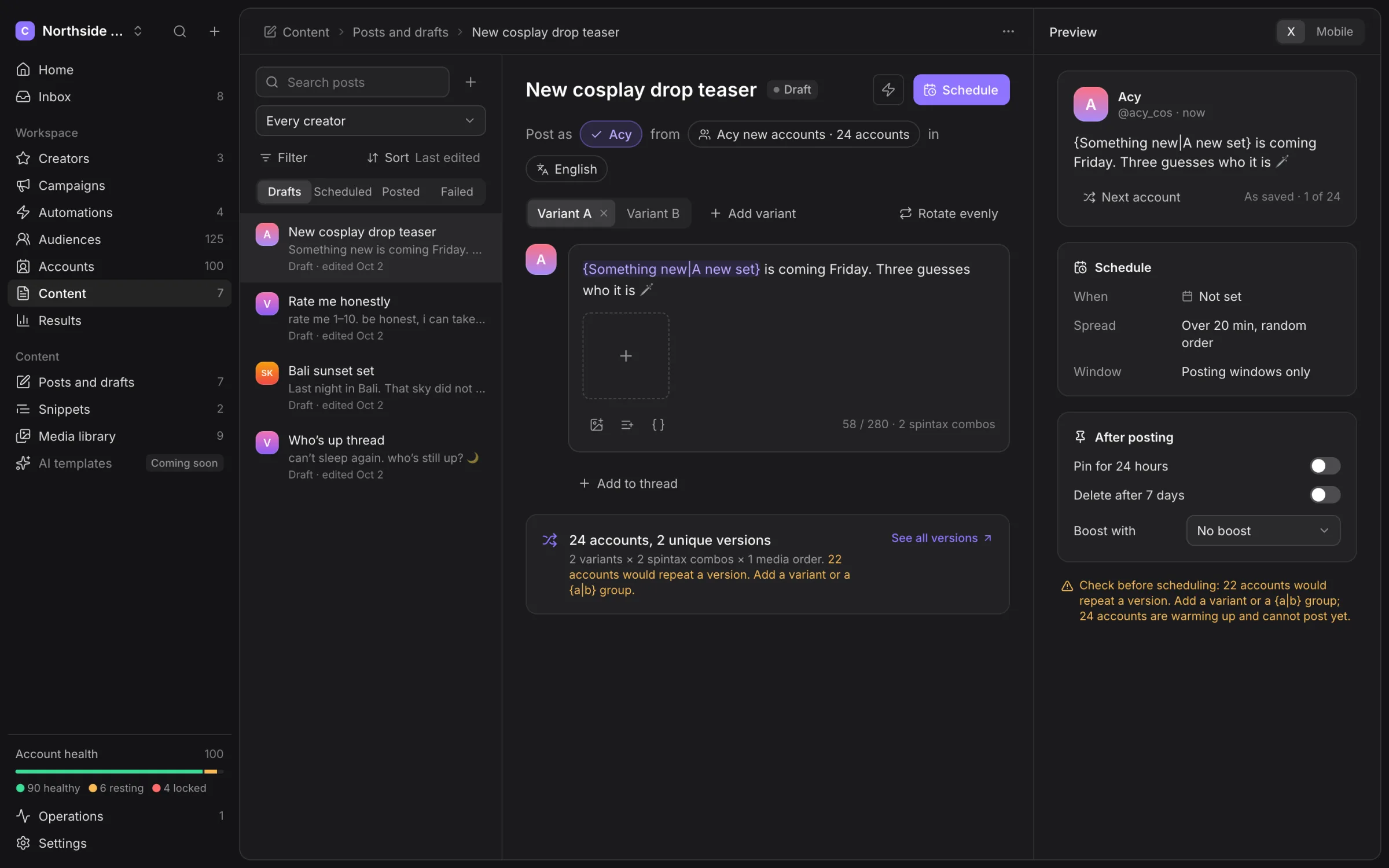
The length counter uses X’s weighted length. It checks the longest expanded text against 280 characters; links count as 23 characters. The expanded version matters when your alternatives have different lengths.
Add to thread adds the next post. Review the gap between thread parts and the preview of each part. A poll takes two to four options. Choose one, three or seven days for its duration. A poll and media cannot share the same post.
Variants and spintax
Use Add variant to provide another version. Rotate evenly distributes variants evenly; Pick at random chooses randomly.
Spintax adds alternatives within text:
{Thanks for following|Glad you’re here}. {Read the update|See what’s new} today.Use a single level of {a|b} alternatives. Nested groups are not supported. Preview the finished text, including spaces, punctuation and links, rather than reading only the template.
Post variables include creator.name, account.name, account.handle and link. Insert variables with the editor and inspect their resolved values for the account preview.
Text variants, spintax combinations and media order contribute to the number of unique versions. The warning tells you when too many accounts would repeat a version. Add alternatives or reduce the group before scheduling.
Schedule
Choose Schedule and set the time, spread and posting window. Spreading a group’s posts over time avoids asking every account to publish at once. Posting windows and account safety gates still apply.
Versions are fixed when you schedule. See all versions is the place to check each account’s planned variant and text. Editing a draft later is not a retroactive change to already scheduled versions.
Use the calendar or list to inspect scheduled work. If a post is held, inspect the account, machine and action reason. A scheduled time is not proof of delivery; Activity provides the confirmed result.
After posting
The editor can configure Pin for 24 hours, Delete after 7 days and Boost with. Read the chosen values and account scope before scheduling. These are real X actions when executed; changing the draft afterward does not undo a published post.
Hydra X does not support pictures on quotes. For a thread with media, use the supported part-by-part scheduling rather than a single combined media-thread intent.
Snippet pools
Open Snippets and use New pool. Choose the Creator scope and pool kind, then add phrases. Pools cover Replies, DM openers, Follow-ups, Captions and Bios.
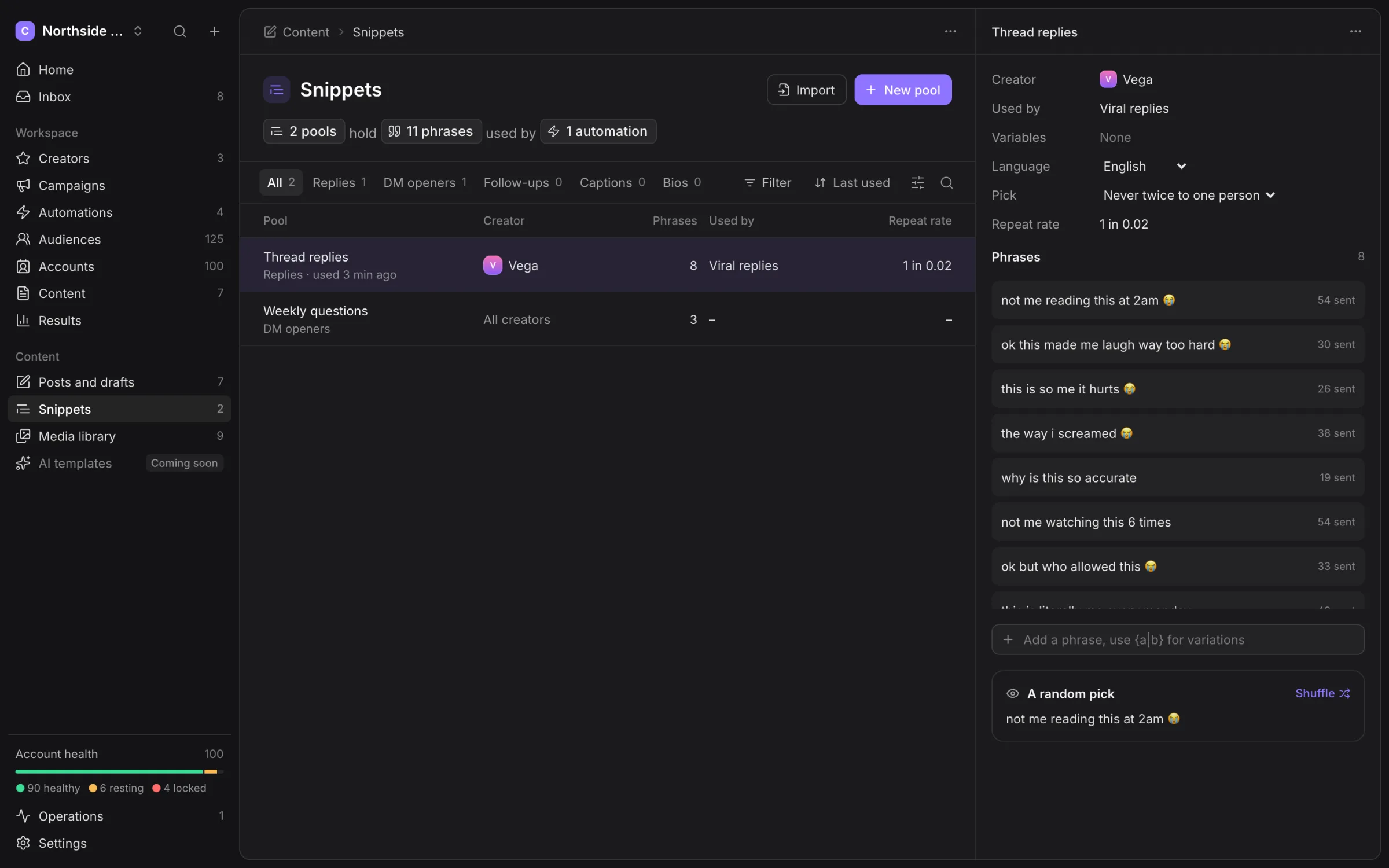
Use Import for a prepared phrase collection. {a|b} alternatives can vary a phrase. Check the pool’s language, selection and repeat rules. Phrase history helps you see what has already been used.
Use the variable picker for the fields offered in that context. A fan variable and an account variable are different; confirm the resolved preview before using the pool in a sending job.
Media library and collections
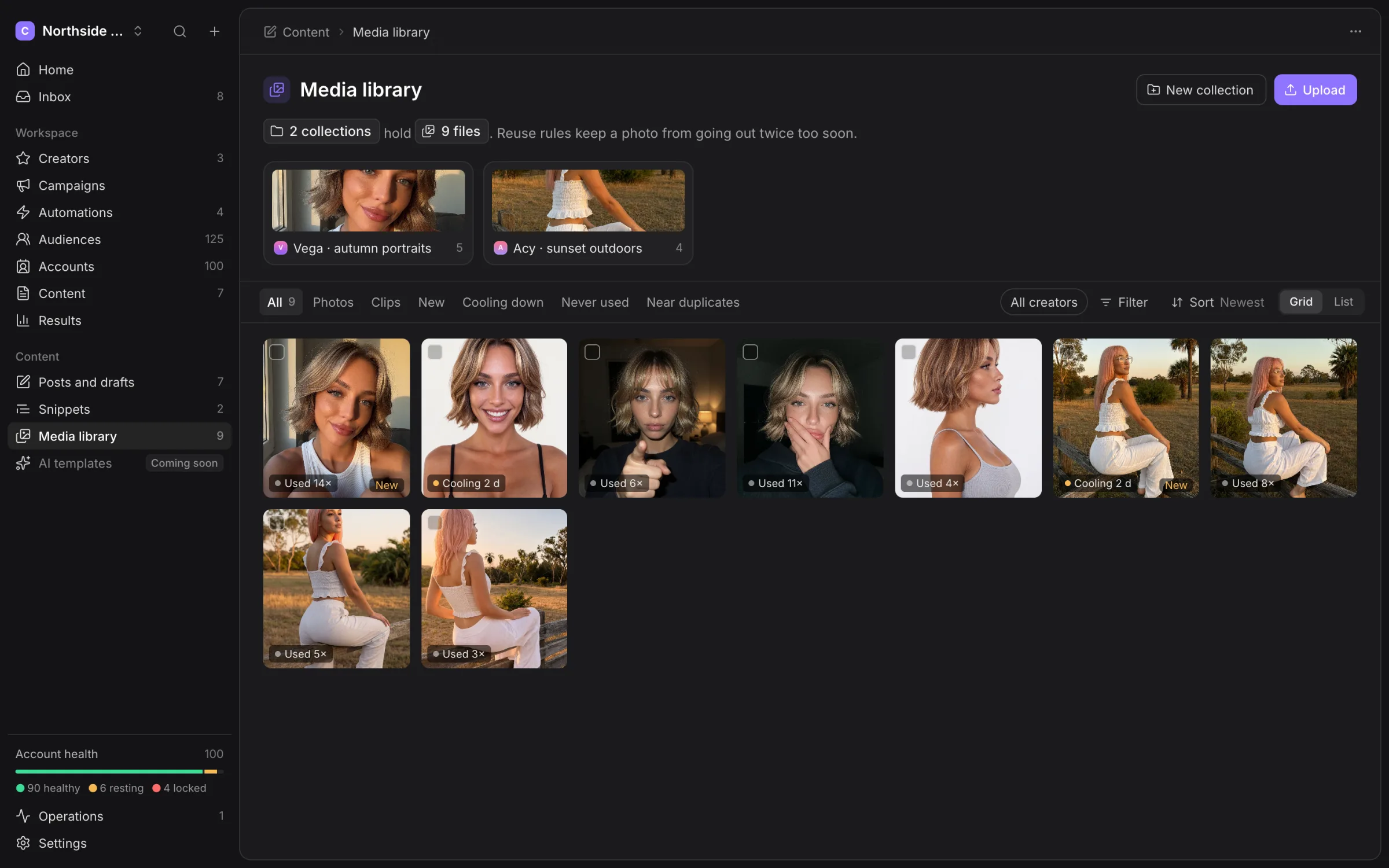
Choose Upload or drop files into the library. Use New collection to organise them. Filter Photos, Clips, New, Cooling down, Never used or Near duplicates when selecting content.
Open a file to inspect its details, past uses and posting accounts. A near-duplicate flag is a review aid; renaming a file does not make its content distinct.
Select files from one Creator for batch composition. It creates one draft per selected file. Review and schedule those drafts yourself; creating them does not publish them.
Upload and attachment limits
The app accepts photos up to 5 MB, GIFs up to 15 MB and MP4, MOV or WebM video files up to 512 MB. Video processing enforces a 140-second duration limit. Files still marked Processing cannot be posted; open a Failed file to read its processing reason.
A post or reply can attach up to four pictures. A video or GIF must be its only attachment. Media DMs are unavailable. Daily upload capacity is workspace-specific; check Settings → Plan rather than assuming a fixed allowance.
The poll review warns that polls from newer accounts can lead X to limit those accounts. Inspect that warning and the selected group before scheduling.
Reuse rules
Select files, then choose Reuse rules. Max uses limits posts it can go out in; one post sent by many accounts counts as one use. Cool-down sets days between uses, and Never twice on the same account prevents that account reusing the file.
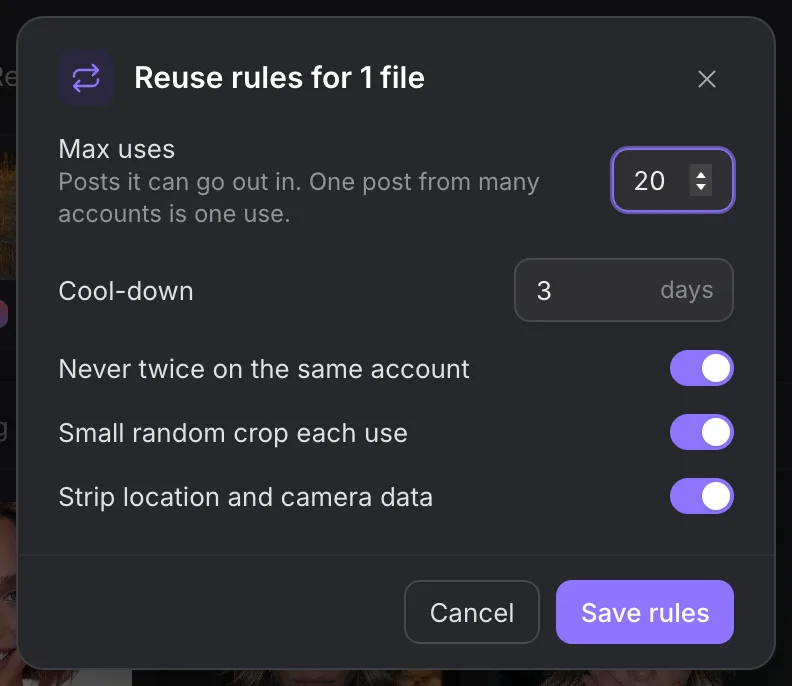
Small random crop each use varies the prepared copy. It does not erase history or guarantee that X treats an image as unrelated.
Use Strip location and camera data for the upload metadata choice. Treat the reuse state as part of the content plan rather than resetting it by moving a file. Moving within the same Creator keeps history.
Delete media carefully
Deleted media goes to the recycle bin for 30 days. A scheduled post that depends on deleted media can no longer use it. Deleting the library file does not remove copies already published on X.
Review scheduled dependencies before deleting, then use X post deletion separately when you intend to remove a published post.
Share a collection
Use the collection’s sharing controls to create the offered view or add link, check its expiry and copy it for the intended recipient. The link opens that collection outside the workspace. A viewer does not receive account handles, usage history or your other collections.
Only an add-enabled link permits uploads. Keep the link private and stop sharing when the recipient no longer needs it. Uploaded files still need processing and reuse checks before you attach them to posts.
Open a saved post from Posts and drafts to inspect its versions and account outcomes. A failed version needs its own evidence review; successful versions are not undone by changing the draft.