Automations
Build and start X reply, DM, posting, engagement and follow jobs, then inspect their pacing and activity.
On this page
An automation gives one group a repeatable job. You choose the Creator, accounts, targets, content, pacing and stop rules, then review it before starting.
Choose a template
Open Automations and create an automation. The picker has Templates, Copy an automation and Import. Start from scratch opens the configurable builder.
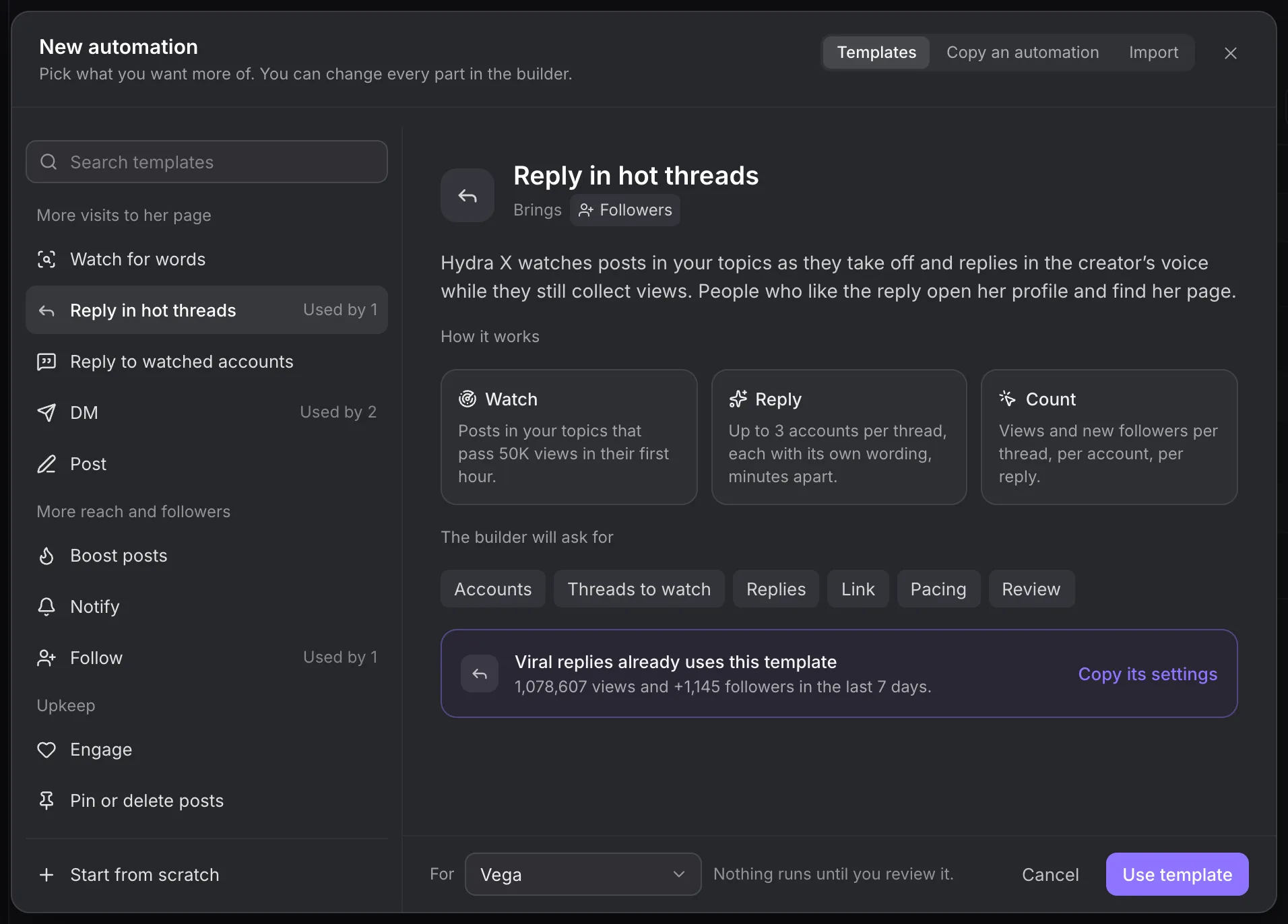
| Template | The job |
|---|---|
| Reply in hot threads | Find qualifying posts by topics or a watchlist and reply while they are recent. |
| Reply to watched accounts | Reply to posts from a selected watchlist. |
| Watch for words | Find posts matching words and choose the actions to take on matches. |
| DM | Send the chosen message sequence to people in a list. |
| Post | Publish prepared content through the selected posting group. |
| Boost posts | Apply the configured likes, reposts, bookmarks or replies to selected posts. |
| Notify | Combine a follow, like or repost to reach people in a list. |
| Follow | Visit and follow list members, with optional follow-back messages and delayed unfollows. |
| Engage | Browse a niche or interact with a watchlist’s posts using the configured actions. |
| Pin or delete posts | Apply the configured rules to the accounts’ own posts. |
The template description is a starting configuration. It does not promise a number of subscribers, views or followers.
Fill the builder
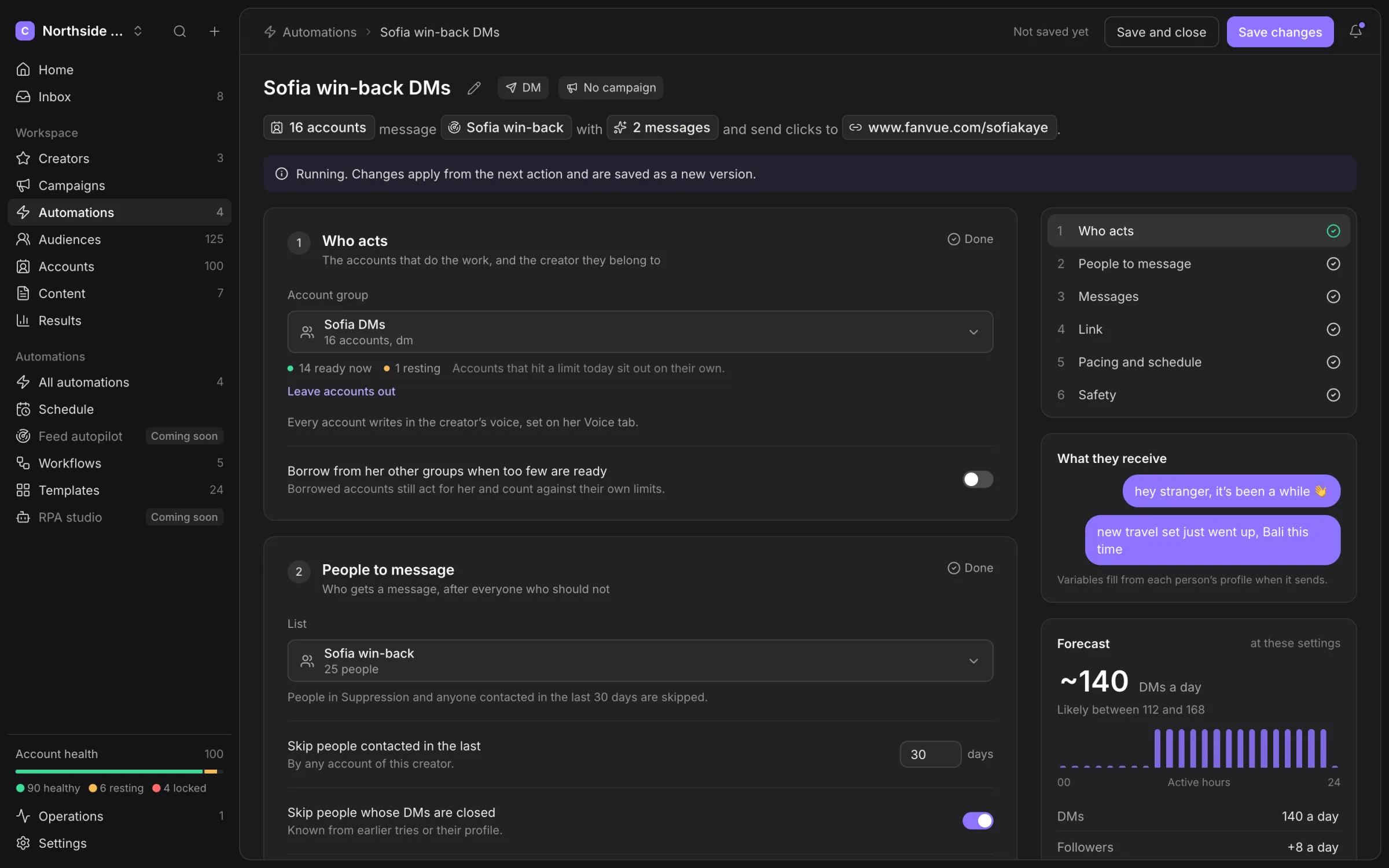
Who acts selects the Creator’s group and any account exclusions. Target fields depend on the template. A reply job may use topics, a watchlist, a minimum view count and a maximum post age. A DM job uses a list and its contact exclusions.
Choose a snippet pool for replies or type the DM variants yourself. DM sequences can stop when the fan replies. Use existing contact history and suppression exclusions rather than treating every list as a fresh audience.
Link is the destination you want people to visit. It does not enable tracked-link attribution. Pacing and schedule selects daily volume, active hours and days. Safety can tighten the workspace rules for this automation.
Changes save to your draft. A draft does not run. For an existing automation, saving an edit creates a new version that applies from its next action.
Review and start
- Check Who acts, including exclusions and available account health.
- Check the target list or watchlist and the exact text that will be sent.
- Review pacing, hours and safety warnings.
- Choose Review and start.
- Choose the start option and confirm the review.
The review offers immediate, ramped and scheduled starts. A ramp spreads the increase in pace; it does not bypass account caps. Forecasts are estimates. Missing source data can leave them unavailable.
Test on one account sends a real action from one account. Read the preview and target before using it. This test is not included in the automation’s ordinary results.
Inspect the test result before starting the wider group. A refusal or unknown result is a reason to investigate, not to send the same test again without checking X.
Run a list DM job
Choose the list, select the sending group and write the message parts. Set the gap between parts and whether the sequence stops on a reply. Review the skip-contacted and closed-DM choices.
An account must be allowed to contact the person when the action runs. Someone added to Suppression after you built the automation is still blocked. Language matching and available account capacity can reduce the people reached in a pass.
When replies arrive, answer them in Inbox. The list’s size is not a delivery count.
Run watched replies or word matching
Create the watchlist in Audiences. Select it in the automation, then choose your snippet pool and pacing. For hot threads, also check the view and age thresholds. For word matching, review the included words, excluded words and languages.
Use reply options to control which visible post or comment is targeted and how accounts spread their work. A missing or unverified target is skipped; Hydra X does not invent a replacement post.
Monitor and pause
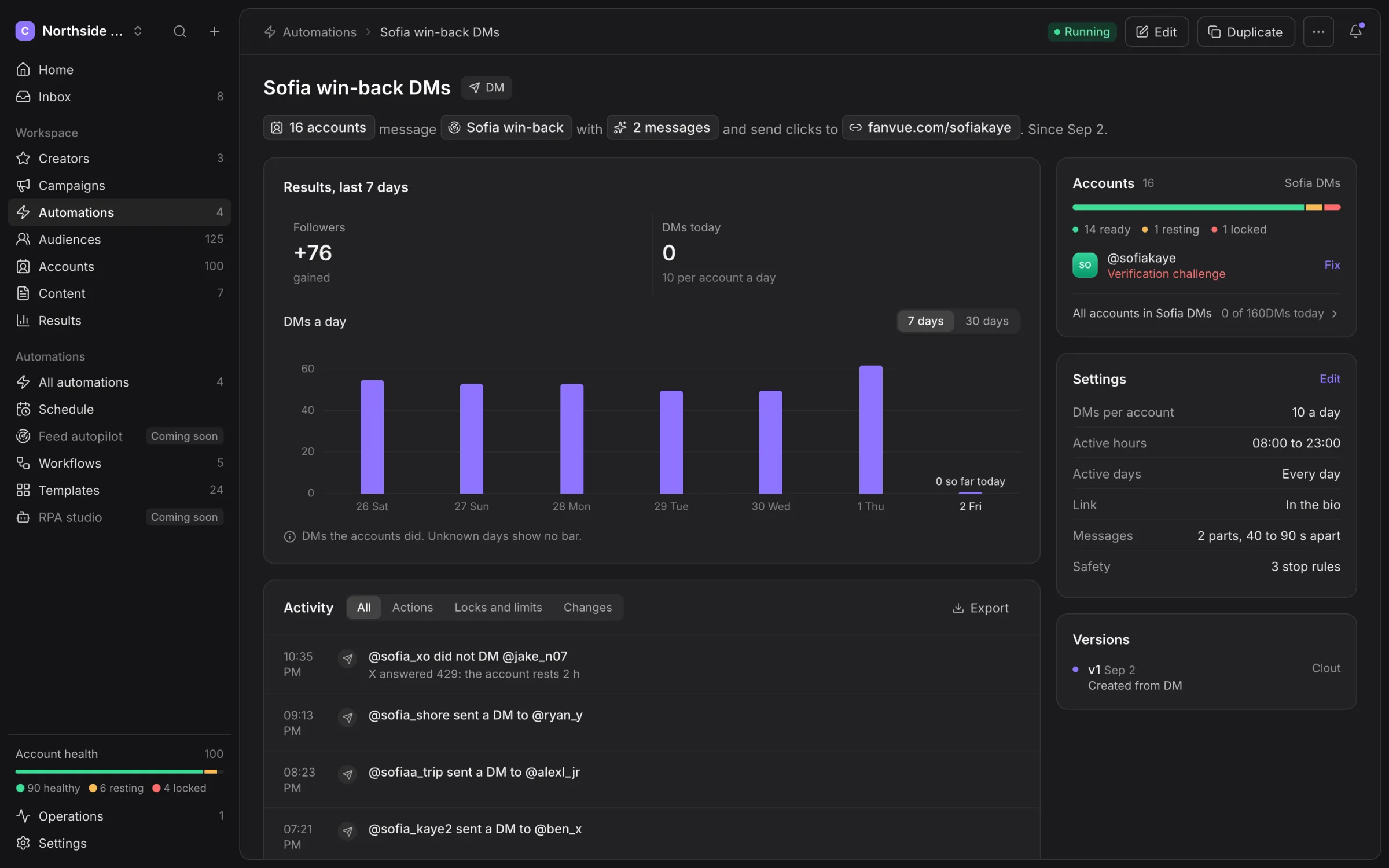
The list and detail pages show Draft, Scheduled, Ramping up, Running, Paused, Stopped, Finished or Archived. Read the activity reason when progress stalls. Waiting for active hours, resting accounts or a cap is different from a failed action.
Pause an individual automation to hold its future work. Use workspace Pause all for a wider incident. Already completed sends remain on X. See Safety and Results activity before resuming uncertain work.
Find and revise jobs
The automation list brings together drafts, running jobs and paused or stopped work. Open a job for its results, activity, account health and saved versions. Use Edit to revisit its configuration or Duplicate to prepare a separate job.
Read the status beside the save controls before changing a running automation. Its builder explains when saved changes apply. Saving configuration is different from starting a draft. Inspect the job after saving to confirm the group, text, pacing and schedule you intended.
Use Schedule for calendar slots and posting windows, Runtime for workspace capacity, and Results Activity for delivery evidence across jobs.