Machines, runners and operations
Join runner machines, link Clout Browser profiles and inspect queue, proxy, live-session and issue states.
On this page
A machine runs Clout Browser and Hydra X Runner. The app assigns work to that runner; the runner opens the authorised profiles, carries out the browser actions and returns observed results.
Run the runner and Clout Browser as the same OS user. A runner installed under another user does not share that user’s browser profiles or key-store state.
Add a machine
- Open Operations → Machines and choose Add a machine.
- In Install, use Download Hydra X Runner and install the appropriate runner on that computer.
- In Join, paste the generated join code into the runner using its join interface.
- Wait for the machine to appear, then review its name and Slots in Set slots.
- Confirm the setup and link the accounts to profiles on that machine.
Use the installer currently offered by the dialog. The desktop Hydra X Mac app and the machine’s runner are separate installations. Ask the Clout team for an unavailable runner installer rather than substituting an unofficial build.
Joining identifies one runner installation. Keep the join code out of screenshots and notes. Joining an interactive user and later starting a service under another home creates a different installation; enrol the service under the account it will actually use.
Read machine health
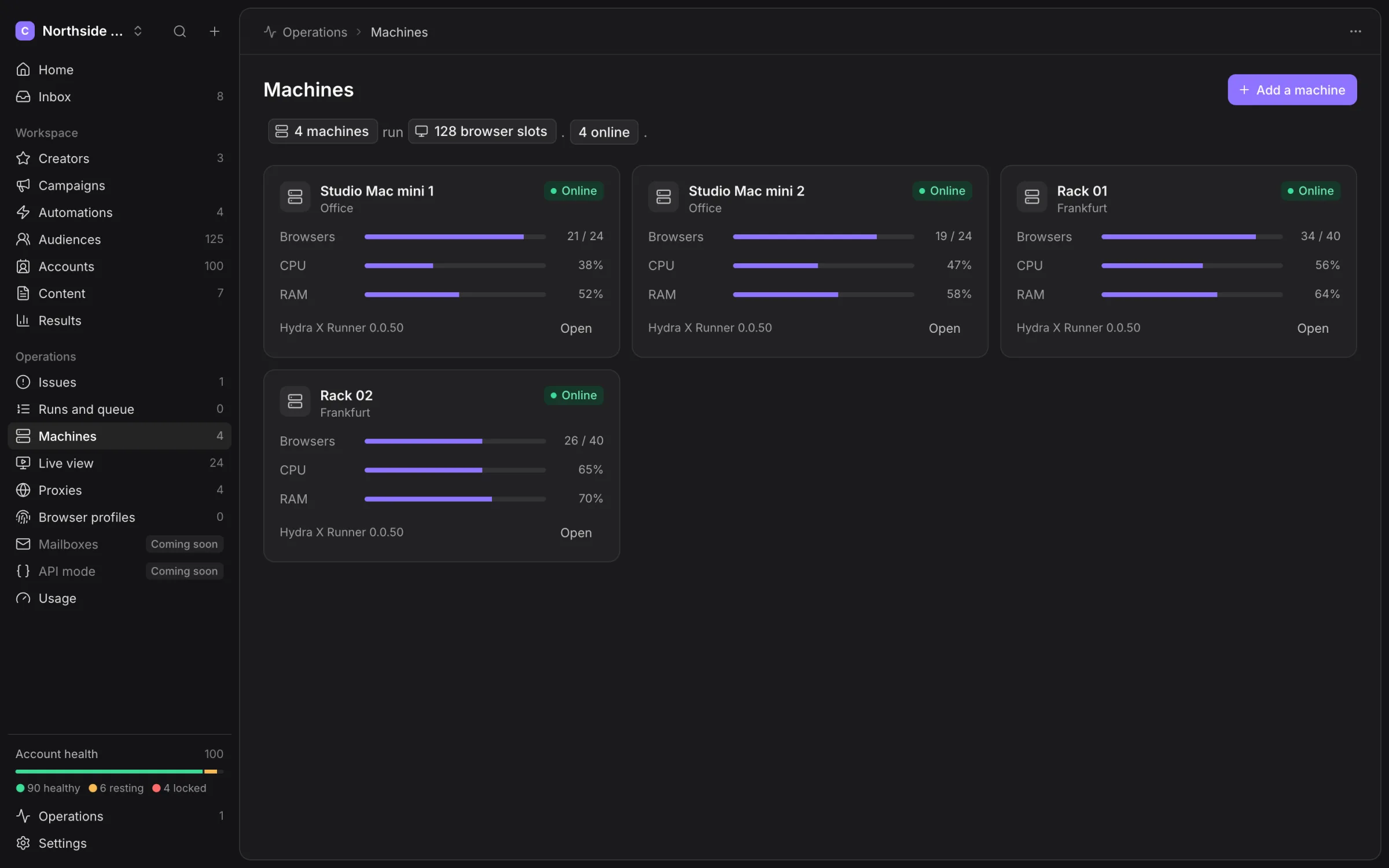
Machine states include Online, Offline, Paused by owner, Updating, Restarting and Joining. Paused by owner means the machine’s owner paused sharing in the runner.
Open a machine to inspect its runner and slots.
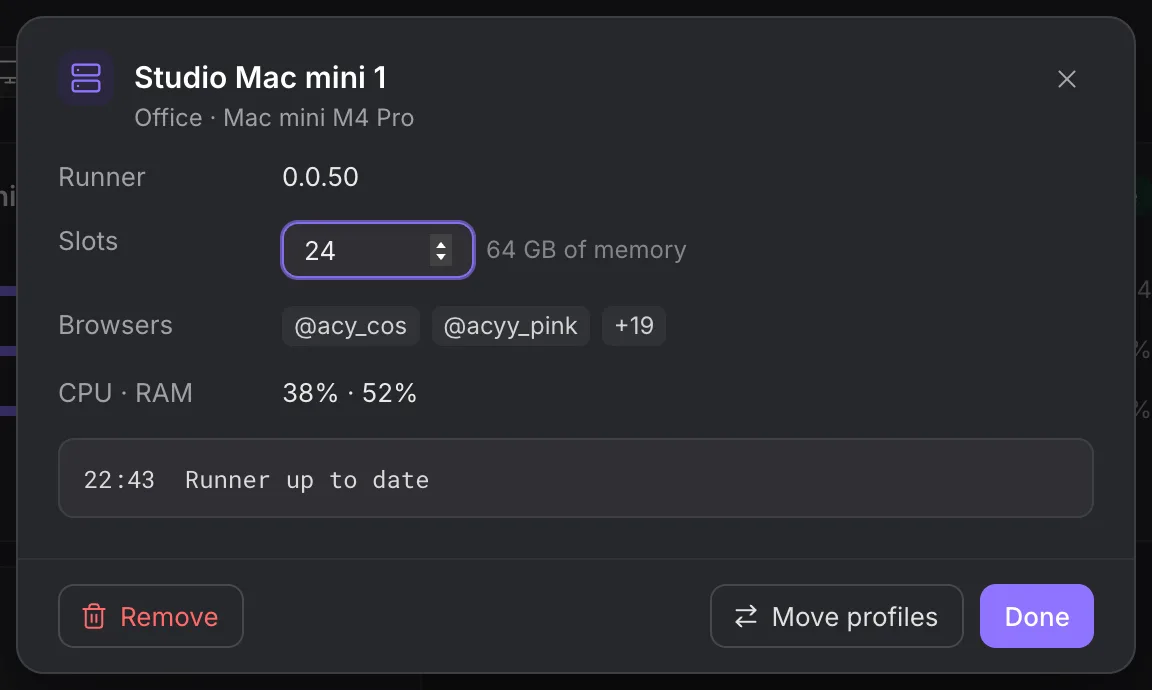
Slots limit simultaneous browsers. Leave room for the operating system and the browser workload; a slot count is not a guarantee of throughput.
Restart remotely needs the machine’s watchdog to answer. It cannot start a powered-off or unreachable computer. Update Runner is available when the configured release path offers an update.
Browser profiles
Operations → Profiles shows the browser profile bindings. Import from Clout Browser finds existing profiles on the selected machine. Clout Browser must be open there for discovery.
The profile is not its X account record. Removing an account from Hydra X does not remove that profile from Clout Browser. Manage profile storage and cloning in Clout Browser.
Keep imported profiles on their original machine. Do not use a displayed move control as proof that browser files and sessions will migrate safely; ask the Clout team before moving a working fleet.
Proxies
Use Operations → Proxies to inspect the assigned endpoints, health and account usage. Import or add your own proxy information using the fields offered by the dialog, then test it before assigning it to working accounts.
A failed proxy can make an otherwise valid X session unavailable. Compare the proxy check with the account’s last health check. Changing a proxy is a separate operation from signing the account in again.
Do not assume that saving a provider name buys proxies or configures vendor rotation. Use only the integration and rotation method actually available in your workspace.
Runs and queue
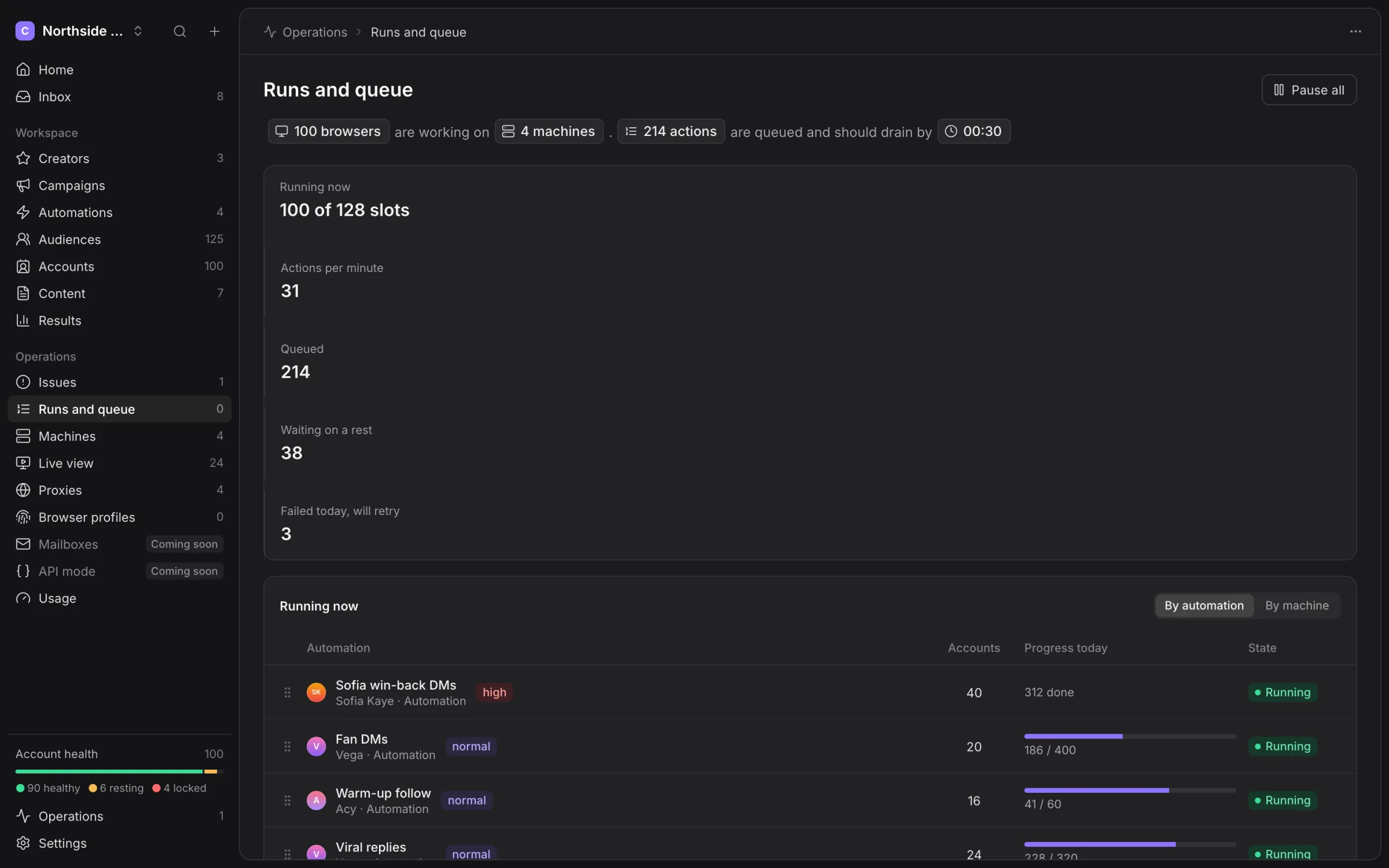
Runs and queue shows running browsers, queued actions, resting work and failures scheduled for retry. Switch between automation and machine views to find the limiting part.
Queue ordering follows priority and then time. Reordering an automation’s work changes its place among queued jobs; it does not override safety gates or interrupt the current action.
Use Pause all for a workspace investigation, or pause the affected job or group when the problem is narrower.
Issues
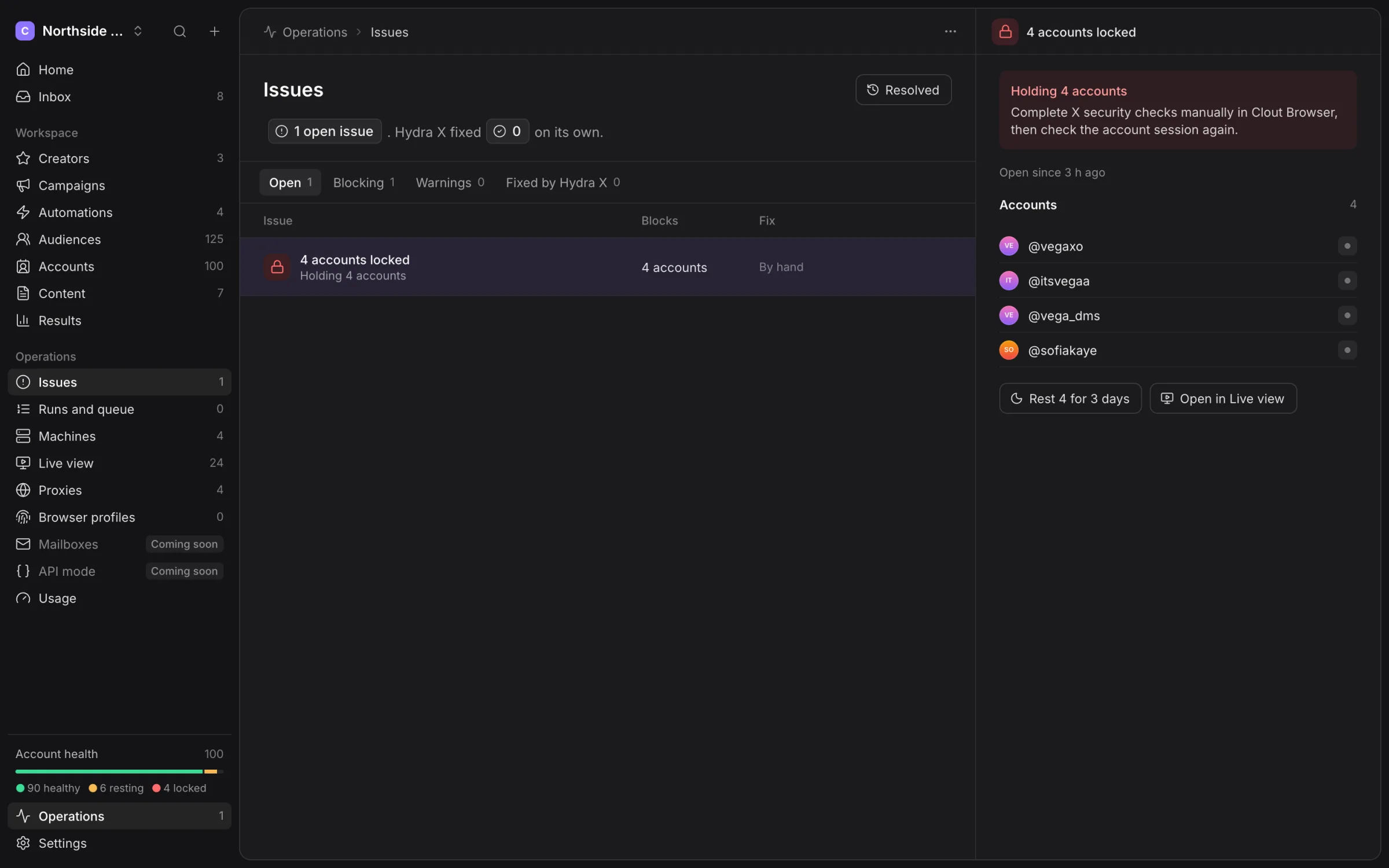
Issues separates blocking problems and warnings. Open an issue to see its affected accounts, history and available fix. By hand means a person must act; a retry button cannot complete an X captcha or phone check.
Resolve the actual cause, then recheck the account or job. Marking an issue handled is not evidence that the browser session is healthy.
Live view
Open Live view for browsers currently working. Only with problems narrows it to captchas, locks and errors. Filter by Creator or group when you need one part of the fleet.
Take control pauses that account’s automation at its current step. Solve the problem in the browser, then choose Solved, hand back. Hand back, not solved returns control without claiming the challenge was fixed.
A live session can disappear because its work finished or it is resting. Use the account detail and Issues history to inspect what happened after the browser closes.
For local runner commands, read API, MCP and runner commands.
Choose the next operations screen
Use Proxies and rotation for inventory, tests, assignment and session changes. Use Live view for manual browser control. Browser profiles shows bindings to the importing machine; it does not copy a profile directory into the workspace.
The older API mode route is retired. Open Providers from Sources for current public audience reads and Jev decisions. These providers do not route X actions through an official X API. Use Audience providers for their allowances.