Safety and pacing
Set workspace action ceilings, contact rules and quiet hours, then recover from limits without bypassing safety gates.
On this page
Safety settings are ceilings, not targets. They control what accounts may do and when work must wait or stop. Set them before starting jobs, then lower them for groups that need a gentler pace.
Workspace ceilings
Open Settings → Safety and pacing. The action table has Per day, Per hour and Gap between values. Set the limits for the action type you are managing.
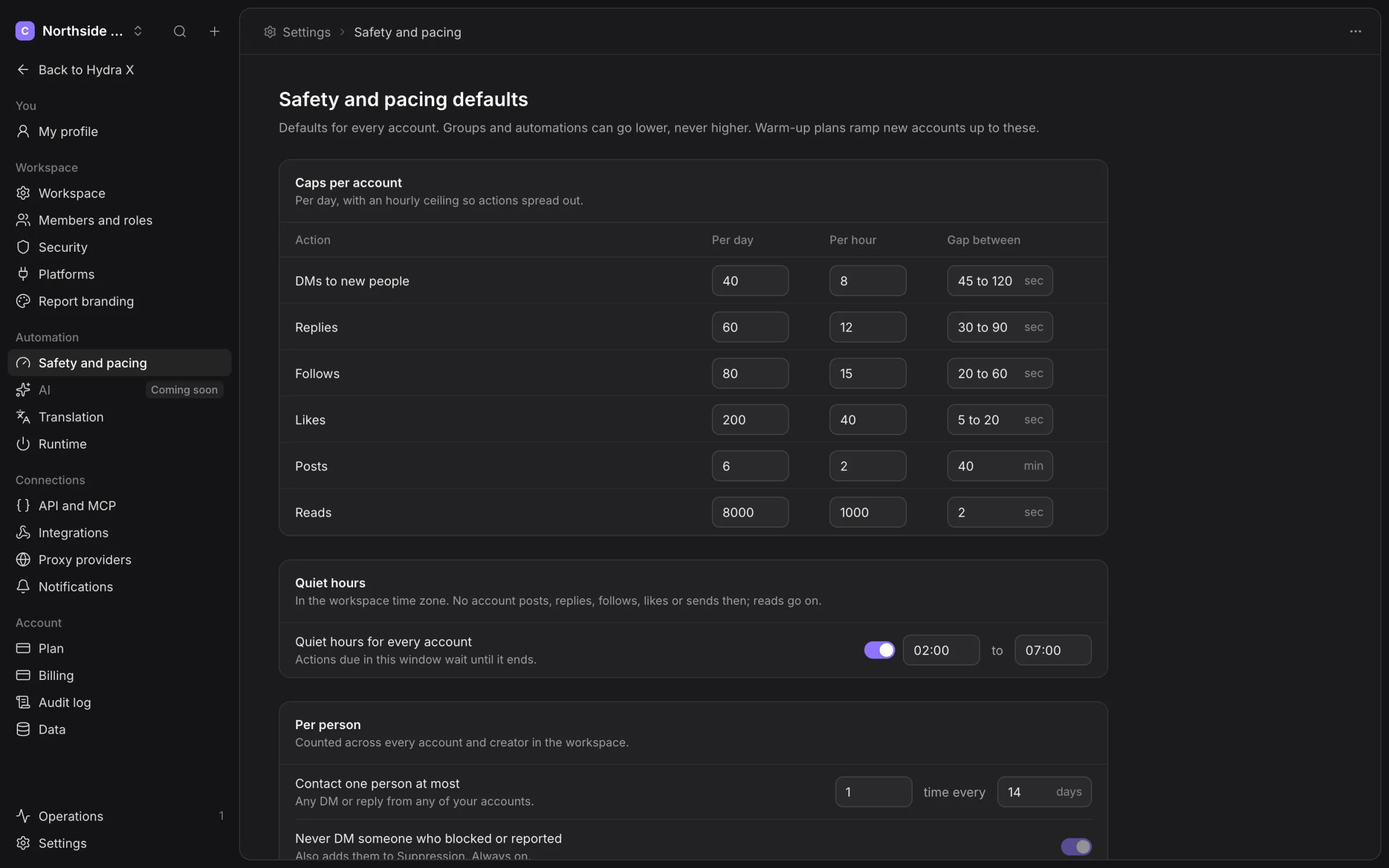
Groups and automations can go lower, never higher. Warm-up plans also restrict actions until their starting day. A large audience, a campaign target or an API script does not bypass those limits.
The figures in the screenshot are fixture settings. Choose values for your own workspace with the Clout team; no setting guarantees that X will avoid limiting an account.
Contact rules
Contact frequency applies across the workspace’s accounts and Creators. Moving a person to a new list or choosing another account does not erase the contact history.
The Never DM someone who blocked or reported rule is always on. Suppression is always checked. Configure whether an opt-out applies to This creator or Every creator, and honour the person’s request.
Possible-minor protection stops contact pending an authorised human review. Public audience fit, follower count and list membership do not override it.
Quiet hours and time zones
Set quiet hours in the workspace and check the time zone used by the group or schedule. Sending actions wait through their quiet period; eligible reads can continue.
Use Settings → Workspace for the workspace time zone. Daily resets, report periods and schedules use their applicable configured zone, so check it before changing active hours or comparing today’s totals.
When X pushes back
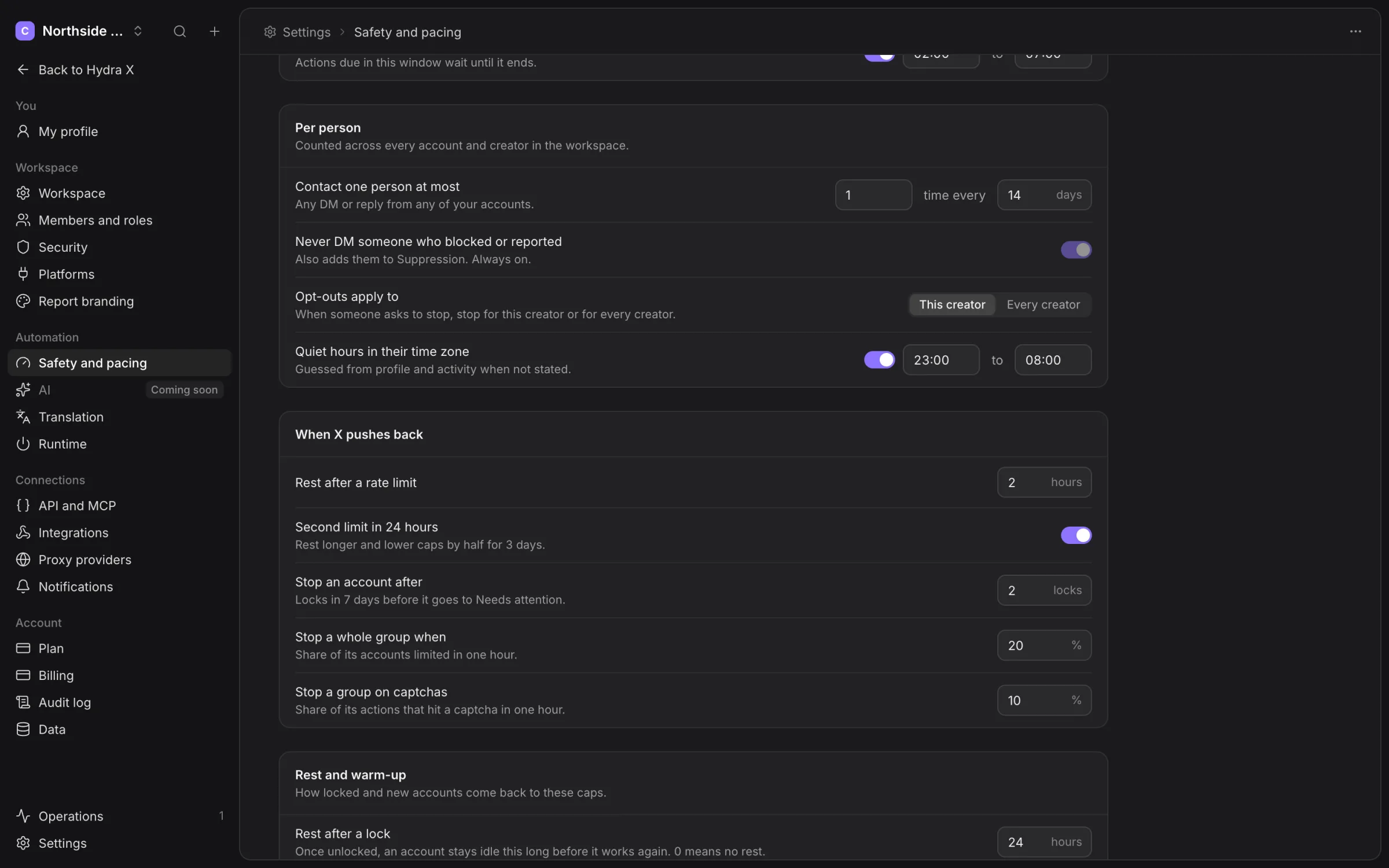
The settings let you rest an account after a rate limit, reduce its caps after repeated limits, and set group pause conditions for limits or captchas. Inspect the saved values before you rely on them.
Automatic limit pauses are per group. A group incident is not an automatic pause of the whole workspace. Use Pause all yourself if the wider fleet needs attention.
A captcha, phone check or email challenge belongs to a person in Clout Browser. Repeated automated retries cannot solve it.
Runtime capacity
Settings → Runtime controls workspace and per-machine concurrency, accounts per IP and gradual starts. These controls limit simultaneous browsers independently of daily action caps.
A machine can have free slots while an account has no remaining daily capacity. Likewise, an account with unused capacity cannot run without an available machine and profile.
Pause and resume
Use Pause all to hold new work. In-flight actions can finish. Set the resume timing and note offered by the pause dialog so the next person understands why the workspace stopped.
Before resuming, check Issues, account health and the actions with uncertain outcomes. Supported recovery paths can test one real account, continue at a reduced pace or resume eligible accounts. A recovery test itself can perform an X action.
Do not blindly retry an action marked Not verified. Read its activity evidence and check the account when needed. A second send can duplicate a first send that X accepted but Hydra X could not confirm.
Read the reason for a hold
A job can wait for quiet hours, warm-up, an action gap, contact frequency, a resting account or a machine slot. Those holds preserve the job’s rules. See Runs and queue for queued work and Troubleshooting for failure codes.
Check the three scopes together
When an account cannot start, compare its own limits, its group’s limits and workspace Safety. The most permissive screen does not cancel a stricter restriction elsewhere. Also inspect Runtime capacity, Schedule and the account’s current health.