Audiences and sources
Import people, build lists, collect public X audiences and manage watchlists, tags, review and suppression.
On this page
Audiences stores the people your accounts and sources find. A person has one record with public facts, tags, list membership and contact history. Adding a person to a list does not contact them.
All people and person details
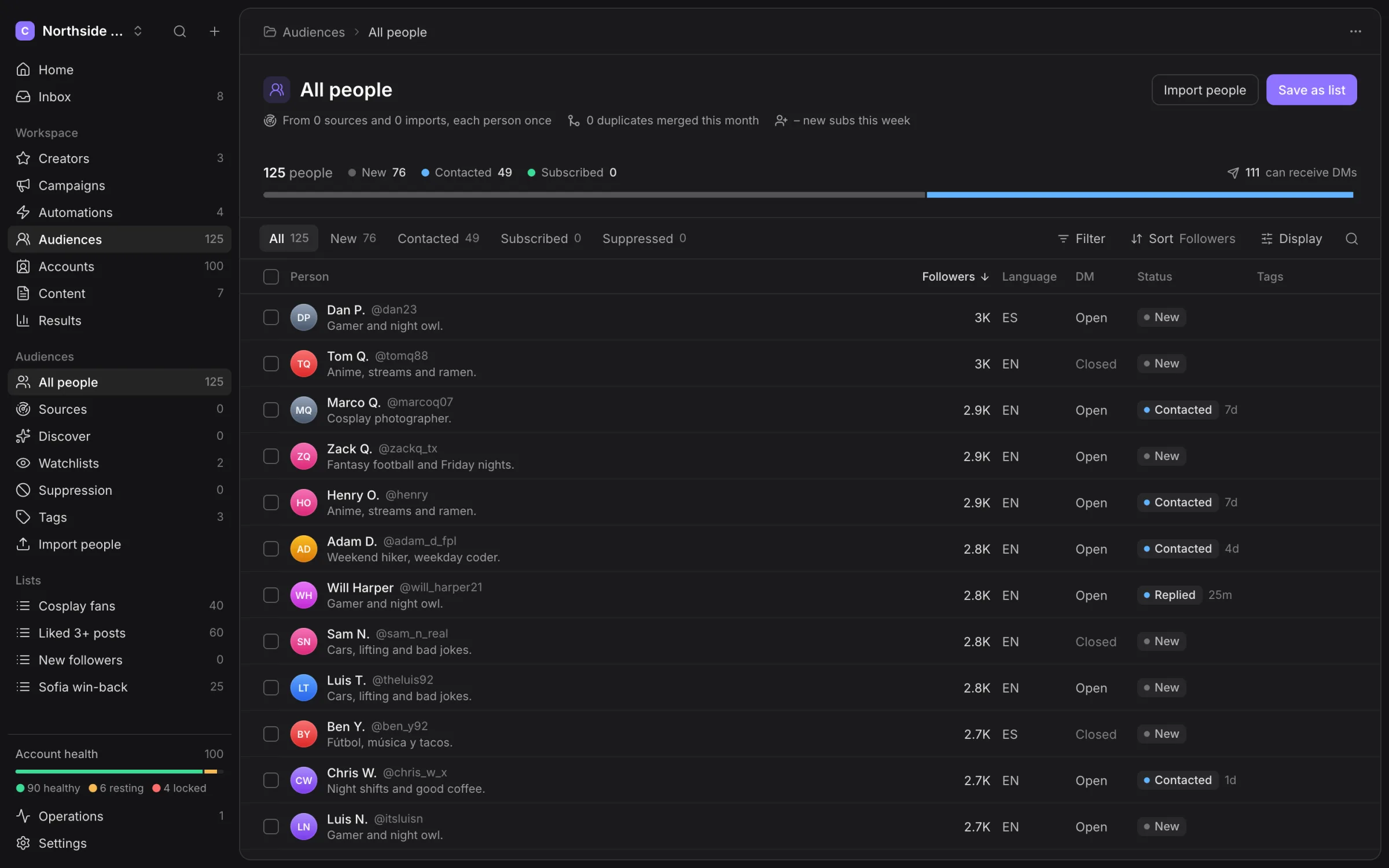
Open All people to search, filter, sort and change displayed fields. Open a person to inspect their public profile, list membership, tags and timeline. Public facts have a read time; they are not a real-time guarantee.
Use tags for team classification and lists for the audiences jobs will use. A bot label does not automatically replace Suppression, and a fit score is not permission to contact a person.
Import people
Choose Import people and use a CSV, TXT file or pasted handles and X profile URLs. Review the column mapping and preview before importing. Only map fields the importer recognises; an email column is not an X audience identifier.
Existing people merge rather than acquiring a second contact history. Invalid handles, your own accounts and suppressed people are excluded as appropriate. Handles without observed profile data need a reader lookup before they join the usable audience.
Inspect the import result and skipped rows. A sample check is bounded; it does not certify every row in a large file.
Static and smart lists
A static list contains the people you explicitly add. A smart list uses rules to maintain its membership. Use the list’s rule editor to select known fields and inspect the matching preview.
Choose the available refresh cadence, such as live, hourly, daily or manual, according to the job. Refreshing membership does not refresh every public profile fact at that instant.
Save as list turns the current selection or filter into a reusable audience. Open a list to see membership and the automations that use it. Detach those dependencies before deleting a list. Deleting the list leaves the people and their history in the workspace.
Collect from a source
Sources read public X audiences and put kept people into a destination list. Available origins include followers, accounts someone follows, replies under posts, reposts, an X list, keywords and your accounts’ engagers.
- Open Sources and create a source.
- In Where to look, select the origin and enter its account, post, list or keyword.
- In Who to keep, set the follower, account-age, language and activity filters you need.
- Select exclusions and the destination list.
- Set the reader and cadence, inspect the bounded preview and choose Save and run.
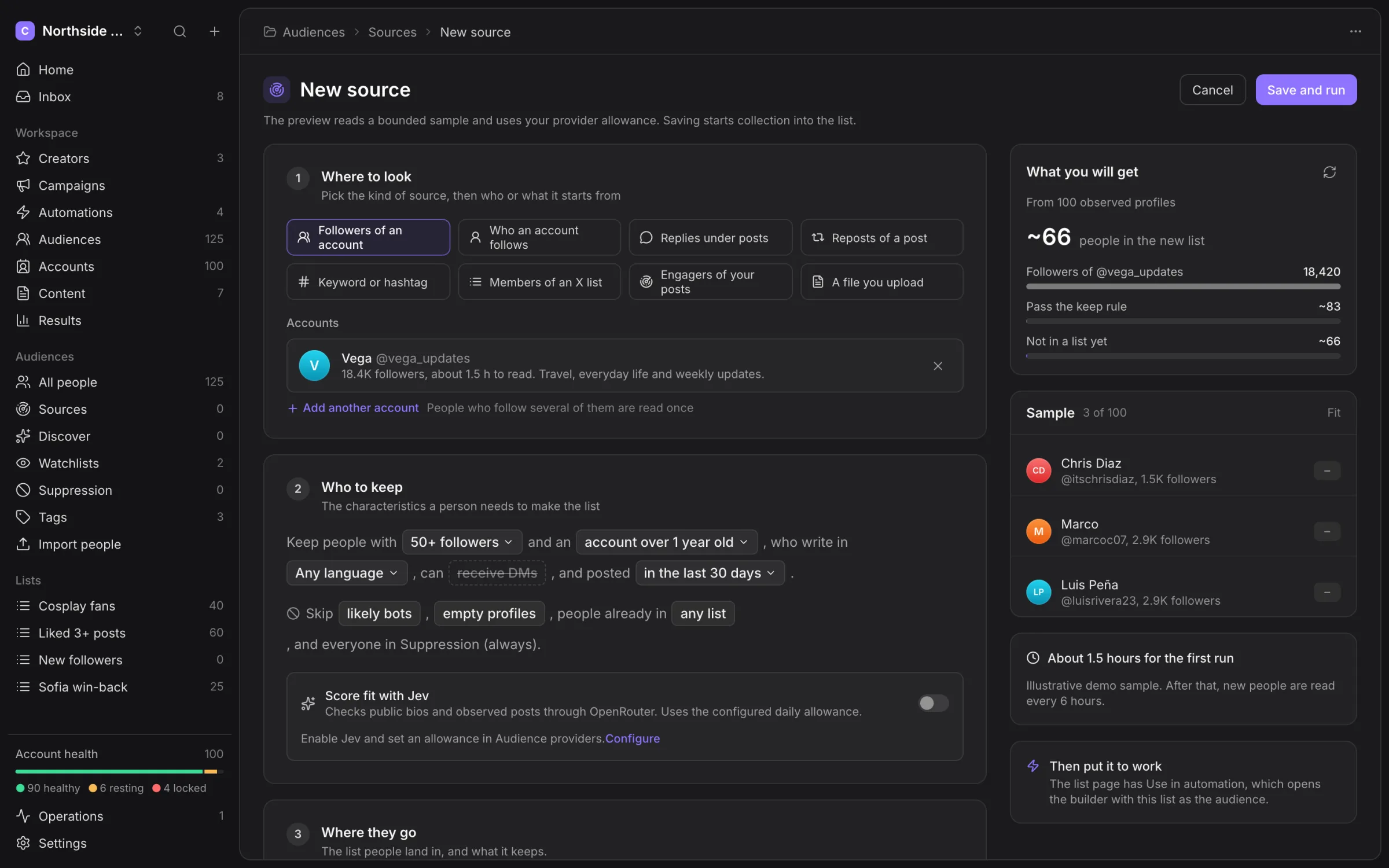
Browser Reader accounts cannot see who takes DMs. The source warns that receive DMs keeps nobody when they read. Turn that filter off or use an available Martera read.
Sources can run once or on their offered recurring cadence. Check the source’s activity for pages read, people kept and exclusions. Pause or cancel future collection when the list has enough people.
Audience providers and Jev review
Providers configures Martera’s public reads and Jev audience decisions through OpenRouter. Set the daily allowance before enabling calls. A zero allowance stops provider calls. Keys are encrypted and are not shown again after saving.
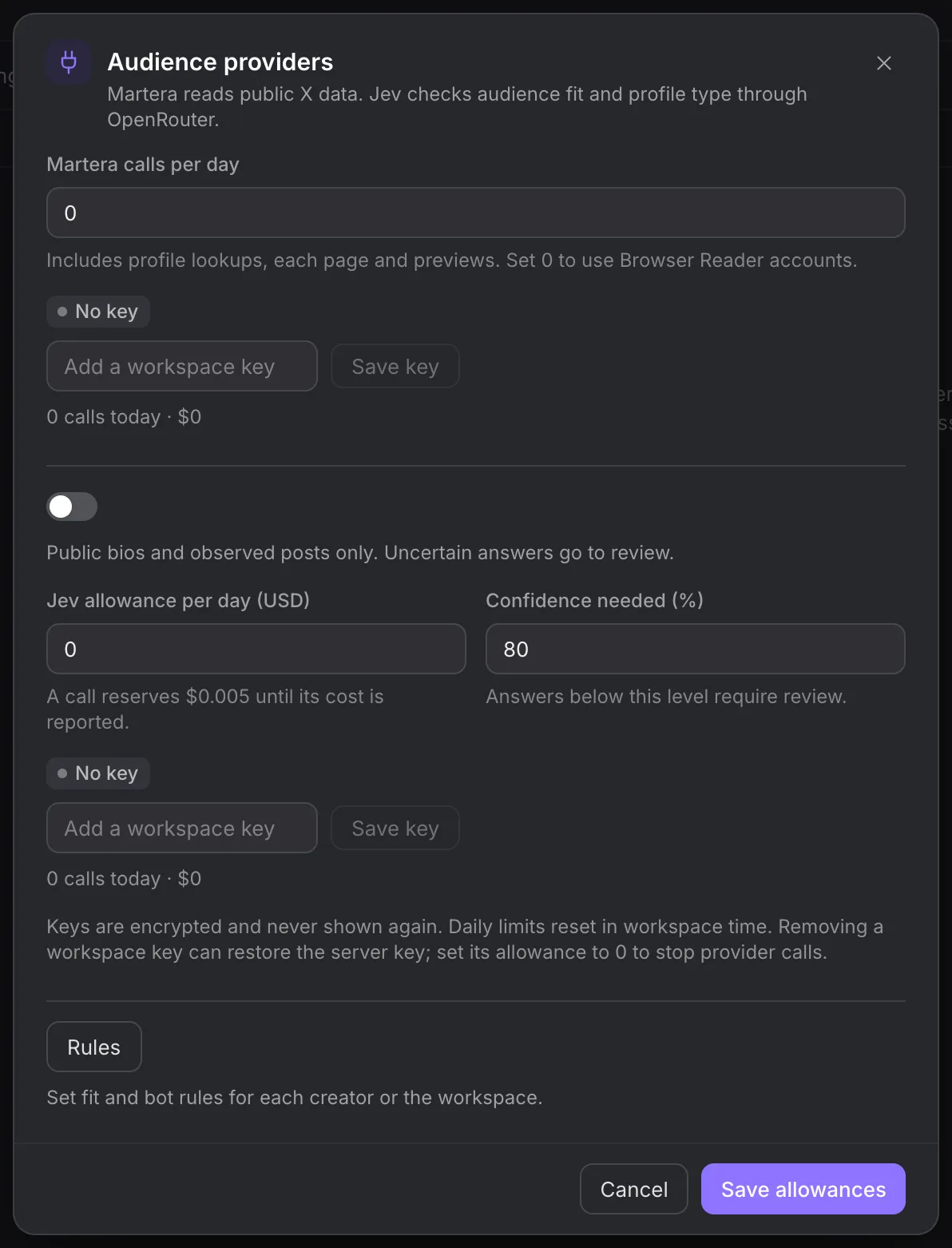
Jev uses public bios and observed posts to assess audience fit. It does not receive private DMs or X credentials. Low-confidence or insufficiently evidenced candidates go to review. Use Discover to inspect them and add suitable people to a list; they are not contacted by that review action.
Removing a workspace key can leave a configured server key available. Set its allowance to zero when you need to stop calls.
Tags and rules
Create tags for categories your team uses. Apply them manually or connect an available rule to observed events. Review the rule’s event and condition before enabling it; a tag is only as current as the facts that triggered it.
Do not use a public bio or an automated fit score as proof of age. Possible-minor protection remains separate and needs an authorised human decision to clear.
Watchlists and post lists
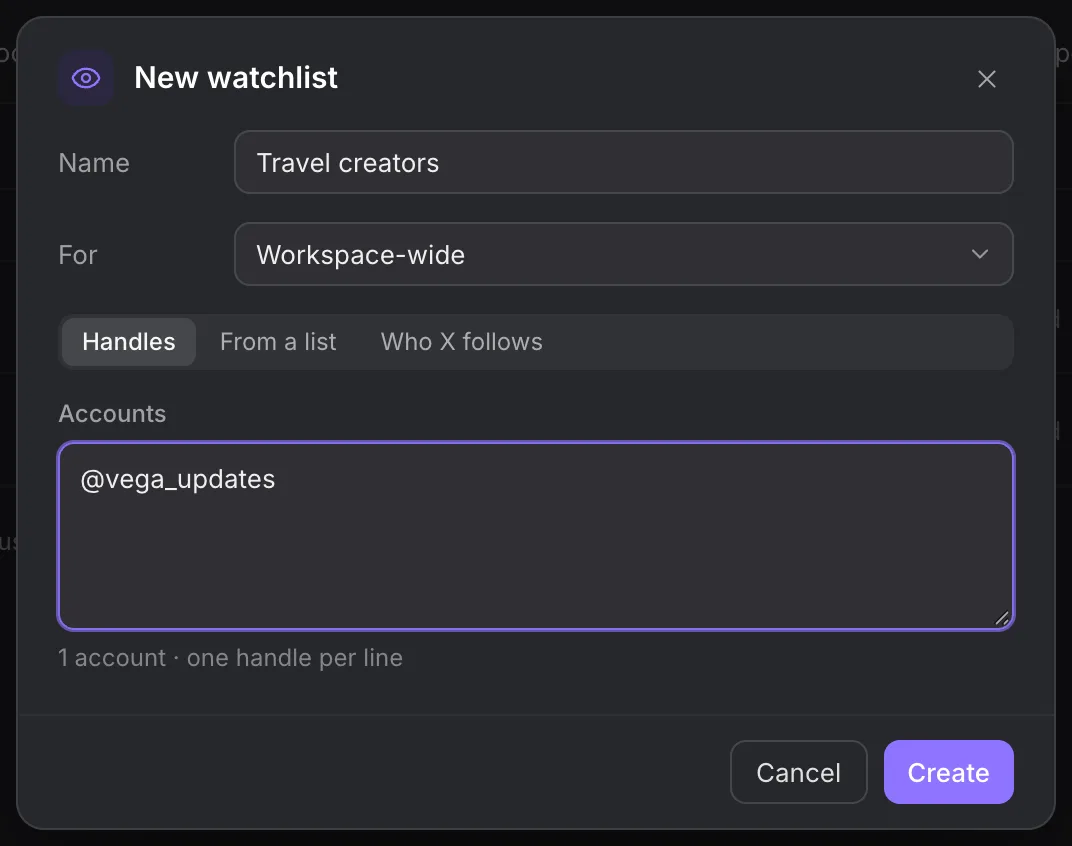
A watchlist monitors selected accounts. Handles uses explicit X handles; From a list uses an audience list; Who X follows fills from an account’s following.
A post list selects specific posts rather than all posts by their authors. Use it for targeted boosts or monitoring. Turning on comment monitoring reads visible replies on its configured cadence; it does not establish that every hidden or paginated reply was seen.
Suppression
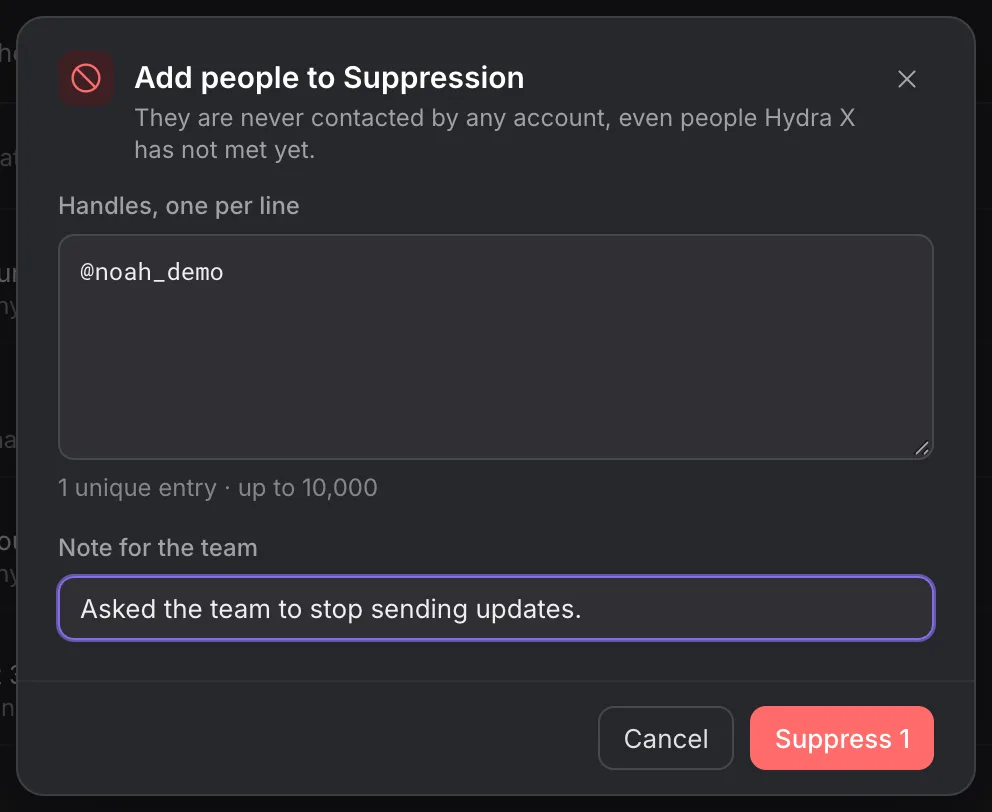
Suppression is the workspace’s never-contact list. Open Suppression → Add people, enter handles one per line, add the team note and choose Suppress followed by the handle count. The direct-entry dialog accepts up to 10,000 handles.
The file importer accepts up to 20 MB and 200,000 rows, reading handles from the first column. Cancelling an import keeps the rows already processed.
Suppression is checked when work runs, so it protects someone even if an automation or list was created earlier. Locked protections cannot be switched off through an ordinary list edit.
Review Discover
Open Discover to review people and posts found by browsing and sources. Choose the destination list before adding candidates. People and Posts show items awaiting your decision; Added and Dismissed let you inspect past decisions.
Read the available bio or post, source and fit evidence. Use Add for a person or Add to list for a post when it belongs in the chosen destination. Dismiss unsuitable candidates. Adding a candidate does not send a DM, reply or follow.
Jev check requests the configured audience decision for a person. Provider allowances and available evidence can hold it. Inspect the explanation rather than treating the score as a fact about age or intent. Possible-minor protections still need a separate human decision.
Review list membership and history
Open a list and inspect its History alongside membership. A person’s detail brings together public facts, tags, other lists and recorded contact history. Open person takes you from the list inspector to that record.
In Needs review, select candidates and use Keep or Drop after reading their evidence. Other selection controls include Tag, Add to another list, Remove from list and Suppress. Removing list membership does not create a workspace-wide contact block; use Suppression for that.
Use in automation starts configuring a job around the list. Check the acting Creator, group and message before you start it.
In Tags, use New tag for your team’s categories, See people to inspect who carries one, and Merge into… when two custom tags mean the same thing. System tags have different controls; do not assume you can merge or delete them.
Check source and import progress
Open a saved source to inspect its status and collection history. Distinguish waiting for a reader or allowance from a finished collection. Public reads can return incomplete samples; inspect exclusions before widening the keep rules.
The importer maps X handle, Name, Tag, one per value, Tag when yes, Note and Skip. Choose a destination and handle column before the check. After starting, use Continue in background when offered and return to the result to inspect kept, skipped and failed rows.