Integrations and notifications
Connect alert destinations, inspect webhook delivery and choose your own notification channels.
On this page
Use Settings → Integrations for workspace destinations. Use Settings → Notifications for your own event and channel choices. A connected destination still needs a delivery test.
Telegram alerts and reports
In Integrations, choose Connect for Telegram, then Add chat. Follow the dialog’s bot and connection-code instructions in the intended chat. Keep the code private.
Open Edit on a connected chat to name it and choose what the bot sends. Reports use the chat destinations available to the workspace. Removing a chat stops deliveries to that destination.
Your private notifications use My Telegram in Notifications. A workspace admin must enable Telegram first; then choose Connect my Telegram and follow that dialog’s instructions.
Slack
Connect Slack using the incoming webhook field shown in More apps. Treat that URL as a credential. After connecting, use Edit to choose which alert purposes reach the channel.
Check a test in the destination itself. A saved webhook URL does not prove Slack received an alert.
Outbound webhooks
Choose Add under Webhooks, enter the endpoint URL and select events. Add endpoint creates it and shows its signing secret once. Store that secret in the receiving service’s protected configuration.
Open the endpoint to inspect its deliveries and available tests. Disable stops new deliveries; Turn on enables them again. New secret rotates the secret, so update the receiver at the same time. Resending a delivery can repeat an event; the receiver must handle duplicates.
Use API and MCP for your own scripts and assistant clients. Workflow inbound webhooks are a different feature: read Workflow external steps.
Personal notifications
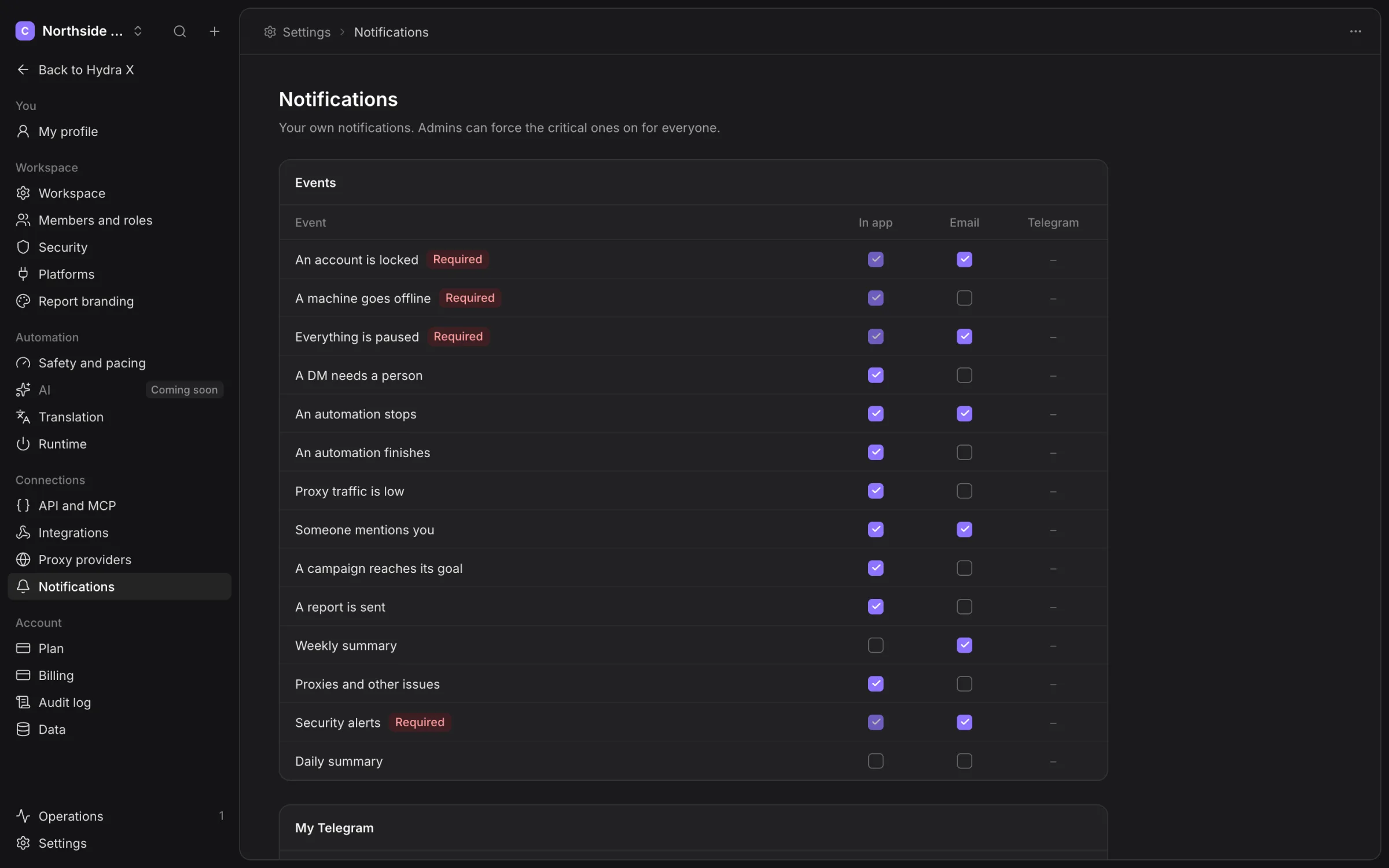
Choose the offered in-app, email and Telegram channels per event. Required critical events stay enabled. Do not disturb reduces routine alerts in your chosen quiet period; check the zone shown on the screen.
Bundle non-urgent events groups routine alerts. Personal choices do not change the workspace’s webhook subscriptions or report schedules.
Google Sheets export is deferred. The morning brief is retired. Use Reports and the active notification events for current work.