Workflows
Connect triggers, actions and waits, publish workflow versions and inspect or recover individual runs.
On this page
Use a workflow when the next action depends on an event, a condition or a delay. A workflow can send an opener, wait for a reply, branch on a condition and update a list. Each run keeps its own position through those steps.
Build the graph
Open Workflows and start from the gallery or create a workflow. Choose the Creator and give it a name your team can recognise.
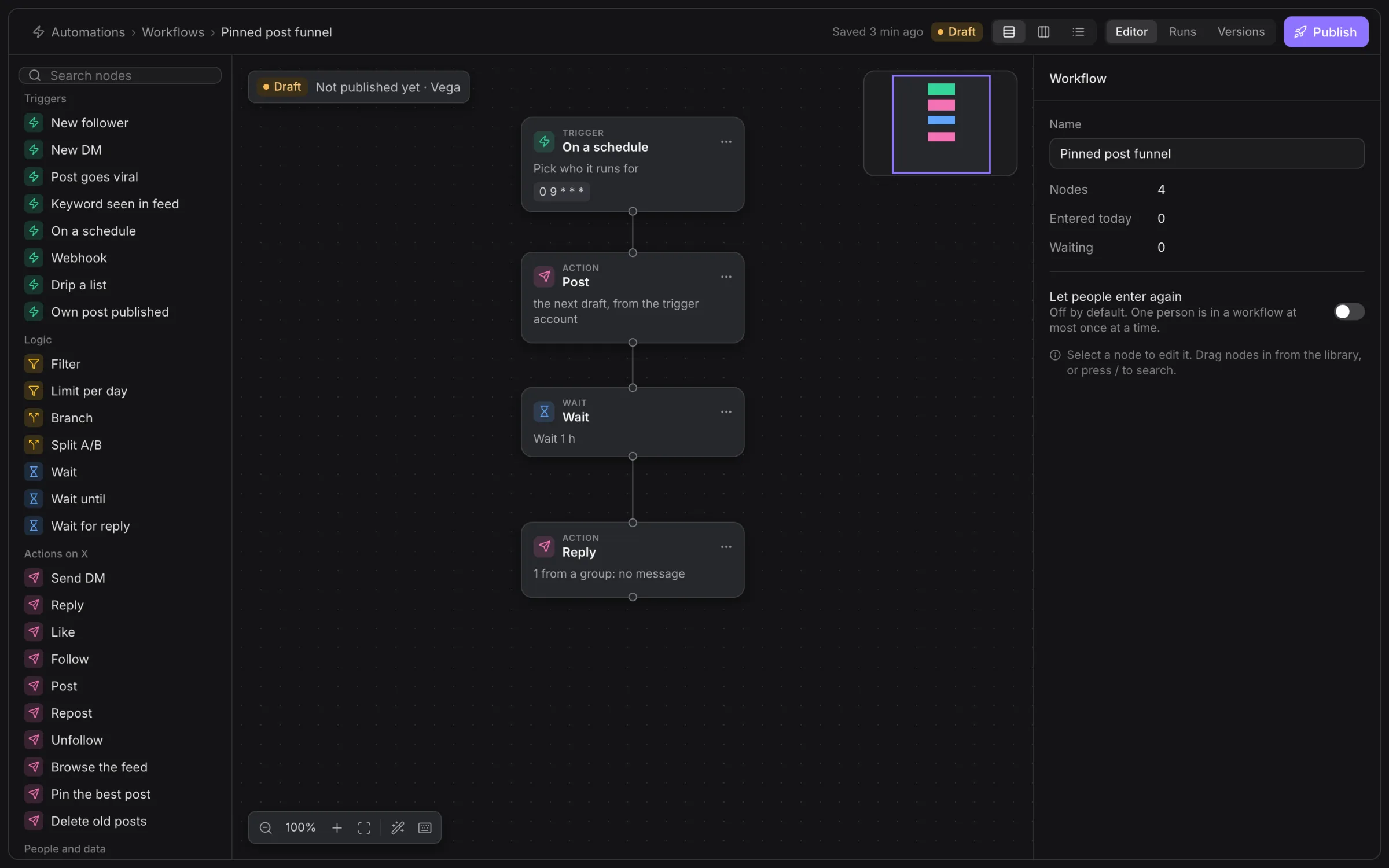
Add a trigger, then connect its output to an action or condition. Select a node to edit its fields in the inspector. Use the vertical, horizontal or step-list view to inspect the same graph.
| Node family | What it does |
|---|---|
| Triggers | Start on events such as a new follower, new DM, schedule, matching keyword, webhook, drip list or own published post. |
| X actions | Send a DM, reply, post, like, follow, unfollow, repost, browse, pin or delete the selected post. |
| Conditions and routing | Filter, branch, split or limit which path continues. |
| Waits | Wait for a duration, a time or a reply before continuing. |
| Audience changes | Add or remove list membership and tags. |
Fill the required account group, person, post or content fields for each node. A node’s name alone is not a complete target. Browse is a bounded session; its age, seen and exclusion controls apply to the posts it actually observes.
Use re-entry deliberately
Let people enter again is off by default. Without re-entry, a person runs through that workflow at most once. Enable it only when you intend repeat participation, then review the trigger and contact rules together.
A workflow cannot use re-entry to bypass Suppression, possible-minor protection or workspace contact frequency. Those checks still apply when a send reaches dispatch.
Save and publish
Edits save as a draft. Publish validates the graph and lists problems that must be fixed first. Resolve disconnected paths, missing fields and invalid references before publishing.
Publishing creates a version for new entrants. Runs already in progress continue on the version they started with. Editing a wait in a draft does not change the wait in those older runs.
Use Versions to inspect previous versions. Restoring a version makes it a draft; the current published version remains live until you publish the restored draft.
Test a path
Use Test run to inspect a path before publication. The test can skip waits and show how the sample subject moves through the graph without sending actions.
Turning on Send for real makes the test execute real actions. Account, contact and safety gates still apply. Check its selected account and subject before running it.
Read each step result. A successful condition check does not establish that a later message was delivered.
Inspect runs
Open Runs on the workflow. Filter by status and open a run to see its step history, waits and failure reason. A waiting run may be following its configured delay or waiting for a reply rather than being stuck.
Retrying a failed run resumes from the failed step; it does not repeat earlier completed steps. Stop a run to cancel its queued continuation. Stopping does not undo actions already completed.
Webhook and external steps
Use the fields shown by the Webhook trigger for the endpoint and expected input. Keep the shared trigger secret private. A webhook must resolve a usable subject for person-dependent steps; validate that path before connecting it to a sending action.
HTTP request supports GET, POST and PUT, a URL, headers, body, response variable and failure behavior. It uses public HTTPS destinations, rejects redirects and limits the response to 64 KB. Set a timeout from one to 30 seconds. Retry 3 times, then continue can repeat a call, so the receiving tool must handle duplicates safely.
Run script executes JavaScript on the server. Supply a module that exports a function receiving the run variables and returning a JSON object:
export default (input) => ({ reviewed: true });Returned keys are saved under script.*. The sandbox has no network or filesystem access. Its timeout choices are five, ten or 30 seconds; code is limited to 20,000 characters. Use HTTP request for an external call rather than trying to call it from the script.
For machine-readable route and input details, use API and MCP and the live OpenAPI schema.
When to use an automation instead
Use an automation for a standard reply, DM, follow or posting job. Use a workflow when you need branching, waits or event-driven follow-up. The same account health and pacing rules apply to both.
Start from the gallery and manage versions
Open Templates to inspect a workflow before using it. Choose the Creator and review the groups, lists, snippets and post references in the resulting draft. A template’s example text is not a performance guarantee.
The workflow’s Editor, Runs and Versions share the same workflow. Switch editor layouts when you need to read the graph differently; the layouts edit the same draft. Versions lets you inspect earlier published graphs and restore one into the draft. Review and publish that restored draft before expecting it to replace live work.
Runs shows individual entries through the workflow. Open a run to inspect where it entered, which steps completed and why it waited or stopped. A wait is part of the graph; it is different from failed delivery.