Results and reports
Inspect observed X results and action evidence, then build scheduled reports for your team and Creators.
On this page
Results combines observed X activity with available Creator platform data. Use it to answer what happened, which accounts need attention and what you can responsibly report to a Creator.
Choose the scope and period
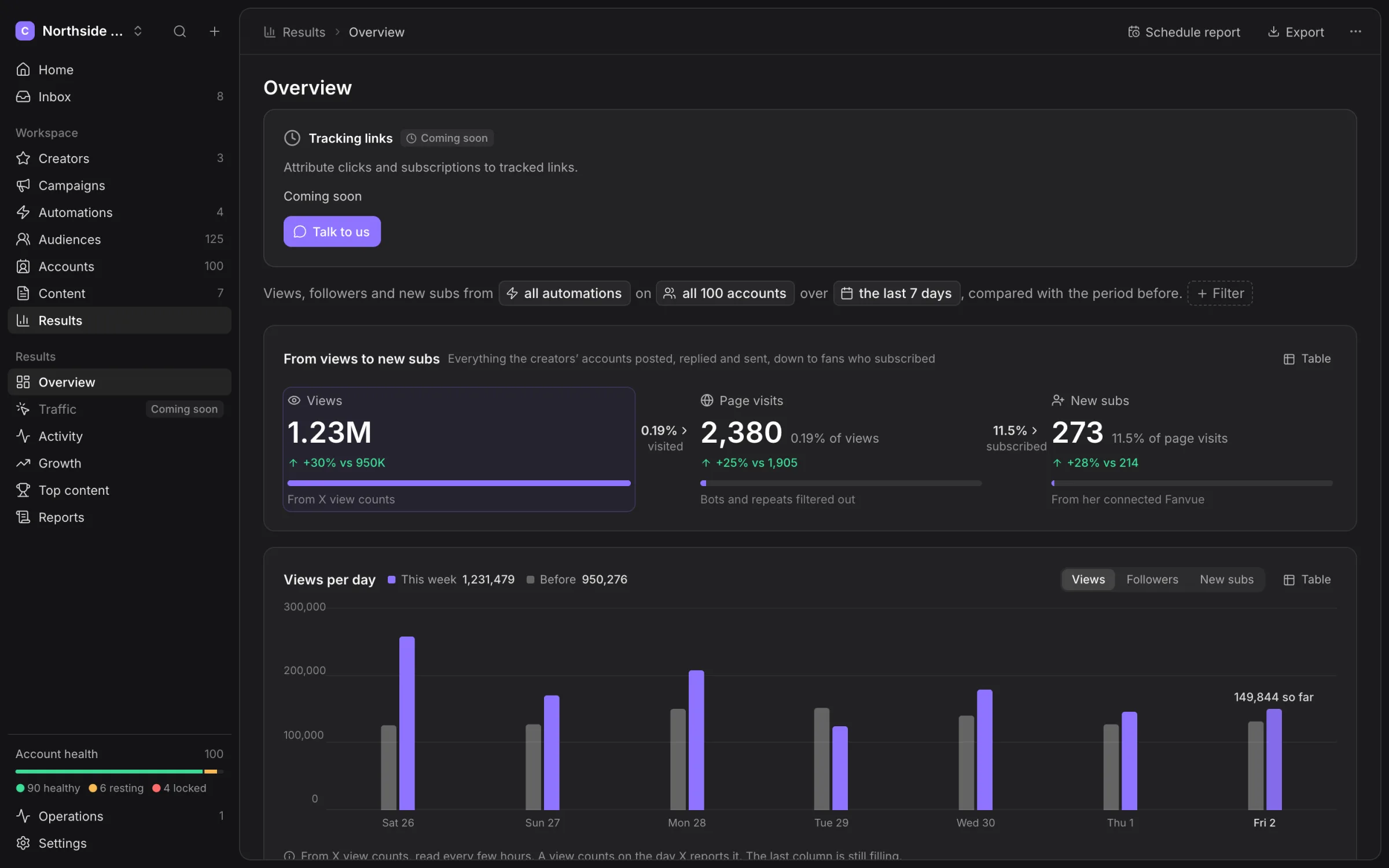
Open Results and choose the Creator, accounts, automations and date range. The comparison uses the preceding period. Check the period before comparing screenshots or exports taken on different days.
Views come from X view counts. Follower growth comes from account reads. New subscribers come from the Creator’s connected Fanvue data. These figures do not establish which individual X post caused a subscription.
Missing data
A dash is unknown, not zero. A disconnected platform, unread post or stale source can leave a measurement unavailable. Read its source and last-read information before reporting a decline.
Follower and view reads are observations taken at particular times. They are not instantaneous counters and can retain the last good reading when a later read fails.
Inspect an action
Open Activity and filter by Creator, account, automation, action and status. The detail includes the reason, trace and available evidence. Use export when you need the selected records outside the app.
| State | What to do with it |
|---|---|
| Delivered | Treat it as confirmed delivery under the action’s verification. |
| Replied | Inspect the received reply and continue in Inbox. |
| Skipped | Read the reason; the action was not sent for this candidate. |
| Failed | Inspect the failure and whether a retry is appropriate. |
| Not verified | Delivery is uncertain; check before repeating it. |
| Done | The operation completed under its own confirmation rules. |
| Undone | Inspect the recorded reversal rather than deleting the original history. |
A browser click alone is not a confirmed send. If X acceptance is ambiguous, the record remains uncertain.
Undo supported actions
The supported reversals are Unlike, Undo repost and Remove bookmark, when the action offers them. The reversal uses the original account and target. Undo is further X work, subject to account health and pacing, rather than deletion of the original audit entry.
Messages and published content are not made unsent by hiding an Activity row. Inspect any real post-deletion action separately.
Growth and top content
Use Growth for the observed follower and engagement measures. Top content ranks the available posts and replies by the active measurement. Open a row to inspect the post and its source.
Do not infer visibility, country trends or a post’s subscription conversion when the app has no observed measurement. Use the figures actually available for the selected scope.
Build a report
- Open Reports and create a report.
- Set Report name, Creator, Accounts and Each send covers.
- Tick the blocks to include and drag them into the reading order you want.
- Add recipients under Send to.
- Choose the format and schedule, then Save report.
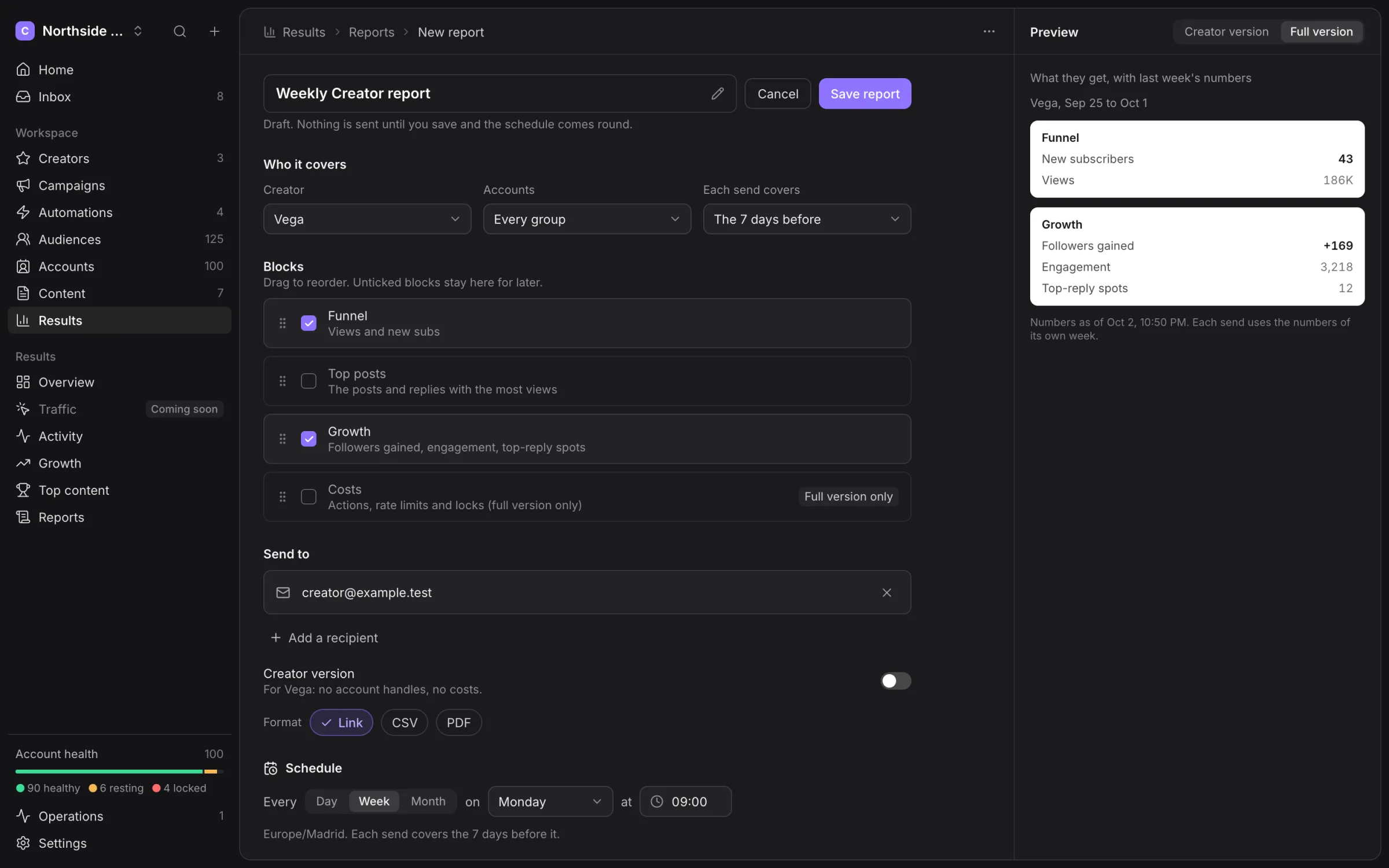
Blocks include the results funnel, top posts, growth and full-version account costs or health information. Use the Creator version for external reporting; it leaves out account handles and costs.
Recipients can be teammates, email addresses or an available Telegram chat. Formats include Link, CSV and PDF. Schedules use Day, Week or Month, the chosen send time and the time zone displayed below the controls. The builder starts with your computer’s time zone; check it before saving.
Check delivery and sharing
Send a test to yourself before relying on a recurring report. In Reports, inspect the sent history and errors to distinguish a saved schedule from an actual delivery.
A report link grants access to the report it shares. Give it only to the intended recipients and stop sharing when that access should end. Do not put public report links into general support screenshots.
For the Creator’s own portal and Monday email, use Creators and the portal.
Keep Activity readable during live work
Use Go live in Activity to follow new records. When you hold the visible rows, inspect the new-row indicator before updating the table. Failed and skipped also includes Not verified, so read each outcome rather than assuming everything in that view failed before sending.
Use the action filters for DMs, replies, follows, posts or likes, then open the relevant row. Export the selected scope when you need to investigate outside the app.
Manage saved reports
Open a saved report to inspect its scope, schedule, preview and last sends. Send a test to me checks your own copy; Send now sends to the report’s configured recipients. Inspect delivery records after either action.
Duplicate saves another report without scheduling it. Pause schedule stops recurring sends; Resume schedule enables the saved schedule again. Deleting a report stops its schedule but does not recall copies already delivered.
A shared report link opens the shared view outside the agency shell. The print view prepares the report for printing or PDF rendering. Review Creator visibility, scope and missing measurements in either view before distributing it.