Getting started
Install the Hydra X Mac app, sign in with your Clout account and prepare your first Creator and account group.
On this page
You need a Clout account, an activated Hydra X workspace and X accounts you are authorised to operate. To run browser work, you also need a machine with Clout Browser and Hydra X Runner.
Install the Mac app
- Open the Clout portal.
- Open Downloads and download Hydra X for Mac.
- Install Hydra X and open it.
- Sign in with the Google or Telegram option for your Clout account.
Use the Mac download offered for your installation. Find download pointers on Download and release notes on Changelog.
Use the same Clout identity in the portal and Hydra X. Workspace sign-in is separate from the X sessions you will connect later.
If your workspace is waiting
The waiting screen says “We set up every Hydra X team personally”. Use Message us on Telegram to arrange access with the Clout team. Keep the screen open or return after the team activates your workspace; then continue setup.
Payment is arranged with the team. Installing the app or creating a Clout identity does not activate a plan. Hydra X is priced on request: talk to us.
Join an existing team
Open your workspace invitation and sign in with the invited identity. The verified email on that identity must match the invitation. A Telegram identity without a verified email cannot accept an email invitation; use an identity with the invited verified email or ask the team to resolve access.
If your workspace requires two-factor authentication, finish that step before continuing. Your workspace role determines which screens and Creators you can use.
Prepare the first useful job
- Open Creators and choose Add creator. Enter the Creator’s name, main X handle and niche.
- Set her page information. Connect Fanvue if you want its subscription and earnings data.
- Open Operations → Machines and choose Add a machine. Install and join the runner on the computer that holds the browser profiles.
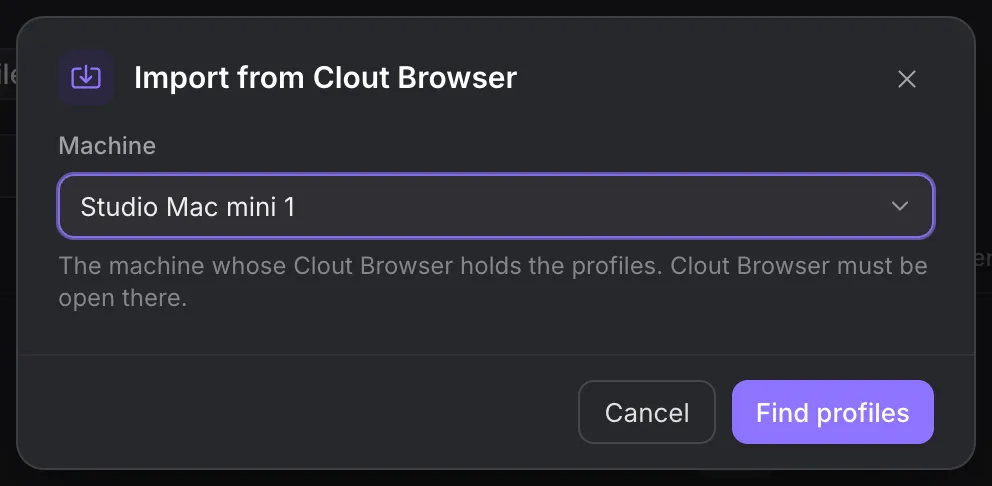
- Add X accounts to that Creator and a group. Use token import or link signed-in Clout Browser profiles.
- Check Settings → Safety and pacing. Set the workspace ceilings and contact rules before starting an automation.
- Open Automations, choose a template and prepare the job. Review the selected group, target, text and schedule before you start it.
The detailed steps are in Creators, Accounts, Machines and Automations. Use them while you set up each part.
Check Home after you start
Home shows fan replies waiting, accounts that need you, running automations and the remaining daily capacity. Fix accounts takes you to account problems. Open inbox takes you to replies.
A challenge, an offline machine, a quiet period or an action cap can hold work. Open the affected automation or Operations → Issues to see the reason. Raising a target does not override those gates.
Pause work
Use Pause all when you need to stop new workspace work while you investigate. Work already in flight can finish its current action. Read Safety before resuming.
Follow the setup path
The first setup asks about you and your operation, then keeps your place when you return. Choose the path that matches your work:
| Path | What you prepare |
|---|---|
| First Creator | Her page, niche, X accounts, first automation and launch review. |
| Existing setup | Creator pages, import, account matching, workflows and API setup. |
| Agency | Creators, their pages, team invitations, accounts and a setup call. |
Her niche records your own niche choice. It does not generate a Creator voice. Check the launch review before starting work, then inspect launch progress and the first confirmed activity. Returning to an unfinished setup lets you continue from the saved step.
Invited teammates follow their invitation and required two-factor step, then the first-shift screen. Creators who only need to connect Fanvue or read their numbers use the separate Creator portal.