Campaigns
Set a Creator’s growth goal and date range, prepare campaign automations and inspect their actual progress.
On this page
A campaign puts a goal and date range around a Creator’s automations. Use it to coordinate a launch or growth period without losing the individual jobs’ account and pacing settings.
Create a campaign
- Open Campaigns and choose New campaign.
- Enter Name.
- Choose the goal, its target, the Creator and the start and end dates.
- Select the automations you want to prepare for that goal.
- Review the forecast and create the campaign.
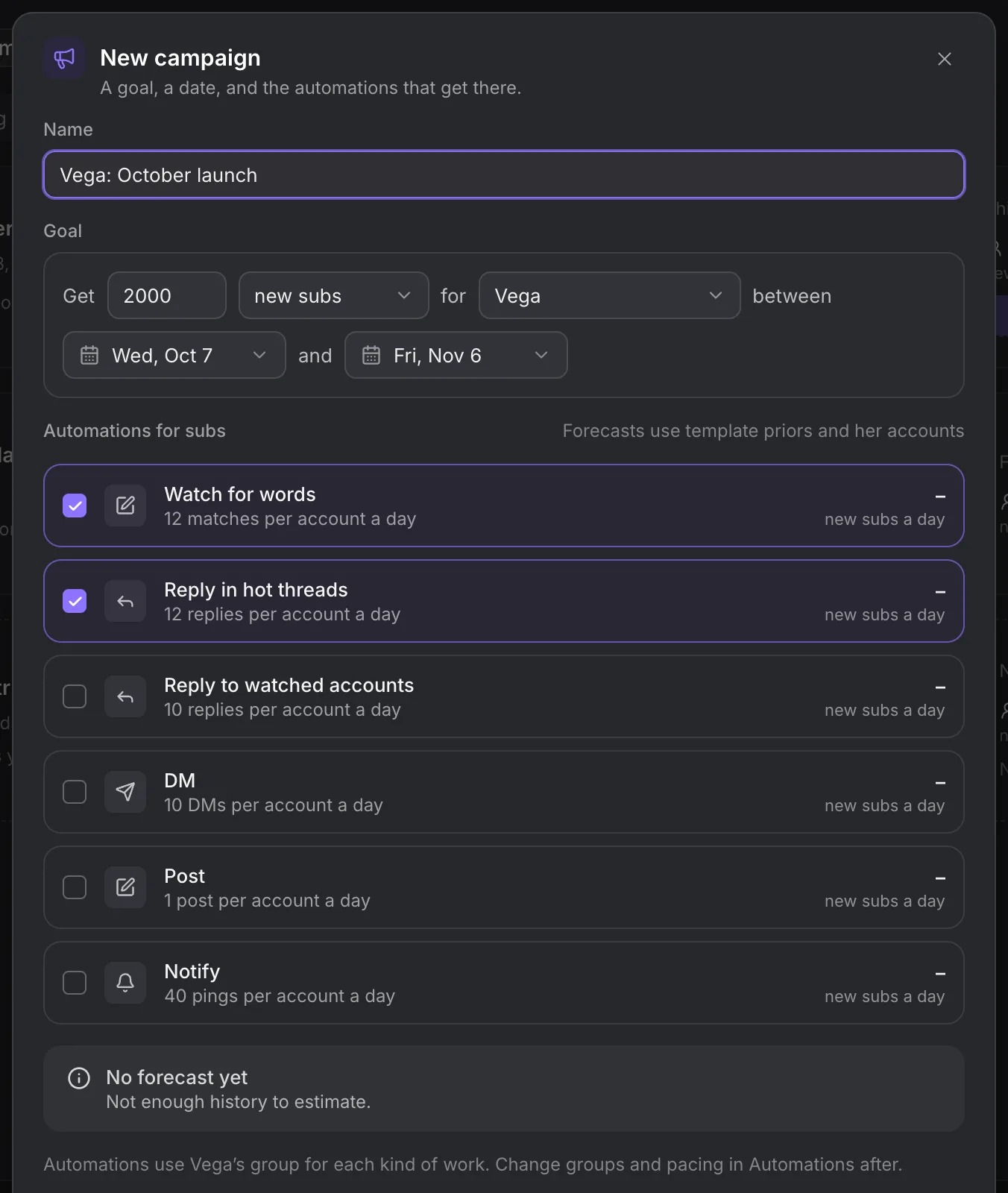
Goals use new subscribers or followers. Subscriber counting needs the Creator’s connected Fanvue data. A page address by itself does not provide that count.
Campaign creation prepares its automations as drafts. Nothing starts just because you created the campaign. Open each draft and check its accounts, targets and content. In the campaign, Start now starts its draft automations with a ramp. A future campaign offers Start on followed by its date; Cancel start leaves it a draft. The start checks refuse incomplete automations before they run.
Read the forecast
The forecast uses template priors and the selected Creator’s available accounts. It is an estimate, not a commitment. If there is not enough history, the dialog says No forecast yet.
Do not fill a missing projection with an assumed conversion rate. Start with the measured follower, view and subscription data in Results, then adjust the jobs you can actually run.
Monitor the campaign
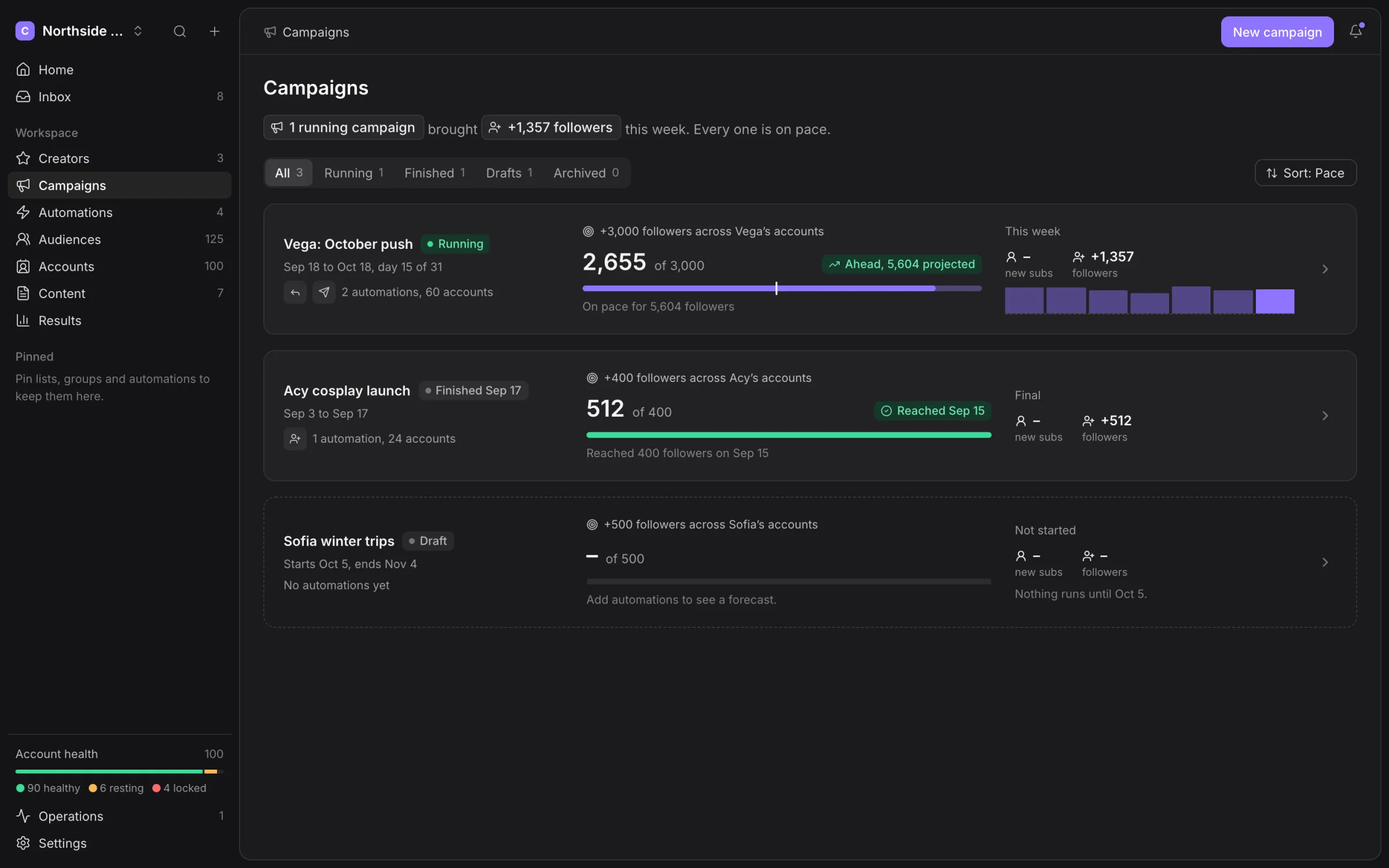
The campaign list separates All, Running, Finished, Drafts and Archived. Open a campaign to inspect its goal, pace and constituent automations. Use the projection as a planning aid and the actual progress as the recorded result.
When a campaign is behind, check account health and remaining capacity before increasing volume. The campaign cannot raise a group above the workspace safety ceilings. An offline machine or resting group still reduces what can run.
Change the work
Edit groups, message content and pacing in the campaign’s automations. Keep those changes aligned with the campaign’s Creator and goal. A change to a running automation applies from its next action; it does not revise earlier delivered work.
Choose Pause all its automations from the campaign menu when the launch is on hold. Inspect the individual automation states after pausing or resuming so your team can see which jobs are active.
Finish and review
At the end of the period, use the campaign recap and Reports to share what happened. Separate actual follower or subscriber counts from projections. Missing platform data remains unknown even after the campaign ends.
Archive a completed campaign when you want it out of the working list while keeping its history. Deleting a campaign is a separate destructive action; read the confirmation before proceeding.
Share a campaign recap
The campaign’s recap is separate from its editable job configuration. Review the recap and available figures before sharing its link with the intended recipient. A link opens the shared recap without the agency workspace shell.
Treat the link as access to that recap. Missing subscription attribution and forecast uncertainty remain missing in a shared view. Sharing cannot establish that a particular post caused a Fanvue subscription.