Schedule and posting windows
Inspect scheduled work, move or skip a slot and set each group’s posting windows.
On this page
Open Automations → Schedule to see when jobs and prepared posts are due. This calendar shows planned work; use Activity to check what actually happened.
Choose the view and time zone
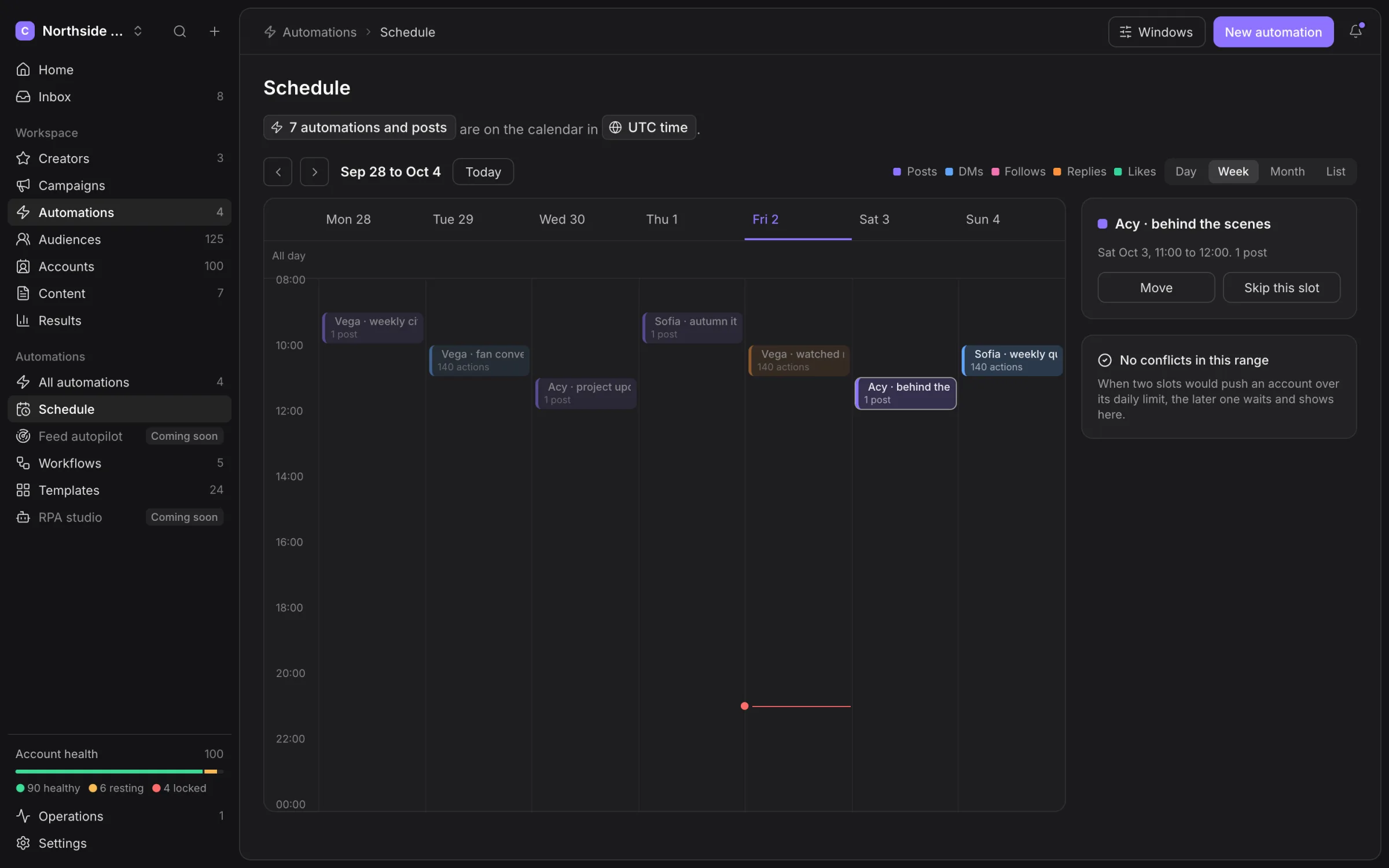
Switch between Day, Week, Month and List. Use Previous, Next and Today to move through the calendar. Check its time zone before changing a slot: the display can use the workspace zone or another selected zone.
Select a slot to inspect its job, time and status. Some ongoing automations appear as all-day rows rather than one publish time.
Move or skip a slot
Choose Move on a future slot, or drag it to another day and time. Review the move dialog and choose Move to apply it. Moving one slot does not rewrite the automation’s repeating schedule.
Skip this slot omits that occurrence. Put back restores a skipped slot. These controls are for future work; they do not undo a post already published on X.
A conflict means the planned action meets a limit. Read its reason and the choices offered in the conflict panel. Moving a slot does not raise an account’s cap or make an offline machine available.
Set posting windows
Choose Windows to open Posting windows. Find the intended group and choose Set hours, then adjust From and To. A group without a window can post at any time permitted by its other rules.
The window belongs to the group and has its own time zone. Review it alongside quiet hours. The calendar’s shaded band is not a promise that those hours will bring better results.
Use Posts for text, variants and account-level versions. Use the automation’s builder for its recurring pacing and active hours.